Outcome
Your unit, storage, or pad inventory shows correct counts, rents, and vacancies, and annual rent ties to your rent roll.
Navigation path
Document wizard > Rent Roll
Access
A financial scope that includes Rent Roll
On this page
Before you start
Data, sources, and access to prepare
- A supported unit-based property type
- Unit, storage, or pad inventory
- Current rents and occupancy status
Match the inventory to the property
Unit-based inventory
The same calculation framework changes labels and reserve bases by property type.
Source roster
Choose individual records or grouped types
Multifamily
Units and Unit Mix
Self-Storage
Units and Unit Inventory
Mobile Home Parks
Pads and Pad Inventory
Annual rent
Count x monthly or annual rent where grouped
- Source rosterMultifamily
- Source rosterSelf-Storage
- Source rosterMobile Home Parks
- MultifamilyAnnual rent
- Self-StorageAnnual rent
- Mobile Home ParksAnnual rent
Multifamily
- Primary labels
- Units, Unit Mix
- Rent basis
- Monthly or Annual
- Fields not shown
- Lease dates and reimbursements
Self-Storage
- Primary labels
- Units, Unit Inventory
- Rent basis
- Monthly or Annual
- Fields not shown
- Lease dates and reimbursements
Mobile Home Parks
- Primary labels
- Pads, Pad Inventory, Gross Pad Income
- Rent basis
- Monthly or Annual
- Fields not shown
- Lease dates and reimbursements
Complete individual or grouped fields
Unit Type Required
Floor plan, storage size, or pad category.
- Format
- Plain-text category or unit label
- Units
- Not applicable
- Save behavior
- Saved when the unit or grouped-row drawer Save action succeeds.
- Downstream effect
- Labels the inventory row in the property-specific Rent Roll output.
Number of Units Required
How many repeated records the Unit Mix row represents.
- Format
- Positive whole number
- Units
- Units, storage units, or pads
- Save behavior
- Saved when the grouped-row drawer Save action succeeds.
- Downstream effect
- Multiplies per-unit rent and area and contributes to total inventory and occupancy.
Average SF Recommended
Average area for the row.
- Format
- Nonnegative number
- Units
- Square feet per unit or pad
- Save behavior
- Saved when the unit or grouped-row drawer Save action succeeds.
- Downstream effect
- Contributes to row and portfolio area summaries where the property presentation uses them.
Monthly or Annual Rent Recommended
Current average or individual rent in the selected basis.
- Format
- Currency amount plus Monthly or Annual basis
- Units
- Currency per unit per month or per year
- Save behavior
- Saved when the unit or grouped-row drawer Save action succeeds.
- Downstream effect
- Annualizes per-unit rent, multiplies grouped rows by count, and feeds current base rent.
Pro Forma Rent Optional
Stabilized rent shown only in a Pro Forma model.
- Format
- Currency amount
- Units
- Currency per unit in the selected rent basis
- Save behavior
- Saved with the row when the Pro Forma drawer Save action succeeds.
- Downstream effect
- Feeds the stabilized rent column and Pro Forma comparison without replacing In-Place rent.
Vacancy Recommended
Unoccupied unit or grouped vacancy record.
- Format
- Vacancy row or vacancy status in the available editor
- Units
- Not applicable
- Save behavior
- Saved when the vacancy row or inventory row Save action succeeds.
- Downstream effect
- Keeps physical capacity in total inventory while separating vacant count and vacancy analysis.
Unit Type
- Requirement
- Required
- What it means
- Floor plan, storage size, or pad category.
- Format
- Plain-text category or unit label
- Units
- Not applicable
- Save behavior
- Saved when the unit or grouped-row drawer Save action succeeds.
- Downstream effect
- Labels the inventory row in the property-specific Rent Roll output.
Number of Units
- Requirement
- Required
- What it means
- How many repeated records the Unit Mix row represents.
- Format
- Positive whole number
- Units
- Units, storage units, or pads
- Save behavior
- Saved when the grouped-row drawer Save action succeeds.
- Downstream effect
- Multiplies per-unit rent and area and contributes to total inventory and occupancy.
Average SF
- Requirement
- Recommended
- What it means
- Average area for the row.
- Format
- Nonnegative number
- Units
- Square feet per unit or pad
- Save behavior
- Saved when the unit or grouped-row drawer Save action succeeds.
- Downstream effect
- Contributes to row and portfolio area summaries where the property presentation uses them.
Monthly or Annual Rent
- Requirement
- Recommended
- What it means
- Current average or individual rent in the selected basis.
- Format
- Currency amount plus Monthly or Annual basis
- Units
- Currency per unit per month or per year
- Save behavior
- Saved when the unit or grouped-row drawer Save action succeeds.
- Downstream effect
- Annualizes per-unit rent, multiplies grouped rows by count, and feeds current base rent.
Pro Forma Rent
- Requirement
- Optional
- What it means
- Stabilized rent shown only in a Pro Forma model.
- Format
- Currency amount
- Units
- Currency per unit in the selected rent basis
- Save behavior
- Saved with the row when the Pro Forma drawer Save action succeeds.
- Downstream effect
- Feeds the stabilized rent column and Pro Forma comparison without replacing In-Place rent.
Vacancy
- Requirement
- Recommended
- What it means
- Unoccupied unit or grouped vacancy record.
- Format
- Vacancy row or vacancy status in the available editor
- Units
- Not applicable
- Save behavior
- Saved when the vacancy row or inventory row Save action succeeds.
- Downstream effect
- Keeps physical capacity in total inventory while separating vacant count and vacancy analysis.
Required means the field is needed to complete or support this workflow. Some screens allow a draft to save before every required item is complete. The steps and troubleshooting call out controls the product actively blocks.
Build the inventory
Unit-based rent-roll steps
- 1
Choose the layout
Rent Roll Type
Select Unit-by-Unit for individual records or Unit Mix for repeated categories, plus Cash Flow or Pro Forma.
Expected result: The property-specific inventory columns appear.
If this step does not work
Compare the source schedule to the model matrix if the needed fields are absent.
- 2
Add an inventory row
Rent Roll toolbar
Select the control for adding a unit or category.
Expected result: The detail drawer opens for a new row.
If this step does not work
Choose the rent-roll layout first if the control is unavailable.
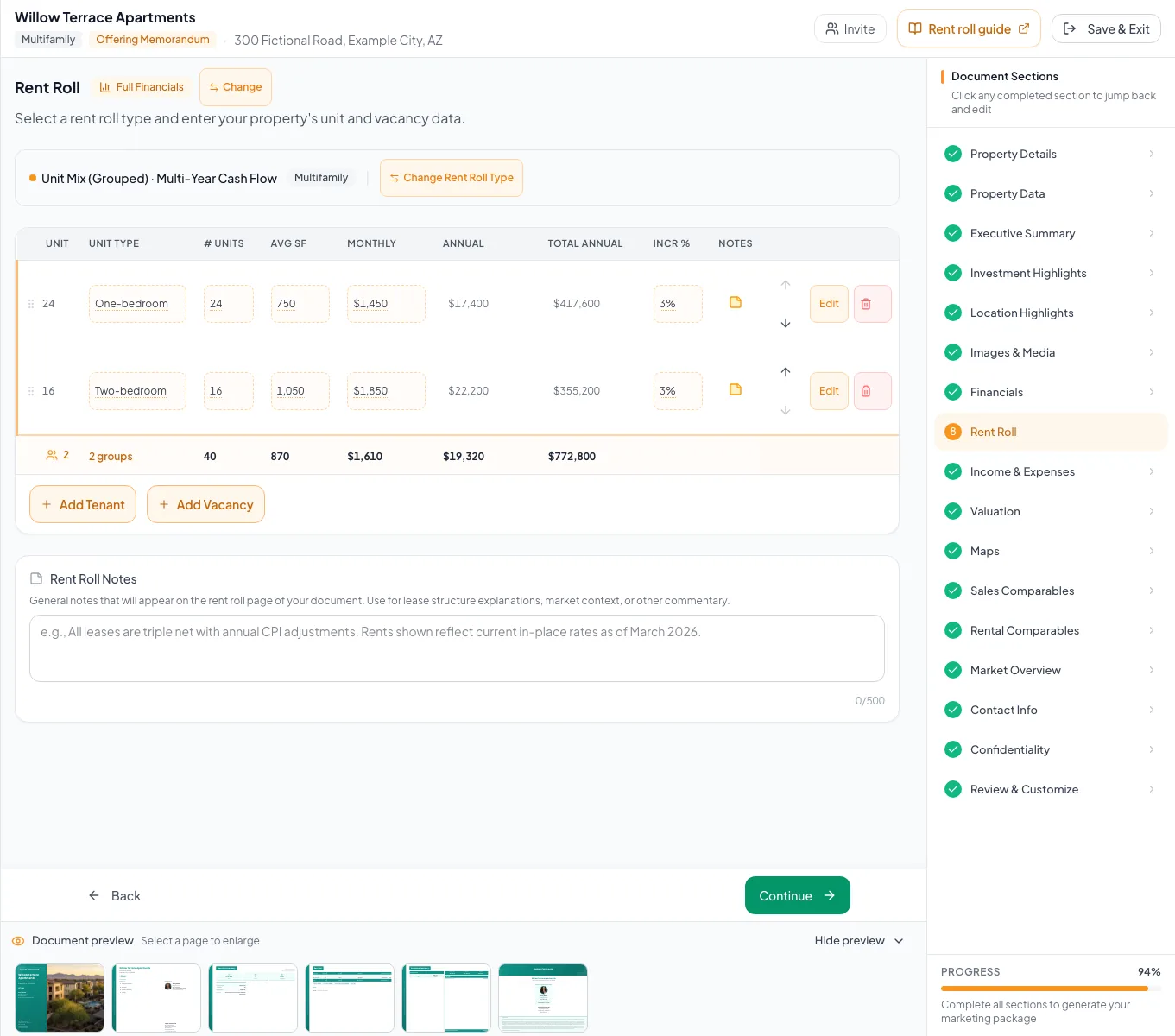
Use the supported inventory structure for Multifamily, Self-Storage, or Mobile Home Park units and verify totals. - 3
Complete the inventory row
Rent Roll detail drawer
Enter name or type, grouped count, average SF, and rent basis as applicable.
Expected result: The row appears with calculated monthly and annual totals after save.
If this step does not work
Verify count and Monthly versus Annual if the total is wrong.
- 4
Represent vacancy
Rent Roll toolbar
Add vacancy rows or vacant inventory categories instead of omitting physical capacity.
Expected result: Inventory and vacancy remain visible in the model.
If this step does not work
Reconcile total occupied plus vacant count with the source property count.
- 5
Enter cash-flow growth
Detail drawer > Multi-Year Cash Flow
Enter the applicable growth assumption.
Expected result: The row contains the growth value used by the cash-flow projection.
If this step does not work
If the growth field is absent, revisit Rent Roll Type before continuing.
- 6
Enter stabilized rent
Detail drawer > Pro Forma
Enter the stabilized rent amount.
Expected result: The row contains the rent value used by the pro-forma comparison.
If this step does not work
If the stabilized rent field is absent, revisit Rent Roll Type before continuing.
- 7
Reconcile totals
Rent Roll summary
Compare unit or pad count, average area, monthly rent, and annual total with the source roster.
Expected result: Displayed totals tie to the source.
If this step does not work
Open the first mismatched row and correct count, rent, or basis.
Resolve inventory mismatches
Total rent is multiplied unexpectedly
Likely cause: A Unit Mix count represents repeated units and multiplies the entered rent.
- Confirm the count.
- Confirm the rent is per unit, not already the total for the group.
Lease or reimbursement fields are missing
Likely cause: These unit-based property configurations intentionally hide them.
- Use the available unit economics fields.
- Add concise reader-facing context in notes if needed.
Inventory count does not match property details
Likely cause: Vacant units may have been omitted or categories may overlap.
- Add explicit vacancy inventory.
- Reconcile each category count before continuing.
Inventory complete
- Labels match the property type
- Counts include occupied and vacant inventory
- Rent is entered per unit or pad when grouped
- Annual totals reconcile
- Projection fields match Cash Flow or Pro Forma
Related guides
Choose a rent-roll model and layout
Choose Multi-Year Cash Flow or Pro Forma, and Unit-by-Unit or Unit Mix, so the rent roll matches the data you have and the story you want to tell.
Open guideBuild a Multifamily document
Build an apartment OM from a unit-by-unit rent roll or unit mix, with occupancy by unit, Price/Unit, and ancillary income.
Open guideBuild a Self-Storage document
Build a self-storage OM from your unit mix, with unit occupancy, ancillary income, storage reserves, Price/Unit, and Price/SF.
Open guideBuild a Mobile Home Park document
Build a mobile home park OM from your pad inventory, with lot rent, pad occupancy, Gross Pad Income, park income, and Price/Pad.
Open guideYour next OM, done this afternoon
Turn your property facts, photos and financials into a polished, branded offering memorandum. Most brokers finish in 30 to 90 minutes.
No credit card required.