Video walkthrough
Read the written stepsRead the transcript
Before you watch
- Have your property type and source financial data ready before selecting a scope or model.
- The practice uses Full Financials and Unit-by-Unit with Multi-Year Cash Flow. Use the linked model guides for another assignment.
Outcome
Your document includes exactly the financial pages your buyer needs, and nothing extra to fill in.
Navigation path
Documents > Open a supported document > Financial Scope
Access
Document creation access
On this page
Before you start
Data, sources, and access to prepare
- A supported document with a Financial Scope step
- A decision about which financial pages the audience needs
Map scope to wizard steps
Financial scope decision
Start with the deliverable, then choose the matching input depth.
What must the reader see?
Identify the required financial pages
Full Financials
Rent roll, income and expenses, and detailed analysis
Rent Roll Only
Roster or inventory without valuation
Cap Rate & NOI
Headline value facts without full underwriting
Skip Financials
No native financial analysis
- What must the reader see?Full FinancialsDetailed model
- What must the reader see?Rent Roll OnlyRoster only
- What must the reader see?Cap Rate & NOIHeadline value
- What must the reader see?Skip FinancialsNone
Full Financials
- Wizard financial steps
- Scope, Rent Roll, Income & Expenses, Valuation
- Best fit
- Complete cash flow or pro forma
Rent Roll Only
- Wizard financial steps
- Scope, Rent Roll
- Best fit
- Tenant, unit, room, or pad roster only
Cap Rate & NOI
- Wizard financial steps
- Scope, Valuation
- Best fit
- Known price plus NOI or cap rate
Skip Financials
- Wizard financial steps
- Scope only
- Best fit
- Marketing package without native financial tables
Apply document and property restrictions
Standard supported property
- Full Financials
- Available
- Rent Roll Only
- Available
- Cap Rate & NOI
- Available
- Skip Financials
- Available
- Native output behavior
- Full can show Rent Roll, Income & Expenses, cash flow or pro forma, and Valuation Summary. Rent Roll Only keeps Rent Roll. Cap Rate & NOI keeps Valuation Summary. Skip hides native financial pages.
BOV, excluding Land and Net Lease
- Full Financials
- Available
- Rent Roll Only
- Not offered
- Cap Rate & NOI
- Available and default
- Skip Financials
- Not offered
- Native output behavior
- Full can show detailed financial pages plus the BOV Valuation Summary. Cap Rate & NOI keeps the BOV Valuation Summary while hiding Rent Roll, Income & Expenses, and cash flow or pro forma.
Land, non-BOV
- Full Financials
- Chooser hidden
- Rent Roll Only
- Chooser hidden
- Cap Rate & NOI
- Chooser hidden
- Skip Financials
- Chooser hidden
- Native output behavior
- The standard Land workflow excludes Rent Roll, Income & Expenses, Valuation Summary, cash flow or pro forma, and Rental Comparables.
Land BOV
- Full Financials
- Chooser hidden
- Rent Roll Only
- Chooser hidden
- Cap Rate & NOI
- Chooser hidden
- Skip Financials
- Chooser hidden
- Native output behavior
- The BOV Valuation Summary is forced into the output for the land sales-comparison and opinion-of-value workflow. Generic Rent Roll, Income & Expenses, cash flow or pro forma, and Rental Comparables remain excluded.
Single Tenant Net Lease, non-BOV
- Full Financials
- Available
- Rent Roll Only
- Not offered
- Cap Rate & NOI
- Available
- Skip Financials
- Available
- Native output behavior
- The generic Rent Roll, Income & Expenses, and Valuation Summary pages are excluded. Full can show the Net Lease Summary plus cash flow or pro forma. Cap Rate & NOI can keep the populated Net Lease Summary but hides the projection. Skip hides both native financial pages.
Single Tenant Net Lease BOV
- Full Financials
- Available
- Rent Roll Only
- Not offered
- Cap Rate & NOI
- Available and default
- Skip Financials
- Not offered
- Native output behavior
- The BOV rule keeps Valuation Summary. A populated Net Lease Summary can also appear. Cash flow or pro forma appears only with Full Financials.
How to read the matrix
- Available means the standard scope chooser shows that option.
- Chooser hidden means the property workflow determines the financial steps instead of asking the user to select a mode.
- A custom client template can intentionally change page names or page assembly. Verify the final page list in Review & Customize.
Scope controls native financial content
Scope does not erase saved financial records. It changes which wizard steps and native document pages are used. Always inspect Review & Customize after a scope change.
Select or change scope
Scope selection steps
- 1
Open the scope chooser
Wizard navigation, Financial Scope
Open Financial Scope from the wizard navigation.
Expected result: The available scope cards are visible.
If this step does not work
If the wizard auto-advances, use Change Financial Scope to return to the chooser.
- 2
Compare the included work
Financial Scope cards
Match each available scope description to the required deliverable.
Expected result: One option is identified intentionally.
If this step does not work
If an option is absent, check the BOV, Land, Net Lease, or custom-template restrictions above.
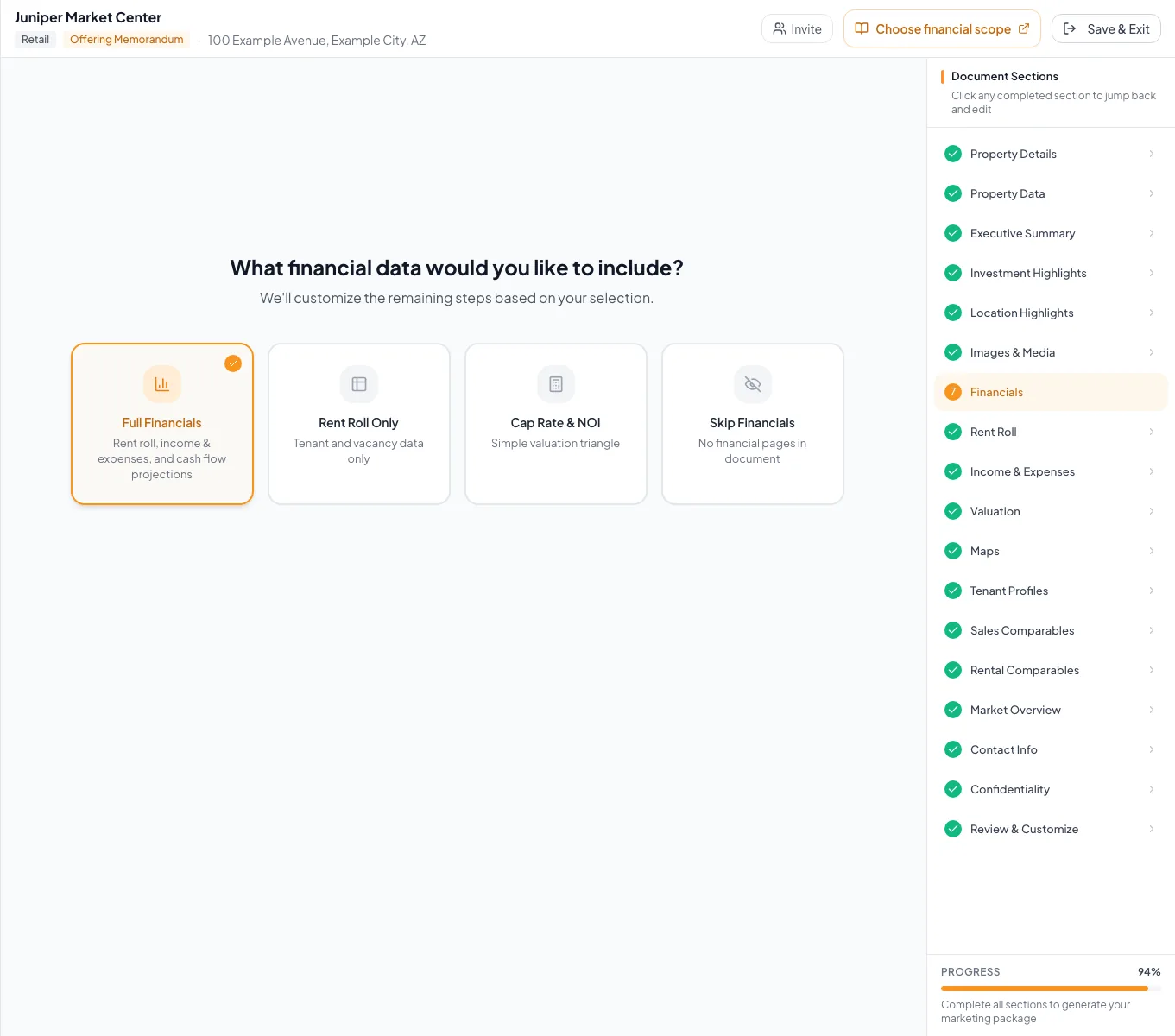
Compare the four financial scopes before entering data because the selection determines later steps and output pages. - 3
Review a downshift warning
Change Financial Scope confirmation
Read the complete warning for the less detailed scope.
Expected result: The effect on wizard steps and native pages is understood.
If this step does not work
Cancel if you still need to review or record detailed inputs first.
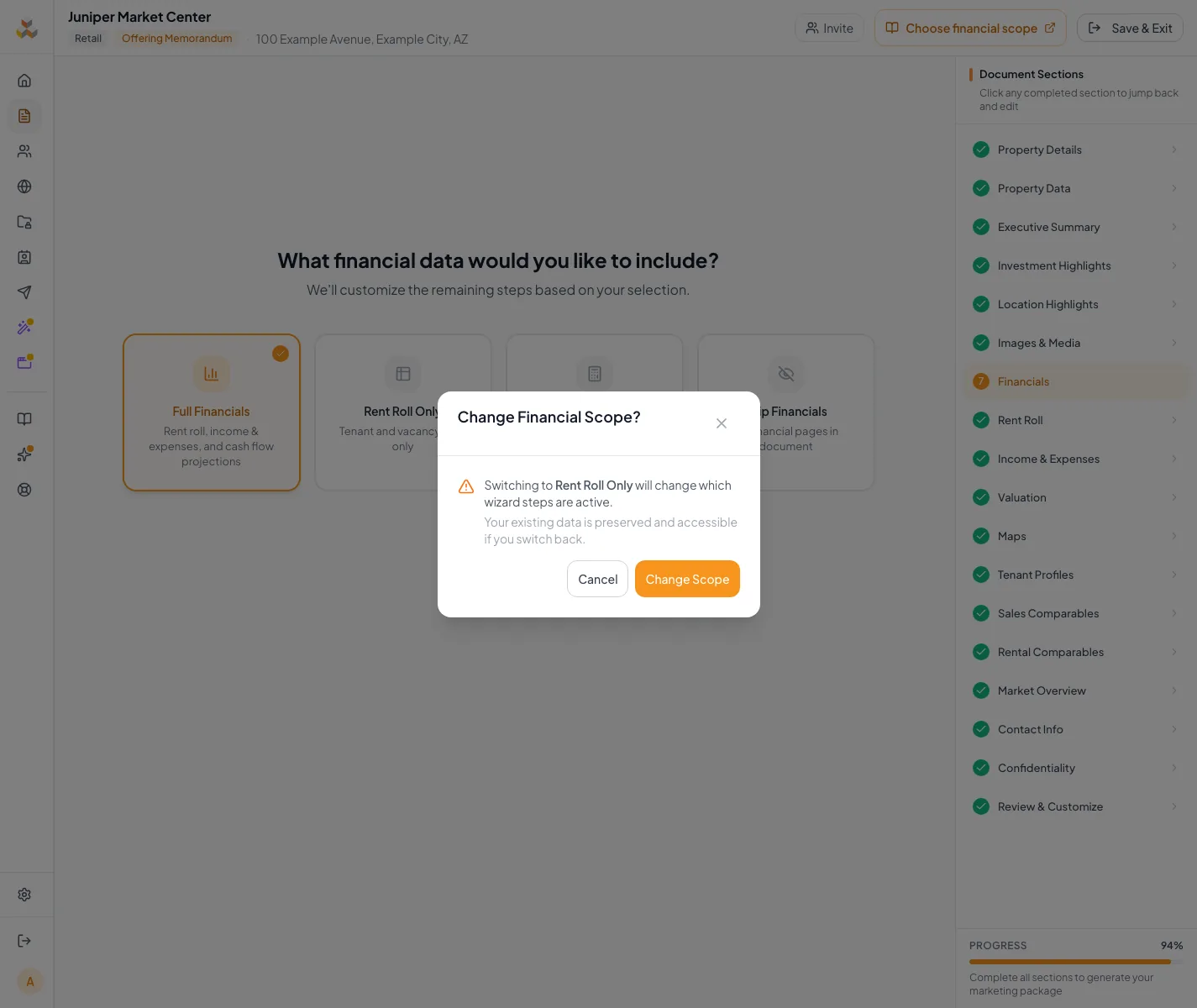
Select the financial mode and review the sections it includes. - 4
Confirm a downshift
Change Financial Scope confirmation > Change Scope
Select Change Scope.
Expected result: The wizard navigation updates to the new step set.
If this step does not work
Return to Financial Scope if the resulting path is not intended.
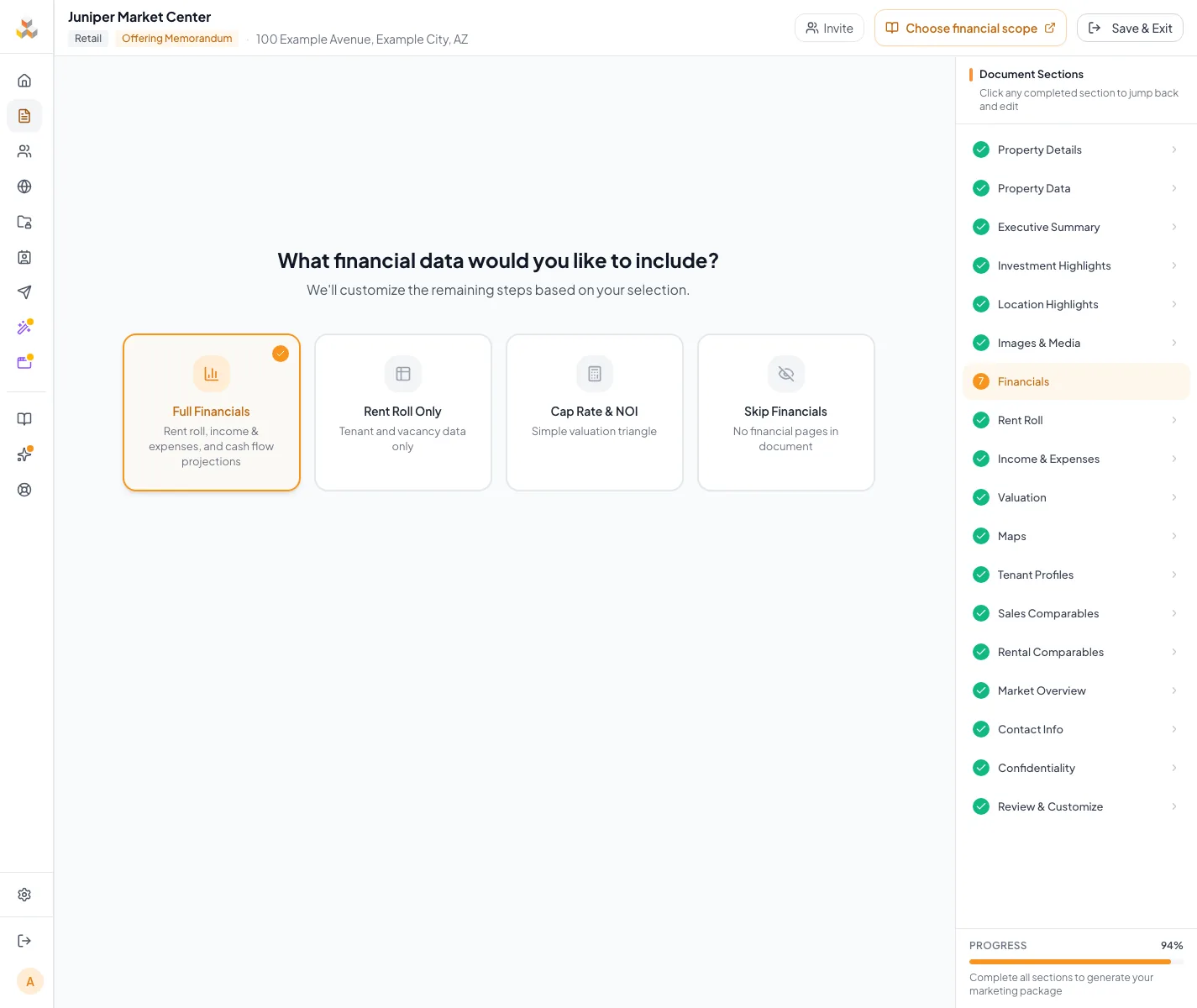
Change the financial scope and review the updated wizard sections. - 5
Open the document preview
Wizard navigation
Open Review & Customize.
Expected result: The preview displays the current page list.
If this step does not work
Wait for pending saves before reopening the preview if it does not reflect the new scope.
- 6
Verify the output
Review & Customize
Compare the visible financial pages with the mode and output matrix.
Expected result: Only the intended native financial pages remain.
If this step does not work
If a page is unexpected, return to scope and inspect any custom pages separately.
Resolve scope surprises
Rent Roll Only is missing
Likely cause: The document is a BOV or the property type is Single Tenant Net Lease.
- Use Full Financials if a native rent roll must be shown.
- Use Cap Rate & NOI when only headline facts are required.
Financial Scope opens and immediately advances
Likely cause: A scope was already saved and the page was opened without the change or back context.
- Use the Change Financial Scope control from the wizard.
- Confirm the selected mode before leaving.
An unexpected portfolio financial page remains
Likely cause: Portfolio Financial Summary has separate assembly behavior.
- Inspect the page list in Review & Customize.
- Confirm the final document page set before publishing.
- Contact support if the saved scope and assembled pages disagree.
Done when
- The selected scope matches the assignment
- Wizard steps match the mode table
- Review & Customize contains the expected pages
- Saved detailed data is not assumed deleted
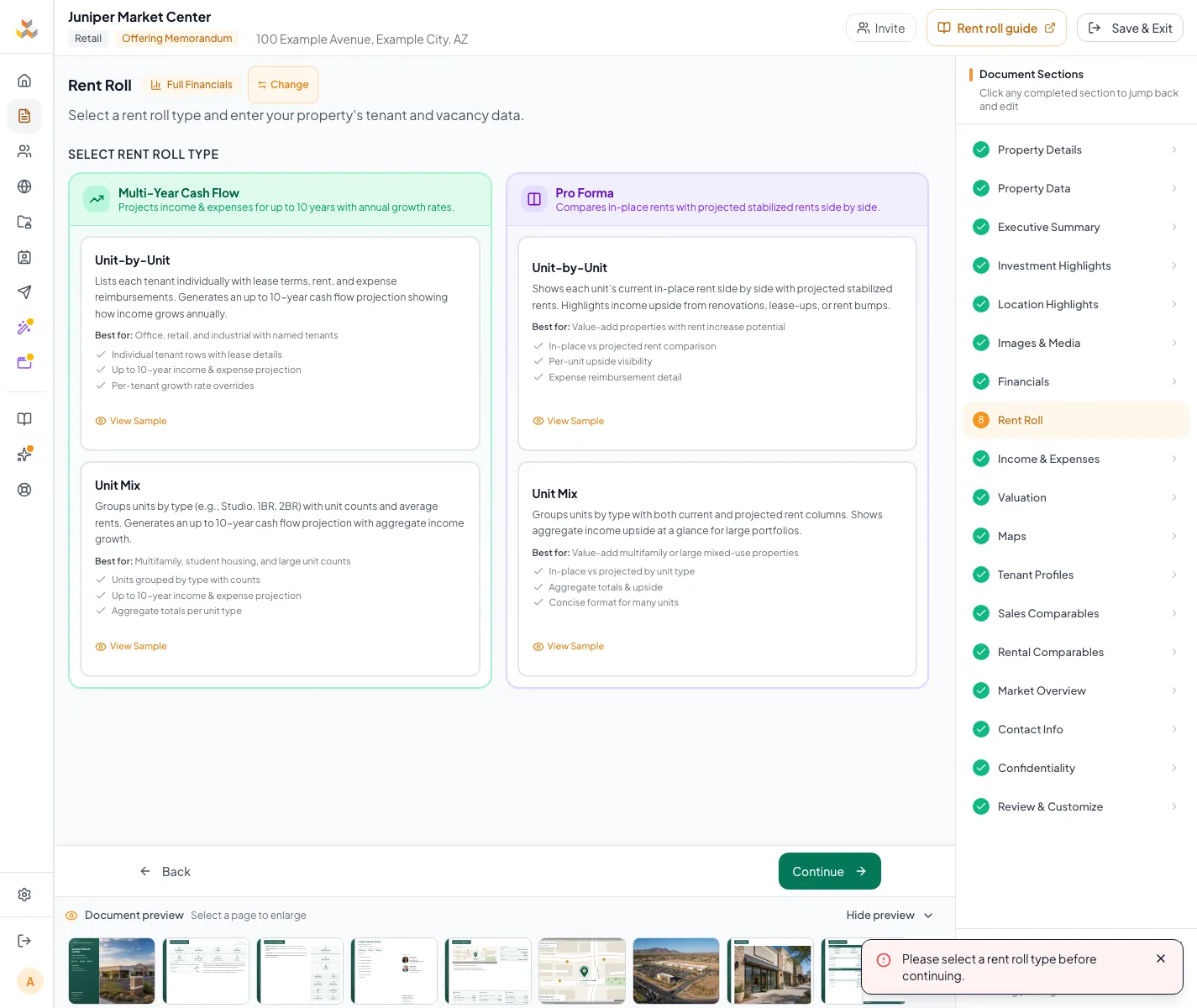
Related guides
Complete a full financial analysis
Go from rent roll to finished financial pages in one pass: rent roll, income and expenses, valuation, and a cash flow or pro forma your buyers can read.
Open guideVerify financial pages before publishing
Do a final pass on the financial pages before you send: the right pages, the right labels, and numbers that tie out.
Open guideBuild a Land document
Market a site with acreage, zoning, entitlements, utilities, access, and Price/Acre, without rent-roll pages getting in the way.
Open guideYour next OM, done this afternoon
Turn your property facts, photos and financials into a polished, branded offering memorandum. Most brokers finish in 30 to 90 minutes.
No credit card required.