Outcome
Your comp set is complete, in the order you want, with accurate summary metrics.
Navigation path
Document wizard > Sales Comparables
Access
A document that includes Sales Comparables
On this page
Before you start
Data, sources, and access to prepare
- Verified comparable research
- Sale price or list price
- Property facts and source date
- Optional JPEG, PNG, or WebP photo
Build a defensible comparable set
| Property data | Possible summary |
|---|---|
| Cap rate values | Average cap rate |
| Multifamily or unit-based count | Price per unit |
| Hospitality room count | Price per key |
| Land acreage already present | Price per acre |
| Commercial square feet | Price per SF |
| Sale years and active status | Closed-sale year range excludes active listings |
Complete the comparable record
No standard spreadsheet import
The standard sales-comparable workflow is manual and does not provide a generic underwriting-workbook or comparable importer.
Property Name and Address Recommended
Identity and location shown in the comparable card.
- Format
- Plain-text name and postal address
- Units
- Not applicable
- Save behavior
- Saved when the Comparable form Save action succeeds.
- Downstream effect
- Identifies the record on the comparable card, map context, and final Sales Comparables page.
Sale or List Price Recommended
Transaction price for a closed sale or asking price for an active listing.
- Format
- Currency amount
- Units
- Currency
- Save behavior
- Saved when the Comparable form Save action succeeds.
- Downstream effect
- Feeds price summaries and applicable price-per-SF, per-unit, per-key, or per-acre calculations.
Sale Date Recommended
Closed-sale date, with a separate option to hide it.
- Format
- Calendar date
- Units
- Date
- Save behavior
- Saved with the comparable when Save succeeds; the separate visibility choice is saved with that record.
- Downstream effect
- Places closed sales in the displayed year range unless hidden; Active listings remain outside that closed-sale range.
Active Optional
Marks the record as an active listing rather than a closed sale.
- Format
- On or off status
- Units
- Not applicable
- Save behavior
- Saved when the Comparable form Save action succeeds.
- Downstream effect
- Classifies the record as an active offering and excludes it from the closed-sale year range.
Cap Rate and NOI Optional
Financial facts used in the comparable presentation.
- Format
- Percentage and annual currency amount
- Units
- Percent and currency per year
- Save behavior
- Saved when the Comparable form Save action succeeds.
- Downstream effect
- Adds financial context and contributes to cap-rate summaries when enough valid values exist.
SF, Units, Rooms, Occupancy, or Unit Mix Recommended
Property facts used by applicable normalized metrics.
- Format
- Nonnegative numeric facts and property-specific inventory detail
- Units
- Square feet, units, rooms, percent, or unit-mix counts
- Save behavior
- Saved when the Comparable form Save action succeeds.
- Downstream effect
- Provides the denominator and context for applicable price-per-SF, per-unit, per-key, occupancy, or mix output.
Description Optional
Concise comparable context.
- Format
- Plain text up to 300 characters
- Units
- Not applicable
- Save behavior
- Saved when the Comparable form Save action succeeds.
- Downstream effect
- Adds reader-facing research context to the comparable card without changing summary calculations.
Photo Optional
JPEG, PNG, or WebP image under 25 MB.
- Format
- JPEG, PNG, or WebP file under 25 MB
- Units
- File
- Save behavior
- Uploaded in the Comparable form and associated with the record when Save succeeds.
- Downstream effect
- Displays the selected image on the comparable card and final comparable page.
Property Name and Address
- Requirement
- Recommended
- What it means
- Identity and location shown in the comparable card.
- Format
- Plain-text name and postal address
- Units
- Not applicable
- Save behavior
- Saved when the Comparable form Save action succeeds.
- Downstream effect
- Identifies the record on the comparable card, map context, and final Sales Comparables page.
Sale or List Price
- Requirement
- Recommended
- What it means
- Transaction price for a closed sale or asking price for an active listing.
- Format
- Currency amount
- Units
- Currency
- Save behavior
- Saved when the Comparable form Save action succeeds.
- Downstream effect
- Feeds price summaries and applicable price-per-SF, per-unit, per-key, or per-acre calculations.
Sale Date
- Requirement
- Recommended
- What it means
- Closed-sale date, with a separate option to hide it.
- Format
- Calendar date
- Units
- Date
- Save behavior
- Saved with the comparable when Save succeeds; the separate visibility choice is saved with that record.
- Downstream effect
- Places closed sales in the displayed year range unless hidden; Active listings remain outside that closed-sale range.
Active
- Requirement
- Optional
- What it means
- Marks the record as an active listing rather than a closed sale.
- Format
- On or off status
- Units
- Not applicable
- Save behavior
- Saved when the Comparable form Save action succeeds.
- Downstream effect
- Classifies the record as an active offering and excludes it from the closed-sale year range.
Cap Rate and NOI
- Requirement
- Optional
- What it means
- Financial facts used in the comparable presentation.
- Format
- Percentage and annual currency amount
- Units
- Percent and currency per year
- Save behavior
- Saved when the Comparable form Save action succeeds.
- Downstream effect
- Adds financial context and contributes to cap-rate summaries when enough valid values exist.
SF, Units, Rooms, Occupancy, or Unit Mix
- Requirement
- Recommended
- What it means
- Property facts used by applicable normalized metrics.
- Format
- Nonnegative numeric facts and property-specific inventory detail
- Units
- Square feet, units, rooms, percent, or unit-mix counts
- Save behavior
- Saved when the Comparable form Save action succeeds.
- Downstream effect
- Provides the denominator and context for applicable price-per-SF, per-unit, per-key, occupancy, or mix output.
Description
- Requirement
- Optional
- What it means
- Concise comparable context.
- Format
- Plain text up to 300 characters
- Units
- Not applicable
- Save behavior
- Saved when the Comparable form Save action succeeds.
- Downstream effect
- Adds reader-facing research context to the comparable card without changing summary calculations.
Photo
- Requirement
- Optional
- What it means
- JPEG, PNG, or WebP image under 25 MB.
- Format
- JPEG, PNG, or WebP file under 25 MB
- Units
- File
- Save behavior
- Uploaded in the Comparable form and associated with the record when Save succeeds.
- Downstream effect
- Displays the selected image on the comparable card and final comparable page.
Required means the field is needed to complete or support this workflow. Some screens allow a draft to save before every required item is complete. The steps and troubleshooting call out controls the product actively blocks.
Add, order, and verify comparables
Sales comparable steps
- 1
Add a comparable
Sales Comparables toolbar
Select Add Comparable.
Expected result: A new comparable form opens.
If this step does not work
If research is incomplete, save source notes outside the guide and return when facts are verified.
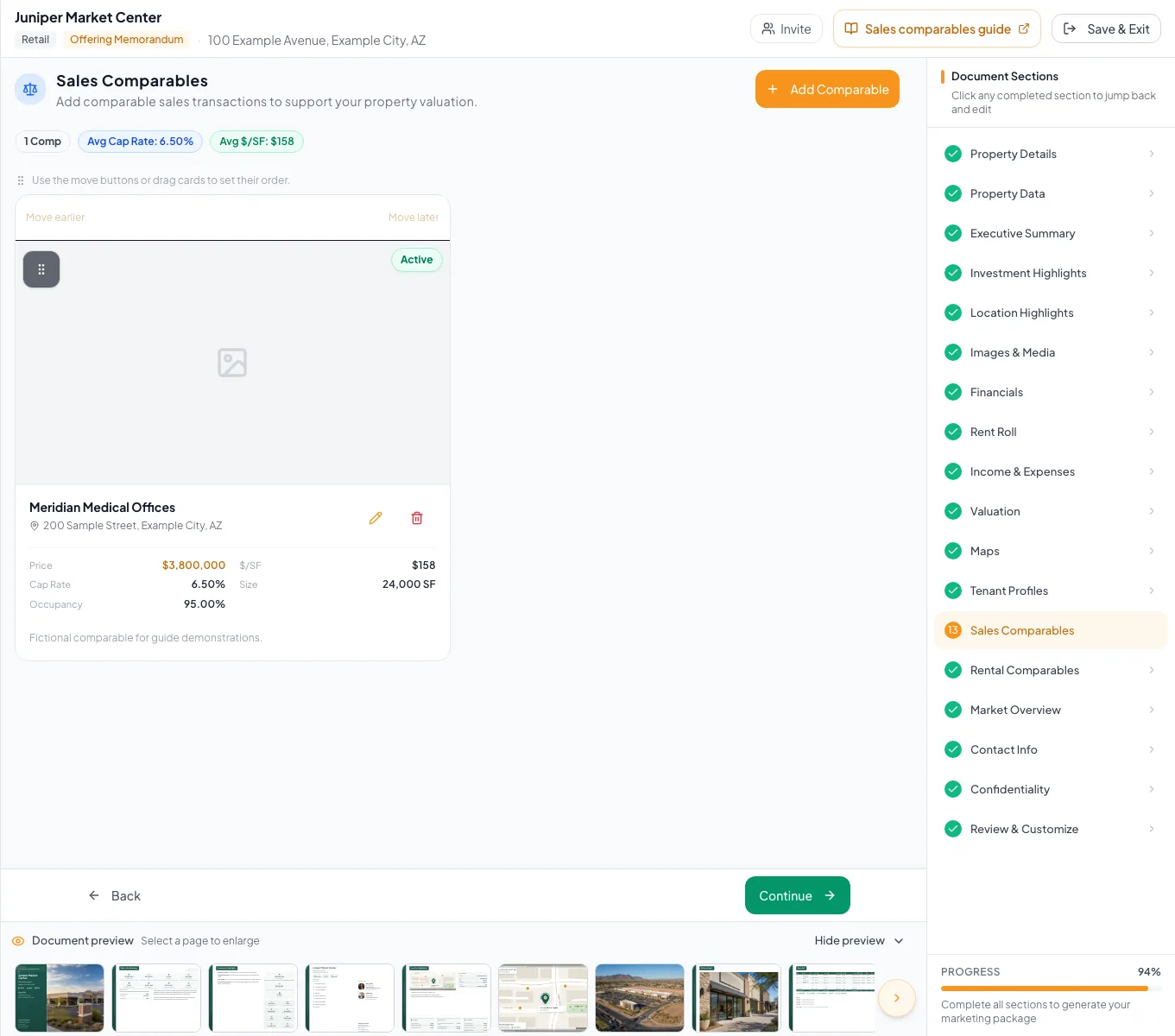
Add, edit, order, and verify sale comparables so the final document uses defensible facts and meaningful comparisons. - 2
Enter comparable identity
Comparable form
Enter the property identity and location.
Expected result: The form is ready for transaction facts.
If this step does not work
Confirm the selected property before adding economics.
- 3
Enter transaction facts
Comparable form
Enter price, sale date, cap rate, NOI, active status, and the applicable property facts.
Expected result: Calculated metrics update from the entered facts.
If this step does not work
If a normalized metric is missing, confirm both its price and denominator are present.
- 4
Add a description
Comparable form > Description
Enter a description within 300 characters.
Expected result: The form has concise narrative context.
If this step does not work
Shorten the description if it exceeds the limit.
- 5
Add a photo
Comparable form > Photo
Upload an optional supported image below 25 MB.
Expected result: The form shows the selected comparable image.
If this step does not work
Compress or convert an unsupported or oversized image before retrying.
- 6
Save the comparable
Comparable form footer
Select Add Comparable for a new record or Save Changes for an existing record.
Expected result: The card appears in the comparable list.
If this step does not work
Keep the form open if the request is processing.
- 7
Inspect the comparable
Comparable card list
Compare every displayed fact with the research source.
Expected result: The card appears with accurate facts.
If this step does not work
Select Edit and correct any discrepancy. The current form has no strong completeness gate.
- 8
Order the set
Comparable card list
Drag cards or use keyboard reordering to place the strongest presentation sequence first.
Expected result: The list and final page use the intended order.
If this step does not work
If dragging is difficult, use the available keyboard reorder controls.
- 9
Verify summaries and output
Sales Comparables summary, then Review & Customize
Review averages, per-unit metrics, closed-sale year range, and final cards.
Expected result: Summary metrics and page content match the saved set.
If this step does not work
Correct the underlying comp rather than manually adjusting a calculated average.
Resolve comparable issues
A closed-sale year range looks wrong
Likely cause: Active listings are intentionally excluded from the closed-sale year range.
- Verify Active status on every record.
- Correct records that were classified incorrectly.
Price per acre is unavailable for a new Land comp
Likely cause: The current comparable modal does not expose a Lot Size input even though acreage is used by summary calculations when present.
- Do not invent an acreage-based metric.
- Use the valuation-range inputs in the BOV workflow when applicable.
- Contact support if you need acreage on a new comparable.
Delete removed the wrong card
Likely cause: Comparable delete is confirmed but permanent within the current editing flow.
- Recreate the comparable from its source.
- Review the name and address carefully in future confirmation dialogs.
Comparable set ready
- Closed and active status correct
- Prices and dates sourced
- Property denominators present
- Calculated metrics reasonable
- Descriptions concise
- Order intentional
- Final page reviewed
Related guides
Complete a BOV valuation and reconciliation
Build a Broker Opinion of Value that walks the owner from income and sales-comparison evidence to a clear low, midpoint, and high value.
Open guideAdd rental and hotel rate comparables
Back up your rent assumptions with market-rent comps, or ADR, occupancy, and RevPAR comps for hotels.
Open guideVerify financial pages before publishing
Do a final pass on the financial pages before you send: the right pages, the right labels, and numbers that tie out.
Open guideYour next OM, done this afternoon
Turn your property facts, photos and financials into a polished, branded offering memorandum. Most brokers finish in 30 to 90 minutes.
No credit card required.