Outcome
Each tenant's rent and recoveries follow its lease in every projected year.
Navigation path
Document wizard > Rent Roll > Edit Tenant > Rent Increases and Reimbursements
Access
Full Financials with Multi-Year Cash Flow
On this page
Before you start
Data, sources, and access to prepare
- A Unit-by-Unit Multi-Year Cash Flow rent roll
- Current annual rent
- Lease escalation and recovery terms
Choose the growth method
Rent growth decision
Use one annual rate for repeating bumps or a schedule for lease-specific changes.
Read lease terms
Identify timing and amount
Annual increase
Same percentage compounds each analysis year
Custom schedule
Specific analysis years use percentage or replacement annual rent
Preview
Verify every projected year
- Read lease termsAnnual increaseRepeating
- Read lease termsCustom scheduleIrregular
- Annual increasePreview
- Custom schedulePreview
Increase by percent
- Effect in selected analysis year
- Prior annual rent x (1 + percent)
- Later years
- New amount remains the base until another step
Set annual rent
- Effect in selected analysis year
- Replaces annual rent with the entered dollar amount
- Later years
- Replacement amount remains until another step
Annualize reimbursements
| Lease structure | What to enter in Reimbursements |
|---|---|
| NNN with pro-rata share | Tenant share of recoverable expenses (tenant SF / building SF x recoverable expenses), entered as an Annual amount or divided by tenant SF as SF/Yr |
| Base-year or expense-stop (office) | (Current recoverable expenses - base-year expenses or stop) x tenant share, as an Annual amount. Enter 0 when expenses are below the stop. |
| Modified Gross | Only the expenses the tenant pays back, using the same pro-rata math |
| Full Service Gross | 0. The landlord pays operating expenses out of base rent. |
Reimbursement Amount Optional
Expense recovery paid by the tenant.
- Format
- Nonnegative currency amount
- Units
- Currency in the selected reimbursement basis
- Save behavior
- Saved with the tenant drawer when Save Changes succeeds.
- Downstream effect
- Combines with the selected basis and tenant area to calculate annual reimbursement.
Reimbursement Basis Recommended
SF/Yr, SF/Mo, Annual, or Monthly. A blank legacy value is legal but uses a different fallback by column.
- Format
- Select one supported basis; do not leave it blank when reviewing or editing a tenant
- Units
- Not applicable
- Save behavior
- Saved with the tenant drawer when Save Changes succeeds. If a legacy in-place basis is blank, the calculation falls back to SF/Yr. If a legacy pro forma basis is blank, it falls back to Annual.
- Downstream effect
- Determines whether the amount is multiplied by area, by 12 months, by both, or neither. The asymmetric blank fallback can change annual reimbursement materially, so select and verify both columns explicitly.
Reimbursement Growth Optional
Annual growth applied in cash-flow years.
- Format
- Percentage
- Units
- Percent per projected year
- Save behavior
- Saved with the tenant drawer when Save Changes succeeds.
- Downstream effect
- Compounds annual tenant reimbursement after In-Place in Multi-Year Cash Flow.
Reimbursement Amount
- Requirement
- Optional
- What it means
- Expense recovery paid by the tenant.
- Format
- Nonnegative currency amount
- Units
- Currency in the selected reimbursement basis
- Save behavior
- Saved with the tenant drawer when Save Changes succeeds.
- Downstream effect
- Combines with the selected basis and tenant area to calculate annual reimbursement.
Reimbursement Basis
- Requirement
- Recommended
- What it means
- SF/Yr, SF/Mo, Annual, or Monthly. A blank legacy value is legal but uses a different fallback by column.
- Format
- Select one supported basis; do not leave it blank when reviewing or editing a tenant
- Units
- Not applicable
- Save behavior
- Saved with the tenant drawer when Save Changes succeeds. If a legacy in-place basis is blank, the calculation falls back to SF/Yr. If a legacy pro forma basis is blank, it falls back to Annual.
- Downstream effect
- Determines whether the amount is multiplied by area, by 12 months, by both, or neither. The asymmetric blank fallback can change annual reimbursement materially, so select and verify both columns explicitly.
Reimbursement Growth
- Requirement
- Optional
- What it means
- Annual growth applied in cash-flow years.
- Format
- Percentage
- Units
- Percent per projected year
- Save behavior
- Saved with the tenant drawer when Save Changes succeeds.
- Downstream effect
- Compounds annual tenant reimbursement after In-Place in Multi-Year Cash Flow.
Required means the field is needed to complete or support this workflow. Some screens allow a draft to save before every required item is complete. The steps and troubleshooting call out controls the product actively blocks.
Enter and verify the lease terms
Escalation and recovery steps
- 1
Open the tenant
Rent Roll, tenant row
Select Edit for the tenant.
Expected result: The current annual rent and growth controls are visible.
If this step does not work
Confirm the rent-roll projection is Multi-Year Cash Flow if the controls are missing.
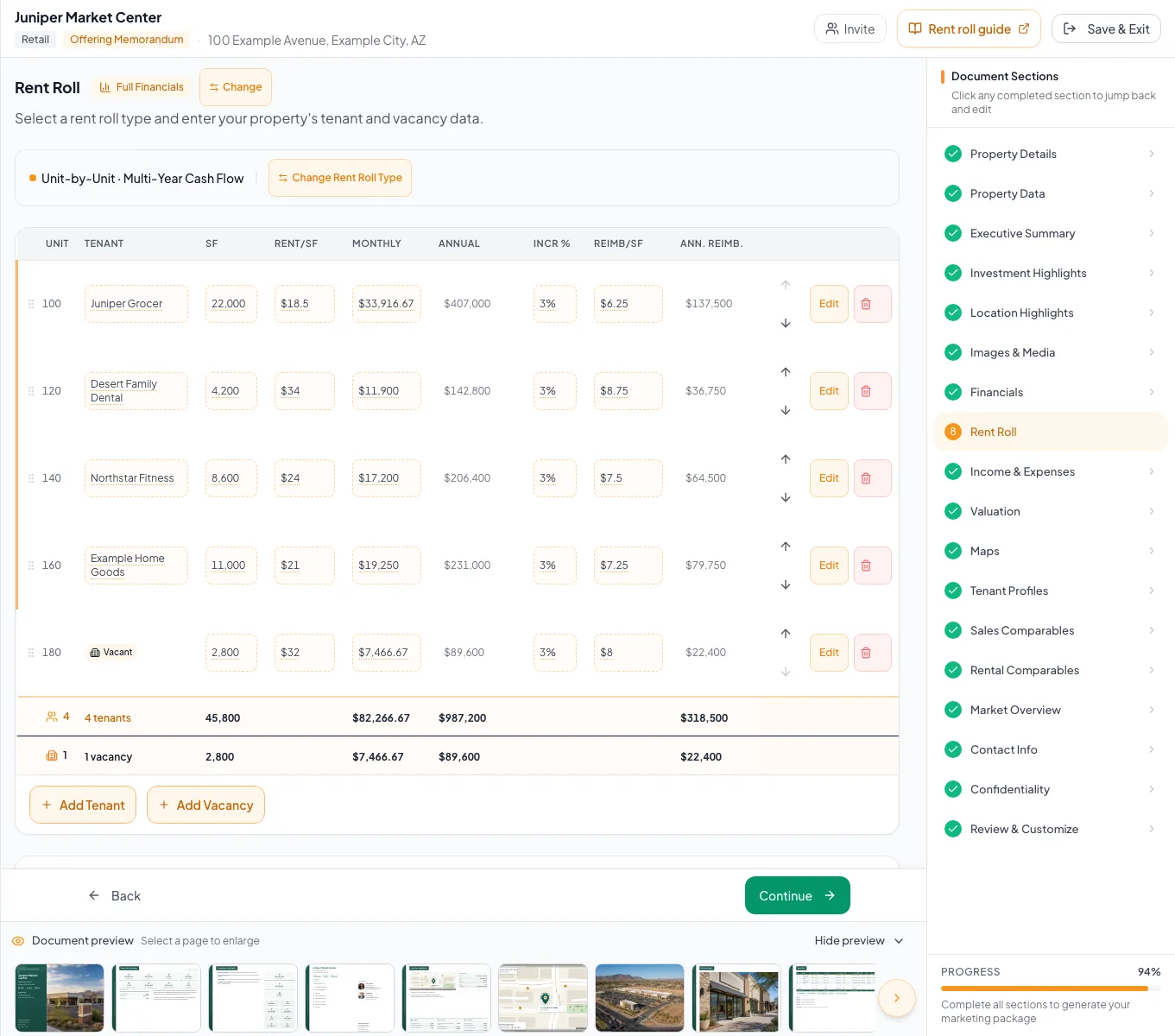
Configure rent growth and reimbursement terms, including the different blank-basis defaults for in-place and pro forma columns. - 2
Choose Annual or Custom
Tenant detail, Rent Increases
Use Annual for the same percentage every year or Custom for year-specific changes.
Expected result: The matching rate or schedule editor appears.
If this step does not work
Re-read the lease abstract if the change dates or amounts are uncertain.
- 3
Add complete custom steps
Custom escalation editor
Complete each change row with analysis Year N and either a percent or replacement annual amount.
Expected result: The preview sorts the steps and shows projected annual rent.
If this step does not work
Complete both the year and value. Remove partial rows before saving.
- 4
Review amount warnings
Custom escalation editor
If a replacement amount is far below current annual rent, verify that a monthly figure was not entered as annual.
Expected result: The replacement reflects the intended annual figure.
If this step does not work
Use the offered x12 correction only when it matches the lease source. Legitimate reductions may remain.
- 5
Enter reimbursement terms
Tenant detail, Reimbursements
Complete the reimbursement fields with recovery amount, basis, and applicable growth. For legacy blank bases, remember that in-place falls back to SF/Yr while pro forma falls back to Annual.
Expected result: The annual reimbursement calculates from the explicitly selected basis.
If this step does not work
Check area and basis first if the result is off by 12 or by the tenant SF. Do not assume the two blank-column fallbacks match.
- 6
Save the tenant schedule
Tenant drawer > Save Changes
Select Save Changes.
Expected result: The tenant drawer closes or reports a saved state.
If this step does not work
Keep the drawer open while a save is processing.
- 7
Inspect the projection
Valuation > Cash Flow Projection
Review projected rent and reimbursement rows by year.
Expected result: Each year follows the lease schedule.
If this step does not work
Return to the tenant schedule and correct the first year where the preview diverges.
Avoid projection mistakes
A custom step is ignored
Likely cause: The year or value is incomplete or invalid.
- Enter a whole analysis year of 1 or greater.
- Enter a finite percent or a nonnegative annual amount.
- Save and inspect the preview again.
The calendar label and lease anniversary feel different
Likely cause: The engine applies whole analysis-year steps, while a start date can make the preview label easier to read.
- Model the change in the intended analysis Year N.
- Use the date label as context, not as monthly proration.
Vacancy has no custom schedule
Likely cause: Vacancy rows use a simple annual growth percentage.
- Enter the available vacancy growth rate.
- Explain a more complex assumption in the rent-roll notes if necessary.
No lease-date proration
The current cash-flow engine projects whole analysis years. Lease start and end dates are descriptive and do not automatically prorate annual rent or stop revenue.
Final verification
- Custom escalation editor: The replacement reflects the intended annual figure.
- Tenant detail, Reimbursements: The annual reimbursement calculates from the explicitly selected basis.
- Tenant drawer > Save Changes: The tenant drawer closes or reports a saved state.
- Valuation > Cash Flow Projection: Each year follows the lease schedule.
- No blocking warning, failed status, or unresolved validation message remains in the completed workflow.
Related guides
Build a commercial rent roll
Build a tenant-by-tenant rent roll for retail, office, or industrial, and CREBuilder annualizes rent and recoveries from whatever basis your lease uses.
Open guideSet cash-flow assumptions
Set the hold period, vacancy, lease-up, exit cap, loan, and reserves once, and CREBuilder builds the annual cash flow and exit value from them.
Open guideRead and verify the cash-flow projection
Read the Multi-Year Cash Flow line by line, from base rent to cash flow after debt, so you can explain every number to a buyer.
Open guideYour next OM, done this afternoon
Turn your property facts, photos and financials into a polished, branded offering memorandum. Most brokers finish in 30 to 90 minutes.
No credit card required.