Outcome
Your BOV shows each valuation approach, its indicated value, and an opinion range with your reasoning.
Navigation path
BOV wizard > Financial Scope > Valuation
Access
Broker Opinion of Value document access
On this page
Before you start
Data, sources, and access to prepare
- A BOV document
- NOI and cap-rate support when using income approach
- Sales-comparable research
- Your opinion-of-value range
Understand the BOV approach structure
BOV reconciliation
Use supported approach indications to form the broker opinion range.
Financial Scope
Full Financials or Cap Rate & NOI
Income Approach
NOI divided by cap rate
Sales Comparison
Comparable range and counts
Opinion of Value
Low, midpoint, and high
Reconciliation
Explain weighting and judgment
- Financial ScopeIncome Approach
- Financial ScopeSales Comparison
- Income ApproachOpinion of Value
- Sales ComparisonOpinion of Value
- Opinion of ValueReconciliation
| Situation | Income Approach behavior |
|---|---|
| BOV with Cap Rate & NOI | Enter manual NOI and cap rate |
| BOV with Full Financials | NOI is locked to the financial summary when available |
| Land BOV | Income Approach is hidden; valuation still remains |
| Other BOV property types | Income, sales-comparison, and opinion fields are available as applicable |
Complete each supported approach
NOI and Cap Rate Recommended
Inputs for income-approach indicated value.
- Format
- Annual currency amount and positive percentage
- Units
- Currency per year and percent
- Save behavior
- Editable valuation inputs autosave and must reach Saved; Full Financials can supply a locked NOI with no direct entry here.
- Downstream effect
- Calculates the income-approach indication as NOI divided by cap rate when Income Approach is available.
Comparable Count and Ranges Recommended
Number and observed value ranges supporting the sales comparison.
- Format
- Whole-number count plus ordered low and high values
- Units
- Comparable count and the displayed property-specific value units
- Save behavior
- Autosaves on the Valuation page; wait for the Saved state before continuing.
- Downstream effect
- Provides the evidence summary shown in the BOV sales-comparison approach.
Land Price per Acre Range Recommended
Land-specific sales-comparison range.
- Format
- Ordered low and high currency values
- Units
- Currency per acre
- Save behavior
- Autosaves on the Land BOV Valuation page; wait for the Saved state.
- Downstream effect
- Supplies the Land sales-comparison range while the Income Approach remains hidden.
Cap Rate and Price per SF Ranges Recommended
Non-land sales-comparison support.
- Format
- Ordered percentage and currency ranges
- Units
- Percent and currency per square foot
- Save behavior
- Autosaves on the applicable non-Land BOV Valuation page; wait for the Saved state.
- Downstream effect
- Supplies the cap-rate and price-per-SF evidence ranges in the sales-comparison presentation.
Opinion Low, Mid, High Recommended
Broker conclusion range.
- Format
- Three currency amounts in ascending order
- Units
- Currency
- Save behavior
- Autosaves on the Valuation page; verify all three values after Saved appears.
- Downstream effect
- Sets the broker opinion range and midpoint presented in the BOV valuation output.
Reconciliation Notes Recommended
Narrative explaining approach weighting and conclusion.
- Format
- Plain text
- Units
- Not applicable
- Save behavior
- Autosaves on the Valuation page; keep the page open until Saved appears.
- Downstream effect
- Explains how the displayed approach evidence supports the final opinion without changing calculations.
Occupancy and Property Count Optional
Optional headline facts with property-specific count label.
- Format
- Percentage plus nonnegative whole number
- Units
- Percent and property-specific units, rooms, or pads
- Save behavior
- Autosaves on the Valuation page; verify the Saved state before continuing.
- Downstream effect
- Adds the applicable occupancy and count facts to the BOV valuation presentation.
NOI and Cap Rate
- Requirement
- Recommended
- What it means
- Inputs for income-approach indicated value.
- Format
- Annual currency amount and positive percentage
- Units
- Currency per year and percent
- Save behavior
- Editable valuation inputs autosave and must reach Saved; Full Financials can supply a locked NOI with no direct entry here.
- Downstream effect
- Calculates the income-approach indication as NOI divided by cap rate when Income Approach is available.
Comparable Count and Ranges
- Requirement
- Recommended
- What it means
- Number and observed value ranges supporting the sales comparison.
- Format
- Whole-number count plus ordered low and high values
- Units
- Comparable count and the displayed property-specific value units
- Save behavior
- Autosaves on the Valuation page; wait for the Saved state before continuing.
- Downstream effect
- Provides the evidence summary shown in the BOV sales-comparison approach.
Land Price per Acre Range
- Requirement
- Recommended
- What it means
- Land-specific sales-comparison range.
- Format
- Ordered low and high currency values
- Units
- Currency per acre
- Save behavior
- Autosaves on the Land BOV Valuation page; wait for the Saved state.
- Downstream effect
- Supplies the Land sales-comparison range while the Income Approach remains hidden.
Cap Rate and Price per SF Ranges
- Requirement
- Recommended
- What it means
- Non-land sales-comparison support.
- Format
- Ordered percentage and currency ranges
- Units
- Percent and currency per square foot
- Save behavior
- Autosaves on the applicable non-Land BOV Valuation page; wait for the Saved state.
- Downstream effect
- Supplies the cap-rate and price-per-SF evidence ranges in the sales-comparison presentation.
Opinion Low, Mid, High
- Requirement
- Recommended
- What it means
- Broker conclusion range.
- Format
- Three currency amounts in ascending order
- Units
- Currency
- Save behavior
- Autosaves on the Valuation page; verify all three values after Saved appears.
- Downstream effect
- Sets the broker opinion range and midpoint presented in the BOV valuation output.
Reconciliation Notes
- Requirement
- Recommended
- What it means
- Narrative explaining approach weighting and conclusion.
- Format
- Plain text
- Units
- Not applicable
- Save behavior
- Autosaves on the Valuation page; keep the page open until Saved appears.
- Downstream effect
- Explains how the displayed approach evidence supports the final opinion without changing calculations.
Occupancy and Property Count
- Requirement
- Optional
- What it means
- Optional headline facts with property-specific count label.
- Format
- Percentage plus nonnegative whole number
- Units
- Percent and property-specific units, rooms, or pads
- Save behavior
- Autosaves on the Valuation page; verify the Saved state before continuing.
- Downstream effect
- Adds the applicable occupancy and count facts to the BOV valuation presentation.
Required means the field is needed to complete or support this workflow. Some screens allow a draft to save before every required item is complete. The steps and troubleshooting call out controls the product actively blocks.
Build and reconcile the valuation
BOV valuation steps
- 1
Choose BOV scope
BOV Financial Scope
Select Cap Rate & NOI for a concise valuation or Full Financials for a model-backed NOI.
Expected result: Valuation and any detailed financial steps appear.
If this step does not work
BOV does not offer Rent Roll Only or Skip in the standard scope chooser.
- 2
Complete Income Approach
Valuation, Income Approach
Enter supported NOI and cap rate, or review the locked NOI supplied by Full Financials.
Expected result: The indicated value calculates.
If this step does not work
If Full Financials NOI is wrong, correct the source rent roll or statement rather than the locked field.
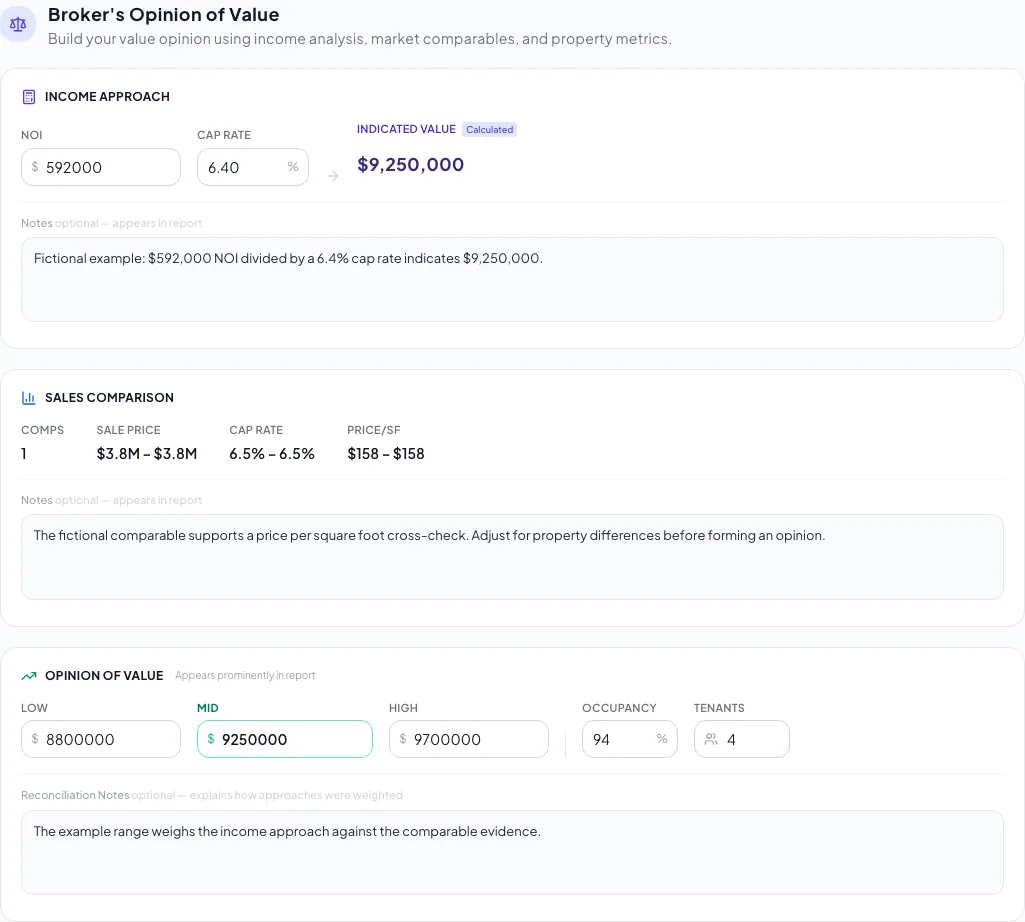
Complete the supported BOV valuation approaches and reconcile their conclusions before presenting a value range. - 3
Complete Sales Comparison
Valuation, Sales Comparison
Enter comparable counts and the displayed property-specific ranges.
Expected result: The BOV records the sales-comparison evidence.
If this step does not work
Return to Sales Comparables if the research set itself is incomplete.
- 4
Enter the opinion range
Valuation, Opinion of Value
Enter low, midpoint, and high values in ascending order.
Expected result: The broker conclusion is visible.
If this step does not work
The UI does not enforce ordering, so compare all three values manually.
- 5
Write reconciliation notes
Valuation, Reconciliation
Explain which approaches received weight and why the midpoint was selected.
Expected result: A reader can follow the judgment from evidence to conclusion.
If this step does not work
State data limitations instead of creating unsupported precision.
- 6
Wait for the valuation save
Valuation
Pause until the wizard save status shows Saved.
Expected result: The latest valuation inputs are persisted.
If this step does not work
Keep the page open until saving completes.
- 7
Continue from valuation
Valuation page footer
Select Continue.
Expected result: The wizard advances to the next applicable section.
If this step does not work
Retry after the saved state appears if navigation is blocked.
- 8
Open the final valuation page
Wizard navigation
Open Review & Customize.
Expected result: The assembled BOV contains the saved approach indications and opinion range.
If this step does not work
Return to Valuation for any mismatch.
Apply a manual valuation review
Income Approach is missing
Likely cause: The BOV property type is Land.
- Use Land sales-comparison support.
- Complete the opinion range and reconciliation without an income approach.
NOI cannot be edited
Likely cause: Full Financials locks BOV NOI to the saved financial summary when available.
- Reconcile the rent roll and income statement.
- Correct the underlying values.
- Return to Valuation.
Low, midpoint, and high are out of order
Likely cause: Current save behavior does not enforce range ordering.
- Verify low is less than or equal to midpoint.
- Verify midpoint is less than or equal to high.
- Correct the fields before publication.
BOV ready
- Every displayed approach has support
- Income indication math is checked
- Comparable ranges tie to research
- Opinion range is ordered
- Reconciliation explains weighting
- Final page matches your conclusion
Related guides
Use the Cap Rate & NOI quick path
Know the price and either NOI or cap rate? Enter one, and CREBuilder calculates the other and puts both on your valuation page.
Open guideAdd and organize sales comparables
Add sales comps and active listings with photos, and CREBuilder calculates price per SF, unit, or key and the average cap rate for you.
Open guideVerify financial pages before publishing
Do a final pass on the financial pages before you send: the right pages, the right labels, and numbers that tie out.
Open guideYour next OM, done this afternoon
Turn your property facts, photos and financials into a polished, branded offering memorandum. Most brokers finish in 30 to 90 minutes.
No credit card required.