Outcome
Every use in the property has its own component in the rent roll, and the component totals and combined total match your source.
Navigation path
Document wizard > Rent Roll > Rent Roll by Component
Access
A Mixed-Use document with Rent Roll included
On this page
Before you start
Data, sources, and access to prepare
- A Mixed-Use property type
- A roster or inventory separated by property component
- A single cash-flow or pro-forma decision for the document
Map the components first
Mixed-Use rent roll
One projection applies to all selected components, while each component controls its own row vocabulary.
Global projection
Cash Flow or Pro Forma
Retail, Office, Industrial
Commercial tenant fields
Residential
Multifamily unit fields
Hotel
Room inventory
Storage
Unit inventory
Component sections
One organized rent-roll presentation
- Global projectionRetail, Office, Industrial
- Global projectionResidential
- Global projectionHotel
- Global projectionStorage
- Retail, Office, IndustrialComponent sections
- ResidentialComponent sections
- HotelComponent sections
- StorageComponent sections
| Component | Input style |
|---|---|
| Retail | Commercial tenant or unit-mix fields |
| Office | Commercial tenant or unit-mix fields |
| Residential | Multifamily unit fields |
| Industrial | Commercial tenant or unit-mix fields |
| Hotel | Room Inventory |
| Storage | Self-Storage unit fields |
Apply the component rules
- Choose Cash Flow or Pro Forma once for the document.
- For each non-hotel component, choose Unit-by-Unit or Unit Mix.
- A component that already owns saved data cannot be deselected until that data is addressed.
- Previously unassigned rows can be assigned to Retail, Office, Residential, or Industrial from the unassigned-data area.
- Hotel and Storage use their specialized field labels.
- The General Vacancy Factor % is one rate for the whole property. With a Hotel component it also reduces room revenue that already reflects occupancy, so consider leaving it at 0% and modeling the other components' vacancy with vacancy rows instead.
- Notes are limited to 500 characters and autosave after editing.
Save hotel data before relying on Continue
When a new Mixed-Use model contains only newly entered Hotel rows, verify that the rows have persisted before leaving. The current Continue gate checks saved component data.
Configure and populate components
Mixed-Use steps
- 1
Select the global projection
Rent Roll by Component, projection selector
Choose Multi-Year Cash Flow or Pro Forma for the whole document.
Expected result: All component editors use the chosen projection.
If this step does not work
If one component requires a different analysis, decide which single model best fits the final document.
- 2
Activate components
Component pills
Select every property use that has source data.
Expected result: An editor tab becomes available for each component.
If this step does not work
If a populated component cannot be deselected, open it and review its saved rows first.
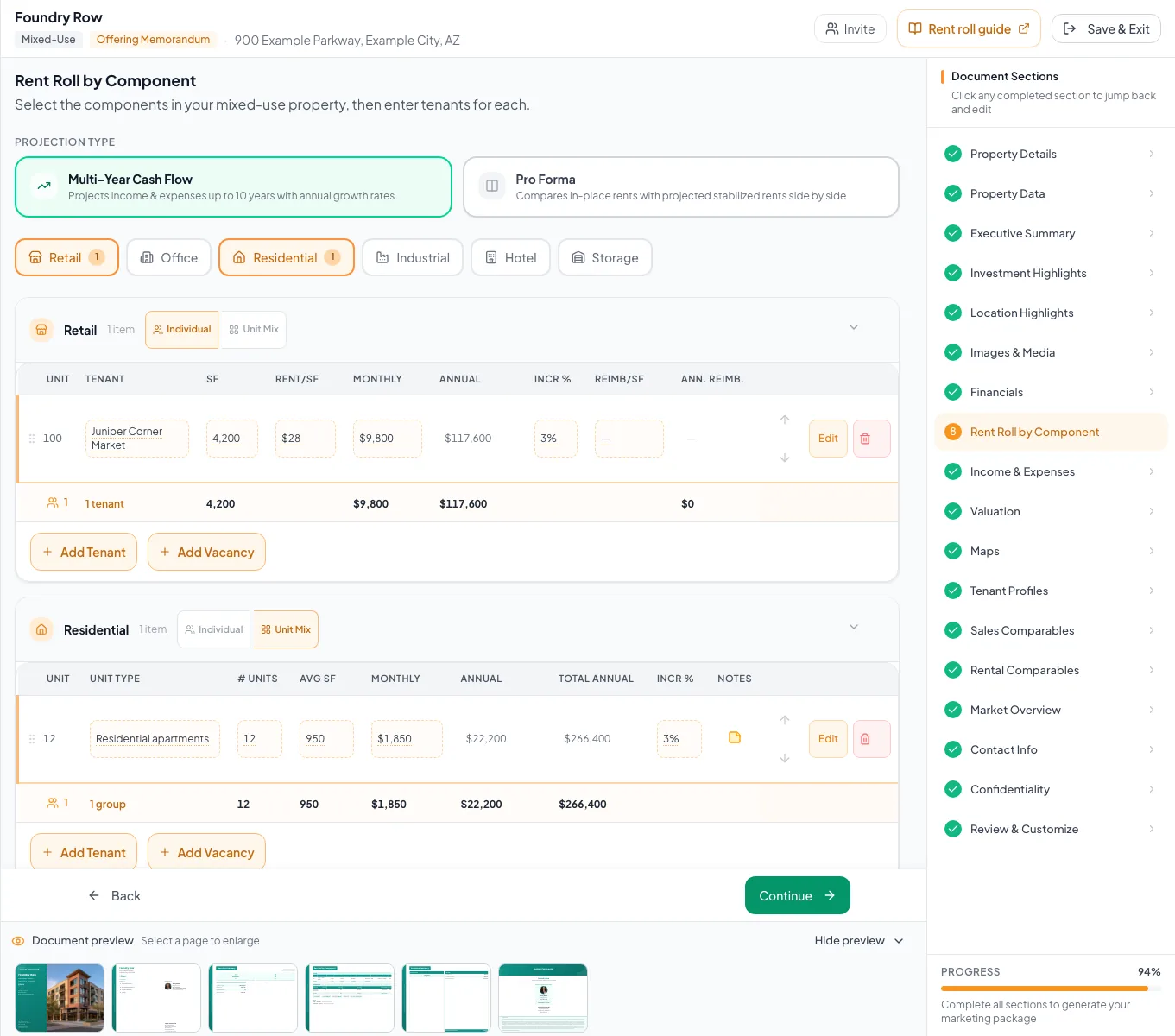
Model each Mixed-Use component with the appropriate inventory and validate the combined property before continuing. - 3
Choose component detail
Active non-hotel component > detail selector
Select Unit-by-Unit or Unit Mix.
Expected result: The editor shows the labels and calculations for that component.
If this step does not work
If columns do not fit the source data, change the component detail before adding rows.
- 4
Enter component rows
Active non-hotel component > row editor
Enter the component rows from your source.
Expected result: The component totals update from saved rows.
If this step does not work
Correct the first row that does not reconcile with the source.
- 5
Complete Hotel or Storage
Hotel or Storage component tab
Enter room inventory or storage categories in the specialized editor.
Expected result: Component metrics and totals calculate.
If this step does not work
For Hotel, ensure every row has name, positive count, and positive ADR, then confirm it persists.
- 6
Resolve unassigned rows
Unassigned Tenants
Assign legacy untagged rows to an available commercial or residential component, or remove invalid records.
Expected result: No relevant rows remain unassigned.
If this step does not work
Hotel and Storage are not assignment targets in this control. Re-enter those records in their specialized components if needed.
- 7
Reconcile the component totals
Component totals
Compare each component total and the combined rent roll with source data.
Expected result: Every subtotal and the combined total reconcile.
If this step does not work
Correct the first mismatched row before leaving the page.
- 8
Continue from the saved model
Bottom of Rent Roll by Component
Select Continue after notes report a saved state.
Expected result: The wizard advances with at least one saved component row.
If this step does not work
If it does not advance, verify the model is selected and at least one row is persisted.
Resolve component issues
A component cannot be turned off
Likely cause: It contains saved tenant or vacancy records.
- Open the component.
- Move, correct, or remove the records intentionally.
- Then try deselecting it again.
Continue does not advance after hotel entry
Likely cause: The Continue check may run before new hotel rows are persisted.
- Confirm the hotel rows are saved.
- Navigate within the component carefully and retry.
- Contact support if a complete hotel-only component still cannot continue.
A legacy row has no component
Likely cause: Older Mixed-Use data may predate component tagging.
- Use Unassigned Tenants for Retail, Office, Residential, or Industrial.
- Re-enter specialized Hotel or Storage data in its component when necessary.
Mixed-Use complete
- One global projection selected
- Every real use activated
- Every component has the right detail layout
- No relevant rows unassigned
- Component totals and combined total reconcile
Related guides
Build a Mixed-Use document
Market one property with several uses, such as retail below apartments, and present each component with its own fields and subtotals.
Open guideChoose a rent-roll model and layout
Choose Multi-Year Cash Flow or Pro Forma, and Unit-by-Unit or Unit Mix, so the rent roll matches the data you have and the story you want to tell.
Open guideVerify financial pages before publishing
Do a final pass on the financial pages before you send: the right pages, the right labels, and numbers that tie out.
Open guideYour next OM, done this afternoon
Turn your property facts, photos and financials into a polished, branded offering memorandum. Most brokers finish in 30 to 90 minutes.
No credit card required.