Outcome
Your price, NOI, and cap rate tie out and appear on the valuation page in minutes.
Navigation path
Document wizard > Financial Scope > Cap Rate & NOI > Valuation
Access
A document offering the Cap Rate & NOI scope
On this page
Before you start
Data, sources, and access to prepare
- A selling price in Property Details
- Annual NOI or a cap rate
Use one known metric
Quick valuation triangle
Selling price is fixed from Property Details. Enter NOI or cap rate and derive the other.
Selling Price
Read from Property Details
Known NOI
Annual net operating income
Known Cap Rate
NOI divided by price
Saved key facts
Consistent valuation metrics
- Selling PriceKnown Cap RateWith NOI
- Known NOIKnown Cap Rate
- Selling PriceKnown NOIWith cap rate
- Known Cap RateKnown NOI
- Known NOISaved key facts
- Known Cap RateSaved key facts
NOI
- Derived value
- Cap Rate
- Formula
- NOI / Selling Price
Cap Rate
- Derived value
- NOI
- Formula
- Selling Price x Cap Rate
Complete the simplified fields
Selling Price Required
The property price saved in Property Details.
- Format
- Read-only currency on this screen
- Units
- Currency
- Save behavior
- No direct entry here. Change it through Property Details and select Save there.
- Downstream effect
- Supplies the price used to derive NOI or cap rate and the headline valuation output.
I know the NOI / I know the Cap Rate Required
Selects which value you enter and which CREBuilder derives.
- Format
- Select one of two calculation modes
- Units
- Not applicable
- Save behavior
- Saved when the valuation selection change commits; verify it after reopening the step.
- Downstream effect
- Makes one metric editable and recalculates the other from Selling Price.
NOI Required
Annual net operating income.
- Format
- Currency amount
- Units
- Currency per year
- Save behavior
- When NOI is the known metric, leaving the field triggers its save; otherwise there is no direct entry and it recalculates from price and cap rate.
- Downstream effect
- Supplies headline NOI and derives cap rate when NOI is the selected known metric.
Cap Rate Required
NOI divided by selling price.
- Format
- Percentage
- Units
- Percent
- Save behavior
- When Cap Rate is the known metric, leaving the field triggers its save; otherwise there is no direct entry and it recalculates from NOI and price.
- Downstream effect
- Supplies headline cap rate and derives NOI when Cap Rate is the selected known metric.
Occupancy Optional
Optional headline occupancy fact.
- Format
- Percentage
- Units
- Percent
- Save behavior
- Leaving the edited valuation field triggers its save; reopen the step to confirm persistence.
- Downstream effect
- Adds occupancy to the simplified valuation facts where the selected document presents it.
Unit, Room, Pad, or other Count Optional
Optional property-specific count.
- Format
- Nonnegative whole number
- Units
- Property-specific units, rooms, pads, or other count
- Save behavior
- Leaving the edited valuation field triggers its save; reopen the step to confirm persistence.
- Downstream effect
- Adds the property-specific count to simplified valuation output where supported.
Selling Price
- Requirement
- Required
- What it means
- The property price saved in Property Details.
- Format
- Read-only currency on this screen
- Units
- Currency
- Save behavior
- No direct entry here. Change it through Property Details and select Save there.
- Downstream effect
- Supplies the price used to derive NOI or cap rate and the headline valuation output.
I know the NOI / I know the Cap Rate
- Requirement
- Required
- What it means
- Selects which value you enter and which CREBuilder derives.
- Format
- Select one of two calculation modes
- Units
- Not applicable
- Save behavior
- Saved when the valuation selection change commits; verify it after reopening the step.
- Downstream effect
- Makes one metric editable and recalculates the other from Selling Price.
NOI
- Requirement
- Required
- What it means
- Annual net operating income.
- Format
- Currency amount
- Units
- Currency per year
- Save behavior
- When NOI is the known metric, leaving the field triggers its save; otherwise there is no direct entry and it recalculates from price and cap rate.
- Downstream effect
- Supplies headline NOI and derives cap rate when NOI is the selected known metric.
Cap Rate
- Requirement
- Required
- What it means
- NOI divided by selling price.
- Format
- Percentage
- Units
- Percent
- Save behavior
- When Cap Rate is the known metric, leaving the field triggers its save; otherwise there is no direct entry and it recalculates from NOI and price.
- Downstream effect
- Supplies headline cap rate and derives NOI when Cap Rate is the selected known metric.
Occupancy
- Requirement
- Optional
- What it means
- Optional headline occupancy fact.
- Format
- Percentage
- Units
- Percent
- Save behavior
- Leaving the edited valuation field triggers its save; reopen the step to confirm persistence.
- Downstream effect
- Adds occupancy to the simplified valuation facts where the selected document presents it.
Unit, Room, Pad, or other Count
- Requirement
- Optional
- What it means
- Optional property-specific count.
- Format
- Nonnegative whole number
- Units
- Property-specific units, rooms, pads, or other count
- Save behavior
- Leaving the edited valuation field triggers its save; reopen the step to confirm persistence.
- Downstream effect
- Adds the property-specific count to simplified valuation output where supported.
Required means the field is needed to complete or support this workflow. Some screens allow a draft to save before every required item is complete. The steps and troubleshooting call out controls the product actively blocks.
Enter and verify key facts
Cap Rate & NOI steps
- 1
Confirm the selling price
Property Details
Check the Selling Price in Property Details.
Expected result: The price saves automatically and appears locked on the Cap Rate & NOI screen.
If this step does not work
Correct the price if it is missing or wrong, and use Retry save if the save fails.
- 2
Choose the known metric
Valuation, Cap Rate & NOI
Select I know the NOI or I know the Cap Rate.
Expected result: The chosen field becomes the direct input and the other becomes calculated.
If this step does not work
Pick the number your underwriting actually supports.
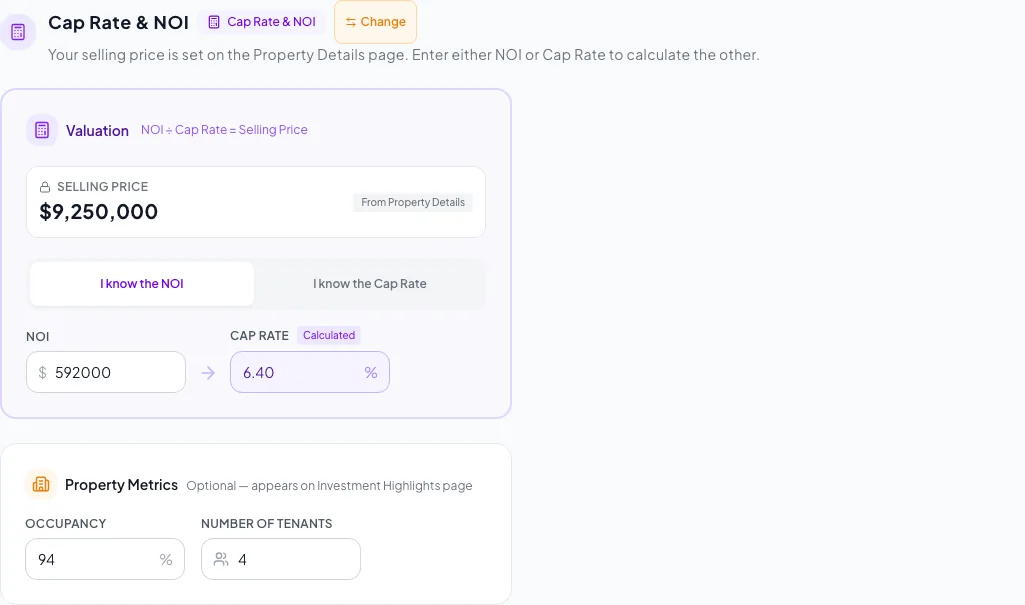
Enter the valuation inputs, verify the capitalization calculation, and confirm the limited output expected from this mode. - 3
Enter the source value
Valuation
Enter your NOI or cap rate.
Expected result: The other metric recalculates immediately and saves when you leave the field.
If this step does not work
Enter a cap rate as a percentage such as 6.25, and NOI as an annual dollar amount.
- 4
Add optional facts
Valuation
Enter occupancy and the displayed property-specific count when useful.
Expected result: The facts save when you leave each field and appear with the valuation.
If this step does not work
Leave a fact blank if you do not have it.
- 5
Check the valuation page
Review & Customize
Check price, NOI, cap rate, occupancy, and count on the valuation page.
Expected result: The page shows the numbers you entered.
If this step does not work
Return to Valuation or Property Details to change a number.
Resolve quick-path problems
Selling price cannot be edited
Likely cause: The value is intentionally sourced from Property Details.
- Return to Property Details.
- Edit and save Selling Price.
- Return to Valuation.
Derived cap rate is blank or invalid
Likely cause: Selling price or NOI is zero or missing.
- Confirm a nonzero selling price.
- Enter the known NOI.
- Recheck the calculation.
The full rent roll is missing
Likely cause: Cap Rate & NOI includes only scope and simplified valuation.
- Return to Financial Scope.
- Choose Full Financials if detailed analysis is required.
The valuation page shows an Est. GRM you did not enter
Likely cause: Without a rent roll, the Cap Rate & NOI valuation page of a non-BOV document estimates GRM from NOI assuming a 35% expense ratio.
- Check whether the estimate fits the property.
- Use Full Financials when you need GRM from actual income.
Quick analysis complete
- The valuation page shows the price, NOI, and cap rate you expect
Related guides
Choose and change the financial scope
Pick how much financial analysis your document shows, from a full cash flow to headline numbers only, and switch later without losing your data.
Open guideComplete a BOV valuation and reconciliation
Build a Broker Opinion of Value that walks the owner from income and sales-comparison evidence to a clear low, midpoint, and high value.
Open guideVerify financial pages before publishing
Do a final pass on the financial pages before you send: the right pages, the right labels, and numbers that tie out.
Open guideYour next OM, done this afternoon
Turn your property facts, photos and financials into a polished, branded offering memorandum. Most brokers finish in 30 to 90 minutes.
No credit card required.