Outcome
Your document shows every unit or floor plan, unit occupancy, Price/Unit, and NOI.
Navigation path
Create New > Multifamily > Document wizard
Access
Document creation access
On this page
Before you start
Data, sources, and access to prepare
- Total unit count
- Unit roster or unit mix
- Current rent and occupancy
Use unit-based occupancy
| Configuration | Multifamily behavior |
|---|---|
| Occupancy | By unit count |
| Primary metric | Price/Unit |
| Secondary metric | Price/SF |
| Rent bases | Monthly or Annual |
| Lease dates | Hidden |
| Reimbursements | Hidden |
| Tenant Profiles | Hidden |
| Vacancies | Supported |
Choose unit detail deliberately
Suggested other income
- Laundry
- Parking
- Pet fees
- Storage
- Late fees
- Application fees
Underwriting notes
- Utility bill-backs (RUBS): add an Additional Income row, since tenant reimbursements are hidden for Multifamily.
- Loss-to-lease: use a Pro Forma rent roll with market rent in the Pro Forma column, so buyers see in-place and market rent side by side.
- Concessions: enter in-place rent net of free rent, and describe the concession in the unit Notes.
Unit Type Required
Floor-plan or category label.
- Format
- Plain-text floor-plan or unit label
- Units
- Not applicable
- Save behavior
- Saved when the Multifamily unit or Unit Mix drawer Save action succeeds.
- Downstream effect
- Labels the row in Unit Inventory and the final Multifamily rent-roll presentation.
Number of Units Required
Count represented by a Unit Mix row.
- Format
- Positive whole number
- Units
- Dwelling units
- Save behavior
- Saved when the Unit Mix drawer Save action succeeds.
- Downstream effect
- Multiplies per-unit rent and area and contributes to total-unit occupancy.
Average SF Recommended
Average area for the row.
- Format
- Nonnegative number
- Units
- Square feet per unit
- Save behavior
- Saved when the unit or Unit Mix drawer Save action succeeds.
- Downstream effect
- Contributes to row area and applicable Price/SF and inventory context.
Monthly or Annual Rent Recommended
Per-unit current rent in the selected basis.
- Format
- Currency amount plus Monthly or Annual basis
- Units
- Currency per unit per month or per year
- Save behavior
- Saved when the unit or Unit Mix drawer Save action succeeds.
- Downstream effect
- Annualizes current rent and multiplies grouped rows into Multifamily base rent.
Pro Forma Rent Optional
Stabilized per-unit rent in a Pro Forma model.
- Format
- Currency amount
- Units
- Currency per unit in the selected rent basis
- Save behavior
- Saved with the row when the Pro Forma drawer Save action succeeds.
- Downstream effect
- Feeds stabilized Unit Inventory rent and Pro Forma comparison without replacing In-Place rent.
Vacancy Recommended
Vacant unit or category preserving total inventory.
- Format
- Vacancy row or vacancy status in the available editor
- Units
- Not applicable
- Save behavior
- Saved when the vacancy or inventory-row Save action succeeds.
- Downstream effect
- Keeps vacant units in total inventory while separating them from occupied-unit count and rent.
Unit Type
- Requirement
- Required
- What it means
- Floor-plan or category label.
- Format
- Plain-text floor-plan or unit label
- Units
- Not applicable
- Save behavior
- Saved when the Multifamily unit or Unit Mix drawer Save action succeeds.
- Downstream effect
- Labels the row in Unit Inventory and the final Multifamily rent-roll presentation.
Number of Units
- Requirement
- Required
- What it means
- Count represented by a Unit Mix row.
- Format
- Positive whole number
- Units
- Dwelling units
- Save behavior
- Saved when the Unit Mix drawer Save action succeeds.
- Downstream effect
- Multiplies per-unit rent and area and contributes to total-unit occupancy.
Average SF
- Requirement
- Recommended
- What it means
- Average area for the row.
- Format
- Nonnegative number
- Units
- Square feet per unit
- Save behavior
- Saved when the unit or Unit Mix drawer Save action succeeds.
- Downstream effect
- Contributes to row area and applicable Price/SF and inventory context.
Monthly or Annual Rent
- Requirement
- Recommended
- What it means
- Per-unit current rent in the selected basis.
- Format
- Currency amount plus Monthly or Annual basis
- Units
- Currency per unit per month or per year
- Save behavior
- Saved when the unit or Unit Mix drawer Save action succeeds.
- Downstream effect
- Annualizes current rent and multiplies grouped rows into Multifamily base rent.
Pro Forma Rent
- Requirement
- Optional
- What it means
- Stabilized per-unit rent in a Pro Forma model.
- Format
- Currency amount
- Units
- Currency per unit in the selected rent basis
- Save behavior
- Saved with the row when the Pro Forma drawer Save action succeeds.
- Downstream effect
- Feeds stabilized Unit Inventory rent and Pro Forma comparison without replacing In-Place rent.
Vacancy
- Requirement
- Recommended
- What it means
- Vacant unit or category preserving total inventory.
- Format
- Vacancy row or vacancy status in the available editor
- Units
- Not applicable
- Save behavior
- Saved when the vacancy or inventory-row Save action succeeds.
- Downstream effect
- Keeps vacant units in total inventory while separating them from occupied-unit count and rent.
Required means the field is needed to complete or support this workflow. Some screens allow a draft to save before every required item is complete. The steps and troubleshooting call out controls the product actively blocks.
Complete the Multifamily workflow
Multifamily steps
- 1
Select Multifamily
Create New, Select Property Type
Choose Multifamily.
Expected result: Unit-oriented labels and metrics are active.
If this step does not work
Change the property type in Property Details if labels are not unit-based.
- 2
Complete property totals
Property Details
Enter the property unit count and asking price.
Expected result: Price/Unit has the required denominator.
If this step does not work
Correct the unit count before entering a grouped rent roll.
- 3
Choose individual or grouped input
Rent Roll Type
Use Unit-by-Unit for distinct unit records or Unit Mix for repeated floor plans.
Expected result: The table matches the source schedule.
If this step does not work
If the source only has category averages, use Unit Mix.
- 4
Enter occupied and vacant inventory
Rent Roll
Add all categories or units with counts, average SF, and monthly or annual rent.
Expected result: Occupied plus vacant inventory reconciles to total units.
If this step does not work
Correct counts and remove overlapping categories.
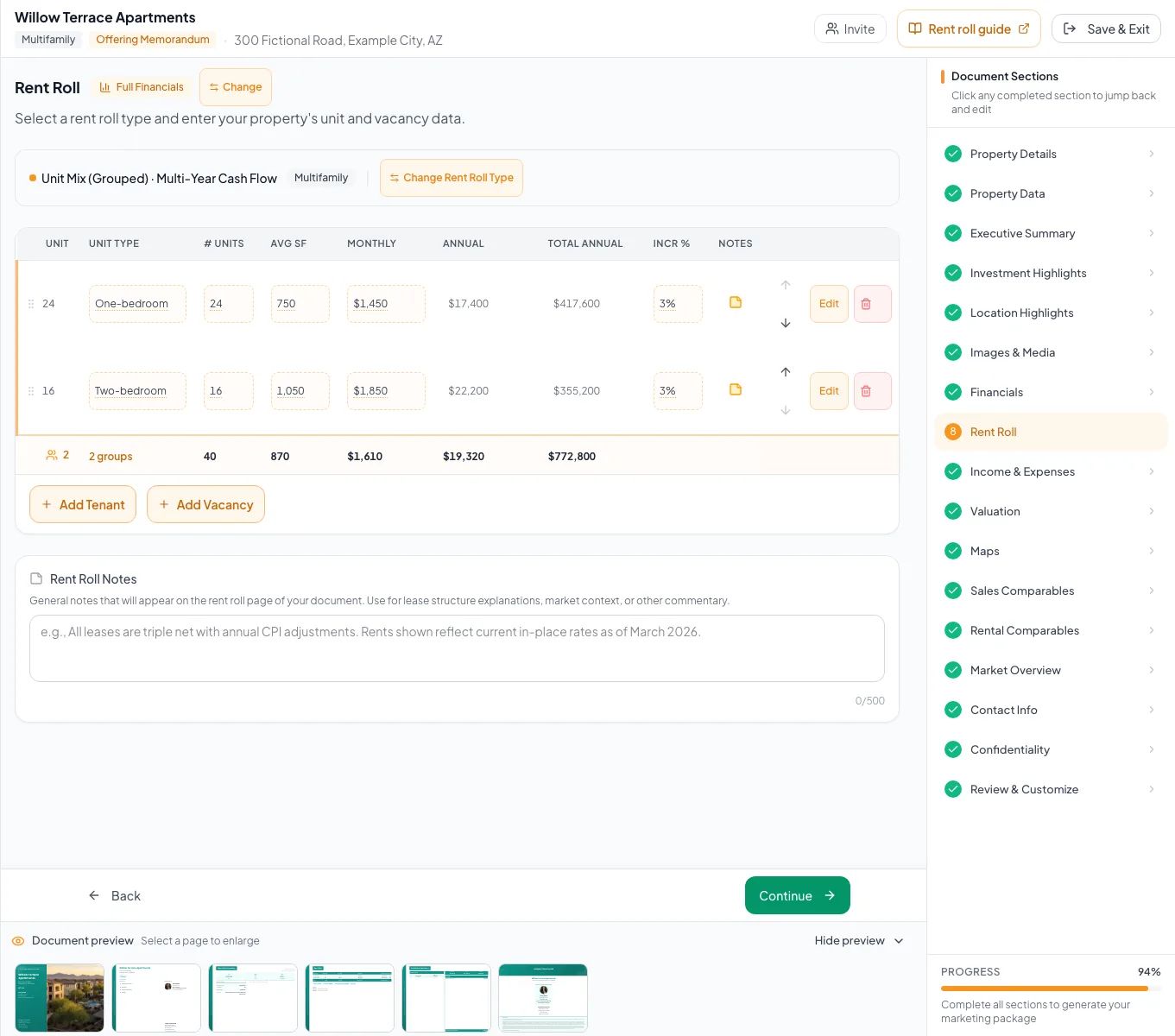
Review the populated multifamily example and verify the units, property facts, and applicable model before preparing your own document. - 5
Complete income and expenses
Income & Expenses
Add ancillary income and operating expenses in the displayed model columns.
Expected result: Multifamily EGI and NOI reconcile.
If this step does not work
Do not add tenant reimbursements because this property configuration hides them.
- 6
Review final metrics
Review & Customize
Verify unit count, occupancy, Price/Unit, Price/SF, unit table, and financial pages.
Expected result: The final presentation matches your underwriting.
If this step does not work
Return to Property Details or Rent Roll for a denominator or inventory mismatch.
Resolve Multifamily mismatches
Rent is multiplied too many times
Likely cause: A Unit Mix rent was entered as the category total instead of per unit.
- Enter rent per unit.
- Confirm Number of Units.
- Recheck annual row total.
Occupancy differs from area occupancy
Likely cause: Multifamily uses occupied unit count, not occupied SF.
- Reconcile occupied and total units.
- Use SF only as a separate physical metric.
- Total units match the property
- Inventory count reconciles
- Per-unit rent basis correct
- Vacancy included
- Price/Unit and Price/SF checked
- Tenant Profiles absent as expected
Related guides
Build unit, storage, and pad rent rolls
Enter apartments, storage units, or pads one by one or as a unit mix, and CREBuilder totals rent and occupancy with the right labels for each property type.
Open guideBuild and verify a pro forma analysis
Show buyers the upside: current and stabilized rent, income, expenses, and NOI side by side in one clean comparison.
Open guideBuild a multi-building or portfolio document
Package several buildings, parcels, or locations into one OM or teaser, with each property on the map and in the order buyers should see them.
Open guideYour next OM, done this afternoon
Turn your property facts, photos and financials into a polished, branded offering memorandum. Most brokers finish in 30 to 90 minutes.
No credit card required.