Outcome
Your OM or BOV has a complete financial section, and every page matches the numbers you entered.
Navigation path
Documents > Open a document > Financial Scope
Access
Document creation access
On this page
Before you start
Data, sources, and access to prepare
- A saved document
- Property details and asking price
- Current rent roll
- Income and expense source data
Understand the full-analysis sequence
Full Financials is the only scope that opens the rent roll, income and expense, and detailed valuation workflow together. The selected projection model changes the fields and final analysis page.
Prepare the source package
Collect before entering data
- Tenant or unit roster with rent basis
- Vacancy or loss assumptions
- Reimbursement amounts and lease terms when applicable
- Other income and operating expense statement
- Analysis period, debt, reserve, and exit assumptions
- Sales and rental comparable support when those pages are included
| Need | Use |
|---|---|
| Annual projection by year | Multi-Year Cash Flow |
| Side-by-side current and stabilized view | Pro Forma |
| Only headline value inputs | Cap Rate & NOI instead of Full Financials |
| Only a roster or inventory table | Rent Roll Only |
No generic spreadsheet import
The standard financial workflow does not import a rent roll, income statement, or comparable spreadsheet. Enter and verify the data in the wizard.
Complete the model in order
Full analysis steps
- 1
Choose Full Financials
Financial Scope
Select Full Financials.
Expected result: The scope card is selected.
If this step does not work
If the choice is unavailable, confirm the document and property type support it. BOV still supports Full Financials, while some custom templates replace this workflow.
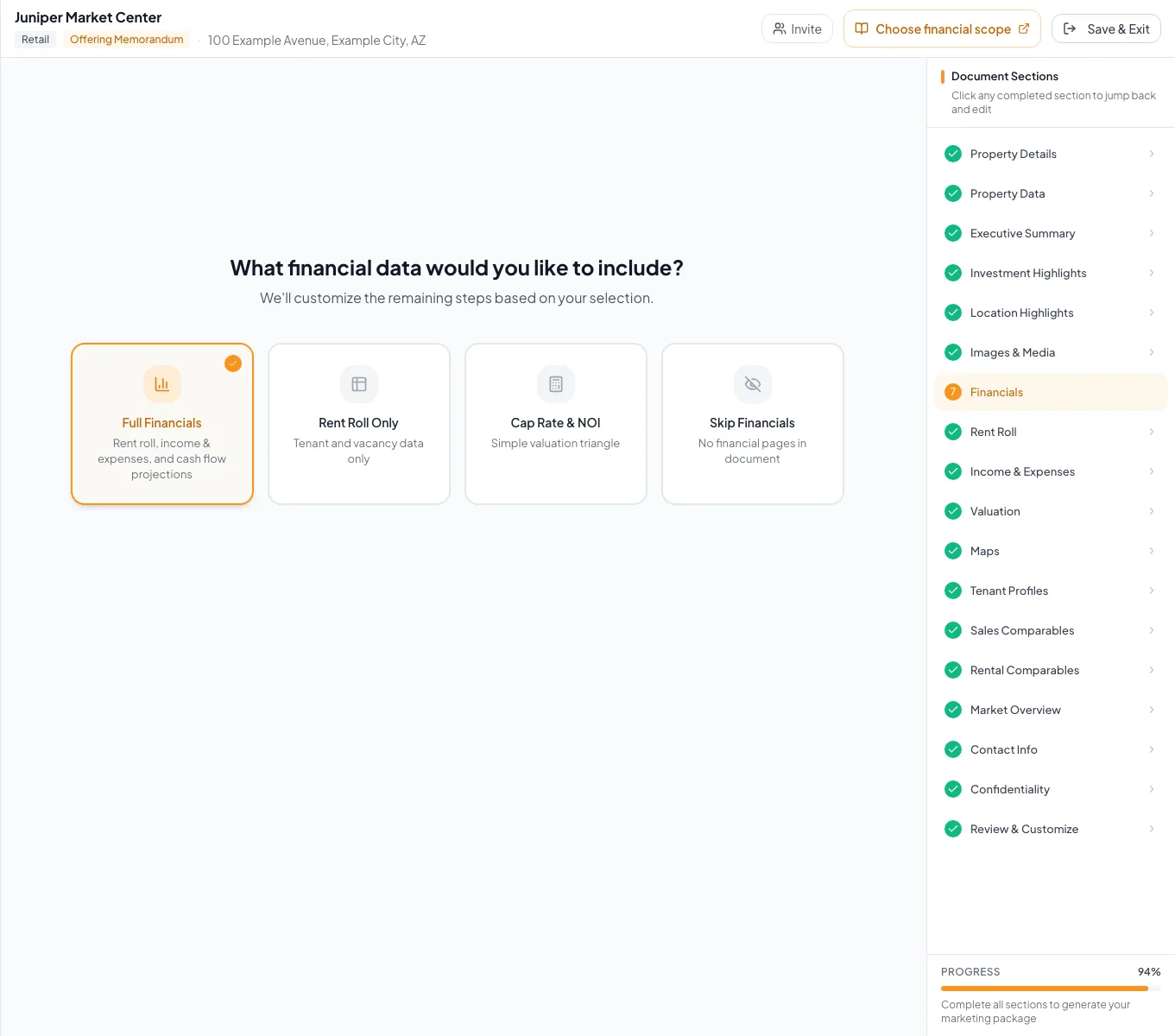
Start the analysis by selecting the scope that matches the assignment, property type, and pages required in the output. - 2
Continue to the rent roll
Financial Scope > Continue
Select Continue.
Expected result: Rent Roll becomes the next financial step.
If this step does not work
Return to Financial Scope if the wizard opens an unexpected path.
- 3
Choose the projection
Rent Roll, projection selector
Select Multi-Year Cash Flow or Pro Forma.
Expected result: The projection card is highlighted.
If this step does not work
Record important existing values before changing an established model.
- 4
Choose the row layout
Rent Roll, layout selector
Select Unit-by-Unit or Unit Mix where offered.
Expected result: The table changes to the columns for that model and layout.
If this step does not work
Review the confirmation carefully if the document already has saved rows.
- 5
Add an occupied or vacant row
Rent Roll toolbar
Select the applicable add-row control.
Expected result: The row detail editor opens.
If this step does not work
Confirm a rent-roll type is selected if add controls are absent.
- 6
Complete the rent-roll row
Rent Roll detail editor
Enter rent in the displayed basis plus applicable lease and reimbursement fields.
Expected result: Calculated monthly and annual totals appear after save.
If this step does not work
Correct the basis or source field if the total is implausible.
- 7
Enter other income and expenses
Income & Expenses
Complete the displayed cash-flow or pro-forma statement rows.
Expected result: The saved statement supplies the NOI calculation.
If this step does not work
If a row is missing, add it. If a suggested property-tax value is wrong, replace it with the verified source amount.
- 8
Review default expenses
Income & Expenses > Operating Expenses
Compare every default expense row with your source.
Expected result: Only applicable default rows remain in the statement.
If this step does not work
Edit or remove a default row that does not apply.
- 9
Set cash-flow assumptions
Valuation > Multi-Year Cash Flow
Enter the analysis, vacancy, exit, financing, and reserve assumptions.
Expected result: The cash-flow preview recalculates from saved inputs.
If this step does not work
If the cash-flow request fails, save the assumptions panel and retry.
- 10
Review the pro-forma comparison
Valuation > Pro Forma
Inspect in-place NOI, pro-forma NOI, financing, and reserves.
Expected result: The comparison reflects the saved current and stabilized cases.
If this step does not work
Return to Income & Expenses if either NOI does not match your underwriting.
- 11
Review generated pages
Review & Customize
Inspect every financial page, metric, footnote, and page title before export.
Expected result: Wizard totals and document totals agree.
If this step does not work
Return to the source wizard step, correct the input, and reopen review if a number is unexpected.
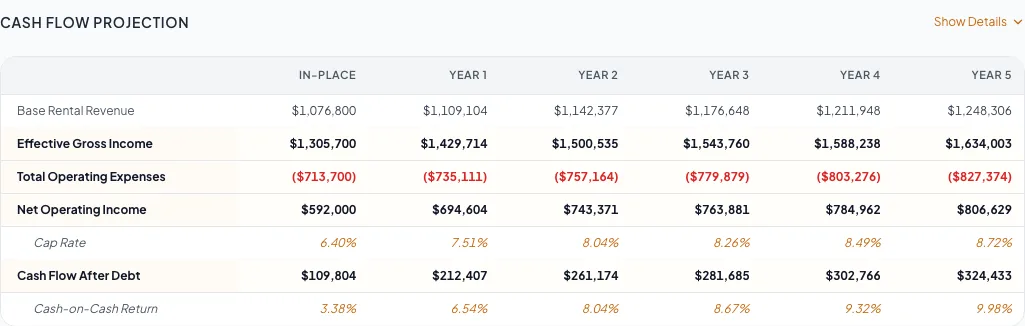
Check the saved financial output against your source data.
Reconcile before publishing
Financial review
- Rent roll annual totals match the source roster
- Vacancy rows and the General Vacancy Factor % are each used on purpose
- Lease-Up Scenario reflects how fast vacant space will lease
- Reimbursements use the intended annual or area basis
- In-place EGI, expenses, and NOI reconcile
- Debt and reserve assumptions use the intended units
- Exit value uses the selected exit-year NOI and cap rate
- Generated pages match the selected financial scope
Common blockers
A financial step is missing
Likely cause: The current scope, property type, document type, or custom template excludes it.
- Return to Financial Scope with Change Financial Scope.
- Confirm the selected property type and document package.
- Use the simplified valuation path if that is the intended assignment.
The PDF total differs from the source document
Likely cause: A rent basis, vacancy, reimbursement, or pro-forma field may have been interpreted differently.
- Reconcile row-level annual amounts first.
- Then reconcile EGI, total expenses, and NOI.
- Regenerate only after the wizard totals are correct.
Related guides
Choose and change the financial scope
Pick how much financial analysis your document shows, from a full cash flow to headline numbers only, and switch later without losing your data.
Open guideChoose a rent-roll model and layout
Choose Multi-Year Cash Flow or Pro Forma, and Unit-by-Unit or Unit Mix, so the rent roll matches the data you have and the story you want to tell.
Open guideVerify financial pages before publishing
Do a final pass on the financial pages before you send: the right pages, the right labels, and numbers that tie out.
Open guideYour next OM, done this afternoon
Turn your property facts, photos and financials into a polished, branded offering memorandum. Most brokers finish in 30 to 90 minutes.
No credit card required.