Outcome
Your In-Place and Pro Forma columns each tie to your underwriting and clearly show the NOI lift.
Navigation path
Document wizard > Rent Roll > Pro Forma > Income & Expenses > Valuation
Access
Full Financials with a Pro Forma rent-roll model
On this page
Before you start
Data, sources, and access to prepare
- Full Financials selected
- A Unit-by-Unit Pro Forma or Unit-Mix Pro Forma rent-roll type
- Current and stabilized assumptions
Understand the Pro Forma comparison
In-place to pro forma
The two columns are separate snapshots, not Year 0 and Year 1.
In-Place Rent
Current tenant or unit economics
Pro Forma Rent
Stabilized tenant or unit economics
In-Place NOI
Current EGI less current expenses
Pro Forma NOI
Stabilized EGI less stabilized expenses
Pro Forma Analysis
Side-by-side output
- In-Place RentIn-Place NOI
- Pro Forma RentPro Forma NOI
- In-Place NOIPro Forma Analysis
- Pro Forma NOIPro Forma Analysis
Rent Roll
- In-Place
- Current rent and reimbursement
- Pro Forma
- Stabilized rent and reimbursement
Additional Income
- In-Place
- Current annual amount
- Pro Forma
- Stabilized annual amount
Expenses
- In-Place
- Current annual amount
- Pro Forma
- Stabilized annual amount
Valuation
- In-Place
- Current EGI, expenses, NOI
- Pro Forma
- Stabilized EGI, expenses, NOI
Growth schedules
- In-Place
- Not shown
- Pro Forma
- Not shown
Reconcile the summary math
- In-Place deducts the rent and reimbursements of vacant spaces as vacancy loss.
- Pro Forma counts every vacant space as leased at its Pro Forma rent and reimbursement, with no vacancy deduction.
- Each side includes its own reimbursement and additional-income values.
- Each side subtracts its own total operating expenses.
- NOI equals effective gross income less operating expenses for that column.
- Pro Forma is not a time-based projection and does not apply annual growth or custom escalation schedules.
Pro Forma has no vacancy or credit-loss input
The General Vacancy Factor % and Lease-Up Scenario appear only in Multi-Year Cash Flow, so stabilized EGI carries 0% vacancy and credit loss. To show a stabilized vacancy allowance, build it into the Pro Forma rents you enter and say so in a Valuation Summary footnote.
Build both sides of the analysis
Pro-forma steps
- 1
Choose Pro Forma
Rent Roll, projection selector
Select Pro Forma.
Expected result: The projection choice is highlighted.
If this step does not work
If annual growth is required instead, choose Multi-Year Cash Flow.
- 2
Choose the row layout
Rent Roll, layout selector
Select Unit-by-Unit or Unit Mix.
Expected result: Current and pro-forma input columns appear in the selected layout.
If this step does not work
Choose the layout that matches individual records or grouped source data.
- 3
Complete both rent cases
Rent Roll rows and detail drawer
Enter current and pro-forma rent and reimbursement for every applicable row.
Expected result: Each row has a complete two-column comparison.
If this step does not work
Do not leave a pro-forma field blank merely because the current value is unchanged. Enter the stabilized value.
- 4
Complete both statement cases
Income & Expenses
Enter In-Place and Pro Forma values for every additional-income and expense row.
Expected result: Both column totals reconcile to the underwriting.
If this step does not work
Check for explicit zero values and omitted rows separately.
- 5
Review the NOI table
Valuation, Pro Forma Analysis
Compare gross rent, reimbursements, other income, EGI, expenses, and NOI for both columns.
Expected result: Each subtotal can be traced to a saved input.
If this step does not work
Return to the source row for the first subtotal that differs.
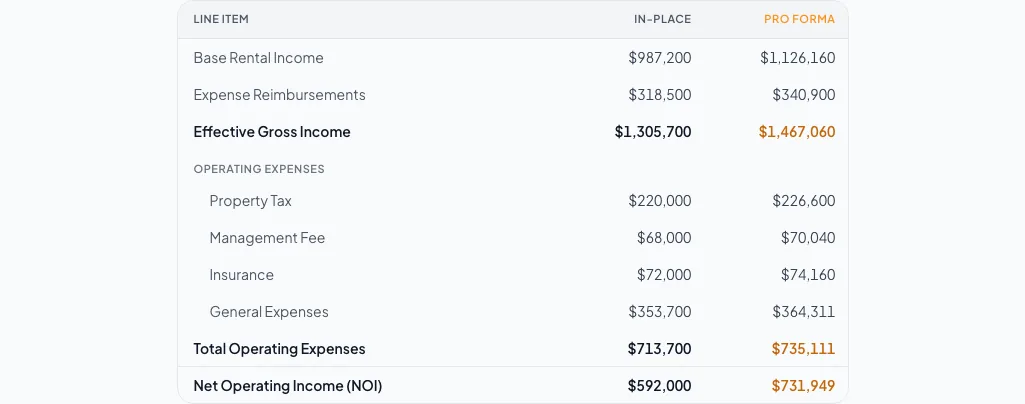
Compare verified in-place operations with the stabilized pro forma and explain every material change between the columns. - 6
Set optional financing and reserves
Valuation, Assumptions
Enter financing and reserve inputs when you want to show them.
Expected result: Debt service and reserves appear below NOI.
If this step does not work
Reserves equal rate x total SF, units, keys, or pads.
- 7
Verify the document page
Review & Customize
Confirm the generated analysis is labeled and presented as a pro-forma comparison.
Expected result: The final page matches the two wizard columns.
If this step does not work
Return to the wizard if the output uses an unexpected model or value.
Avoid common pro-forma mistakes
Growth or exit-year controls are missing
Likely cause: Pro Forma is a two-snapshot comparison, not Multi-Year Cash Flow.
- Use current and stabilized columns.
- Change the rent-roll projection only if a yearly forecast is required.
An explicit zero becomes unclear
Likely cause: A blank field and a zero can carry different underwriting meaning.
- Enter zero deliberately where the modeled amount is zero.
- Review the resulting summary before leaving.
Pro-forma NOI is higher than expected
Likely cause: Pro Forma counts vacant spaces as fully leased and deducts no general vacancy or credit loss. Rent, reimbursement, or expense entries may also differ from your underwriting.
- Check the Pro Forma rent on every vacancy row.
- Build any stabilized vacancy allowance into the Pro Forma rents.
- Reconcile reimbursements, additional income, and expenses next.
Comparison ready
- Every row has a current and a stabilized value
- Both EGI totals tie out
- Both expense totals tie out
- Both NOI values tie out
- Any stabilized vacancy allowance is built into Pro Forma rents and footnoted
Related guides
Choose a rent-roll model and layout
Choose Multi-Year Cash Flow or Pro Forma, and Unit-by-Unit or Unit Mix, so the rent roll matches the data you have and the story you want to tell.
Open guideEnter income and operating expenses
Enter other income and operating expenses from your T-12 or budget, and CREBuilder calculates effective gross income and NOI for every page that shows them.
Open guideVerify financial pages before publishing
Do a final pass on the financial pages before you send: the right pages, the right labels, and numbers that tie out.
Open guideYour next OM, done this afternoon
Turn your property facts, photos and financials into a polished, branded offering memorandum. Most brokers finish in 30 to 90 minutes.
No credit card required.