Video walkthrough
Read the written stepsRead the transcript
Before you watch
- Have the complete rent roll and annual-expenses reference sheet ready.
- The recordings use separate prepared expense checkpoints. Enter every source expense in your own OM, then reconcile the total to $713,700.
- The review checkpoint includes the practice financial assumptions. Follow the linked assumption guides before relying on projections.
- In this practice, in-place NOI is $592,000 and cap rate is 6.40%. Compare cash-on-cash returns by column; the Valuation cash-on-cash summary uses Year 1.
- For the practice projections, use Lease-Up Scenario: 100% Immediate, a $6,000,000 loan with a 6.25% interest rate, no interest-only period, 30-year amortization and a 10-year term.
Outcome
Your document shows only the financial pages you want, and every number traces back to an input.
Navigation path
Document wizard > Review & Customize > Financial pages
Access
Review & Customize access
On this page
Before you start
Data, sources, and access to prepare
- Completed financial wizard steps
- Your source underwriting
- Access to Review & Customize
Predict the page set
Financial page gating
Document defaults, financial scope, property rules, content, and template rules all affect the final page set.
Document defaults
OM, BOV, teaser, or custom registry
Financial Scope
Full, Rent Roll Only, Cap Rate & NOI, or Skip
Property rules
Land, Net Lease, and specialized variations
Saved content
Some pages hide when empty
Final page set
Review & Customize
- Document defaultsFinancial Scope
- Financial ScopeProperty rules
- Property rulesSaved content
- Saved contentFinal page set
| Scope | Typical financial content |
|---|---|
| Full Financials | Rent Roll, detailed analysis, and document-specific financial pages |
| Rent Roll Only | Rent Roll without native income, valuation, or cash-flow analysis |
| Cap Rate & NOI | Simplified valuation facts without rent roll or detailed statement |
| Skip Financials | No native rent roll, income and expense, valuation, or cash-flow pages |
Check document and property exceptions
- Offering Memorandum defaults include Rent Roll, Valuation Summary, Cash Flow, Sales Comparables, and Rental Comparables, subject to content and scope rules.
- BOV defaults include Rent Roll, Income & Expenses, Cash Flow, comparables, and Valuation, subject to scope and property rules.
- Land excludes native financial and rental-comparable pages, but Land BOV retains valuation.
- Single Tenant Net Lease uses a dedicated Net Lease Summary and applies separate page exclusions.
- Pro Forma relabels the cash-flow analysis slot for its two-column analysis in standard templates.
- Multi-property documents can inject Portfolio Financial Summary separately from standard financial pages. Inspect it explicitly after any scope change.
Rent Roll uses its own notes
Rent Roll does not take numbered financial footnotes. Add reader-facing context in the Rent Roll notes instead.
Supported financial footnote pages
Net Lease Summary Optional
Accepts numbered financial footnotes.
- Format
- Numbered plain-text notes
- Units
- Not applicable
- Save behavior
- Autosaves after Net Lease Summary is selected and note text is entered.
- Downstream effect
- Places the saved numbered note on the Net Lease Summary without changing its calculations.
Income & Expenses Optional
Accepts numbered financial footnotes.
- Format
- Numbered plain-text notes
- Units
- Not applicable
- Save behavior
- Autosaves after Income & Expenses is selected and note text is entered.
- Downstream effect
- Places the saved numbered note on the Income & Expenses page without changing its totals.
Valuation Summary Optional
Accepts numbered financial footnotes.
- Format
- Numbered plain-text notes
- Units
- Not applicable
- Save behavior
- Autosaves after Valuation Summary is selected and note text is entered.
- Downstream effect
- Places the saved numbered note on the Valuation Summary without changing valuation inputs.
Cash Flow Optional
Accepts numbered financial footnotes.
- Format
- Numbered plain-text notes
- Units
- Not applicable
- Save behavior
- Autosaves after Cash Flow is selected and note text is entered.
- Downstream effect
- Places the saved numbered note on the Cash Flow or corresponding analysis page without changing projections.
Net Lease Summary
- Requirement
- Optional
- What it means
- Accepts numbered financial footnotes.
- Format
- Numbered plain-text notes
- Units
- Not applicable
- Save behavior
- Autosaves after Net Lease Summary is selected and note text is entered.
- Downstream effect
- Places the saved numbered note on the Net Lease Summary without changing its calculations.
Income & Expenses
- Requirement
- Optional
- What it means
- Accepts numbered financial footnotes.
- Format
- Numbered plain-text notes
- Units
- Not applicable
- Save behavior
- Autosaves after Income & Expenses is selected and note text is entered.
- Downstream effect
- Places the saved numbered note on the Income & Expenses page without changing its totals.
Valuation Summary
- Requirement
- Optional
- What it means
- Accepts numbered financial footnotes.
- Format
- Numbered plain-text notes
- Units
- Not applicable
- Save behavior
- Autosaves after Valuation Summary is selected and note text is entered.
- Downstream effect
- Places the saved numbered note on the Valuation Summary without changing valuation inputs.
Cash Flow
- Requirement
- Optional
- What it means
- Accepts numbered financial footnotes.
- Format
- Numbered plain-text notes
- Units
- Not applicable
- Save behavior
- Autosaves after Cash Flow is selected and note text is entered.
- Downstream effect
- Places the saved numbered note on the Cash Flow or corresponding analysis page without changing projections.
Required means the field is needed to complete or support this workflow. Some screens allow a draft to save before every required item is complete. The steps and troubleshooting call out controls the product actively blocks.
Perform the final financial review
Output review steps
- 1
Open the page list
Review & Customize
Locate every financial, comparable, net-lease, and portfolio page.
Expected result: The visible page set can be compared with scope and property rules.
If this step does not work
If a page is absent, verify it has saved content and is allowed by scope and property type.
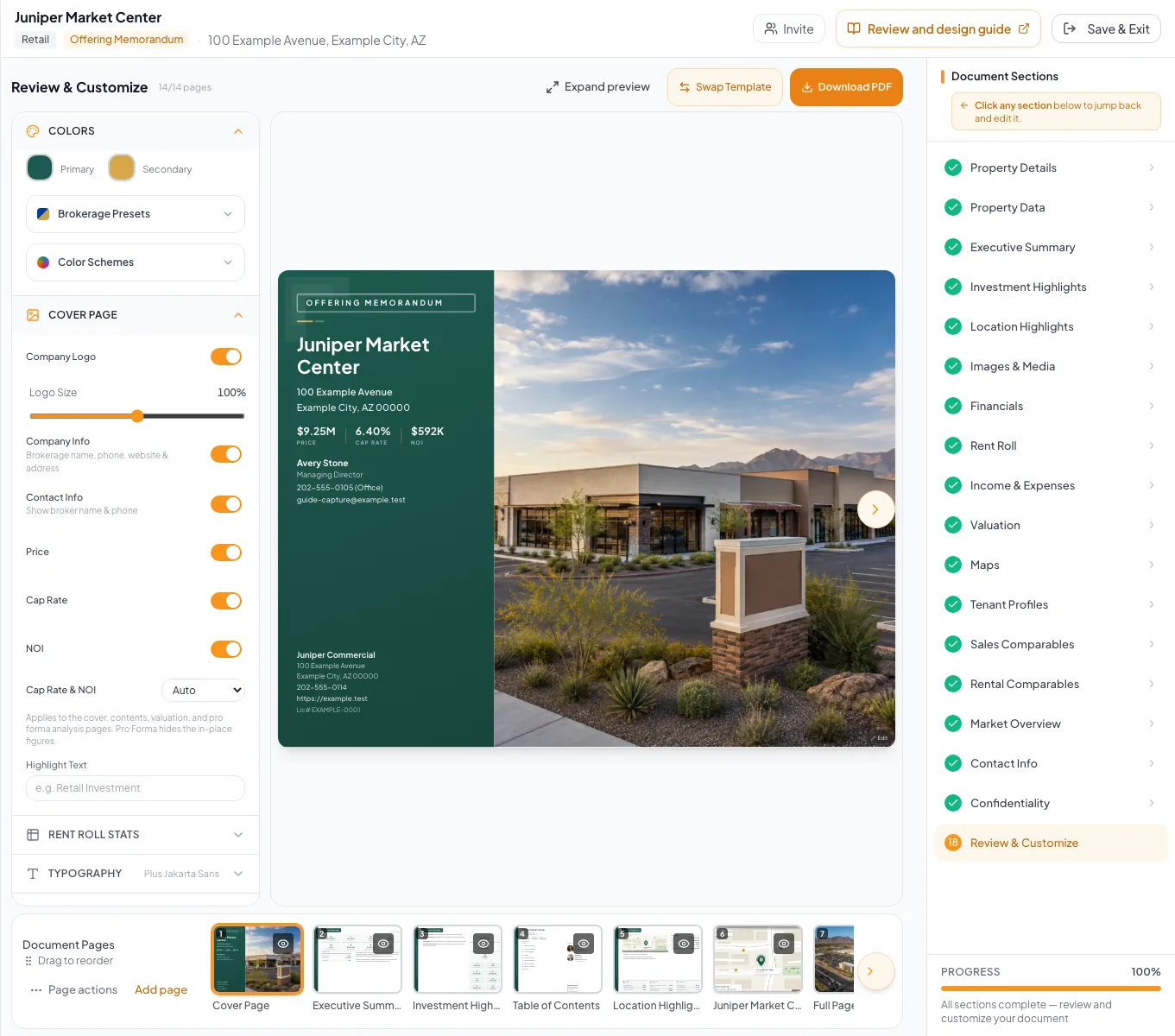
Confirm that the selected scope and completed data produce every expected rent-roll, analysis, valuation, and comparable page. - 2
Check titles and model labels
Document preview
Confirm Cash Flow versus Pro Forma, property-specific terminology, and BOV approach labels.
Expected result: Readers will see the intended analysis type.
If this step does not work
Return to Rent Roll Type, property type, or Financial Scope if a label reveals the wrong model.
- 3
Reconcile rent and EGI
Rent Roll and analysis pages
Compare row totals, gross rent, vacancy, reimbursements, other income, and EGI with wizard values.
Expected result: Income totals agree across relevant pages.
If this step does not work
Correct source rows before reviewing expenses.
- 4
Reconcile expenses and NOI
Income & Expenses, Valuation, and key metrics
Compare expense totals and NOI across the wizard sidebar and generated pages.
Expected result: All displayed NOI values use the case you intend.
If this step does not work
Identify whether each page uses in-place, pro-forma, or a selected cash-flow year.
- 5
Verify debt, reserves, and exit
Cash Flow and Valuation pages
Independently check below-NOI deductions and exit price.
Expected result: Calculated results match your assumptions.
If this step does not work
Return to assumptions for any discrepancy, especially reserve basis.
- 6
Review footnotes and export
Financial pages and export preview
Confirm numbering, wording, pagination, clipping, and confidentiality before export.
Expected result: The final PDF is readable and complete.
If this step does not work
Shorten notes or adjust page selections if content clips or creates unintended blank pages.
Diagnose the first divergence
A page is missing
Likely cause: Scope, property rules, template rules, or empty-content checks hid it.
- Confirm the intended scope.
- Confirm the property type.
- Confirm the page has saved content.
- Inspect the template page list.
NOI differs between surfaces
Likely cause: A surface may use in-place, pro-forma, cash-flow-year, or fallback calculations.
- Label the case shown by each surface.
- Reconcile EGI and expenses for that case.
- Correct the source or escalate a true mismatch.
Portfolio Financial Summary remains unexpected after a scope change
Likely cause: The portfolio summary has separate assembly and content checks.
- Inspect and remove the page only through supported Review & Customize controls when appropriate.
- Verify the final export.
- Contact support if the saved scope and native page behavior conflict.
A calculated metric has no clear source
Likely cause: The value may be derived rather than directly entered.
- Trace the formula in the relevant guide.
- Recalculate independently.
- Explain any derived metric before you publish.
Publication gate
- Expected pages only
- Correct model labels
- Rent and EGI reconciled
- Expenses and NOI reconciled
- Debt and reserves checked
- Exit value checked
- Footnotes accurate
- PDF visually reviewed
Related guides
Complete a full financial analysis
Go from rent roll to finished financial pages in one pass: rent roll, income and expenses, valuation, and a cash flow or pro forma your buyers can read.
Open guideChoose and change the financial scope
Pick how much financial analysis your document shows, from a full cash flow to headline numbers only, and switch later without losing your data.
Open guideBuild multi-property rent rolls and financials
Enter rent rolls and operating statements building by building, and CREBuilder rolls them up into a Portfolio Financial Summary with building and portfolio NOI.
Open guideYour next OM, done this afternoon
Turn your property facts, photos and financials into a polished, branded offering memorandum. Most brokers finish in 30 to 90 minutes.
No credit card required.