Video walkthrough
Read the written stepsRead the transcript
Before you watch
- Have the complete rent roll and annual-expenses reference sheet ready.
- The recordings use separate prepared expense checkpoints. Enter every source expense in your own OM, then reconcile the total to $713,700.
- The review checkpoint includes the practice financial assumptions. Follow the linked assumption guides before relying on projections.
- In this practice, in-place NOI is $592,000 and cap rate is 6.40%. Compare cash-on-cash returns by column; the Valuation cash-on-cash summary uses Year 1.
- For the practice projections, use Lease-Up Scenario: 100% Immediate, a $6,000,000 loan with a 6.25% interest rate, no interest-only period, 30-year amortization and a 10-year term.
Outcome
Your operating statement is in CREBuilder and EGI and NOI match the source you are marketing from.
Navigation path
Document wizard > Income & Expenses
Access
Full Financials
On this page
Before you start
Data, sources, and access to prepare
- Full Financials selected
- Current operating statement
- A selected cash-flow or pro-forma rent-roll model
See how the statement feeds NOI
Income and expense flow
Rental income comes from Rent Roll; this step adds other income and subtracts operating expenses.
Rent Roll
Base rent and reimbursements
Additional Income
Parking, fees, and property-specific sources
Effective Gross Income
Income after vacancy treatment
Operating Expenses
Taxes, insurance, management, and other
NOI
EGI minus operating expenses
- Rent RollEffective Gross Income
- Additional IncomeEffective Gross Income
- Effective Gross IncomeNOI
- Operating ExpensesNOI
Multi-Year Cash Flow
- Additional income columns
- Name, Annual Amount, Increase %
- Expense columns
- Name, Annual Amount, Increase %
Pro Forma
- Additional income columns
- Name, In-Place, Pro Forma
- Expense columns
- Name, In-Place, Pro Forma
Use suggestions as a starting point
Other income examples by property type
- Retail: percentage rent, parking, antenna or billboard, late fees
- Office: parking, storage, antenna or billboard, conference-room rental
- Industrial: parking, storage yard, antenna or billboard, late fees
- Multifamily: laundry, parking, pet, storage, late, and application fees, plus utility bill-backs (RUBS)
- Hotel: food and beverage, spa, parking, meetings, retail, and laundry
- Self-Storage: late, admin, insurance, truck rental, and retail income
- Mobile Home Parks: laundry, storage, RV parking, utility reimbursements, and late fees
Keep CAM in Reimbursements
Retail, Office, Industrial, Mixed-Use, and Net Lease show a CAM Reimbursements suggestion. When tenant recoveries are already entered per tenant in the rent roll, skip that suggestion so CAM is not counted twice. Use it only for recoveries that are not entered per tenant.
Hotel expenses follow hotel convention
Enter departmental costs, management fees, franchise and royalty fees, OTA commissions, and an FF&E reserve (commonly about 4% of total revenue) as operating-expense rows. NOI then matches how hotel buyers underwrite. If you do this, leave the matching Reserves fields on Valuation blank so nothing is deducted twice.
Starter rows are editable
When no expenses exist, CREBuilder may create Property Tax, Insurance, and Management Fee starter rows. Replace their amounts or delete the rows to match your statement.
Annual Amount Recommended
Current annual income or expense in cash-flow mode.
- Format
- Currency amount
- Units
- Currency per year
- Save behavior
- Saved when the income or expense row editor commits the row.
- Downstream effect
- Enters the current statement total and supplies the starting amount for projected cash flow.
Increase % Optional
Annual compound growth for the row in projected years.
- Format
- Percentage
- Units
- Percent per projected year
- Save behavior
- Saved with the income or expense row when the row editor commits it.
- Downstream effect
- Compounds that row after In-Place in Multi-Year Cash Flow.
In-Place Recommended
Current annual amount in pro-forma mode.
- Format
- Currency amount
- Units
- Currency per year
- Save behavior
- Saved when the income or expense row editor commits the row.
- Downstream effect
- Feeds the current column, current EGI or expenses, and current NOI in Pro Forma.
Pro Forma Recommended
Stabilized annual amount in pro-forma mode.
- Format
- Currency amount
- Units
- Currency per year
- Save behavior
- Saved when the income or expense row editor commits the row.
- Downstream effect
- Feeds the stabilized column, stabilized EGI or expenses, and stabilized NOI in Pro Forma.
Financial Footnotes Optional
Numbered notes for Income & Expenses and other supported output pages.
- Format
- Numbered plain-text notes
- Units
- Not applicable
- Save behavior
- Autosaves after note entry; verify the note remains after the save state completes.
- Downstream effect
- Places the note on the selected supported financial page without changing calculations.
Annual Amount
- Requirement
- Recommended
- What it means
- Current annual income or expense in cash-flow mode.
- Format
- Currency amount
- Units
- Currency per year
- Save behavior
- Saved when the income or expense row editor commits the row.
- Downstream effect
- Enters the current statement total and supplies the starting amount for projected cash flow.
Increase %
- Requirement
- Optional
- What it means
- Annual compound growth for the row in projected years.
- Format
- Percentage
- Units
- Percent per projected year
- Save behavior
- Saved with the income or expense row when the row editor commits it.
- Downstream effect
- Compounds that row after In-Place in Multi-Year Cash Flow.
In-Place
- Requirement
- Recommended
- What it means
- Current annual amount in pro-forma mode.
- Format
- Currency amount
- Units
- Currency per year
- Save behavior
- Saved when the income or expense row editor commits the row.
- Downstream effect
- Feeds the current column, current EGI or expenses, and current NOI in Pro Forma.
Pro Forma
- Requirement
- Recommended
- What it means
- Stabilized annual amount in pro-forma mode.
- Format
- Currency amount
- Units
- Currency per year
- Save behavior
- Saved when the income or expense row editor commits the row.
- Downstream effect
- Feeds the stabilized column, stabilized EGI or expenses, and stabilized NOI in Pro Forma.
Financial Footnotes
- Requirement
- Optional
- What it means
- Numbered notes for Income & Expenses and other supported output pages.
- Format
- Numbered plain-text notes
- Units
- Not applicable
- Save behavior
- Autosaves after note entry; verify the note remains after the save state completes.
- Downstream effect
- Places the note on the selected supported financial page without changing calculations.
Required means the field is needed to complete or support this workflow. Some screens allow a draft to save before every required item is complete. The steps and troubleshooting call out controls the product actively blocks.
Enter and reconcile the statement
Income and expense steps
- 1
Confirm the column model
Income & Expenses
Check whether the page shows Annual Amount and Increase % or In-Place and Pro Forma.
Expected result: The columns match the rent-roll projection.
If this step does not work
Return to Rent Roll Type if the wrong model is shown.
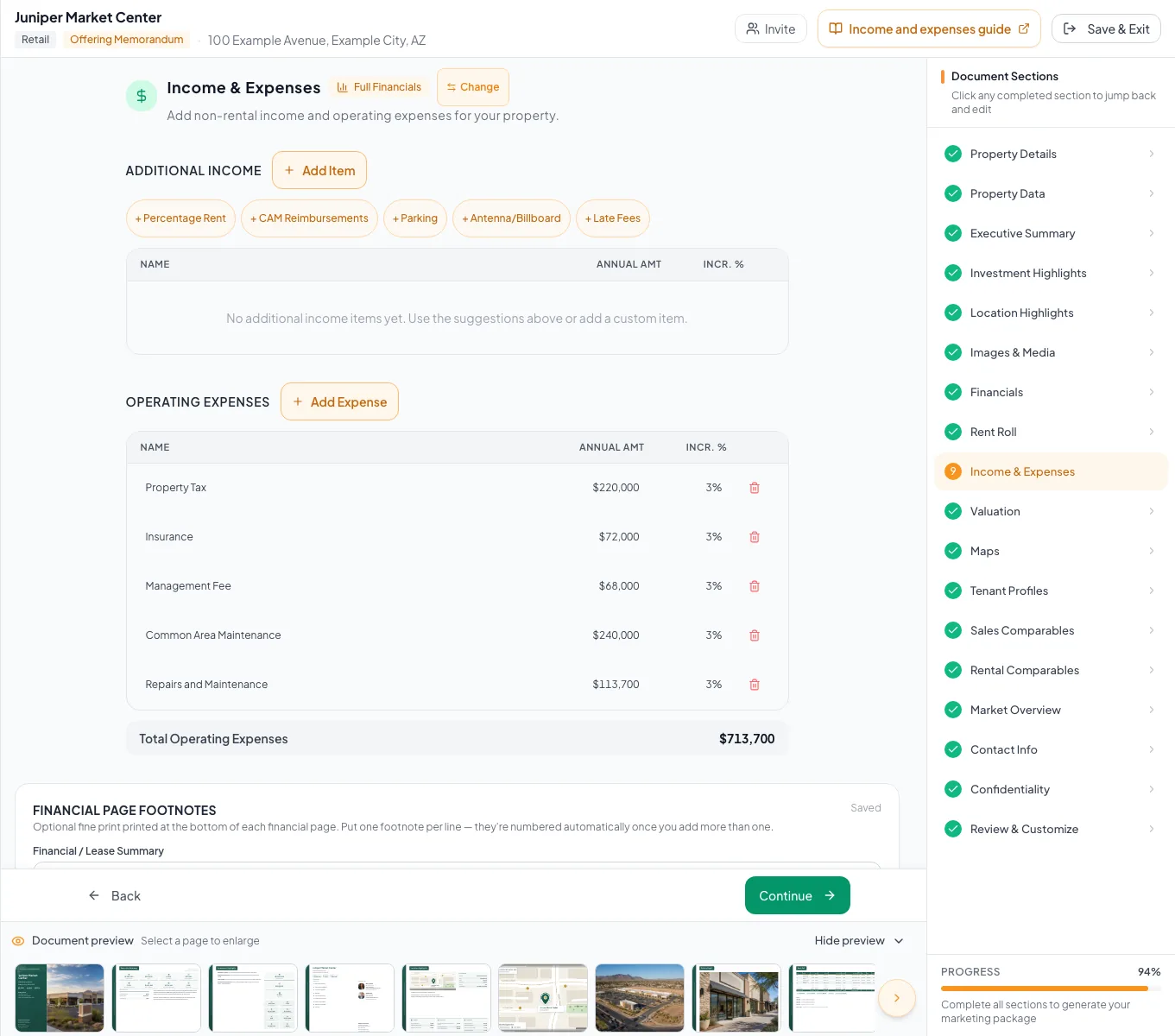
Enter income, vacancy, reimbursements, expenses, and footnotes in the rows that feed effective gross income and NOI. - 2
Add an additional-income row
Additional Income section
Select the control for adding a non-rental income source.
Expected result: A new editable income row appears.
If this step does not work
Press Escape if the row was added accidentally.
- 3
Complete the additional-income row
Additional Income row
Enter the source name and all displayed numeric values.
Expected result: The row saves and appears in the total.
If this step does not work
Select the row again to correct an inaccurate value.
- 4
Review starter expenses
Operating Expenses section
Compare Property Tax, Insurance, and Management Fee starter rows with the source statement.
Expected result: Only categories and amounts from your statement remain.
If this step does not work
Edit or delete a starter row that does not apply. Deletion is immediate, so use it carefully.
- 5
Add an operating-expense row
Operating Expenses section
Select the control for adding an operating expense category.
Expected result: A new editable expense row appears.
If this step does not work
Remove the row if it duplicates an existing category.
- 6
Complete the operating-expense row
Operating Expenses row
Enter its current, growth, or pro-forma amounts.
Expected result: Total operating expenses update from the saved row.
If this step does not work
Compare one category at a time and check annual versus monthly source units.
- 7
Review suggested property tax
Income & Expenses, Property Tax row
Compare a prefilled Property Tax amount with your statement.
Expected result: The saved property tax matches the figure you want to market.
If this step does not work
CREBuilder can prefill an empty Property Tax starter row from public tax records. Type over it when your statement shows a different amount.
- 8
Add page footnotes
Financial Footnotes
Enter concise numbered notes for supported pages.
Expected result: The notes remain after autosave.
If this step does not work
Shorten or correct a note that does not save.
- 9
Verify statement totals
Income & Expenses totals
Compare every displayed total with your statement.
Expected result: The totals match, and Continue moves you to Valuation.
If this step does not work
Continue does not check the numbers for you, so correct the first mismatched row before leaving.
Resolve statement mismatches
A monthly source amount makes the annual total too low
Likely cause: The page expects annual amounts.
- Annualize the source amount outside the row.
- Enter the annual total.
- Document the convention in a footnote if readers need it.
The page has no growth columns
Likely cause: The rent-roll projection is Pro Forma.
- Enter separate In-Place and Pro Forma values.
- Use Multi-Year Cash Flow if annual growth is required.
NOI differs from the source
Likely cause: Rental income, vacancy, reimbursements, additional income, or expense rows may differ.
- Reconcile rent-roll income first.
- Then additional income.
- Then total operating expenses.
- Compare EGI and NOI last.
Final verification
- Operating Expenses row: Total operating expenses update from the saved row.
- Income & Expenses, Property Tax row: The saved property tax matches the figure you want to market.
- Financial Footnotes: The notes remain after autosave.
- Income & Expenses totals: The totals match, and Continue moves you to Valuation.
- No blocking warning, failed status, or unresolved validation message remains in the completed workflow.
Related guides
Build a commercial rent roll
Build a tenant-by-tenant rent roll for retail, office, or industrial, and CREBuilder annualizes rent and recoveries from whatever basis your lease uses.
Open guideBuild and verify a pro forma analysis
Show buyers the upside: current and stabilized rent, income, expenses, and NOI side by side in one clean comparison.
Open guideRead and verify the cash-flow projection
Read the Multi-Year Cash Flow line by line, from base rent to cash flow after debt, so you can explain every number to a buyer.
Open guideYour next OM, done this afternoon
Turn your property facts, photos and financials into a polished, branded offering memorandum. Most brokers finish in 30 to 90 minutes.
No credit card required.