Video walkthrough
Read the written stepsRead the transcript
Before you watch
- Use the occupied-tenants and vacancy reference sheets with the Unit-by-Unit model.
- The tenant demonstration already contains the other three tenants; it adds Juniper Grocer. The separate vacancy demonstration starts with all four occupied tenants and no vacancy.
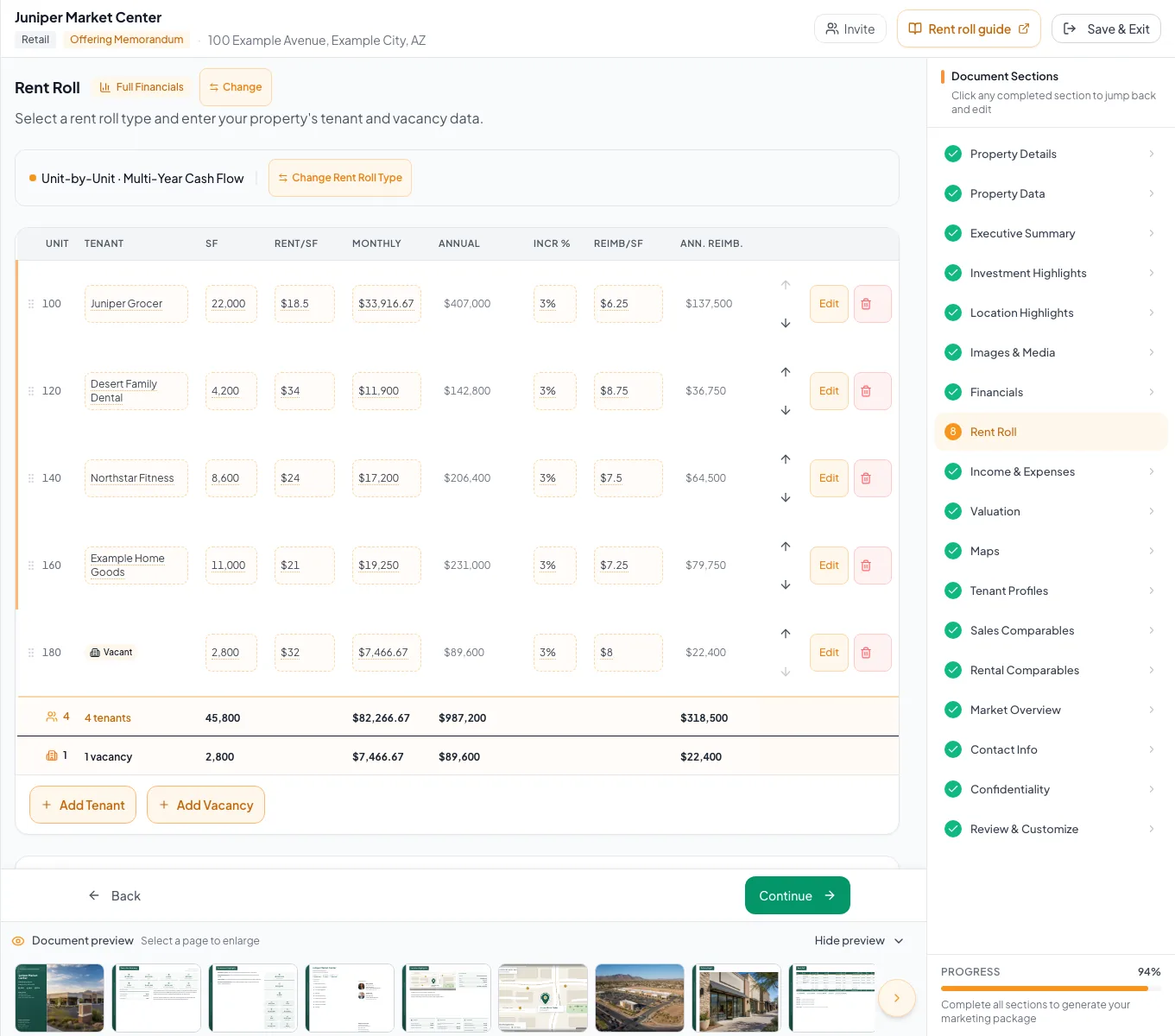
- When building from an empty OM, enter every source row. Reconcile 45,800 SF occupied plus 2,800 SF vacant to 48,600 SF total.
- After saving the vacancy row, set Incr % to 3%. In Edit Vacancy, set Expense Reimbursement, Increase per year to 2.5%/yr.
Outcome
Your rent roll shows every tenant and vacancy with annual totals that match your source.
Navigation path
Document wizard > Rent Roll
Access
A financial scope that includes Rent Roll
On this page
Before you start
Data, sources, and access to prepare
- A commercial property type
- A scope that includes Rent Roll
- Tenant schedule and vacancy data
Understand a rent-roll row
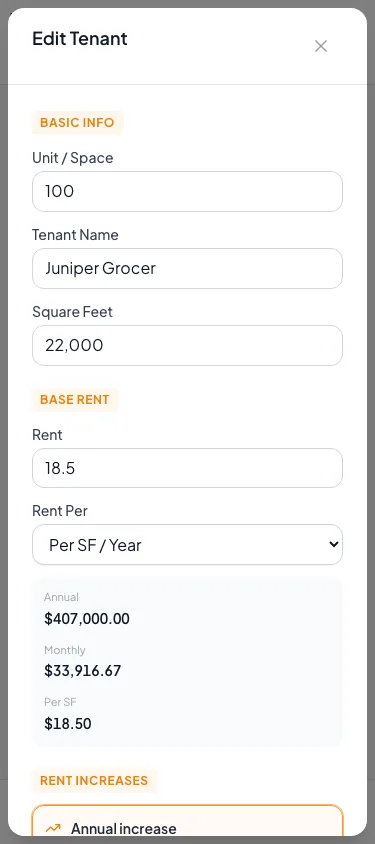
On phones, keep the table at its readable size and scroll horizontally to compare columns. Select Edit on a row to open its full-width detail sheet. Scroll within the sheet to reach every field, then select Save Changes. The visible Move up and Move down buttons provide ordering without dragging. Units, calculated totals and the selected financial model remain the same at every screen size.
Core commercial fields
Tenant or Space Required
The tenant name or vacancy label shown in the table.
- Format
- Plain text
- Units
- Not applicable
- Save behavior
- Saved when Add Tenant, Add Vacancy or Save Changes succeeds in the detail sheet.
- Downstream effect
- Identifies the row in the rent-roll table and final Rent Roll page.
Square Feet Recommended
Rentable area used by area-based rent and reimbursement calculations.
- Format
- Nonnegative whole or decimal number
- Units
- Square feet
- Save behavior
- Saved when Add Tenant, Add Vacancy or Save Changes succeeds in the detail sheet.
- Downstream effect
- Supplies the denominator for occupancy and multiplies SF-based rent and reimbursement amounts.
Rent and Rent Basis Recommended
The amount plus SF/Yr, SF/Mo, Annual, or Monthly.
- Format
- Currency amount plus one supported basis
- Units
- Currency per SF per year, per SF per month, per year, or per month
- Save behavior
- Saved when Add Tenant, Add Vacancy or Save Changes succeeds in the detail sheet.
- Downstream effect
- Calculates the row monthly and annual base rent and feeds rent-roll totals.
Growth Optional
Annual rate or custom schedule used in Multi-Year Cash Flow.
- Format
- Annual percentage or year-specific schedule
- Units
- Percent per year or replacement currency per year
- Save behavior
- Saved with the tenant drawer after the annual rate or complete custom schedule is committed.
- Downstream effect
- Changes projected annual base rent in Multi-Year Cash Flow without changing In-Place rent.
Lease Type and Dates Optional
Property-specific lease structure and start/end dates.
- Format
- Supported lease-type choice plus calendar dates
- Units
- Not applicable for type; dates for term
- Save behavior
- Saved when the tenant drawer Save action succeeds.
- Downstream effect
- Labels the lease structure and term on rent-roll output; it does not create monthly proration.
Reimbursement Optional
Expense recovery plus its amount basis and growth.
- Format
- Currency amount, supported basis, and optional percentage growth
- Units
- Currency per selected basis and percent per year
- Save behavior
- Saved when the tenant drawer Save action succeeds.
- Downstream effect
- Adds annual tenant reimbursement revenue and its projected growth where reimbursements are enabled.
Tenant or Space
- Requirement
- Required
- What it means
- The tenant name or vacancy label shown in the table.
- Format
- Plain text
- Units
- Not applicable
- Save behavior
- Saved when Add Tenant, Add Vacancy or Save Changes succeeds in the detail sheet.
- Downstream effect
- Identifies the row in the rent-roll table and final Rent Roll page.
Square Feet
- Requirement
- Recommended
- What it means
- Rentable area used by area-based rent and reimbursement calculations.
- Format
- Nonnegative whole or decimal number
- Units
- Square feet
- Save behavior
- Saved when Add Tenant, Add Vacancy or Save Changes succeeds in the detail sheet.
- Downstream effect
- Supplies the denominator for occupancy and multiplies SF-based rent and reimbursement amounts.
Rent and Rent Basis
- Requirement
- Recommended
- What it means
- The amount plus SF/Yr, SF/Mo, Annual, or Monthly.
- Format
- Currency amount plus one supported basis
- Units
- Currency per SF per year, per SF per month, per year, or per month
- Save behavior
- Saved when Add Tenant, Add Vacancy or Save Changes succeeds in the detail sheet.
- Downstream effect
- Calculates the row monthly and annual base rent and feeds rent-roll totals.
Growth
- Requirement
- Optional
- What it means
- Annual rate or custom schedule used in Multi-Year Cash Flow.
- Format
- Annual percentage or year-specific schedule
- Units
- Percent per year or replacement currency per year
- Save behavior
- Saved with the tenant drawer after the annual rate or complete custom schedule is committed.
- Downstream effect
- Changes projected annual base rent in Multi-Year Cash Flow without changing In-Place rent.
Lease Type and Dates
- Requirement
- Optional
- What it means
- Property-specific lease structure and start/end dates.
- Format
- Supported lease-type choice plus calendar dates
- Units
- Not applicable for type; dates for term
- Save behavior
- Saved when the tenant drawer Save action succeeds.
- Downstream effect
- Labels the lease structure and term on rent-roll output; it does not create monthly proration.
Reimbursement
- Requirement
- Optional
- What it means
- Expense recovery plus its amount basis and growth.
- Format
- Currency amount, supported basis, and optional percentage growth
- Units
- Currency per selected basis and percent per year
- Save behavior
- Saved when the tenant drawer Save action succeeds.
- Downstream effect
- Adds annual tenant reimbursement revenue and its projected growth where reimbursements are enabled.
Required means the field is needed to complete or support this workflow. Some screens allow a draft to save before every required item is complete. The steps and troubleshooting call out controls the product actively blocks.
Enter the rent basis correctly
| Basis | Annual rent calculation |
|---|---|
| SF/Yr | Entered rent x square feet |
| SF/Mo | Entered rent x square feet x 12 |
| Annual | Entered rent |
| Monthly | Entered rent x 12 |
Vacancy rows are not physical deletion
Use a vacancy row when an empty space must remain in gross potential rent and vacancy-loss analysis. Delete only rows that should not exist in the model.
Add and maintain rows
Commercial rent-roll steps
- 1
Add the first record
Rent Roll toolbar
Select Add Tenant or Add Vacancy.
Expected result: A detail drawer opens for the new row.
If this step does not work
If the controls are absent, select a rent-roll type first.
- 2
Complete row economics
Tenant or vacancy detail drawer
Complete the row with name, size, rent amount, basis, growth, reimbursement, lease type, and dates as applicable.
Expected result: Calculated rent values update in the drawer.
If this step does not work
If a total is implausible, verify both the numeric amount and the selected basis.
Open a tenant row to edit its details on a phone. - 3
Save the row
Tenant or vacancy detail drawer footer
Select Add Tenant or Add Vacancy for a new record, or Save Changes when editing an existing record.
Expected result: The row appears in the table with saved values.
If this step does not work
Keep the drawer open if the save is still processing.
- 4
Inspect the saved totals
Rent Roll table
Compare the row’s monthly and annual totals with the source schedule.
Expected result: The saved totals reconcile with the source.
If this step does not work
Reopen Edit and correct the basis or size if the totals do not reconcile.
Enter and verify each commercial tenant row so suite, area, rent, dates, and recovery terms feed the analysis correctly. - 5
Open a quick edit
Rent Roll table
Select one editable cell.
Expected result: The inline editor appears for that value.
If this step does not work
Reopen the detail drawer for fields not exposed in the table.
- 6
Enter the quick correction
Rent Roll table > inline editor
Enter the corrected value.
Expected result: The new value remains in the active editor.
If this step does not work
Press Escape to abandon an incorrect inline change.
- 7
Commit the quick correction
Rent Roll table > inline editor
Press Enter or leave the cell.
Expected result: The cell reports or reflects its saved value.
If this step does not work
Reopen the cell if the prior value returns.
- 8
Reorder a row
Rent Roll table
Select the row’s Move up or Move down control.
Expected result: The display order updates and saves.
If this step does not work
Drag and keyboard ordering remain available; use the visible buttons when dragging is difficult.
- 9
Add rent-roll notes
Rent Roll notes
Enter reader-facing context within the 500-character limit.
Expected result: The note enters the autosave queue.
If this step does not work
Shorten the note if it exceeds the limit.
- 10
Wait for the note save
Rent Roll notes
Wait until autosave finishes.
Expected result: The note remains after leaving and returning.
If this step does not work
Keep the page open when a save is still pending.
- 11
Continue
Bottom of Rent Roll
Select Continue after the type and at least one saved row are visible.
Expected result: The wizard advances.
If this step does not work
If it does not advance, save at least one tenant or vacancy and retry.
Correct common rent-roll errors
Annual rent is 12 times too high or low
Likely cause: The amount was paired with the wrong Monthly, Annual, SF/Mo, or SF/Yr basis.
- Open the row.
- Select the basis used by the source schedule.
- Compare the recalculated annual amount before saving.
A field is missing from the drawer
Likely cause: The selected model or property type does not use that field.
- Check the Rent Roll Type.
- Confirm the document property type.
- Use the appropriate model rather than forcing data into notes.
Continue does not advance
Likely cause: No model is selected or no tenant or vacancy has been saved.
- Select the rent-roll model.
- Save at least one row.
- Retry Continue.
Ready for Income & Expenses
- Every modeled space is represented
- Rent bases match source conventions
- Vacancies are explicit
- Annual totals reconcile
- Lease and reimbursement details are complete where material
Related guides
Choose a rent-roll model and layout
Choose Multi-Year Cash Flow or Pro Forma, and Unit-by-Unit or Unit Mix, so the rent roll matches the data you have and the story you want to tell.
Open guideModel rent escalations and reimbursements
Model fixed bumps, step-ups, and expense recoveries per tenant so every projected year matches the lease.
Open guideEnter income and operating expenses
Enter other income and operating expenses from your T-12 or budget, and CREBuilder calculates effective gross income and NOI for every page that shows them.
Open guideYour next OM, done this afternoon
Turn your property facts, photos and financials into a polished, branded offering memorandum. Most brokers finish in 30 to 90 minutes.
No credit card required.