Outcome
Your document uses the property type whose fields, metrics, and pages fit the asset you are marketing.
Navigation path
Create New > Select Property Type
Access
Document creation access
On this page
Before you start
Data, sources, and access to prepare
- The actual asset use and tenancy structure
- The intended document package
Understand what the choice changes
Property type controls the workflow
The classification changes both data entry and presentation.
Property Type
Choose the primary asset use
Wizard Steps
Show, hide, or relabel tasks
Input Fields
Tenant, unit, room, pad, or parcel language
Metrics
Price per SF, Unit, Key, Pad, or Acre
Document Pages
Property-specific labels and layouts
- Property TypeWizard Steps
- Property TypeInput Fields
- Property TypeMetrics
- Property TypeDocument Pages
Retail
- Primary structure
- Commercial tenant rent roll
- Primary price metric
- Price/SF
Office/Medical
- Primary structure
- Commercial suite rent roll
- Primary price metric
- Price/SF
Multifamily
- Primary structure
- Unit rent roll or unit mix
- Primary price metric
- Price/Unit and Price/SF
Industrial
- Primary structure
- Commercial tenant rent roll
- Primary price metric
- Price/SF
Land
- Primary structure
- Parcel facts, no standard financial workflow
- Primary price metric
- Price/Acre and Price/SF
Hospitality
- Primary structure
- Room inventory
- Primary price metric
- Price/Key
Self-Storage
- Primary structure
- Unit inventory
- Primary price metric
- Price/Unit and Price/SF
Mobile Home Parks
- Primary structure
- Pad inventory
- Primary price metric
- Price/Pad
Mixed-Use
- Primary structure
- Rent roll by component
- Primary price metric
- Component-aware
Single Tenant Net Lease
- Primary structure
- One tenant and lease
- Primary price metric
- Price/SF
Classify by the modeled income source
- Use Retail, Office/Medical, or Industrial when individual commercial tenants, spaces, leases, and reimbursements drive the analysis.
- Use Multifamily, Self-Storage, or Mobile Home Parks when repeated units or pads drive occupancy and rent.
- Use Hospitality when ADR, occupancy, RevPAR, and room count drive revenue.
- Use Land when parcel, zoning, acreage, entitlement, and access facts matter more than recurring rent.
- Use Mixed-Use when multiple supported components must coexist in one property-level financial model.
- Use Single Tenant Net Lease only when one tenant and one lease define the investment.
Older documents may show Others or Residential
Others and Residential are no longer offered for new documents. When you change the type on an older document, choose the closest current type.
Select or change the type
Property-type steps
- 1
Choose during creation
Create New, Select Property Type
Select the card that matches the modeled asset.
Expected result: The next creation step opens and the document stores the chosen type.
If this step does not work
Return to the prior creation step before continuing if the choice was accidental.
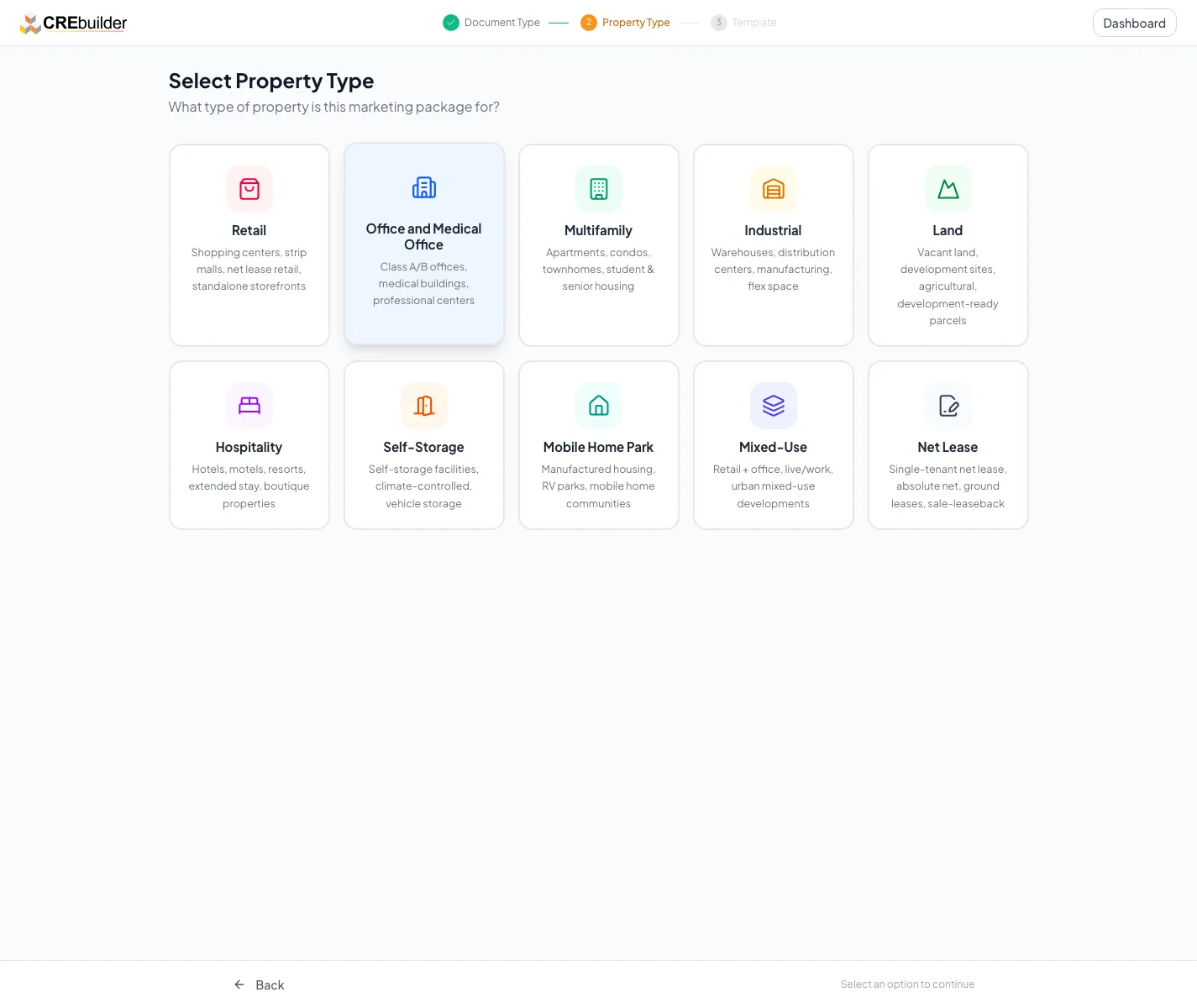
Select and verify the property type before creation because it changes terminology, inventory, validation, and output. - 2
Confirm the adapted wizard
New document wizard
Review step names and visible tasks before entering detailed data.
Expected result: The workflow uses the expected tenant, unit, room, pad, component, or parcel language.
If this step does not work
Open Property Details and review the selected type if labels are wrong.
- 3
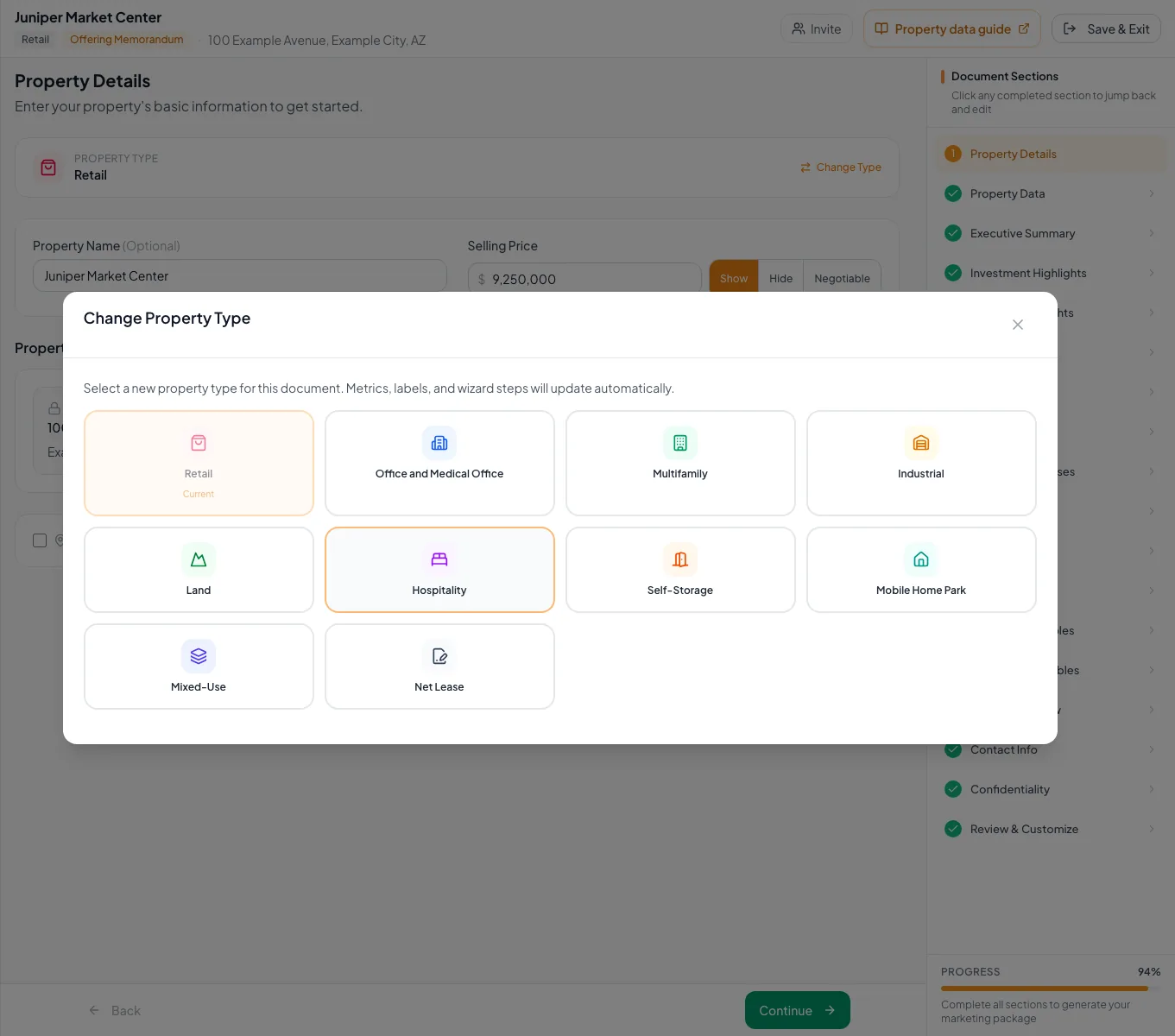
Open the change control
Property Details, property-type summary
Select Change Property Type when a saved document is misclassified.
Expected result: The supported type grid opens.
If this step does not work
Only the document owner or permitted editor should make a structural change.
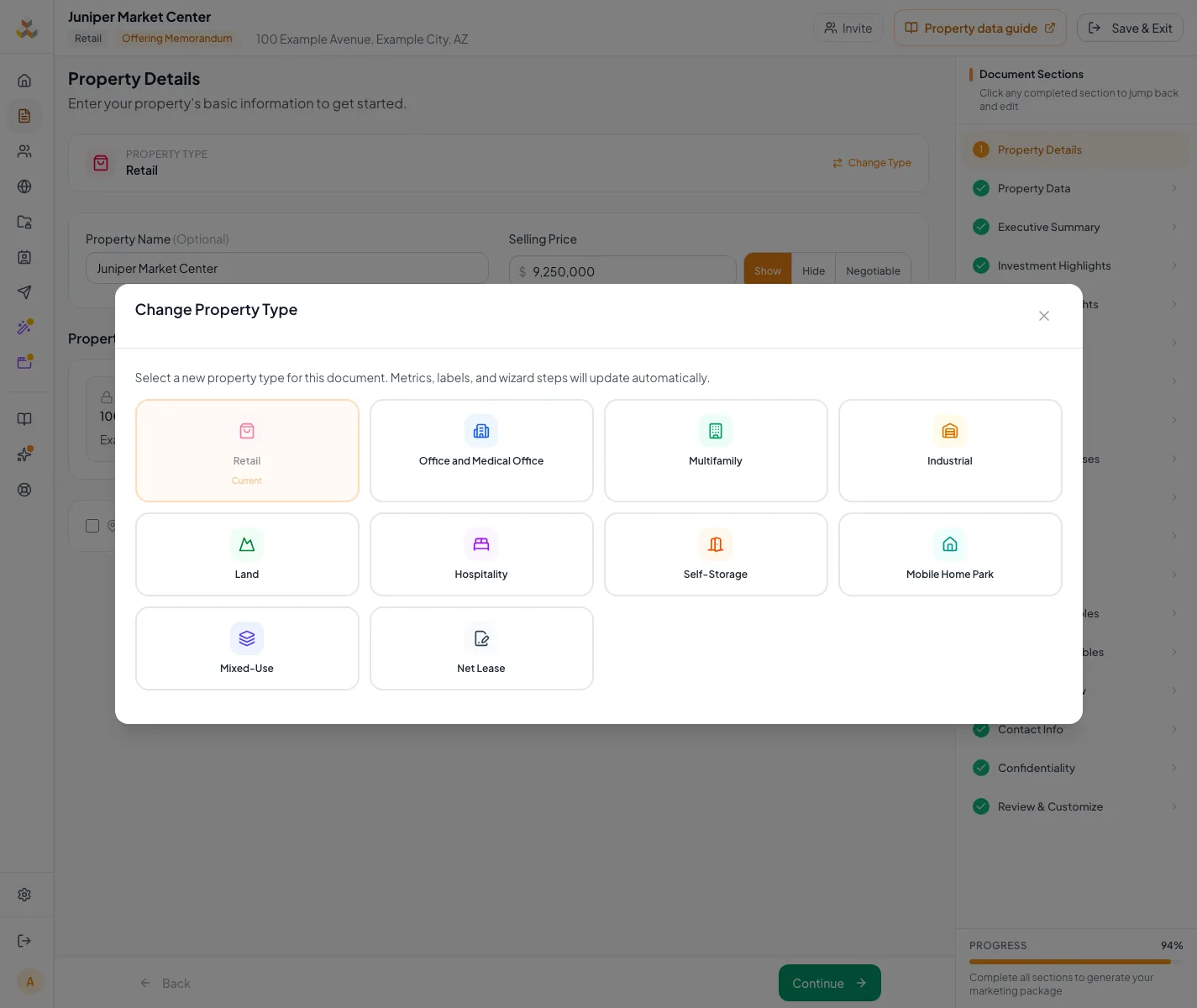
Review the fields and financial options for the selected property type. - 4
Select the replacement type
Change Property Type modal
Select the target property type.
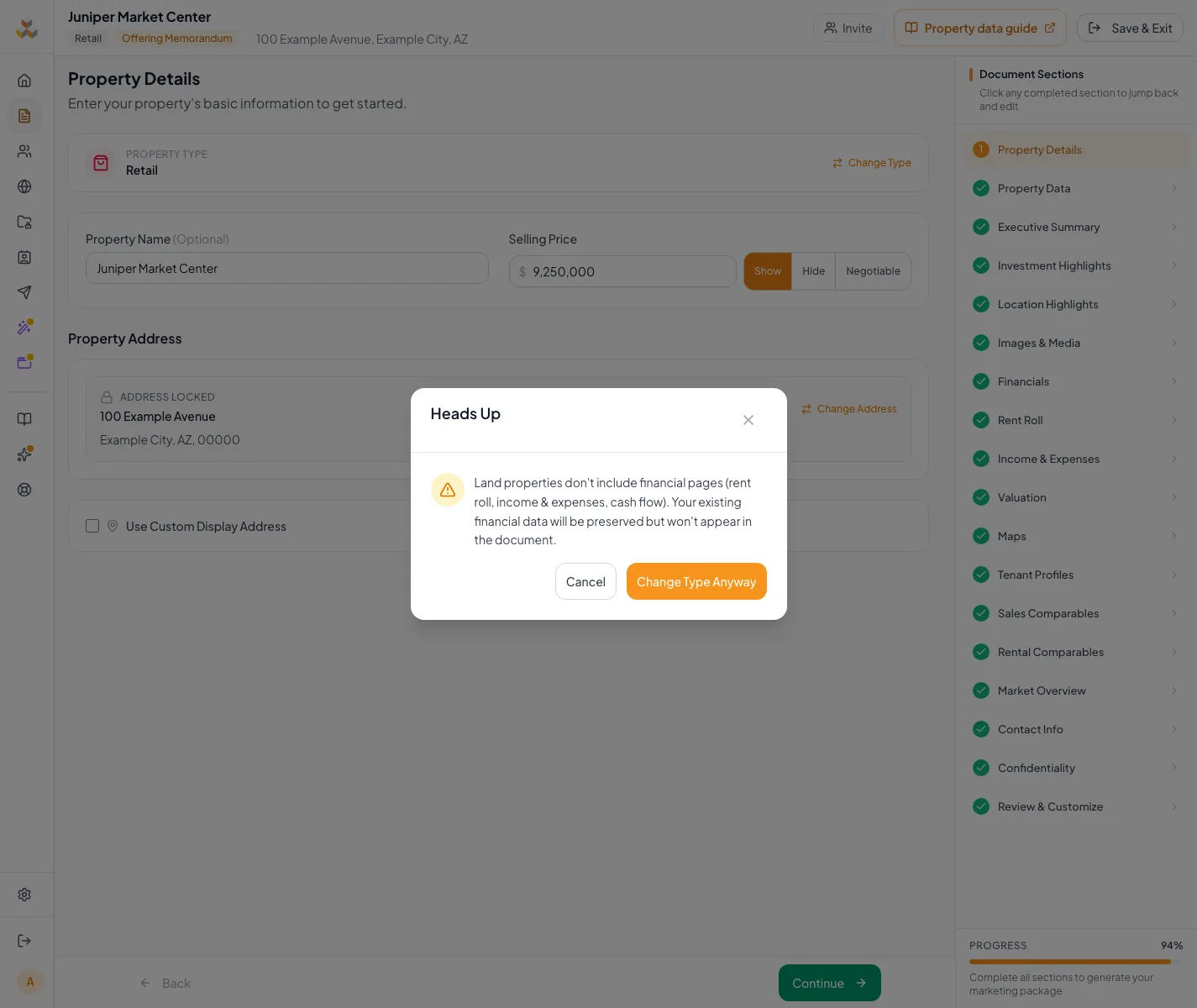
Expected result: The change is saved immediately, or a Heads Up warning opens for conversion to Hospitality or Land.
If this step does not work
Cancel if the selected type does not match the intended asset model.
- 5
Read the conversion warning
Heads Up confirmation, when displayed
Review the complete conversion warning when it appears.
Expected result: The consequences for existing financial data are understood.
If this step does not work
Cancel if the current rent roll or financial output has not been reviewed.
- 6
Confirm the type change
Heads Up confirmation > Change Type Anyway
Select Change Type Anyway when the warning is displayed.
Expected result: The document begins using the replacement property type.
If this step does not work
Do not confirm until the warning and current financial data have been reviewed.
- 7
Verify after conversion
Wizard navigation and Review & Customize
Inspect changed steps, labels, financial fields, and generated pages.
Expected result: The converted document uses the intended model.
If this step does not work
Restore the prior type or contact support if specialized data does not map safely.
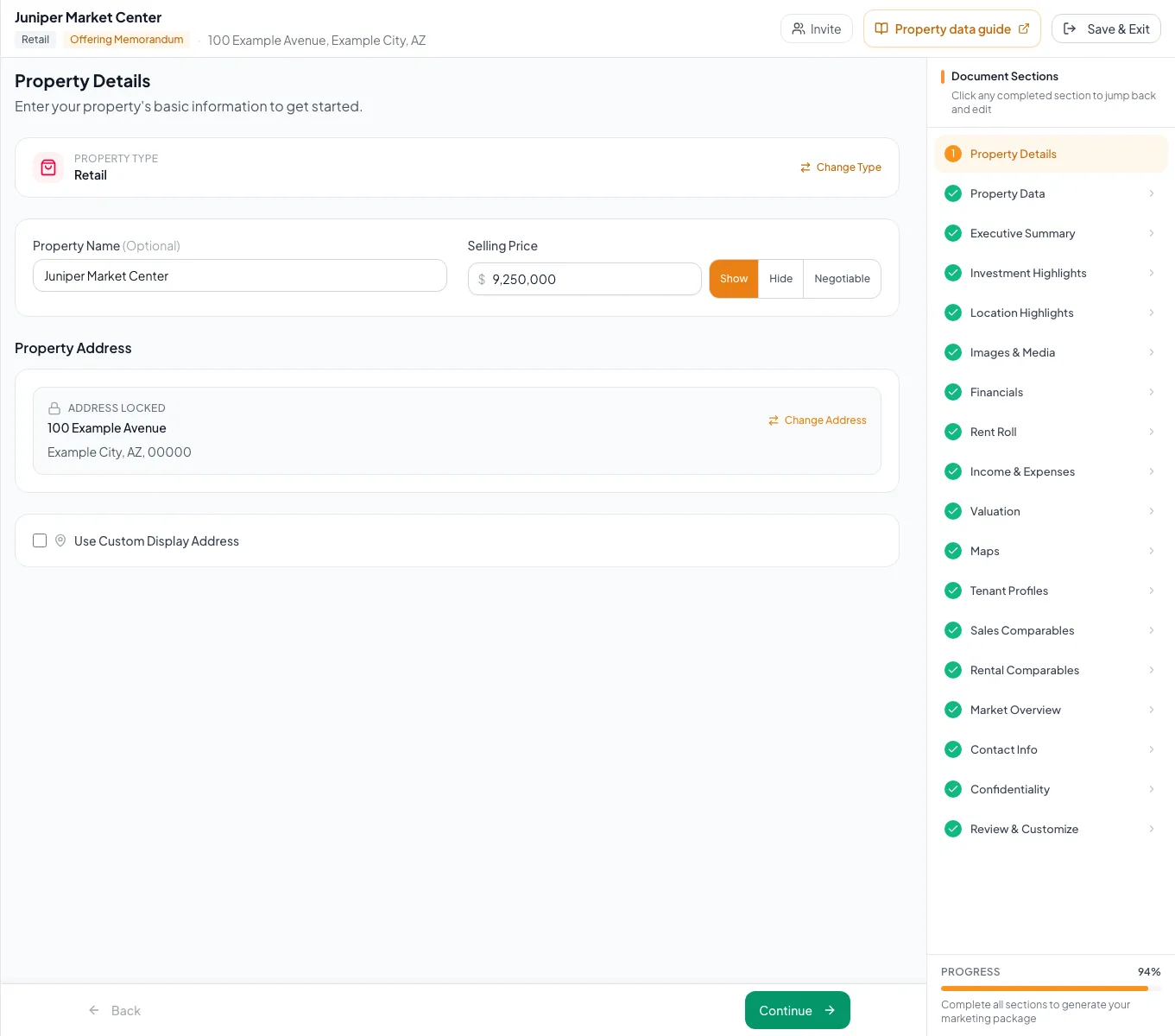
Check the sections available for your selected property type.
Change types without losing context
Changing to Hospitality warns about re-entry
Likely cause: Hotel Room Inventory is incompatible with a standard commercial rent-roll layout.
- Record the current source data.
- Confirm only when prepared to re-enter room inventory.
- Verify the hotel totals afterward.
Changing to Land hides financial steps
Likely cause: Land has no standard native financial workflow.
- Confirm Land is correct.
- Understand that saved financial records are preserved but hidden.
- For a Land BOV, verify that valuation remains.
The exact asset label is absent
Likely cause: The selection uses ten major commercial modeling types.
- Choose by financial and data structure.
- Use editable Property Data fields for subtype detail.
- Do not use a legacy hidden type.
Selection ready
- Primary use classified
- Financial model fits
- Price metric fits
- Wizard labels fit
- Conversion warnings reviewed
- Generated pages checked
Related guides
Build a Retail document
Market a shopping center or retail building with traffic counts, anchors, a tenant-by-tenant rent roll with NNN recoveries, and Price/SF.
Open guideBuild a Mixed-Use document
Market one property with several uses, such as retail below apartments, and present each component with its own fields and subtotals.
Open guideChoose and change the financial scope
Pick how much financial analysis your document shows, from a full cash flow to headline numbers only, and switch later without losing your data.
Open guideYour next OM, done this afternoon
Turn your property facts, photos and financials into a polished, branded offering memorandum. Most brokers finish in 30 to 90 minutes.
No credit card required.