Outcome
Your document shows room inventory, RevPAR, room revenue, and a hotel NOI that follows industry convention, with Price/Key.
Navigation path
Create New > Hospitality > Document wizard
Access
Document creation access
On this page
Before you start
Data, sources, and access to prepare
- Room count by category
- ADR and occupancy assumptions
- Hotel operating statement when Full Financials is used
Use the hotel operating model
| Area | Hospitality behavior |
|---|---|
| Occupancy | By room count |
| Primary metric | Price/Key |
| Rent Roll label | Room Inventory |
| Rental Comps label | Hotel Rate Comps |
| Income label | Room Revenue |
| Vacancy rows and General Vacancy Factor | Not used; room revenue already reflects occupancy |
| Reimbursements | Hidden |
| Tenant Profiles | Hidden |
Use hotel metrics and reserves
Put franchise fees and FF&E above NOI
Hotel buyers underwrite NOI after franchise, royalty, and OTA fees and after an FF&E reserve, commonly about 4% of total revenue. Enter those as operating-expense rows in Income & Expenses, as the CREBuilder hotel sample does. Use the Reserves fields only for extra below-NOI capital such as a PIP, so NOI and value match how hotels trade.
Total Rooms Required
Total keys represented by Room Inventory.
- Format
- Positive whole number
- Units
- Rooms or keys
- Save behavior
- Save the subject count in Property Details and save category counts through Room Inventory Continue; reconcile the two totals.
- Downstream effect
- Supplies the Price/Key denominator and the room count used with RevPAR for annual room revenue.
ADR Required
Average Daily Rate.
- Format
- Positive currency amount
- Units
- Currency per occupied room per day
- Save behavior
- Saved with the Room Inventory rows when Continue succeeds.
- Downstream effect
- Recalculates weighted ADR, RevPAR, annual room revenue, and hotel financial output.
Occupancy Recommended
Occupied-room percentage.
- Format
- Percentage
- Units
- Percent of available rooms
- Save behavior
- Saved with Room Inventory when Continue succeeds.
- Downstream effect
- Combines with ADR to recalculate RevPAR and annual room revenue.
RevPAR Calculated
ADR multiplied by occupancy.
- Format
- Read-only calculated currency
- Units
- Currency per available room per day
- Save behavior
- No direct entry. Recalculates automatically from saved ADR and occupancy.
- Downstream effect
- Feeds Room Revenue and appears in hotel analysis and Hotel Rate Comp context.
Room Revenue Calculated
RevPAR multiplied by 365 and room count.
- Format
- Read-only calculated currency
- Units
- Currency per year
- Save behavior
- No direct entry. Recalculates automatically from saved room counts, ADR, and occupancy.
- Downstream effect
- Feeds hotel EGI and NOI alongside separately entered Non-Room Revenue.
FF&E Reserve Optional
Optional below-NOI reserve on the Valuation step, entered per key per year.
- Format
- Nonnegative currency rate
- Units
- Currency per key per year
- Save behavior
- Autosaves shortly after entry; reopen assumptions to confirm the value stayed.
- Downstream effect
- Deducts rate x total rooms after NOI. Leave it blank when your FF&E reserve is already an operating-expense row.
PIP Reserve Optional
Below-NOI reserve for a franchise Property Improvement Plan, entered per key per year.
- Format
- Nonnegative currency rate
- Units
- Currency per key per year
- Save behavior
- Autosaves shortly after entry; reopen assumptions to confirm the value stayed.
- Downstream effect
- Deducts rate x total rooms after NOI, so PIP spending reduces cash flow without changing NOI.
Franchise/OTA Fees Optional
Optional below-NOI deduction on the Valuation step, entered per key per year.
- Format
- Nonnegative currency rate
- Units
- Currency per key per year
- Save behavior
- Autosaves shortly after entry; reopen assumptions to confirm the value stayed.
- Downstream effect
- Deducts rate x total rooms after NOI. Hotel convention treats franchise and OTA fees as operating expenses, so most brokers enter them in Income & Expenses and leave this blank.
Total Rooms
- Requirement
- Required
- What it means
- Total keys represented by Room Inventory.
- Format
- Positive whole number
- Units
- Rooms or keys
- Save behavior
- Save the subject count in Property Details and save category counts through Room Inventory Continue; reconcile the two totals.
- Downstream effect
- Supplies the Price/Key denominator and the room count used with RevPAR for annual room revenue.
ADR
- Requirement
- Required
- What it means
- Average Daily Rate.
- Format
- Positive currency amount
- Units
- Currency per occupied room per day
- Save behavior
- Saved with the Room Inventory rows when Continue succeeds.
- Downstream effect
- Recalculates weighted ADR, RevPAR, annual room revenue, and hotel financial output.
Occupancy
- Requirement
- Recommended
- What it means
- Occupied-room percentage.
- Format
- Percentage
- Units
- Percent of available rooms
- Save behavior
- Saved with Room Inventory when Continue succeeds.
- Downstream effect
- Combines with ADR to recalculate RevPAR and annual room revenue.
RevPAR
- Requirement
- Calculated
- What it means
- ADR multiplied by occupancy.
- Format
- Read-only calculated currency
- Units
- Currency per available room per day
- Save behavior
- No direct entry. Recalculates automatically from saved ADR and occupancy.
- Downstream effect
- Feeds Room Revenue and appears in hotel analysis and Hotel Rate Comp context.
Room Revenue
- Requirement
- Calculated
- What it means
- RevPAR multiplied by 365 and room count.
- Format
- Read-only calculated currency
- Units
- Currency per year
- Save behavior
- No direct entry. Recalculates automatically from saved room counts, ADR, and occupancy.
- Downstream effect
- Feeds hotel EGI and NOI alongside separately entered Non-Room Revenue.
FF&E Reserve
- Requirement
- Optional
- What it means
- Optional below-NOI reserve on the Valuation step, entered per key per year.
- Format
- Nonnegative currency rate
- Units
- Currency per key per year
- Save behavior
- Autosaves shortly after entry; reopen assumptions to confirm the value stayed.
- Downstream effect
- Deducts rate x total rooms after NOI. Leave it blank when your FF&E reserve is already an operating-expense row.
PIP Reserve
- Requirement
- Optional
- What it means
- Below-NOI reserve for a franchise Property Improvement Plan, entered per key per year.
- Format
- Nonnegative currency rate
- Units
- Currency per key per year
- Save behavior
- Autosaves shortly after entry; reopen assumptions to confirm the value stayed.
- Downstream effect
- Deducts rate x total rooms after NOI, so PIP spending reduces cash flow without changing NOI.
Franchise/OTA Fees
- Requirement
- Optional
- What it means
- Optional below-NOI deduction on the Valuation step, entered per key per year.
- Format
- Nonnegative currency rate
- Units
- Currency per key per year
- Save behavior
- Autosaves shortly after entry; reopen assumptions to confirm the value stayed.
- Downstream effect
- Deducts rate x total rooms after NOI. Hotel convention treats franchise and OTA fees as operating expenses, so most brokers enter them in Income & Expenses and leave this blank.
Required means the field is needed to complete or support this workflow. Some screens allow a draft to save before every required item is complete. The steps and troubleshooting call out controls the product actively blocks.
Complete the Hospitality workflow
Hospitality steps
- 1
Select Hospitality
Create New, Select Property Type
Choose Hospitality.
Expected result: Room Inventory and Hotel Rate Comps labels activate.
If this step does not work
Changing from a non-hotel type later requires room-inventory re-entry, so confirm early.
- 2
Enter subject details
Property Details and Property Data
Verify address, selling price, total rooms, and material hotel facts.
Expected result: Price/Key has a correct price and room denominator.
If this step does not work
Correct room count before building inventory.
- 3
Build Room Inventory
Room Inventory
Enter every room type, count, average SF, ADR, occupancy, and ADR growth.
Expected result: Weighted ADR, RevPAR, and annual room revenue reconcile.
If this step does not work
Inspect all rows for a missing name, zero count, or zero ADR if Continue does not advance.
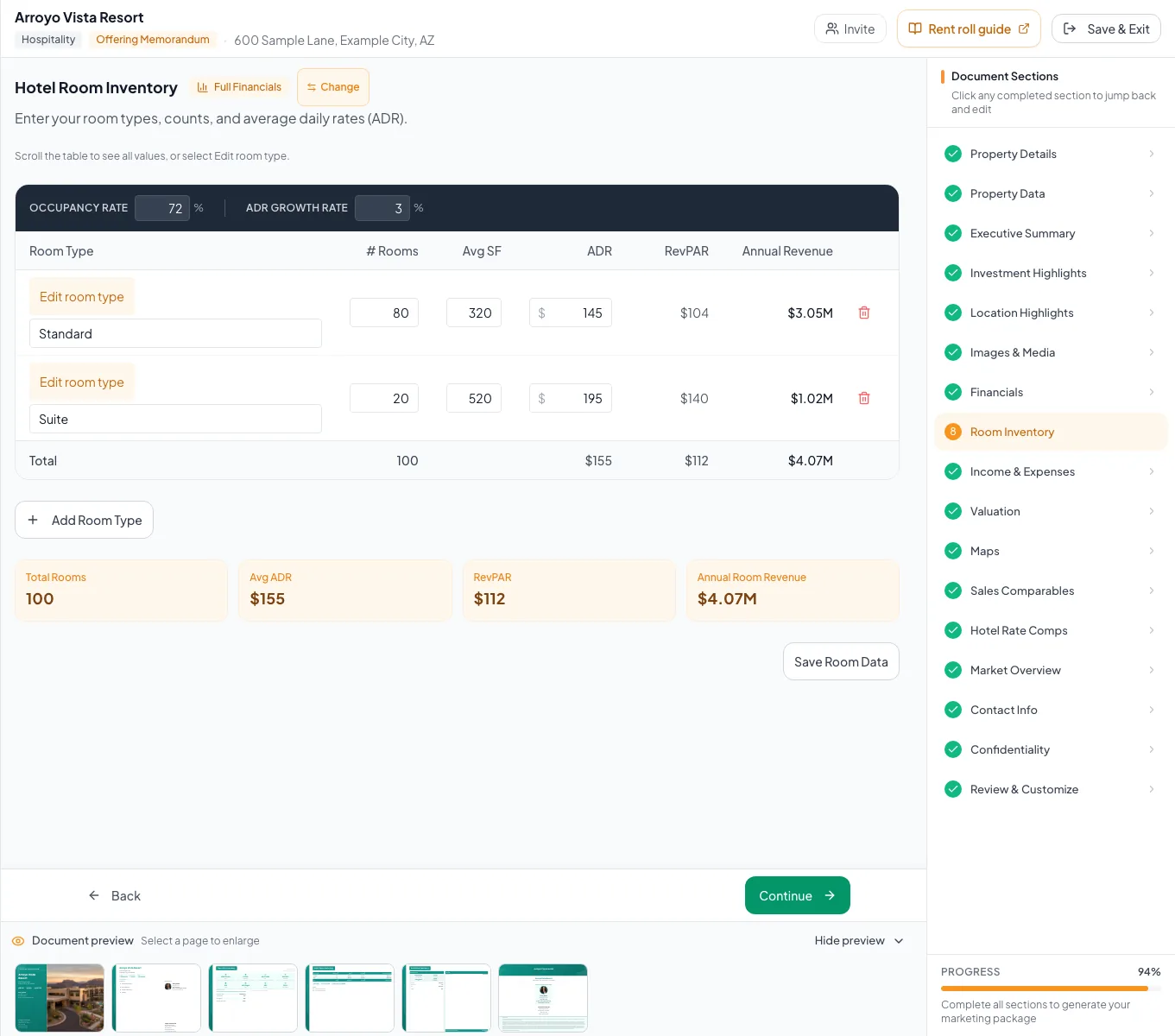
Review the populated hospitality example and verify the units, property facts, and applicable model before preparing your own document. - 4
Enter Non-Room Revenue and expenses
Income & Expenses
Add food and beverage, spa, parking, meeting, retail, laundry, and operating-expense rows, including franchise fees and the FF&E reserve.
Expected result: Hotel EGI and NOI match your hotel P&L.
If this step does not work
Separate Room Revenue from Non-Room Revenue.
- 5
Add Hotel Rate Comps
Hotel Rate Comps
Enter source ADR, occupancy, room facts, description, and optional photo for each comparable.
Expected result: Comparable RevPAR values calculate.
If this step does not work
Check ADR and percent units if RevPAR is wrong.
- 6
Review the hotel output
Review & Customize
Verify Total Rooms, Price/Key, ADR, RevPAR, Room Revenue, reserve labels, and comp labels.
Expected result: The final document consistently reads as Hospitality.
If this step does not work
Return to the first source field with a mismatch.
Resolve Hospitality issues
Existing commercial rent-roll data did not become rooms
Likely cause: Hotel inventory uses a specialized incompatible shape.
- Use the original source schedule.
- Re-enter room categories in Room Inventory.
- Reconcile totals.
RevPAR does not equal the source
Likely cause: ADR or occupancy is entered in the wrong unit.
- Confirm daily ADR.
- Confirm percent occupancy.
- Multiply independently.
Pro Forma is not available in Room Inventory
Likely cause: The current dedicated hotel editor uses its cash-flow model.
- Use ADR Growth for projections.
- Use the rest of Full Financials for statement and valuation analysis.
- Total rooms reconcile
- RevPAR and room revenue match your source
- Non-Room Revenue separated
- Franchise fees and FF&E reserve sit in operating expenses
- Price/Key checked
- Hotel Rate Comps complete
Related guides
Build hotel room inventory and revenue
Enter your room types, occupancy, and ADR once, and CREBuilder calculates RevPAR and annual room revenue for the whole hotel.
Open guideAdd rental and hotel rate comparables
Back up your rent assumptions with market-rent comps, or ADR, occupancy, and RevPAR comps for hotels.
Open guideEnter income and operating expenses
Enter other income and operating expenses from your T-12 or budget, and CREBuilder calculates effective gross income and NOI for every page that shows them.
Open guideYour next OM, done this afternoon
Turn your property facts, photos and financials into a polished, branded offering memorandum. Most brokers finish in 30 to 90 minutes.
No credit card required.