Outcome
Your Retail document shows site facts, every tenant and vacancy, recoveries kept separate from base rent, and Price/SF.
Navigation path
Create New > Retail > Document wizard
Access
Document creation access
On this page
Before you start
Data, sources, and access to prepare
- Retail address and physical facts
- Tenant and vacancy schedule when financials are included
Use the retail data model
Suggested Retail property data
Traffic Count (VPD) Optional
Vehicle volume supporting location context.
- Format
- Whole-number Property Data value, optionally with source-year context
- Units
- Vehicles per day (VPD)
- Save behavior
- Property Data autosaves two seconds after the value stops changing.
- Downstream effect
- Displays traffic context in the property-data presentation; it does not alter rent-roll economics.
Parking Ratio Optional
Parking supply relative to building area.
- Format
- Decimal Property Data value with the ratio basis stated
- Units
- Parking spaces per 1,000 square feet
- Save behavior
- Property Data autosaves two seconds after the value stops changing.
- Downstream effect
- Displays parking capacity in Retail property facts for reader comparison.
Frontage Optional
Street or access exposure.
- Format
- Numeric length plus the relevant street or access description
- Units
- Feet or the source unit
- Save behavior
- Property Data autosaves two seconds after the value stops changing.
- Downstream effect
- Adds visibility and access context to the Retail property-data table.
Anchor Tenants Optional
Major retailers driving center identity.
- Format
- Plain-text tenant names
- Units
- Not applicable
- Save behavior
- Property Data autosaves two seconds after the value stops changing.
- Downstream effect
- Lists the anchor identities in Retail property facts without creating rent-roll rows.
GLA Recommended
Gross leasable area.
- Format
- Nonnegative numeric Property Data value
- Units
- Square feet
- Save behavior
- Property Data autosaves two seconds after the value stops changing.
- Downstream effect
- Displays GLA for physical-property context and reconciliation; financial calculations continue to use their saved source fields.
Traffic Count (VPD)
- Requirement
- Optional
- What it means
- Vehicle volume supporting location context.
- Format
- Whole-number Property Data value, optionally with source-year context
- Units
- Vehicles per day (VPD)
- Save behavior
- Property Data autosaves two seconds after the value stops changing.
- Downstream effect
- Displays traffic context in the property-data presentation; it does not alter rent-roll economics.
Parking Ratio
- Requirement
- Optional
- What it means
- Parking supply relative to building area.
- Format
- Decimal Property Data value with the ratio basis stated
- Units
- Parking spaces per 1,000 square feet
- Save behavior
- Property Data autosaves two seconds after the value stops changing.
- Downstream effect
- Displays parking capacity in Retail property facts for reader comparison.
Frontage
- Requirement
- Optional
- What it means
- Street or access exposure.
- Format
- Numeric length plus the relevant street or access description
- Units
- Feet or the source unit
- Save behavior
- Property Data autosaves two seconds after the value stops changing.
- Downstream effect
- Adds visibility and access context to the Retail property-data table.
Anchor Tenants
- Requirement
- Optional
- What it means
- Major retailers driving center identity.
- Format
- Plain-text tenant names
- Units
- Not applicable
- Save behavior
- Property Data autosaves two seconds after the value stops changing.
- Downstream effect
- Lists the anchor identities in Retail property facts without creating rent-roll rows.
GLA
- Requirement
- Recommended
- What it means
- Gross leasable area.
- Format
- Nonnegative numeric Property Data value
- Units
- Square feet
- Save behavior
- Property Data autosaves two seconds after the value stops changing.
- Downstream effect
- Displays GLA for physical-property context and reconciliation; financial calculations continue to use their saved source fields.
Required means the field is needed to complete or support this workflow. Some screens allow a draft to save before every required item is complete. The steps and troubleshooting call out controls the product actively blocks.
Use commercial tenant economics
| Area | Retail behavior |
|---|---|
| Occupancy | Calculated by square footage |
| Price metric | Price/SF |
| Rent bases | SF/Yr, SF/Mo, Annual, Monthly |
| Lease types | NNN, Modified Gross, Gross, Net, Ground Lease, Custom |
| Vacancies | Supported |
| Reimbursements | Supported |
| Suggested other income | Percentage rent, parking, antenna or billboard, late fees |
Separate rent and recoveries
Enter base rent in the rent field and CAM, tax, and insurance recoveries in each tenant's Reimbursements. Use Additional Income only for property-level non-rental income. Skip the CAM Reimbursements suggestion in Additional Income when recoveries are already entered per tenant.
Complete the Retail workflow
Retail steps
- 1
Select Retail
Create New, Select Property Type
Choose Retail.
Expected result: Retail-specific fields and commercial financial controls are activated.
If this step does not work
Change the property type in Property Details if selected incorrectly.
- 2
Verify physical details
Property Details
Compare the address and building facts with your source.
Expected result: The property identity and physical facts are ready for use.
If this step does not work
Correct the first conflicting field before continuing.
- 3
Add Retail property facts
Property Data
Add the relevant Retail suggested fields.
Expected result: The property description and tables have complete site context.
If this step does not work
Remove unused empty suggested rows instead of leaving placeholders.
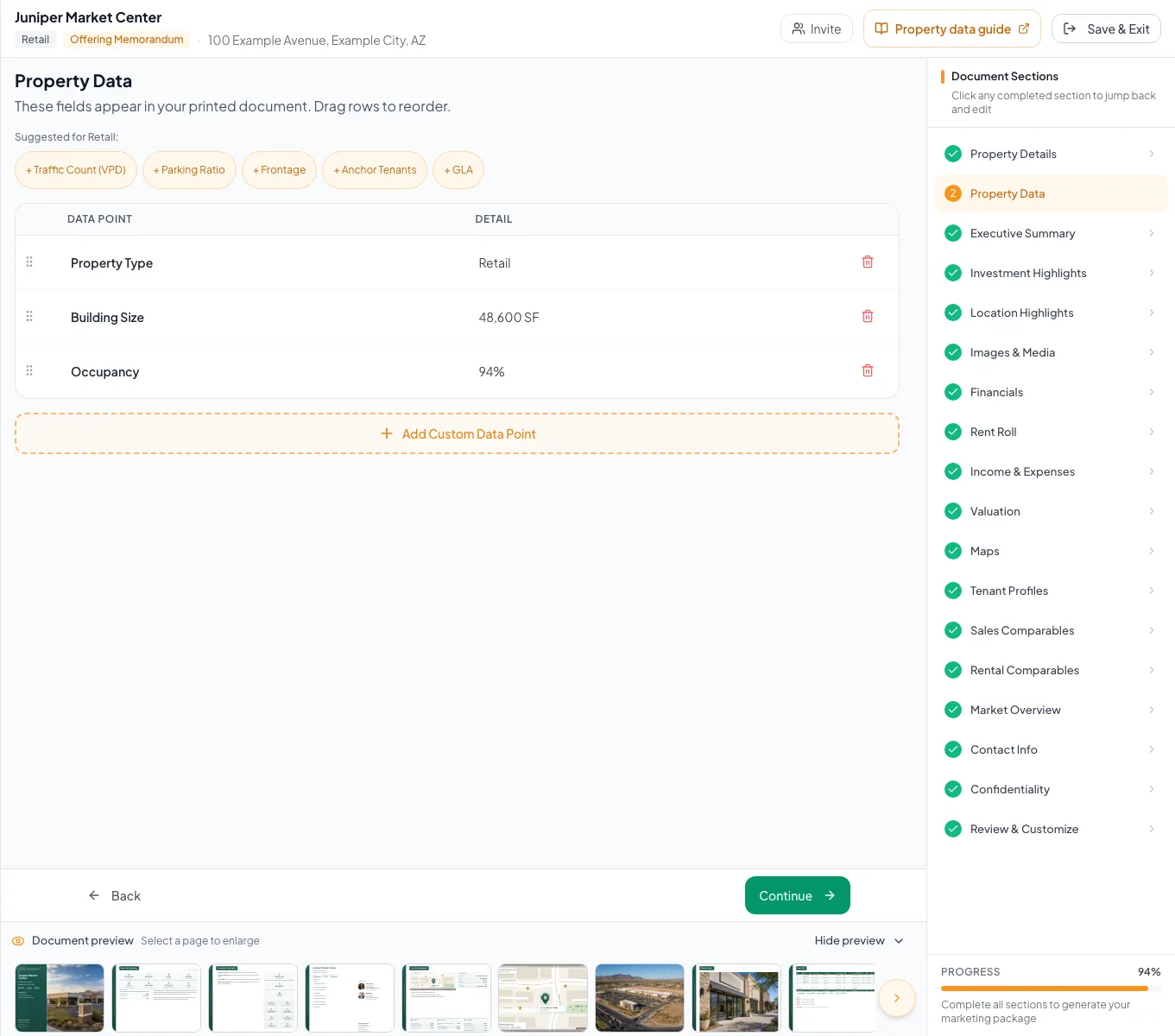
Review the populated retail example and verify the units, property facts, and applicable model before preparing your own document. - 4
Choose the Retail rent-roll model
Rent Roll > model selector
Select the model that matches the source schedule.
Expected result: The corresponding occupied and vacant row editor appears.
If this step does not work
Return to the model selector before entering rows if the table structure is wrong.
- 5
Enter tenant and vacancy rows
Rent Roll
Enter each occupied and vacant space with SF, rent basis, lease type, dates, and recoveries.
Expected result: Rent and occupancy totals reconcile by SF.
If this step does not work
Correct rent basis or area if annual totals are off.
- 6
Enter property-level income and expenses
Income & Expenses
Add retail non-rental income and operating expenses without duplicating tenant reimbursements.
Expected result: EGI and NOI reconcile.
If this step does not work
Trace the first difference through rent, reimbursement, other income, and expense totals.
- 7
Verify the presentation
Review & Customize
Check Price/SF, occupancy, tenant names, lease labels, maps, and financial pages.
Expected result: The final document reads as a Retail asset.
If this step does not work
Return to the source step for any generic or incorrect terminology.
Resolve Retail-specific issues
CAM appears twice
Likely cause: A tenant reimbursement and property-level Additional Income row may duplicate the same recovery.
- Identify whether CAM is tenant-level or property-level in the source.
- Keep it in one intended location.
- Recalculate EGI.
Occupancy does not match tenant count
Likely cause: Retail occupancy is area-based, not tenant-count based.
- Reconcile occupied SF and total rentable SF.
- Use tenant count only as a separate descriptive metric.
- Retail selected
- GLA and site facts entered
- Occupied and vacant SF reconcile
- Recoveries entered once, in tenant Reimbursements
- Price/SF checked
- Output labels reviewed
Related guides
Build a commercial rent roll
Build a tenant-by-tenant rent roll for retail, office, or industrial, and CREBuilder annualizes rent and recoveries from whatever basis your lease uses.
Open guideModel rent escalations and reimbursements
Model fixed bumps, step-ups, and expense recoveries per tenant so every projected year matches the lease.
Open guideBuild a Mixed-Use document
Market one property with several uses, such as retail below apartments, and present each component with its own fields and subtotals.
Open guideYour next OM, done this afternoon
Turn your property facts, photos and financials into a polished, branded offering memorandum. Most brokers finish in 30 to 90 minutes.
No credit card required.