Outcome
Every active buyer and tenant has criteria on file, and each new listing comes with a ready list of people it fits.
Navigation path
CRM > Contacts > People > Select a contact > Requirements and fit
Access
Free CRM with no time limit: 100 stored contacts and 10 active opportunities for your company, plus companies, pipelines, manual tasks and notes, CSV import, and Email Scripts. Paid plans add automations, reports, automated matching, calendar integration, domain connections, and email sending. Automated matching actions require a paid plan.
On this page
Before you start
Data, sources, and access to prepare
- A contact
- Confirmed acquisition or occupancy criteria
- At least one eligible completed property for match results
Choose purchase or lease criteria
| Requirement | Fields that drive fit |
|---|---|
| Purchase | Label, property types, markets, SF range, price range, minimum cap rate |
| Lease | Property types, markets, SF range, rent range per SF/year, NNN/FS/MG, term range, target occupancy, minimum TI, must-haves |
A contact can have both
A person can hold purchase and lease requirements at the same time. Only active requirements drive the interested-property filter and fit results.
Create and maintain the criteria
- 1
Open a new requirement
Contact workspace > Requirements
Select Add.
Expected result: The relevant acquisition or space requirement editor opens.
If this step does not work
If Add is absent, confirm that you opened an editable contact rather than a read-only shared record.
- 2
Choose the requirement type
Requirements editor > Purchase or Lease
Select Purchase or Lease for the represented need.
Expected result: The editor shows price and cap-rate fields for Purchase or rent, term, and tenant-improvement fields for Lease.
If this step does not work
If the person has both needs, save one requirement and select Add again for the other instead of combining incompatible ranges.
- 3
Enter confirmed criteria
Requirement editor
Enter property types, markets, bounded ranges, economics, timing, and must-haves that the contact actually stated.
Expected result: The requirement summarizes the current mandate without fabricated precision.
If this step does not work
Leave unknown values blank. Use a note for nuance that cannot be represented structurally.
- 4
Save the requirement
Requirement editor > Save
Select Save.
Expected result: The active requirement is available to the matcher.
If this step does not work
Correct any validation message before retrying.
- 5
Inspect requirement matches
Contact workspace > Fit
Review the displayed property or suite reasons.
Expected result: Eligible matches show fit context tied to the active criteria.
If this step does not work
If nothing matches, broaden only criteria the contact confirms. Verify eligible completed inventory.
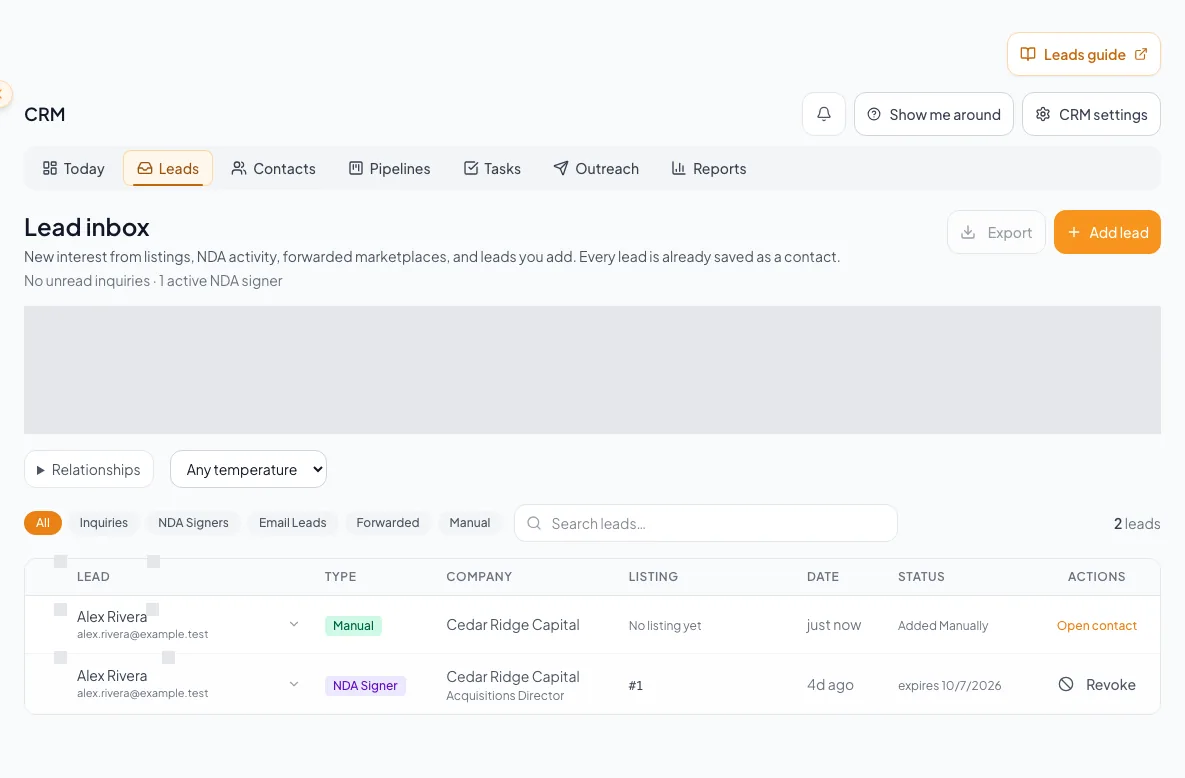
Record a purchase or lease requirement with usable criteria, then review matches without widening the user's data access. - 6
Choose the requirement maintenance action
Contact > Requirements
Select Pause, Edit, or Delete for the requirement based on its verified state.
Expected result: Only active requirements affect future matching and interested-property filters.
If this step does not work
If historical context matters, use Pause and preserve the context in a note instead of deleting.
Use matching in both directions
One matcher, two useful starting points
Contact fit finds properties for one person. Property Hub and Email Blasts can find people whose active requirements fit one listing.
Active contact requirements
Property and suite matcher
Properties for this person
People for this property
Human audience review
- Active contact requirementsProperty and suite matcher
- Property and suite matcherProperties for this person
- Property and suite matcherPeople for this property
- Properties for this personHuman audience review
- People for this propertyHuman audience review
- 1
Inspect contact-side matches
Contact workspace > Fit or Send properties
Review matched property and suite reasons.
Expected result: Each result shows why it fits the active requirement.
If this step does not work
If a score appears wrong, compare units, ranges, property type, market text, and active state.
- 2
Select relevant properties
Contact workspace > Fit or Send properties
Select only relevant completed documents.
Expected result: Selected properties reflect the active requirement and your business judgment.
If this step does not work
Remove a result whose current facts do not support outreach.
- 3
Request property-side matches
Property Hub or Email Blast composer > matched audience
Request people who fit the selected listing.
Expected result: A candidate audience appears without sending anything.
If this step does not work
If the request fails or returns empty, retry once after confirming one eligible property.
- 4
Review the candidate audience
Matched audience > sample and count
Inspect the sample and count before insertion.
Expected result: The candidate audience matches current active requirements and role scope.
If this step does not work
Remove uncertainty by reviewing contact requirements before inserting the audience.
- 5
Apply permission checks
Before any outreach
Confirm first-party relationship and appropriate permission for each contact or audience source.
Expected result: Only a reviewed, permitted audience advances to messaging.
If this step does not work
Remove uncertain contacts. Fit is relevance, not consent.
Resolve surprising match results
A plausible property does not match
Likely cause: Property type, market, range, transaction type, or suite availability may conflict with the active requirement.
- Read the requirement and property values side by side.
- Check whether the requirement is paused.
- Check suite-level Space Available for lease matching.
- Correct factual values rather than widening blindly.
Too many weak matches appear
Likely cause: Important ranges or market/property-type constraints are blank or broad.
- Confirm missing criteria with the contact.
- Add bounded values where known.
- Use the displayed reasons for a human relevance review.
The CRM picker excludes a matched person
Likely cause: Mail suppression, role scope, or trusted-source rules are separate from fit.
- Do not override a suppression.
- Confirm the person is permitted in your CRM scope.
- Use another compliant contact method when appropriate.
Final verification
- The active contact requirements match the verified search needs, including units, budgets, and location criteria.
- The permitted property results match the intended requirement and have been reviewed as candidates.
- If you changed or removed a requirement, only the intended outdated requirement changed; useful requirements remain active.
- Any matched audience has been reviewed for current requirements and role scope. Creating the audience does not send outreach.
A CRM that already knows your listings
Track buyers, tenants and deals right next to the OMs, listings and Deal Rooms you build in CREBuilder. Free to start.
No credit card required.