Outcome
You can repair unresolved source rows without forcing duplicates and understand every record retained by a full or partial safe undo.
Navigation path
CRM > Contacts > People > Import > Preview, Results, or Recent imports
Access
Free CRM with no time limit: 100 stored contacts and 10 active opportunities for your company, plus companies, pipelines, manual tasks and notes, CSV import, and Email Scripts. Paid plans add automations, reports, automated matching, calendar integration, domain connections, and email sending.
On this page
Before you start
Data, sources, and access to prepare
- A current preview with unresolved outcomes, or an executed batch shown in Results or Recent imports
- The original source CSV retained for comparison
Classify rows that stayed out of CRM
Needs review
- Typical reason
- Missing, invalid, or overlong identity data, or another quarantined value
- Correct response
- Repair the source evidence and preview again.
Conflict
- Typical reason
- Source identity, normalized email, provider mapping, or ownership evidence disagrees
- Correct response
- Compare the existing contact and the source row before correcting anything.
Skip
- Typical reason
- Blank row, self/team address, repeated source identity, or no actionable change
- Correct response
- Confirm the reason and leave intentional skips out.
Failed
- Typical reason
- The row could not be evaluated or processed safely
- Correct response
- Preserve the reason and source row, repair when possible, and create a new preview.
Unresolved rows stay outside the safe commit
Repair the source and create a new preview instead of forcing a duplicate or changing a result label.
Needs review, Conflict, Skip, or Failed
Compare source row and existing CRM contact
Repair source data when justified
Create a new preview
Commit newly safe rows
- Needs review, Conflict, Skip, or FailedCompare source row and existing CRM contact
- Compare source row and existing CRM contactRepair source data when justified
- Repair source data when justifiedCreate a new preview
- Create a new previewCommit newly safe rows
Export, repair, and re-preview unresolved rows
- 1
Select an unresolved outcome
Import > Preview > outcome chips
Open one Needs review, Conflict, Skip, or Failed filter.
Expected result: Rows for the selected outcome appear.
If this step does not work
If more than 1,000 filtered rows exist, use Correction CSV for the complete unresolved set.
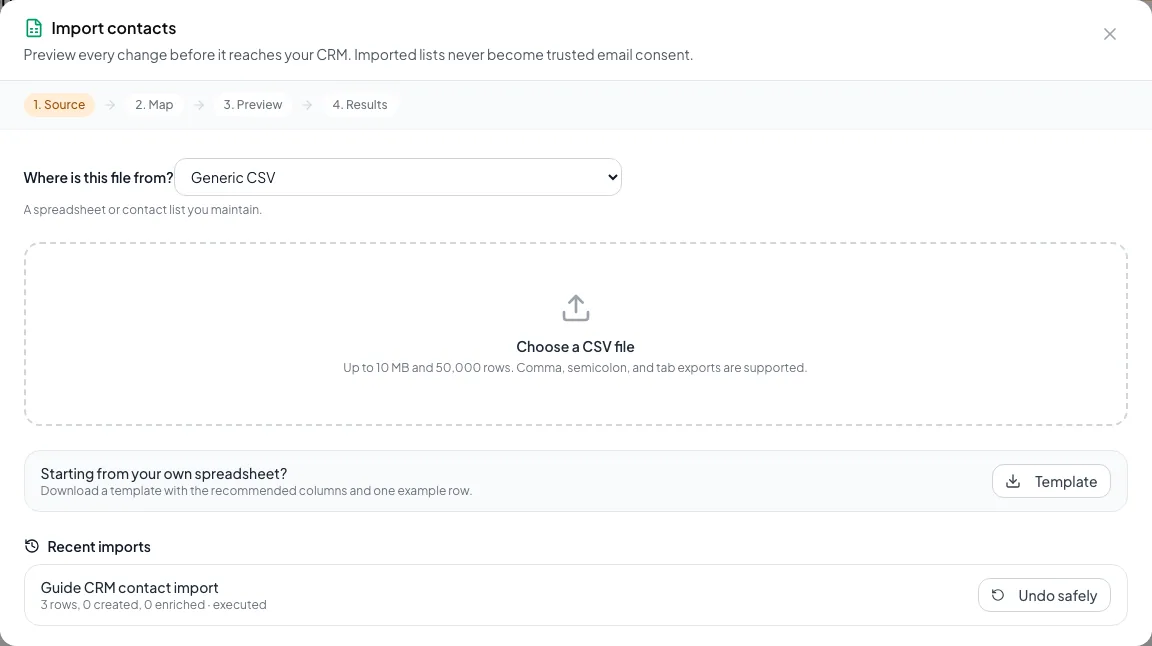
Separate safe rows from conflicts, correct the source file, and use supported undo behavior without losing good records. - 2
Review unresolved explanations
Import > Preview > filtered rows
Read representative explanations for the selected outcome.
Expected result: You know which rows need repair, investigation, or no action.
If this step does not work
Repeat the outcome-filter review until all four groups are understood.
- 3
Download Correction CSV
Import > Preview or Results > Correction CSV
Download the file with row number, outcome, reason, identity, supported contact fields, and do-not-email state.
Expected result: Every unresolved source row is available for controlled correction.
If this step does not work
Keep the original file and batch context. The correction export does not replace source provenance.
- 4
Find the conflicting contact
CRM > People and Companies > Search
Search the exact email or source identity.
Expected result: The existing contact or company appears for comparison.
If this step does not work
If nothing appears, the contact may belong to a teammate outside your view. Leave the row unresolved and ask an Admin.
- 5
Investigate the conflict
Correction CSV and existing CRM contact
Compare owner and current populated fields with the source row.
Expected result: The planned correction will not duplicate a person or overwrite another owner’s record.
If this step does not work
If authority remains unclear, leave the row unresolved and ask the record owner.
- 6
Correct supported source fields
Local spreadsheet
Correct only fields supported by the CRM importer.
Expected result: The revised values are ready for a new import preview.
If this step does not work
Do not add a tag column expecting it to map. Tags are not a current import target.
- 7
Preserve source evidence
Local spreadsheet
Keep the original header, source ID, email, and provider opt-out evidence in the corrected file.
Expected result: The revised file remains auditable and compatible with mapping.
If this step does not work
Restore any evidence column removed during correction before uploading the file.
- 8
Upload the repaired file
CRM > Contacts > People > Import
Select the repaired source file.
Expected result: The importer advances to current field mapping.
If this step does not work
Never execute the earlier preview after source changes.
- 9
Review repaired-file mappings
Import > Map
Compare every mapping with the corrected headers.
Expected result: The mapping matches the repaired source file.
If this step does not work
Correct a mapping before creating a preview.
- 10
Create a fresh preview
Import > Map > Preview
Select Preview.
Expected result: Corrected rows receive new outcomes under current scope and permissions.
If this step does not work
Never execute an earlier preview after source or mapping changes.
Undo only changes that remain reversible
- 1
Identify the exact batch
Import > Results or Source > Recent imports
Compare filename or label, date, total rows, created count, enriched count, and Executed status.
Expected result: The intended batch is selected.
If this step does not work
Cancel if any identifier differs from the result you intend to reverse.
- 2
Start Undo safely
Executed batch > Undo safely
Select Undo safely once.
Expected result: CREBuilder evaluates every imported change and displays the rollback result after processing.
If this step does not work
Do not manually delete or edit batch contacts while the undo is running.
- 3
Review the rollback notice
Import > undo result
Read created contacts removed, enriched values restored, and unsafe conflicts retained.
Expected result: A complete undo is green; a partial undo is amber and names the retained count.
If this step does not work
Open every retained conflict before deciding whether a manual change is justified.
- 4
Verify protected mail state
CRM contacts and Email Blast suppression context
Confirm imported provider opt-outs remain protected after rollback.
Expected result: Undo does not reactivate an address that the source marked do-not-email.
If this step does not work
Never remove an opt-out merely to make the CRM match the pre-import contact count.
Safe undo protects later CRM work
A created or enriched value is reversed only while the exact imported state remains safe to remove.
Executed import batch
No later activity, relationships, or value change
Delete created or restore enriched value
Later CRM change exists
Retain and report conflict
Imported opt-out remains
- Executed import batchNo later activity, relationships, or value changesafe
- No later activity, relationships, or value changeDelete created or restore enriched value
- Executed import batchLater CRM change existsunsafe
- Later CRM change existsRetain and report conflict
- Executed import batchImported opt-out remainsprotected
Resolve partial undo and archived-record questions
Undo is partial
Likely cause: A created contact gained later activity or relationships, or an enriched field no longer equals the imported value.
- Read the amber conflict count.
- Open retained contacts and compare timeline and relationships.
- Correct manually only when current business evidence supports it.
- Do not delete later work to make the undo count match.
A provider opt-out remains after undo
Likely cause: Protected mail state is intentionally never removed by import rollback.
- Leave the suppression in place.
- Preserve the source evidence.
- Use only the authorized suppression-correction process for a proven error.
An archived contact stayed archived after import
Likely cause: Import can match and enrich within policy but does not revive an archived contact.
- Review the archived record and history.
- Use the supported manual workflow if renewed activity should return it to active work.
- Do not reimport repeatedly to force revival.
A correction produced another conflict
Likely cause: The underlying identity, ownership, or provider source evidence is still ambiguous.
- Stop the batch.
- Compare the existing contact, source ID, email, and owner.
- Leave the row unresolved until authority is clear.
Recovery audit check
- Original file and batch identity are retained.
- Every unresolved reason was reviewed.
- Tags were not treated as a mapping field.
- Fresh source changes received a fresh preview.
- Partial undo conflicts were inspected.
- Provider opt-outs remain protected.
- Archived contacts were not assumed to revive through import.
A CRM that already knows your listings
Track buyers, tenants and deals right next to the OMs, listings and Deal Rooms you build in CREBuilder. Free to start.
No credit card required.