Outcome
Every follow-up has an owner and a due time, your CRM tasks appear in your own calendar, and nothing falls through the cracks.
Navigation path
CRM > Tasks > To do
Access
Free CRM with no time limit: 100 stored contacts and 10 active opportunities for your company, plus companies, pipelines, manual tasks and notes, CSV import, and Email Scripts. Paid plans add automations, reports, automated matching, calendar integration, domain connections, and email sending.
On this page
Before you start
Data, sources, and access to prepare
- CRM access
- A known owner and due time for task work
Filter and organize task groups
| Group | Definition |
|---|---|
| Overdue | Incomplete and due before the current instant |
| Today | Incomplete, not overdue, and due before the next local midnight |
| Upcoming | Incomplete and due after the Today boundary |
| No due date | Incomplete with no due instant |
| Completed | Finished work, available from the Completed tab; collapsed by default in All tasks |
| Archived | Retained tasks hidden from active work, calendar feeds, and reminders; select Archived to restore them |
Time-zone precedence
Task groups and reminders resolve time zone in a fixed order.
User override
Company default
Configured fallback
UTC
- User overrideCompany defaultif absent
- Company defaultConfigured fallbackif absent
- Configured fallbackUTCif absent
Create, assign, and complete tasks
- 1
Choose task scope
CRM > Tasks > To do > scope
Select My tasks or Whole team.
Expected result: The groups show your own tasks or the whole company’s.
If this step does not work
Members see only their own tasks, so the selector is hidden for them.
- 2
Choose a task view
CRM > Tasks > To do > status tabs
Select All tasks, Overdue, Today, Upcoming, No date, Completed, or Archived.
Expected result: Counts, explicit due dates, overdue age, and linked-record buttons make the selected work easy to scan.
If this step does not work
All tasks excludes archives. Use Archived when looking for a retained task, and Show more to expand a long group.
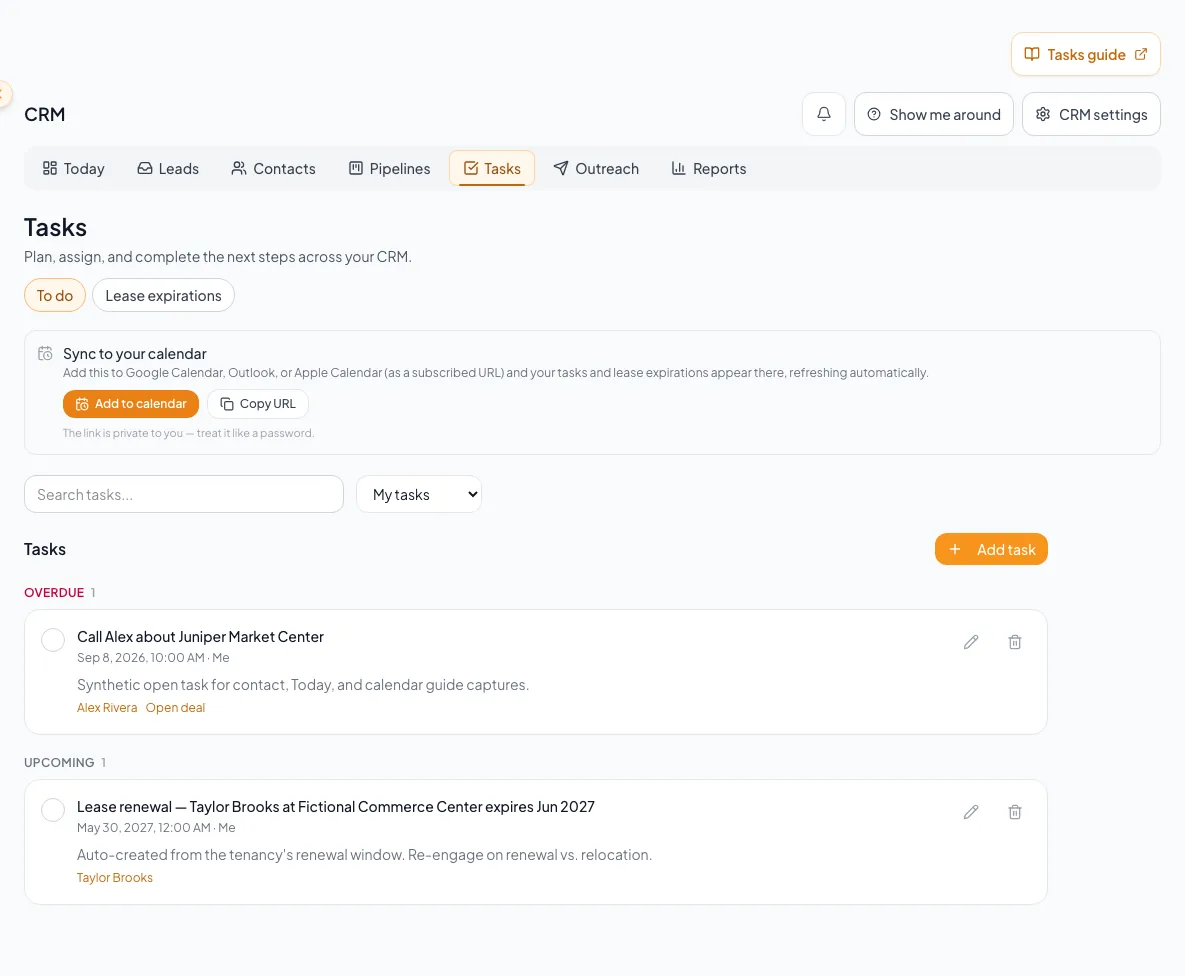
Create, assign, complete, and subscribe to tasks while keeping due dates and calendar behavior tied to the right record. - 3
Create a top-level task
To do > Add task
Enter a clear title, optional due date/time, and an assignee when your role offers that control.
Expected result: The task appears in Overdue, Today, Upcoming, or No due date.
If this step does not work
If you need a visible contact relationship, create the task from that contact workspace instead.
- 4
Create a contact-linked task
Contact workspace > Tasks
Add the action and due time from the person record.
Expected result: The task appears both in contact context and the To do groups.
If this step does not work
If save fails, copy the task title and time, reload, and retry once.
- 5
Complete the real action
To do > task checkbox
Select complete only after the work is done.
Expected result: After the server saves, a brief completion animation and confirmation appear, and the task moves to Completed.
If this step does not work
Use Undo in the confirmation, or open Completed and choose Reopen task later. A failed save leaves the task active.
Archive instead of deleting history
Choose Archive on an open or completed task to remove it from active work while retaining its history. Open Archived and choose Restore task to return it to its previous completion status, due date, and assignment. Restored unfinished work is eligible for normal reminders again, while existing reminder evidence is retained. Only Archived shows permanent Delete, which requires confirmation. A reminder delivery failure never completes or archives a task.
Subscribe to the private task calendar
- 1
Open subscription options
CRM > Tasks > To do > Sync tasks to your calendar
Open Sync tasks to your calendar.
Expected result: The panel shows Add to calendar and Copy URL after the subscription loads.
If this step does not work
A paid plan is required for calendar integration. If the controls do not appear on a paid account, reload the Tasks page.
- 2
Open your calendar application
Sync to your calendar > Add to calendar
Select Add to calendar.
Expected result: The browser opens the calendar application configured for webcal links.
If this step does not work
If no calendar application opens, use Copy URL and your calendar provider’s subscribe-from-URL option instead.
- 3
Copy the URL for manual subscription
Sync to your calendar > Copy URL
Select Copy URL when you need to configure an internet-calendar subscription manually.
Expected result: The private HTTPS feed URL is copied for your calendar provider’s subscribe-from-URL field.
If this step does not work
Use a subscribed calendar rather than a one-time file import so later updates can refresh.
- 4
Protect the feed URL
Your calendar application
Keep the private URL out of notes, tickets, screenshots, and shared documents.
Expected result: The feed credential stays with the intended calendar clients.
If this step does not work
If the URL is exposed, contact support. This panel does not offer a revoke or replace control; removing a calendar subscription does not invalidate its URL.
- 5
Verify against CRM
Calendar client and CRM > Tasks > To do
Compare a dated task after the client has refreshed.
Expected result: Title and due timing match the CRM task.
If this step does not work
If the client is delayed, keep working from CRM To do and wait for the provider refresh rather than recreating tasks.
Calendar lag does not change CRM state
Calendar providers choose when to refresh subscribed feeds. CRM To do remains the source of truth for current completion and due state.
Automated reminders and calendar integration require a paid plan
Free CRM includes manual tasks and completion tracking. Automated task reminders and calendar-feed access require a paid plan, including access through an existing calendar URL. Losing paid access does not remove saved tasks. Calendar clients may keep previously downloaded events. After upgrading, review overdue tasks instead of assuming an earlier reminder will be sent.
Resolve missing tasks and calendar issues
A task is in the wrong group
Likely cause: The stored due instant is being viewed through a different resolved time zone.
- Check the task due time.
- Check the user override and company default.
- Reload after correcting time-zone settings.
- Document shared deadlines with an explicit zone.
A subscribed task is not immediately visible in the calendar app
Likely cause: Calendar clients refresh subscribed ICS feeds on their own schedule.
- Confirm the subscription, not a one-time file import.
- Wait for the calendar provider refresh.
- Use CRM To do for the current state.
A task is missing from your list
Likely cause: It may be complete, archived, outside your ownership scope, or saved without the expected relationship.
- Check Completed and Archived.
- Check whether you are viewing My tasks or Whole team.
- Open the related contact when one was used.
- Use Retry if the page shows an error instead of an empty state.
Final verification
- Sync to your calendar > Add to calendar: The browser opens the calendar application configured for webcal links.
- Sync to your calendar > Copy URL: The private HTTPS feed URL is copied for your calendar provider’s subscribe-from-URL field.
- Your calendar application: The feed credential stays with the intended calendar clients.
- Calendar client and CRM > Tasks > To do: Title and due timing match the CRM task.
- No blocking warning, failed status, or unresolved validation message remains in the completed workflow.
A CRM that already knows your listings
Track buyers, tenants and deals right next to the OMs, listings and Deal Rooms you build in CREBuilder. Free to start.
No credit card required.