Outcome
Every inquiry and NDA request gets read, answered, and a next step, so no lead slips through.
Navigation path
CRM > Leads
Access
Free CRM with no time limit: 100 stored contacts and 10 active opportunities for your company, plus companies, pipelines, manual tasks and notes, CSV import, and Email Scripts. Paid plans add automations, reports, automated matching, calendar integration, domain connections, and email sending.
On this page
Before you start
Data, sources, and access to prepare
- CRM access
- Access to the lead’s contact
Use Active leads, Inbox, and Completed
Active leads
- What belongs here
- Each open Deal or representation opportunity, with its contact
- Use it to
- Track purpose, temperature, pipeline stage, value, owner, and next task.
Inbox
- What belongs here
- Listing inquiries, NDA activity, forwarded leads, and manual intake
- Use it to
- Read source context, then start or open an opportunity for the contact.
Completed
- What belongs here
- Finished opportunities
- Use it to
- Review outcomes and history without mixing them into current work.
- 1
Find an active lead
CRM > Leads > Active leads
Apply the search and filters for the person or opportunity you need.
Expected result: The URL retains the selected filters and scope. Each result is one opportunity, even when contacts repeat.
If this step does not work
Clear filters if an expected row is missing. Review Completed for finished business, and retry any loading error.
- 2
Move the work forward
Active lead > opportunity record
Open the opportunity from its contact name in the results.
Expected result: Leads, the pipeline table or board, the contact workspace, and linked tasks reflect the same record.
If this step does not work
If someone else changed the record, reload before saving again. Confirm before reopening a completed workflow.
Representation won is not a closed property transaction
A seller lead stays active after representation is won. Create or link its listing progress to continue toward closing. Listing creation does not publish the property. The linked listing outcome completes the seller lead without adding a duplicate opportunity to Active leads.
Recognize what the inbox contains
Inquiry
- Typical context
- Message from a public listing or related capture
- Primary decision
- Read, respond, export, or delete the inquiry activity.
NDA Signer
- Typical context
- Pending, active, or revoked NDA access with qualification answers
- Primary decision
- Approve, decline, or revoke according to listing policy.
Email Lead
- Typical context
- Identified email-related engagement
- Primary decision
- Confirm context and next follow-up.
Forwarded
- Typical context
- Lead imported from a supported forwarded source
- Primary decision
- Read the origin banner and verify source details.
Manual or New lead
- Typical context
- Manual intake on a contact
- Primary decision
- Qualify and create the next task or pipeline record.
Triage one lead completely
- 1
Search the lead queue
CRM > Leads > Inbox > Search
Enter a term when the queue needs text filtering.
Expected result: Matching lead activity remains.
If this step does not work
Clear the term if it excludes the lead you need.
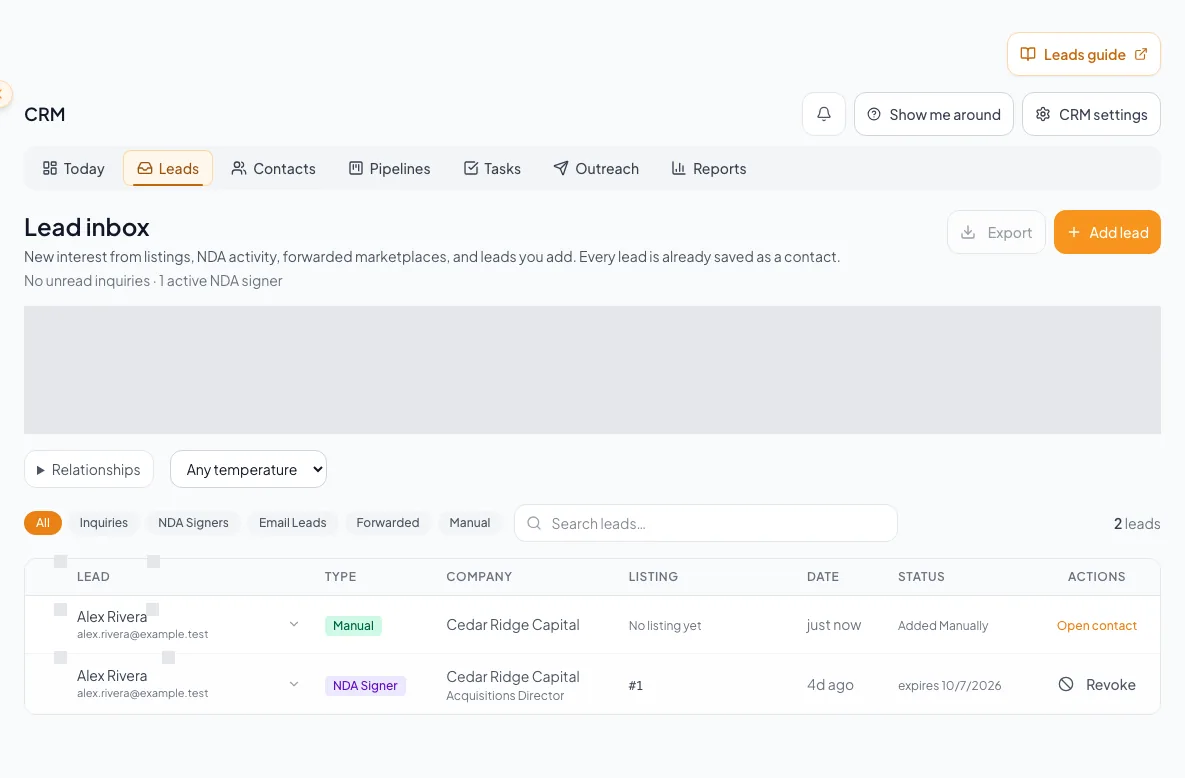
Work each lead from capture through qualification, contact matching, follow-up, conversion, or documented closure. - 2
Filter by lead type
CRM > Leads > Inbox > type chips
Select one type chip when the queue needs activity-type filtering.
Expected result: Only the selected lead type remains.
If this step does not work
If the page shows a load warning, select Retry. A failed request is not an empty inbox.
- 3
Expand source context
Lead row or card
Open the activity.
Expected result: The property, message, qualification, forwarding, or access details become visible.
If this step does not work
If the activity cannot open, retry the Leads request.
- 4
Read source context
Expanded lead activity
Review the complete source details.
Expected result: You understand why the lead appeared and which person it belongs to.
If this step does not work
If source data is incomplete, open the contact timeline and related property before responding.
- 5
Confirm the contact
Expanded lead > contact link
Verify identity, company, owner, source, lead type, tags, and existing timeline.
Expected result: The engagement is attached to the correct person and no duplicate is needed.
If this step does not work
If a duplicate exists, use the Contacts merge workflow before adding parallel follow-up.
- 6
Create the next action
Contact workspace or expanded lead controls
Add a note, task, requirement, deal, or appropriate access decision.
Expected result: The person has a dated, owned next step or a recorded terminal decision.
If this step does not work
If an optional save fails, preserve the text and add it from the contact workspace.
Use inquiry and NDA actions precisely
- 1
Review an unread inquiry
Leads > expanded Inquiry
Read the full message and source.
Expected result: The inquiry has been reviewed before its unread state changes.
If this step does not work
Leave it unread when review is incomplete.
- 2
Mark the inquiry read
Leads > expanded Inquiry > Mark read
Select Mark read.
Expected result: Unread status clears without deleting the activity.
If this step does not work
If bulk marking is used, first confirm every selected inquiry is safe to acknowledge.
- 3
Select inquiry rows
Leads > Inquiry selection
Select only the intended rows.
Expected result: The bulk toolbar shows the selected count.
If this step does not work
Clear the selection if any row should not receive the same action.
- 4
Apply one bulk inquiry action
Leads > bulk toolbar
Select Mark Read, Mark Unread, or Delete.
Expected result: The action applies to the selected inquiry activities.
If this step does not work
Use Export in the page header before cleanup if you need a record. It exports all inquiries in the filtered view, not just selected rows.
- 5
Review NDA qualification
Leads > expanded NDA Signer
Read signer identity, answers, property context, and current pending/active/revoked state.
Expected result: You have the evidence needed for the access decision.
If this step does not work
If identity or answers are insufficient, leave access pending and follow up outside the decision controls.
- 6
Approve, decline, or revoke
Expanded NDA lead > access actions
Approve a qualifying pending request, decline a pending request that should not gain access, or revoke future protected access when needed.
Expected result: The status changes to the selected state and the decision remains visible.
If this step does not work
Do not use revoke as a substitute for controlling material already downloaded. Follow the signed agreement and firm policy.
NDA signed and access approved are separate facts
A signer can complete an NDA while access remains pending when the listing requires approval. Process the access decision explicitly.
Set up forwarding and check delivery
Dedicated lead forwarding requires a paid plan. Your private forwarding address lives under Settings > CRM > Lead forwarding; when receiving is enabled, CRM > Leads shows a short Marketplace lead forwarding is ready notice with a View forwarding address link to that section. Gmail first sends a verification message to that address; CREBuilder emails its authenticated confirmation link or code to the email on your broker account. Open the Google confirmation link and confirm the destination, or enter the code in Gmail if Google provides one. Then create a filter for marketplace inquiry emails, keeping forwarding for all incoming mail disabled. Check one new inquiry in CRM before relying on the rule.
- 1
Copy the forwarding address
Settings > CRM > Lead forwarding
Select Copy beside the Lead forwarding address.
Expected result: The address is on your clipboard. Forwarded leads are assigned to your account, and Open lead inbox returns you to CRM > Leads > Inbox.
If this step does not work
If the section says lead forwarding is unavailable, receiving is not ready for this account; contact support or check again later. Without a paid plan the section offers View plans.
- 2
Check lead flow status
CRM > Leads > Lead flow status
Review receiving readiness, saved inquiries, delivery errors, pending email reviews, and missing NDA signature fields.
Expected result: Each item that needs attention has a visible reason.
If this step does not work
If status cannot load, select Retry status check before treating the flow as ready.
- 3
Review an unmatched inquiry
Lead flow status > Recent forwarded inquiries
Open the saved inquiry.
Expected result: The capture status and recovery controls become visible.
If this step does not work
Correct the prospect email only before a contact has been captured. Afterwards, edit the contact.
- 4
Read the original message
Saved inquiry > Read original inquiry
Select Read original inquiry.
Expected result: The saved source message is available for comparison.
If this step does not work
If the message cannot load, retry before correcting the prospect or listing.
- 5
Link the listing
Saved inquiry > Matching listing
Select the correct completed listing.
Expected result: The matching listing is selected for this receipt.
If this step does not work
If the name is ambiguous or the listing was withdrawn, choose explicitly. Do not link a similar-looking property without checking the source.
- 6
Process the saved inquiry
Saved inquiry > Process inquiry
Select Process inquiry.
Expected result: The receipt links to the contact and listing; later inquiries with the same confirmed marketplace headline can reuse the match.
If this step does not work
Check the returned status and reason if processing cannot complete.
- 7
Check approval delivery
NDA lead and Lead flow status
After approving access, check the email status.
Expected result: Queued, sent, failed, and unconfirmed states remain distinct. Sent means provider acceptance.
If this step does not work
For failed messages, correct the issue before retrying. For unconfirmed delivery, check whether the buyer already received it.
- 8
Resend an access link
Approved NDA lead > Resend access
Confirm a new link only when another delivery is needed.
Expected result: A fresh link is queued and the previous link stops working.
If this step does not work
Wait while a delivery is queued or sending. An unconfirmed previous send may result in a second email.
Saved inquiries remain available after losing paid access
An inquiry received through an existing forwarding address while the company is free is retained for review with an upgrade message. It does not create a new contact automatically. After upgrading, review the saved source and use Process inquiry when appropriate. Forwarding-verification messages are control mail, never prospects; request a fresh verification after upgrading.
Mail review still applies
Forwarding setup does not approve marketing lists or remove Mail review requirements. An email submission waiting for review has not been sent. Complete custom-PDF NDA signature fields before asking a buyer to sign.
Understand first-lead attribution and recovery
One first qualifying lead fact per contact
Today and lead reporting count the first qualifying lead capture, not every repeat event.
Qualifying lead events
Earliest qualifying fact
Repeat engagement
Remains on timeline
New lead count
Counted once
- Qualifying lead eventsEarliest qualifying fact
- Qualifying lead eventsRepeat engagement
- Earliest qualifying factNew lead count
Counting boundaries
- Imports and Add Contact do not create a qualifying new-lead fact.
- Start lead records one manual intake fact for a person and creates a separate opportunity. Multiple opportunities do not inflate the unique-person lead count.
- Repeat inquiries or engagement remain visible but do not double-count the first lead.
- Lead reporting uses the first qualifying fact date.
The inbox looks empty while an error warning is present
Likely cause: One or more source requests failed and the page is showing partial state.
- Select Retry.
- Keep the warning visible in any shared status.
- Do not report zero leads until all requests succeed.
A lead is absent from Today New leads
Likely cause: It may be a repeat event, import, Add Contact, outside the selected scope, or outside the relevant fact window.
- Open the person timeline.
- Identify the earliest qualifying lead fact.
- Check Today scope and date context.
- Do not add another lead marker merely to change reporting.
Final verification
- The reviewed lead activity is on the correct contact and property or opportunity.
- The inquiry read state or NDA access decision matches the action you intended for that lead type.
- The person has an owned, dated next action or a recorded terminal decision.
- If you approved NDA access, interpret queued, sent, failed, and unconfirmed delivery separately. Sent means provider acceptance.
- If you intentionally resent an access link, verify the new delivery state and remember that the previous link stops working. Other lead reviews do not require a resend.
A CRM that already knows your listings
Track buyers, tenants and deals right next to the OMs, listings and Deal Rooms you build in CREBuilder. Free to start.
No credit card required.