Outcome
Your contacts are in the CRM with no duplicates, existing records filled in rather than overwritten, and every opt-out kept.
Navigation path
CRM > Contacts > People > Import
Access
Free CRM with no time limit: 100 stored contacts and 10 active opportunities for your company, plus companies, pipelines, manual tasks and notes, CSV import, and Email Scripts. Paid plans add automations, reports, automated matching, calendar integration, domain connections, and email sending.
On this page
Before you start
Data, sources, and access to prepare
- A first-party CSV with a header row and at least one contact row
- A clear owner and source for the records
- Provider opt-outs retained in the export
Prepare and import contacts from a supported file
| Rule | Supported value |
|---|---|
| File type | CSV selected through the CRM importer |
| Required structure | One nonblank unique header per column and at least one contact row |
| Maximum size | 10 MB |
| Maximum rows | 50,000 contact rows |
| Delimiters | Comma, semicolon, or tab |
| Text handling | Quoted and multiline values; UTF-8, UTF-16, or Windows-1252 fallback |
| Identity | Email is required to create; a stable source record ID supports safer reimports |
- 1
Export from the source system
HubSpot, Salesforce, Pipedrive, Zoho, Buildout, Crexi, LoopNet/CoStar, or your spreadsheet
Include a stable source ID, email, names, company, and any supported opt-out column.
Expected result: The local CSV contains one row per source contact and retains provider identity and opt-out evidence.
If this step does not work
If no stable ID exists, plan to rely on normalized email and review reimports more carefully.
- 2
Check file structure
Local spreadsheet or text editor
Confirm unique nonblank headers, consistent columns, and no more than 50,000 data rows or 10 MB.
Expected result: The file meets the importer limits before upload.
If this step does not work
Split an oversized export into controlled batches. Preserve the same headers and source label.
- 3
Choose the import source
CRM > Contacts > People > Import
Select the source preset or Generic CSV.
Expected result: The importer applies the corresponding source context.
If this step does not work
Use Generic CSV for a spreadsheet without a supported provider preset.
- 4
Select the import file
CRM import > Choose file
Choose the prepared CSV file.
Expected result: CREBuilder reads the delimiter and encoding and advances to Map.
If this step does not work
If parsing fails, download the generic template and repair headers or quotes before choosing the file again.
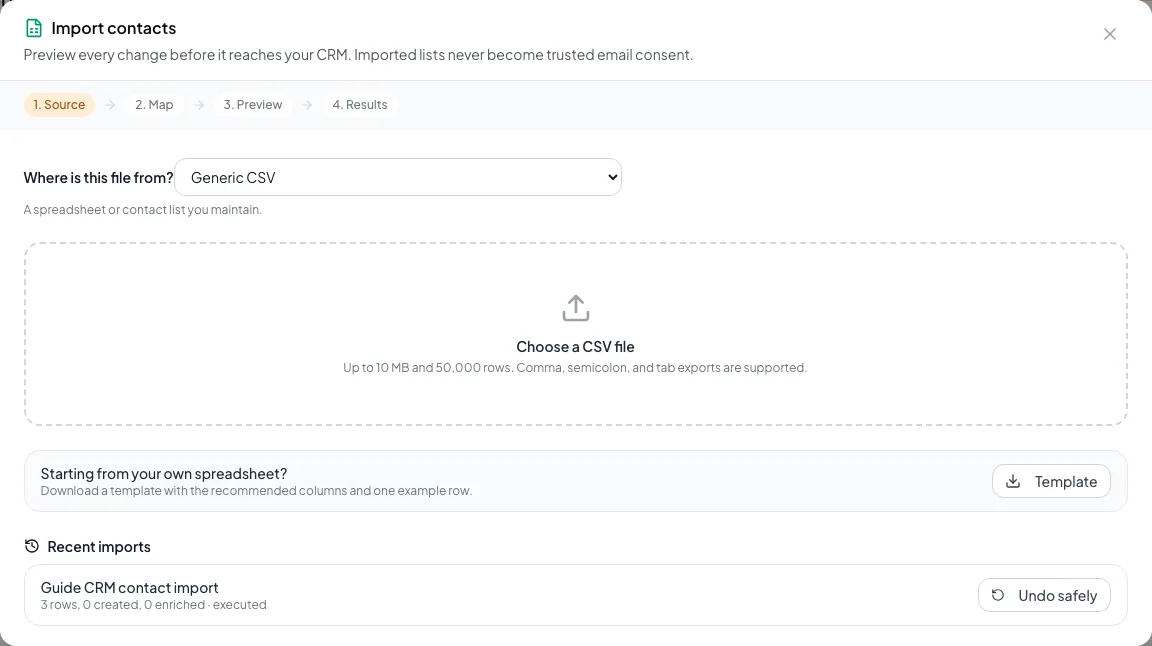
Prepare a contact CSV, open the import, map fields, preview outcomes, and select Import safe rows for valid records.
Map only supported fields
Tags are not an import mapping target
A source preset may recognize a provider whose export contains tag columns, but the current CRM mapping screen does not import tags. Add tags after import using supported CRM controls.
- 1
Review suggested mappings
Import > Map
Compare every CREBuilder field, selected source column, and sample value.
Expected result: Only intended columns are mapped and Email is selected.
If this step does not work
Use Skip this field for unsupported or ambiguous columns. Do not map a tag column into another field.
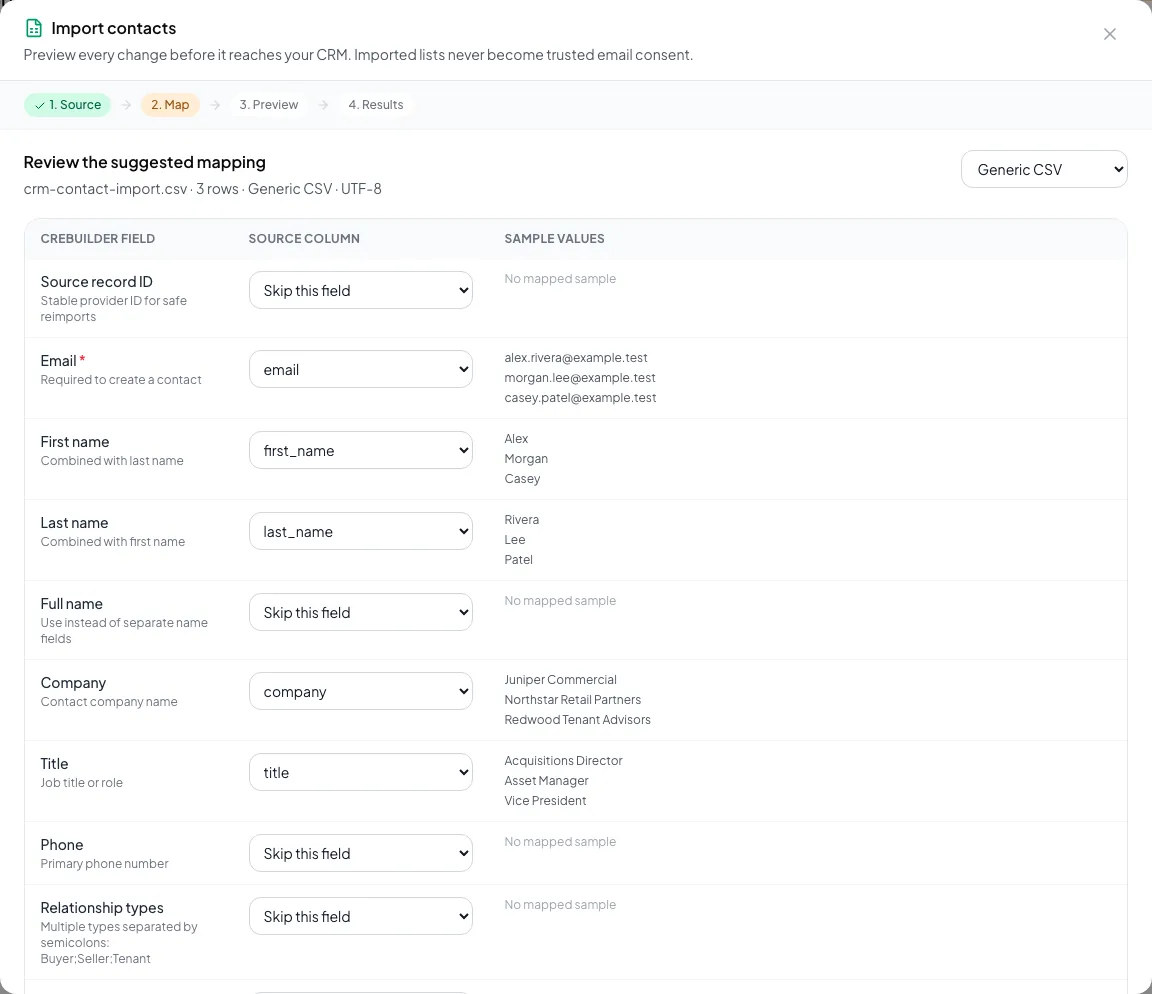
Map each source column to the appropriate CRM field before validating. - 2
Choose a name strategy
Import > Map
Map Full name, or map First name and Last name.
Expected result: The alternative name mapping is cleared automatically.
If this step does not work
If source names are inconsistent, keep the raw file and test a small batch first.
- 3
Create the preview
Import > Map > Preview changes
Select Preview changes after the mapping is final.
Expected result: CREBuilder shows exactly what will happen to each row before anything changes.
If this step does not work
If you change the file or the mapping, preview again before importing.
Source record ID Recommended
Stable provider identity for safe reimports
- Format
- Provider-issued text identifier
- Units
- Not applicable
- Save behavior
- Stored for safe rows only when Import safe rows succeeds with this column mapped.
- Downstream effect
- Lets later imports match the same provider record more safely.
Email Required
Identifies the contact; required to create one
- Format
- Valid email address
- Units
- Not applicable
- Save behavior
- Normalized and stored for safe rows only when Import safe rows succeeds.
- Downstream effect
- Creates a new contact or matches an existing one, so the same email never becomes two people.
First name and Last name Optional
Combined into the contact name
- Format
- Separate plain-text source columns
- Units
- Not applicable
- Save behavior
- Stored for safe rows when the executed mapping uses separate name columns.
- Downstream effect
- Builds the contact display name; use these columns or Full name, not both.
Full name Optional
Single source column used instead of separate names
- Format
- Plain text
- Units
- Not applicable
- Save behavior
- Stored for safe rows when the executed mapping uses Full name.
- Downstream effect
- Builds the contact display name instead of separate first and last columns.
Company Optional
Company name associated with the contact
- Format
- Plain text
- Units
- Not applicable
- Save behavior
- Stored for safe rows when Import safe rows succeeds.
- Downstream effect
- Adds company context used for contact organization and later company matching.
Title Optional
Job title or role
- Format
- Plain text
- Units
- Not applicable
- Save behavior
- Stored for safe rows when Import safe rows succeeds.
- Downstream effect
- Adds professional role context to the contact workspace.
Phone Optional
Primary phone number
- Format
- Phone number accepted by the import preview
- Units
- Not applicable
- Save behavior
- Stored for safe rows when Import safe rows succeeds.
- Downstream effect
- Provides the contact’s primary calling number.
Lead type Optional
Buyer, Tenant Rep, Seller, Landlord, Investor, or Other
- Format
- Supported lead-type label
- Units
- Not applicable
- Save behavior
- Stored for safe rows when Import safe rows succeeds.
- Downstream effect
- Classifies the contact and controls which requirement panel can appear.
Do not email Recommended
Provider unsubscribe or opt-out evidence
- Format
- Source opt-out value recognized by the import preview
- Units
- Not applicable
- Save behavior
- Committed for safe rows when Import safe rows succeeds; import undo does not remove the resulting suppression.
- Downstream effect
- Creates a company Email Blast suppression that protects future hosted audiences.
Source record ID
- Requirement
- Recommended
- What it means
- Stable provider identity for safe reimports
- Format
- Provider-issued text identifier
- Units
- Not applicable
- Save behavior
- Stored for safe rows only when Import safe rows succeeds with this column mapped.
- Downstream effect
- Lets later imports match the same provider record more safely.
- Requirement
- Required
- What it means
- Identifies the contact; required to create one
- Format
- Valid email address
- Units
- Not applicable
- Save behavior
- Normalized and stored for safe rows only when Import safe rows succeeds.
- Downstream effect
- Creates a new contact or matches an existing one, so the same email never becomes two people.
First name and Last name
- Requirement
- Optional
- What it means
- Combined into the contact name
- Format
- Separate plain-text source columns
- Units
- Not applicable
- Save behavior
- Stored for safe rows when the executed mapping uses separate name columns.
- Downstream effect
- Builds the contact display name; use these columns or Full name, not both.
Full name
- Requirement
- Optional
- What it means
- Single source column used instead of separate names
- Format
- Plain text
- Units
- Not applicable
- Save behavior
- Stored for safe rows when the executed mapping uses Full name.
- Downstream effect
- Builds the contact display name instead of separate first and last columns.
Company
- Requirement
- Optional
- What it means
- Company name associated with the contact
- Format
- Plain text
- Units
- Not applicable
- Save behavior
- Stored for safe rows when Import safe rows succeeds.
- Downstream effect
- Adds company context used for contact organization and later company matching.
Title
- Requirement
- Optional
- What it means
- Job title or role
- Format
- Plain text
- Units
- Not applicable
- Save behavior
- Stored for safe rows when Import safe rows succeeds.
- Downstream effect
- Adds professional role context to the contact workspace.
Phone
- Requirement
- Optional
- What it means
- Primary phone number
- Format
- Phone number accepted by the import preview
- Units
- Not applicable
- Save behavior
- Stored for safe rows when Import safe rows succeeds.
- Downstream effect
- Provides the contact’s primary calling number.
Lead type
- Requirement
- Optional
- What it means
- Buyer, Tenant Rep, Seller, Landlord, Investor, or Other
- Format
- Supported lead-type label
- Units
- Not applicable
- Save behavior
- Stored for safe rows when Import safe rows succeeds.
- Downstream effect
- Classifies the contact and controls which requirement panel can appear.
Do not email
- Requirement
- Recommended
- What it means
- Provider unsubscribe or opt-out evidence
- Format
- Source opt-out value recognized by the import preview
- Units
- Not applicable
- Save behavior
- Committed for safe rows when Import safe rows succeeds; import undo does not remove the resulting suppression.
- Downstream effect
- Creates a company Email Blast suppression that protects future hosted audiences.
Required means the field is needed to complete or support this workflow. Some screens allow a draft to save before every required item is complete. The steps and troubleshooting call out controls the product actively blocks.
Validate the safe preview outcomes
Preview before any CRM contact changes
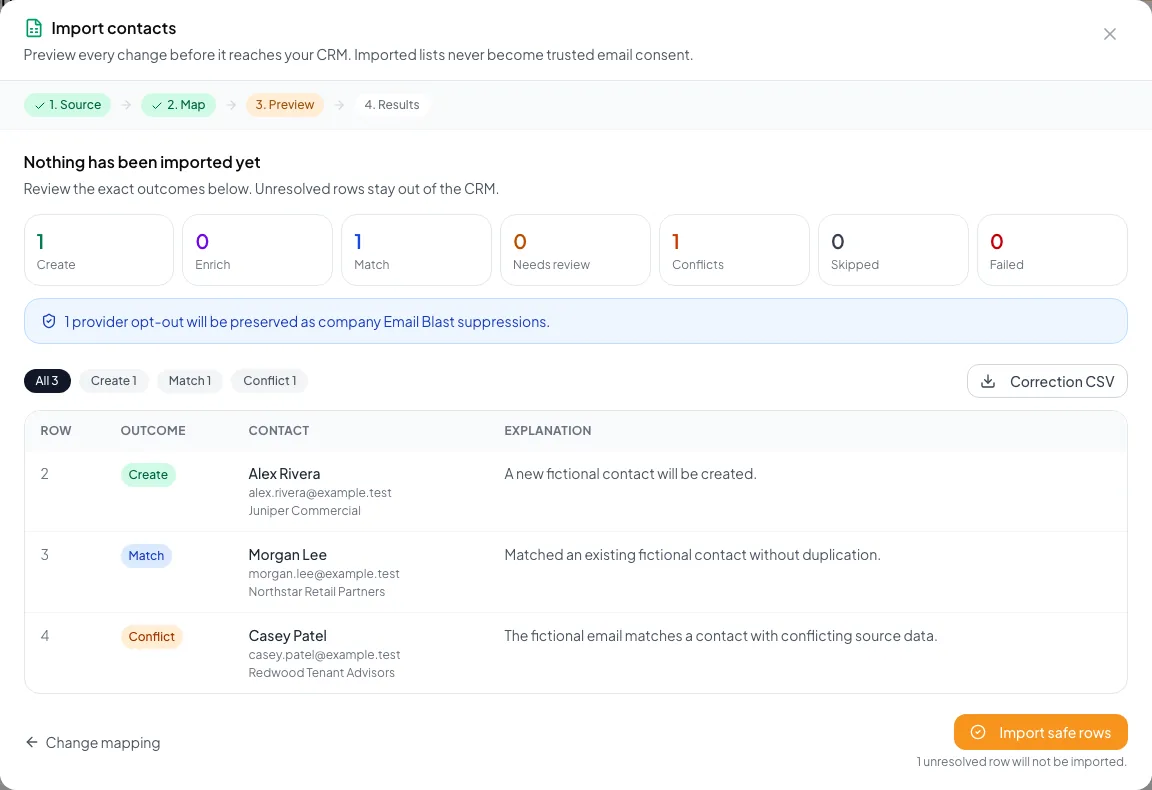
Create, Enrich, and Match are eligible to commit. Every unresolved outcome stays outside CRM for the separate recovery workflow.
CSV row
Create, Enrich, or Match
Unresolved row
Held outside CRM
- CSV rowCreate, Enrich, or Matchsafe result
- CSV rowUnresolved rowneeds recovery
Create
- Meaning
- The email is new to your CRM.
- Commit behavior
- Creates the contact.
Enrich
- Meaning
- An existing contact has blank fields this row can fill.
- Commit behavior
- Fills blanks only. It does not overwrite populated values.
Match
- Meaning
- The row resolves to an existing contact without a safe field change.
- Commit behavior
- Records safe source identity as applicable without duplicating the person.
- 1
Review totals and opt-outs
Import > Preview
Compare Create, Enrich, Match, unresolved, and provider opt-out counts with the source file.
Expected result: The safe commit size and held-row count are understood before execution.
If this step does not work
If counts are surprising, return to Map or repair the source file. Preview again after every change.
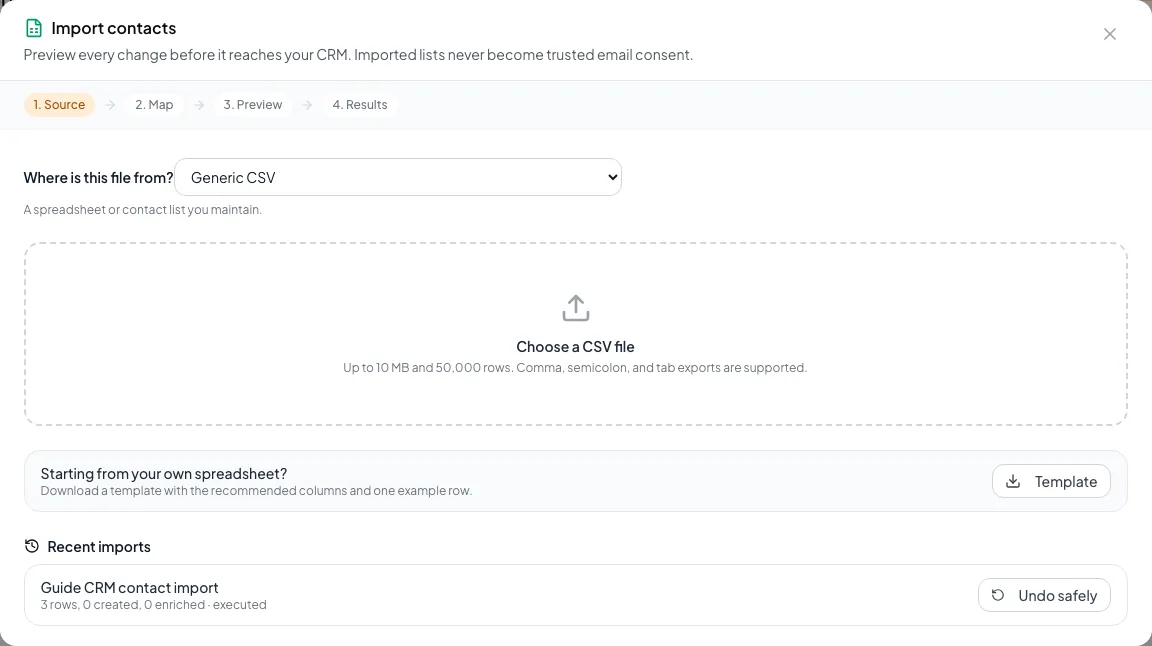
Review the created, matched, conflict and opt-out totals before importing any rows. - 2
Inspect safe rows
Import > Preview > Create, Enrich, and Match filters
Review representative and high-value rows in each safe outcome.
Expected result: New people, blank-field enrichment, and existing matches are intentional.
If this step does not work
If identity or ownership is uncertain, do not commit yet. Return to the source and preview again.
- 3
Open the recovery guide for unresolved rows
Import > Preview > unresolved summary
Open the Resolve CRM import conflicts and safely undo a batch guide.
Expected result: The separate recovery workflow opens for the held rows.
If this step does not work
Do not alter identifiers or mappings merely to force a held row into Create.
Commit the reviewed safe rows
- 1
Confirm the preview is current
Import > Preview
Verify filename, source preset, mapping, outcome totals, opt-out count, and unresolved count.
Expected result: The preview still represents the exact file and mapping you intend to commit.
If this step does not work
If anything changed, return to Map and create a new preview.
- 2
Commit safe rows
Import > Preview > Import safe rows
Select Import safe rows once every safe outcome group is reviewed.
Expected result: Safe rows import together, opt-outs become suppressions, and rows that need review stay out.
If this step does not work
If commit fails, the UI states that no contacts changed. Preserve the file and create a fresh preview before retrying.
- 3
Verify the result summary
Import > Results
Compare Created, Enriched, Matched, and unresolved totals with the preview.
Expected result: The executed totals match the reviewed plan.
If this step does not work
If the totals differ, stop and use the import recovery article before another batch.
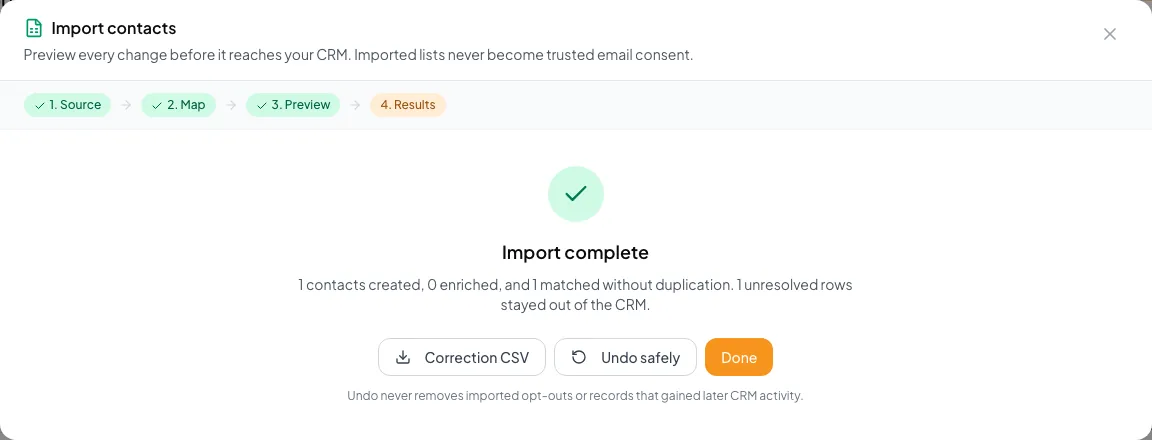
Review accepted, skipped, quarantined and duplicate rows in the import results. - 4
Spot-check imported contacts
CRM > Contacts > People
Open representative contacts from the executed batch.
Expected result: The created or enriched records match the reviewed outcome.
If this step does not work
If a contact differs or unresolved rows remain, use the import recovery article before another batch.
Import is not marketing consent
A contact import creates or enriches CRM data. It does not prove permission for a hosted Email Blast. Imported provider opt-outs become company suppressions.
Resolve import failures without losing evidence
The file will not open
Likely cause: It lacks a header/data row, has duplicate or blank headers, contains an unclosed quote, or exceeds limits.
- Read the exact error.
- Repair the local CSV or use the generic template.
- Keep within 10 MB and 50,000 rows.
- Upload the repaired file as a new preview.
An existing contact was not overwritten
Likely cause: Enrichment intentionally fills blank fields only and respects ownership.
- Open the existing contact.
- Compare current and source values.
- Edit manually if authorized and the new value is correct.
- Do not alter the source ID to force a new person.
The preview expired or no longer matches
Likely cause: The file, the mapping, or your access changed after the preview was created.
- Return to Map.
- Review the current mapping.
- Create a new preview.
- Commit only that new batch.
Final verification
- Import > Preview: The preview still represents the exact file and mapping you intend to commit.
- Import > Preview > Import safe rows: Safe rows import together, opt-outs become suppressions, and rows that need review stay out.
- Import > Results: The executed totals match the reviewed plan.
- CRM > Contacts > People: The created or enriched records match the reviewed outcome.
- No blocking warning, failed status, or unresolved validation message remains in the completed workflow.
Related tasks
A CRM that already knows your listings
Track buyers, tenants and deals right next to the OMs, listings and Deal Rooms you build in CREBuilder. Free to start.
No credit card required.