Outcome
Every deal shows where it stands, what it is worth, who gets paid, and what happens next, so your forecast and GCI reports stay accurate.
Navigation path
CRM > Pipelines > Deals
Access
Free CRM with no time limit: 100 stored contacts and 10 active opportunities for your company, plus companies, pipelines, manual tasks and notes, CSV import, and Email Scripts. Paid plans add automations, reports, automated matching, calendar integration, domain connections, and email sending.
On this page
Before you start
Data, sources, and access to prepare
- At least one permitted Deal or a qualified opportunity ready to create
- Confirmed transaction facts or clearly labeled estimates
- The correct contact and property or suite
Set pipeline, scope, and view
- 1
Choose the Deal pipeline
CRM > Pipelines > Deals > pipeline selector
Select Sales Pipeline or Business Brokerage when both exist.
Expected result: Only deals assigned to that pipeline appear. Switching does not move any record.
If this step does not work
If a deal is absent, check the other pipeline before creating a new one.
- 2
Choose scope
Deals > scope control
Select My records or Whole team.
Expected result: The board shows your own deals or the whole company’s.
If this step does not work
Members see only their own deals, so the selector is hidden for them.
- 3
Choose Board or List
Deals > view toggle
Select Board for stage management or List for sortable deal details.
Expected result: The same filtered deals render in the selected view and the preference persists.
If this step does not work
If counts differ, confirm that the pipeline, scope, and Today deep-link filters stayed the same.
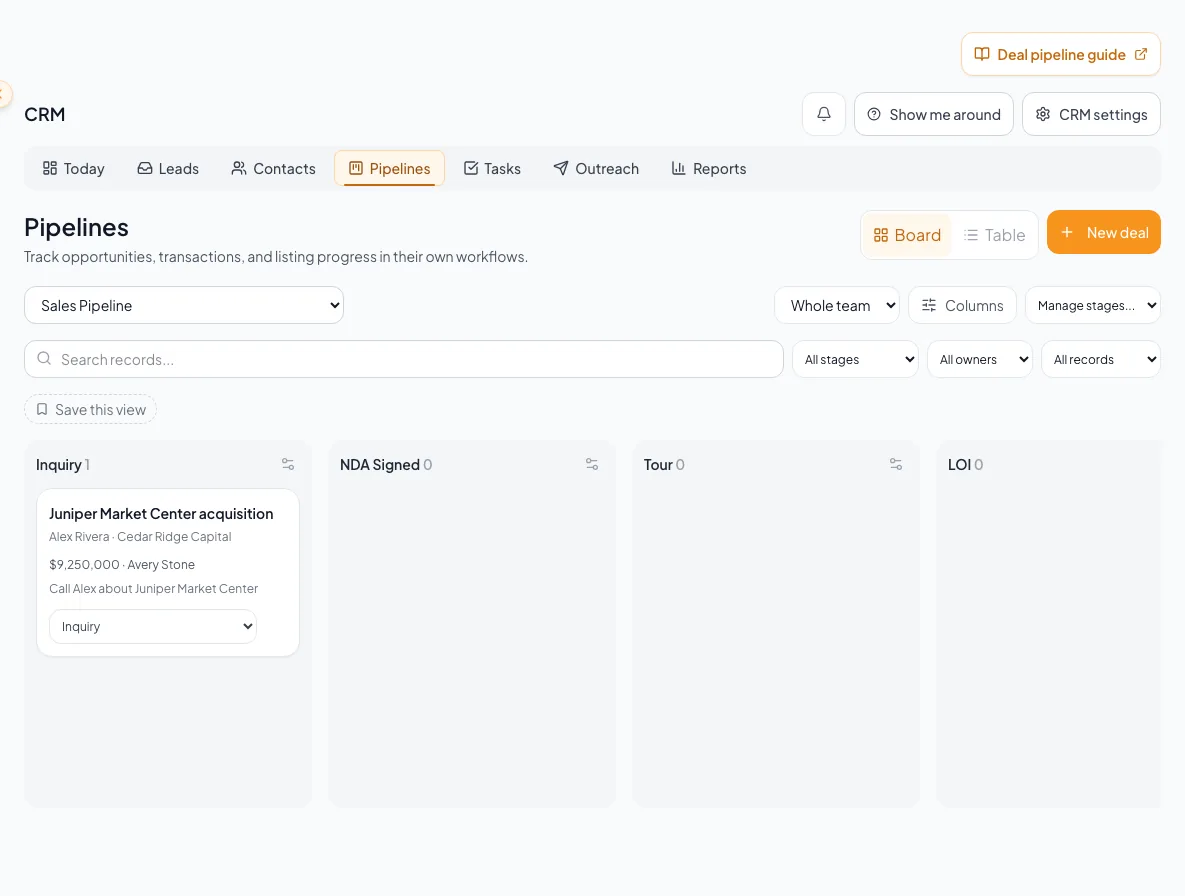
Maintain deal economics, offers, parties, splits, agreements, notes, stage, and ownership in the correct record.
Read cards, columns, and list data
| Surface | Signals |
|---|---|
| Stage column | Deal count, gross value, weighted value, and stage probability |
| Board card | Title, contact/company context, value, close date, stage age, rotting/stale state, notes, and open-task signal as available |
| List row | Deal/contact, stage, value, days, last activity, and created date with sortable columns |
| Today-filtered list | Stale or missing-next-action context carried from Today |
Advance a deal and preserve context
- 1
Open the deal before a major move
Deals board card or list row
Review contact, property or suite, value, close date, open tasks, and recent activity.
Expected result: The proposed stage reflects the actual transaction.
If this step does not work
If the contact and suite duplicate another deal, stop and use the existing record.
- 2
Move to the factual stage
Deals > Board
Drag the card on pointer devices or use the stage dropdown on touch devices.
Expected result: The deal moves, stage totals update, and stage age restarts.
If this step does not work
If the request fails, the card should return. Reload and verify the persisted stage before trying again.
- 3
Add the next action
Deal context and related task workflow
Create or update the follow-up that must happen next, with owner and due time where the UI permits.
Expected result: The deal no longer lacks a next action and appears correctly in Today.
If this step does not work
If task linking is not offered in the visible deal screen, create the task from the supported contact or Tasks workflow and use a precise title.
- 4
Set the terminal outcome
Deal detail or stage control
Select Won or Lost only on a true outcome.
Expected result: The close date and reporting behavior align with the real close outcome.
If this step does not work
Do not use a terminal stage for paused or uncertain work.
- 5
Reopen a resumed Deal
Terminal Deal > Reopen
Select Reopen if the transaction resumes.
Expected result: The existing Deal returns to active work with history intact.
If this step does not work
Do not drag a terminal card to simulate reopening.
Verify identity and core economics
- 1
Confirm Deal identity
Deal detail > header
Verify title, contact, Deal pipeline, property, and suite before editing.
Expected result: You are updating the intended transaction and not a duplicate contact and suite Deal.
If this step does not work
If another matching Deal exists, stop and compare stage and history. Do not bypass duplicate protection.
- 2
Update forecast fields
Deal detail > Economics
Enter current value, close date, represented side, and commission percentage where offered.
Expected result: Board, forecast, weighted pipeline, and GCI use current values.
If this step does not work
If the commission result is surprising, check for an explicit flat value before changing the percentage.
- 3
Document assumptions
Deal workspace > Updates
Add a concise note for any material estimate, change, or unresolved fact.
Expected result: The timeline explains why the current economics and stage were chosen.
If this step does not work
Do not present an undocumented estimate as a final transaction fact.
Title and contact Required
Opportunity name and primary contact
- Format
- Plain-text Deal title plus one existing CRM contact
- Units
- Not applicable
- Save behavior
- The title saves only after Save name or Enter succeeds. The primary contact is fixed when the Deal is created and is not editable on this detail screen.
- Downstream effect
- The title labels the Deal, and the contact links the transaction to that person’s CRM context.
Property and suite Optional
Transaction location and optional space
- Format
- Linked property plus Whole building or one listed suite
- Units
- Not applicable
- Save behavior
- The property link is established by the creation or listing-engagement workflow. Selecting a suite submits immediately and persists only if the update succeeds.
- Downstream effect
- Links the Deal to its property or space and prevents another Deal for the same contact and suite.
Value Recommended
Expected transaction value used by pipeline and forecast calculations
- Format
- Numeric currency amount
- Units
- U.S. dollars
- Save behavior
- The Deal economics input submits when it loses focus and persists only if the update succeeds.
- Downstream effect
- Feeds stage and pipeline gross value, weighted value, and percentage-based gross commission calculations.
Close date Recommended
Expected or actual closing month used in forecast grouping
- Format
- Date in YYYY-MM-DD format
- Units
- Calendar date
- Save behavior
- The Expected close date submits when its input loses focus and persists only if the update succeeds.
- Downstream effect
- Groups the Deal into the applicable expected or actual closing month for forecast and reporting context.
Side Recommended
The represented transaction side
- Format
- Buy-side, Sell-side, Landlord, Tenant, or blank
- Units
- Not applicable
- Save behavior
- Selecting a Side submits the choice immediately and persists only if the update succeeds.
- Downstream effect
- Records whom the team represents without changing the Deal owner, pipeline, or stage.
Commission value Optional
Explicit flat GCI
- Format
- Numeric currency amount
- Units
- U.S. dollars
- Save behavior
- No customer edit control is present for this value on the current Deal detail screen, so this screen does not save it.
- Downstream effect
- When a stored flat value is present, it takes precedence over the percentage calculation for gross GCI, splits, and reports.
Commission percent Optional
GCI percent applied to Deal value when no flat commission is entered
- Format
- Decimal percentage; the input steps by 0.1
- Units
- Percent
- Save behavior
- A numeric percentage submits when the Commission input loses focus and persists only if the update succeeds.
- Downstream effect
- Calculates gross GCI from Deal value only when no flat commission value is stored; splits and reports use the resulting GCI.
Title and contact
- Requirement
- Required
- What it means
- Opportunity name and primary contact
- Format
- Plain-text Deal title plus one existing CRM contact
- Units
- Not applicable
- Save behavior
- The title saves only after Save name or Enter succeeds. The primary contact is fixed when the Deal is created and is not editable on this detail screen.
- Downstream effect
- The title labels the Deal, and the contact links the transaction to that person’s CRM context.
Property and suite
- Requirement
- Optional
- What it means
- Transaction location and optional space
- Format
- Linked property plus Whole building or one listed suite
- Units
- Not applicable
- Save behavior
- The property link is established by the creation or listing-engagement workflow. Selecting a suite submits immediately and persists only if the update succeeds.
- Downstream effect
- Links the Deal to its property or space and prevents another Deal for the same contact and suite.
Value
- Requirement
- Recommended
- What it means
- Expected transaction value used by pipeline and forecast calculations
- Format
- Numeric currency amount
- Units
- U.S. dollars
- Save behavior
- The Deal economics input submits when it loses focus and persists only if the update succeeds.
- Downstream effect
- Feeds stage and pipeline gross value, weighted value, and percentage-based gross commission calculations.
Close date
- Requirement
- Recommended
- What it means
- Expected or actual closing month used in forecast grouping
- Format
- Date in YYYY-MM-DD format
- Units
- Calendar date
- Save behavior
- The Expected close date submits when its input loses focus and persists only if the update succeeds.
- Downstream effect
- Groups the Deal into the applicable expected or actual closing month for forecast and reporting context.
Side
- Requirement
- Recommended
- What it means
- The represented transaction side
- Format
- Buy-side, Sell-side, Landlord, Tenant, or blank
- Units
- Not applicable
- Save behavior
- Selecting a Side submits the choice immediately and persists only if the update succeeds.
- Downstream effect
- Records whom the team represents without changing the Deal owner, pipeline, or stage.
Commission value
- Requirement
- Optional
- What it means
- Explicit flat GCI
- Format
- Numeric currency amount
- Units
- U.S. dollars
- Save behavior
- No customer edit control is present for this value on the current Deal detail screen, so this screen does not save it.
- Downstream effect
- When a stored flat value is present, it takes precedence over the percentage calculation for gross GCI, splits, and reports.
Commission percent
- Requirement
- Optional
- What it means
- GCI percent applied to Deal value when no flat commission is entered
- Format
- Decimal percentage; the input steps by 0.1
- Units
- Percent
- Save behavior
- A numeric percentage submits when the Commission input loses focus and persists only if the update succeeds.
- Downstream effect
- Calculates gross GCI from Deal value only when no flat commission value is stored; splits and reports use the resulting GCI.
Required means the field is needed to complete or support this workflow. Some screens allow a draft to save before every required item is complete. The steps and troubleshooting call out controls the product actively blocks.
Record offer rounds, commission splits, and parties
Offers or LOIs
- Supported detail
- Buyer or seller direction, price, deposit, due-diligence days, financing tri-state, close date, and status
- Important boundary
- Add a round instead of overwriting negotiation history.
Commission splits
- Supported detail
- Agent, house, co-broke, or referral; internal user or external party
- Important boundary
- Splits are entered as percentages.
Additional parties
- Supported detail
- Buyer, Buyer broker, Seller, Seller broker, Attorney, Lender, or Other
- Important boundary
- A party relationship does not transfer CRM ownership.
- 1
Add an offer round
Deal detail > Offers
Create a new round with direction, economics, contingencies, target close, and current status.
Expected result: The new round appears without erasing earlier negotiation.
If this step does not work
Leave unknown values unset or use the supported unknown financing state. Do not copy a prior round without review.
- 2
Add commission splits
Deal detail > Splits
Add agent, house, co-broke, and referral rows with the correct internal user or external name and percentage.
Expected result: The split summary shows the entered allocation and any total warning.
If this step does not work
If no split rows exist, reporting assigns full GCI to the Deal owner. Add rows only when the allocation is known.
- 3
Review the split total
Deal detail > Splits summary
Compare the intended allocations with the displayed total.
Expected result: A complete allocation totals 100 percent, while a partial allocation remains visible with a warning.
If this step does not work
Do not add a fake balancing user.
- 4
Correct a split row
Deal detail > Splits
Correct one omission or overlapping allocation.
Expected result: The split summary recalculates from the corrected row.
If this step does not work
Confirm the intended house or external allocation before editing.
- 5
Choose an additional-party role
Deal detail > Parties
Select the participant’s role.
Expected result: The party editor is ready for the related identity.
If this step does not work
Use Other only when the listed roles do not fit.
- 6
Link the additional party
Deal detail > Parties
Link a known CRM contact or company, or enter supported external context.
Expected result: Every material participant is visible separately from the primary contact.
If this step does not work
If a party changes, update the relationship and preserve important history in a note.
Read notes and agreement activity, then archive with care
Deal Activity is the shared audit trail for notes and supported lifecycle events. Agreement sent, signed, executed, declined, or voided events appear there when an agreement is linked to the Deal.
Agreement events are read-only history
When an agreement is linked to the Deal, its sent, signed, executed, declined, and voided events appear in the Deal timeline so the whole team can follow progress. Manage the agreement itself from the agreement, not from the Deal.
- 1
Add a useful note
Deal workspace > Updates > Write an update
Record the decision, material change, responsible person, and next action without sensitive material that does not belong in CRM.
Expected result: The note appears chronologically with author and timestamp.
If this step does not work
If the save fails, preserve the text locally, retry once, and confirm it appears before closing.
- 2
Interpret agreement events
Deal workspace > Updates
Read the event label and timestamp as lifecycle context.
Expected result: The Deal history reflects known agreement progress without exposing unsupported controls.
If this step does not work
If an event looks wrong, contact support with the Deal link.
- 3
Audit before archiving
Deal detail
Review the complete record, including stage, economics, offers, splits, parties, notes, and outstanding follow-up.
Expected result: The exact obsolete or duplicate Deal is identified for archive.
If this step does not work
Cancel archival if any active obligation remains.
- 4
Archive the Deal
Deal detail > Archive
Select Archive.
Expected result: The Deal leaves active work while transaction history remains retained.
If this step does not work
There is no normal visible restore workflow. Contact support immediately if the wrong Deal is archived.
A duplicate contact and suite combination is rejected
Likely cause: An existing Deal already represents that person and space.
- Search both Deal pipelines.
- Open the existing Deal.
- Update its stage, offer, or economics instead of creating another.
By Agent GCI is lower than Deal GCI
Likely cause: Internal agent split rows control agent rollup, while house, referral, and external rows reduce residual.
- Review every split row.
- Confirm internal users are linked correctly.
- Confirm the total and Deal owner.
- Use the no-split owner default only when that is the actual arrangement.
Agreement activity has no action buttons
Likely cause: Agreement events are read-only history on the Deal.
- Take any next step from the agreement itself.
- Contact support with the Deal link if an event looks wrong.
Understand automated Deal creation and recover safely
Listing engagement can promote a Deal forward
Qualifying property engagement can create or advance an open deal, while terminal records remain untouched.
Qualifying listing engagement
Open matching Deal?
Create and seed value when appropriate
Advance forward only
Won or Lost Deal
No automatic reopening
- Qualifying listing engagementOpen matching Deal?
- Open matching Deal?Create and seed value when appropriateno open match
- Open matching Deal?Advance forward onlyopen match
- Qualifying listing engagementWon or Lost Dealleave unchanged
A Deal appeared after listing activity
Likely cause: The capture workflow can create or promote an open matching Deal and may seed asking price.
- Open the timeline and source property.
- Confirm the contact and suite.
- Correct value, owner, close date, and next action as facts become known.
- Do not delete valid engagement merely because creation was automatic.
A Deal looks stale despite recent off-platform work
Likely cause: The CRM has no recorded activity for that work.
- Log the note, call, meeting, tour, or email that actually happened.
- Update the next task.
- Use the real activity date; the stale flag clears on its own.
Board movement is hard on mobile
Likely cause: Horizontal columns and touch input differ from pointer drag.
- Use the touch stage selector on the card.
- Use horizontal board navigation.
- Switch to List when comparison is easier there.
Final verification
- The intended Deal has the factual stage, current economics, contact, property or suite, and pipeline.
- The next action has the intended owner and due time, with material assumptions recorded in Updates.
- Any offers, splits, and parties you changed agree with the underlying transaction; retained negotiation history remains understandable.
- If you intentionally archived an obsolete or duplicate Deal, it leaves active work with history retained. Ongoing Deals remain active.
A CRM that already knows your listings
Track buyers, tenants and deals right next to the OMs, listings and Deal Rooms you build in CREBuilder. Free to start.
No credit card required.