Outcome
You start each day knowing exactly which calls, inquiries, and stalled deals need you first, for your own book or the whole team.
Navigation path
CRM > Today
Access
Free CRM with no time limit: 100 stored contacts and 10 active opportunities for your company, plus companies, pipelines, manual tasks and notes, CSV import, and Email Scripts. Paid plans add automations, reports, automated matching, calendar integration, domain connections, and email sending.
On this page
Before you start
Data, sources, and access to prepare
- At least one permitted CRM record for a meaningful populated view
Start with the next action
Today opens with your Overdue and Today task lists. Complete a task right there, or open its linked contact, opportunity, or listing. Opportunities to move forward flags deals sitting past their stage threshold and won representation that still needs listing progress. The Lead inbox card opens incoming activity. Admins, the account owner, and Coordinators can switch the page between My work and Company work.
The active-business snapshot includes Deals and representation opportunities. It groups property/deal values by pipeline and keeps expected commission separate. A seller linked to listing progress appears once. Select Deal trends and access queues below the snapshot for the detailed queues, Deal pipeline selector, and 12-week trend described below.
Set the correct operating context
- 1
Choose scope
CRM > Today > Deal trends and access queues > page controls
Select Mine or Whole team.
Expected result: Every queue and the trend reload for your own records or the whole company.
If this step does not work
Admins, the account owner, and Coordinators see both choices. Members see only their own records, so the toggle is hidden; ask an Admin or Coordinator for a team-wide review.
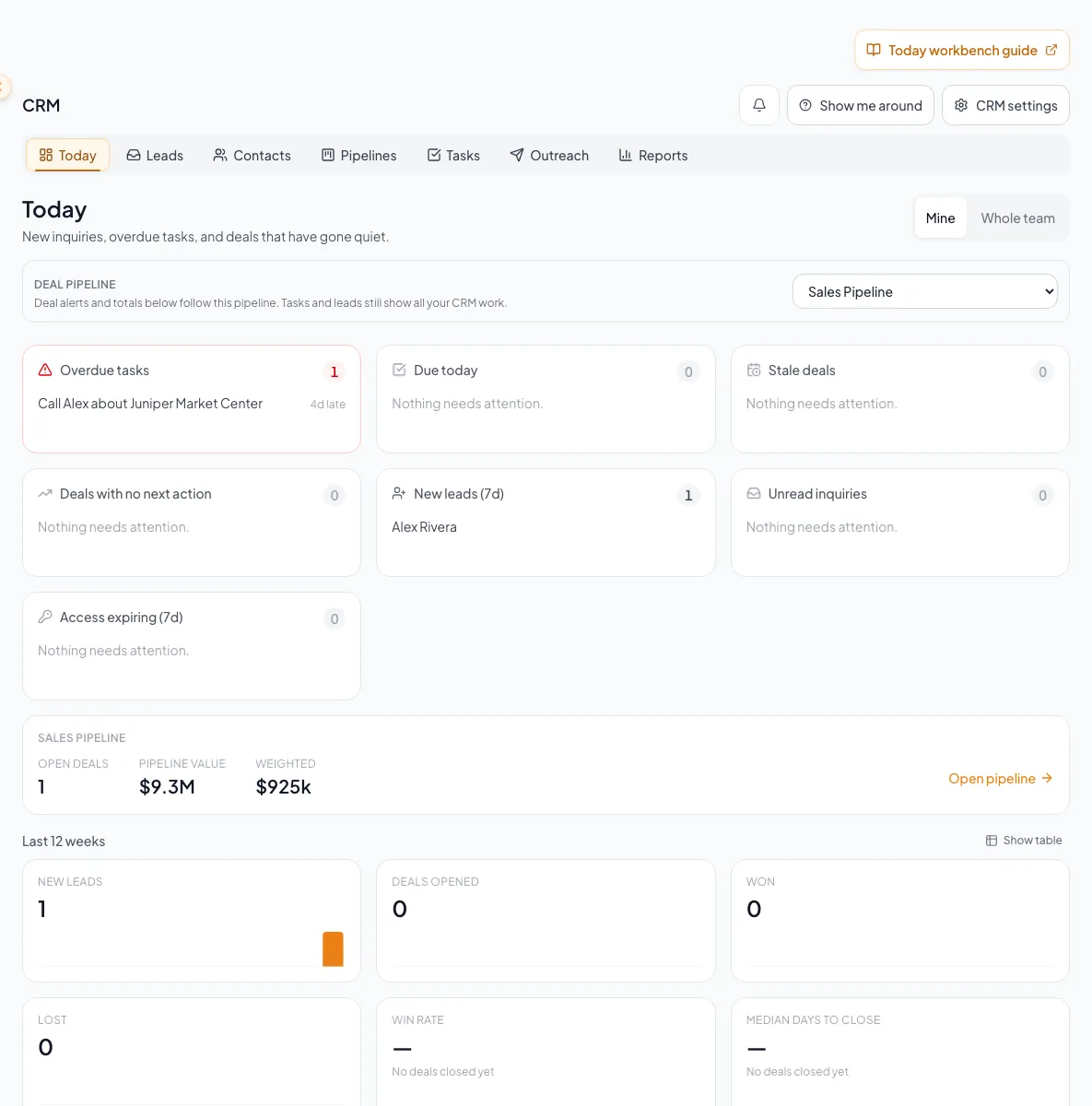
Use Today as the daily starting point to review due work, new leads, follow-ups, and the records requiring attention. - 2
Choose the Deal pipeline
CRM > Today > Deal trends and access queues > Deal pipeline selector
When more than one Deal pipeline exists, choose Sales Pipeline or Business Brokerage.
Expected result: Deal queues and deal totals follow that pipeline; task and lead queues remain cross-pipeline.
If this step does not work
If expected deals disappear, return to this selector before clearing destination filters.
Use the detailed performance and access queues
Overdue tasks
- Included work
- Incomplete tasks before the current time
- Best first action
- Complete, reschedule, or clarify ownership.
Tasks today
- Included work
- Incomplete future tasks before local midnight
- Best first action
- Work them in priority order.
Stale deals
- Included work
- Open deals whose activity has aged past the current threshold
- Best first action
- Open the deal and record a real update or next action.
Missing next action
- Included work
- Open deals without a clear outstanding task
- Best first action
- Create a dated task tied to the responsible person or deal workflow.
New leads
- Included work
- Contacts whose first qualifying lead arrived
- Best first action
- Review source context and assign a follow-up.
Unread inquiries
- Included work
- Inquiry activity not yet marked read
- Best first action
- Read, qualify, and respond before bulk cleanup.
Expiring grants
- Included work
- Access grants nearing expiry
- Best first action
- Review whether access should continue or end.
Queue drill-through preserves intent
Today links carry the relevant due, scope, pipeline, or lead filter into the destination page.
Today queue
Filtered deep link
Destination records
Return to Today
- Today queueFiltered deep linkopen
- Filtered deep linkDestination recordsreview
- Destination recordsReturn to Todaycomplete
Process the queue and read the trend
- 1
Open the highest-risk queue
CRM > Today > Deal trends and access queues
Select View all or Review queue for the relevant overdue, unread, or stale table group.
Expected result: The destination opens with the relevant filter already applied.
If this step does not work
If the destination count differs, verify scope, Deal pipeline, time zone, and any filters that were changed after arrival.
- 2
Record the next action
Destination record
Complete, assign, reschedule, or add the action that reflects what will happen next.
Expected result: Returning to Today shows the item resolved or updated after data refresh.
If this step does not work
If save fails, keep the record open, copy any unsaved note, and retry. Do not assume the queue changed.
- 3
Review pipeline summary
Today > Deal trends and access queues > Pipeline card
Compare open count, value, and weighted value for the selected Deal pipeline.
Expected result: The totals provide context for the queue, without modifying deals.
If this step does not work
If totals look wrong, inspect stage probability and deal values in the selected pipeline.
- 4
Read the 12-week trend
Today > Deal trends and access queues > Trend
Review new leads, deals opened, advanced, won, and lost, plus win rate and median days to close.
Expected result: You can identify movement worth investigating in Deals or Reports.
If this step does not work
Use Reports for deeper context. Today is an operating summary, not a record-level export.
Handle empty, loading, and failure states
Today says nothing needs attention
Likely cause: The selected scope genuinely has no qualifying queue items.
- Confirm scope and Deal pipeline.
- Open Tasks or Leads without the Today filter if you need broader planning.
- Do not create placeholder records merely to populate the dashboard.
A queue shows an error or partial warning
Likely cause: One or more CRM requests failed.
- Select Retry.
- Keep the current scope and pipeline selected.
- Treat displayed counts as incomplete until the warning clears.
A task appears under the wrong day
Likely cause: Task grouping uses the resolved workspace time zone.
- Check the user time-zone override.
- Then check the company default.
- If neither is set, expect configured fallback and finally UTC.
End-of-review check
- No overdue item was silently ignored.
- Every active opportunity has a named next action.
- Unread inquiries were read before deletion or bulk action.
- Scope and pipeline are included in any shared summary.
- Errors were retried rather than reported as zero.
A CRM that already knows your listings
Track buyers, tenants and deals right next to the OMs, listings and Deal Rooms you build in CREBuilder. Free to start.
No credit card required.