Outcome
You will read your current plan and renewal at a glance, make any billing change once, and confirm the result and invoice.
Navigation path
Settings > Billing & plan
Access
Admins and solo account owners manage billing. Members see a read-only notice that billing is managed by the team administrator. Coordinators do not see Billing & plan.
On this page
Before you start
Data, sources, and access to prepare
- A CREBuilder account
- Admin or account-owner access for changes
- Approval for the plan, seat, payment, or cancellation decision
Prepare these details
- Know your current plan and billing frequency
- Check how many paid seats the team needs in Team
- Have the payment card ready
- Download records you need before cancelling
Complete the task
- 1
Open Billing
Settings
Select Billing & plan.
Expected result: The Billing & Subscription page loads with your plan and billing state.
If this step does not work
If it says billing is managed by your team administrator, ask them to make the change.
- 2
Read the status
Billing & Subscription > plan card
Review the status shown on your plan.
Expected result: You can tell whether the plan is active, trial, cancelling, cancelled, free, or has a payment issue.
If this step does not work
Refresh once if the status does not reflect a checkout you just finished.
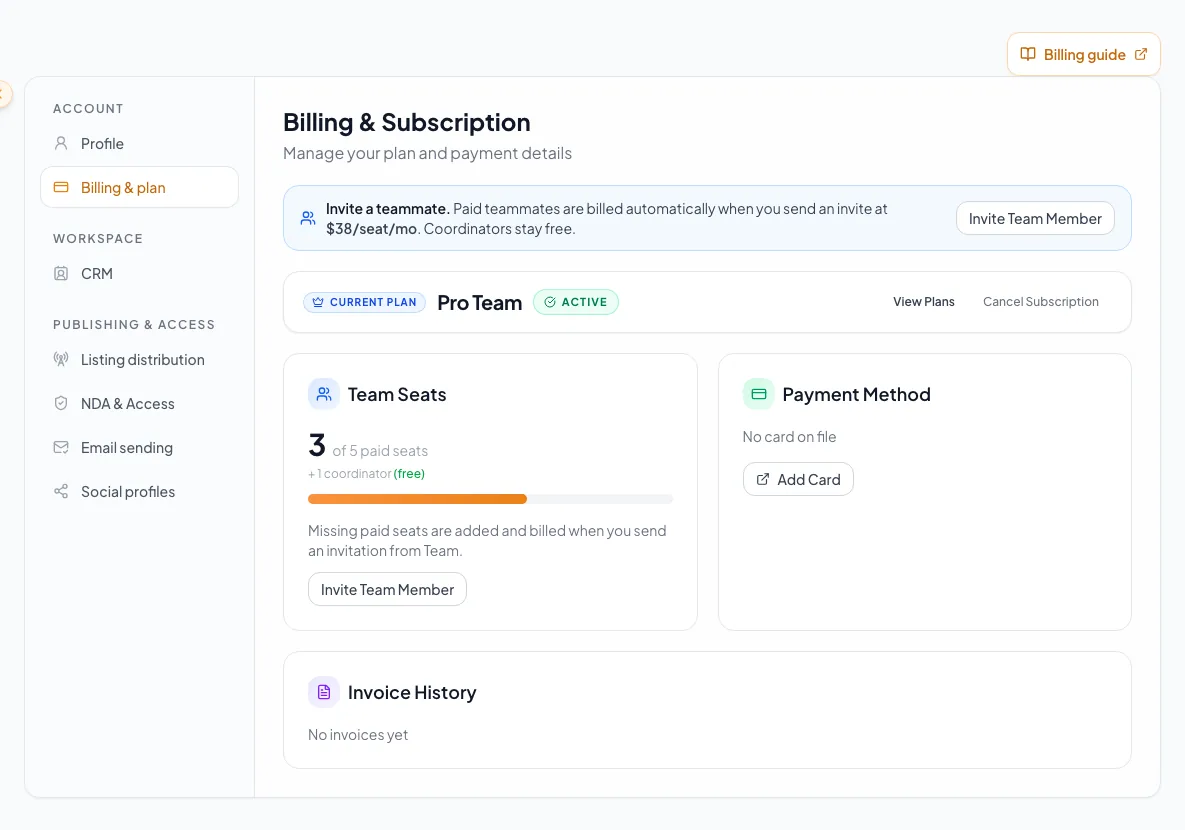
Review the active plan and billing state before making a subscription decision or escalating an account issue. - 3
Read the effective date
Billing & Subscription > plan card
Review the renewal, cancellation, or end date.
Expected result: You know when the current state changes.
If this step does not work
Contact billing support if no date appears for a time-sensitive change.
- 4
Review seat use
Billing & Subscription > Team Seats
Compare used paid seats with your seat limit.
Expected result: You know how many seats are open.
If this step does not work
Open Team to include pending invitations, which also hold seats.
- 5
Review the payment method
Billing & Subscription > Payment Method
Check the card status and expiry date.
Expected result: You know whether the card is ready for the next charge.
If this step does not work
Use Update Card if it has expired.
- 6
Open the card-update page
Billing & Subscription > Payment Method
Select Update Card.
Expected result: The secure payment page opens in a new tab.
If this step does not work
Allow pop-ups for CREBuilder and try once more if no tab opens.
- 7
Review invoice history
Billing & Subscription > Invoice History
Find the invoice for the date and amount you need.
Expected result: The right invoice row is identified.
If this step does not work
Check the date range if the invoice is missing.
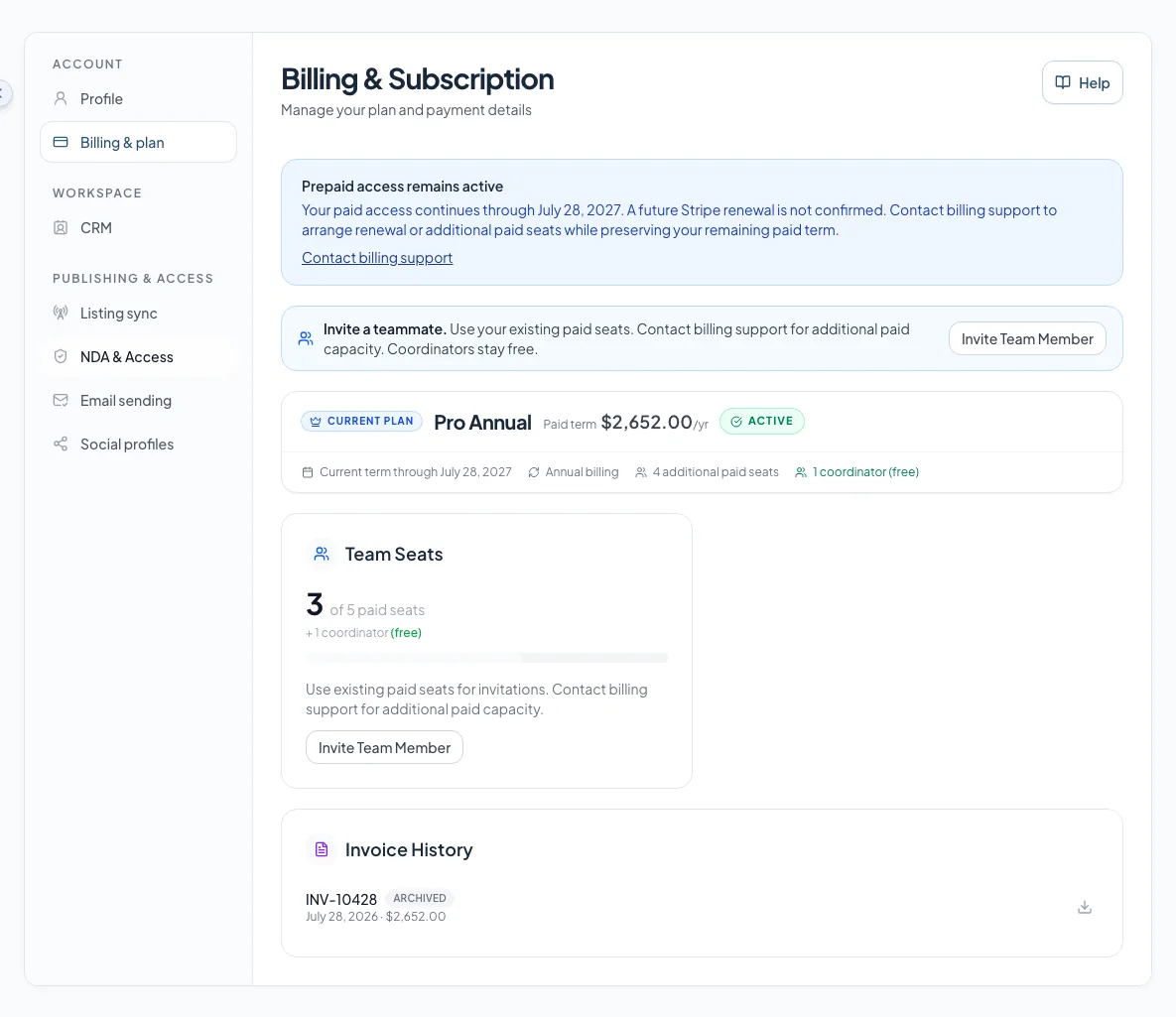
Review the paid-access deadline and invoice history when renewal is unconfirmed. - 8
Distinguish the paid term from renewal
Billing & Subscription
Compare the paid-term amount with the scheduled renewal amount, date, and paid seats.
Expected result: The renewal total includes scheduled seats, add-ons, and discounts. Seat payments made during the term appear separately in invoice history.
If this step does not work
If prepaid access is active without a confirmed renewal, contact billing support to arrange renewal or more seats.
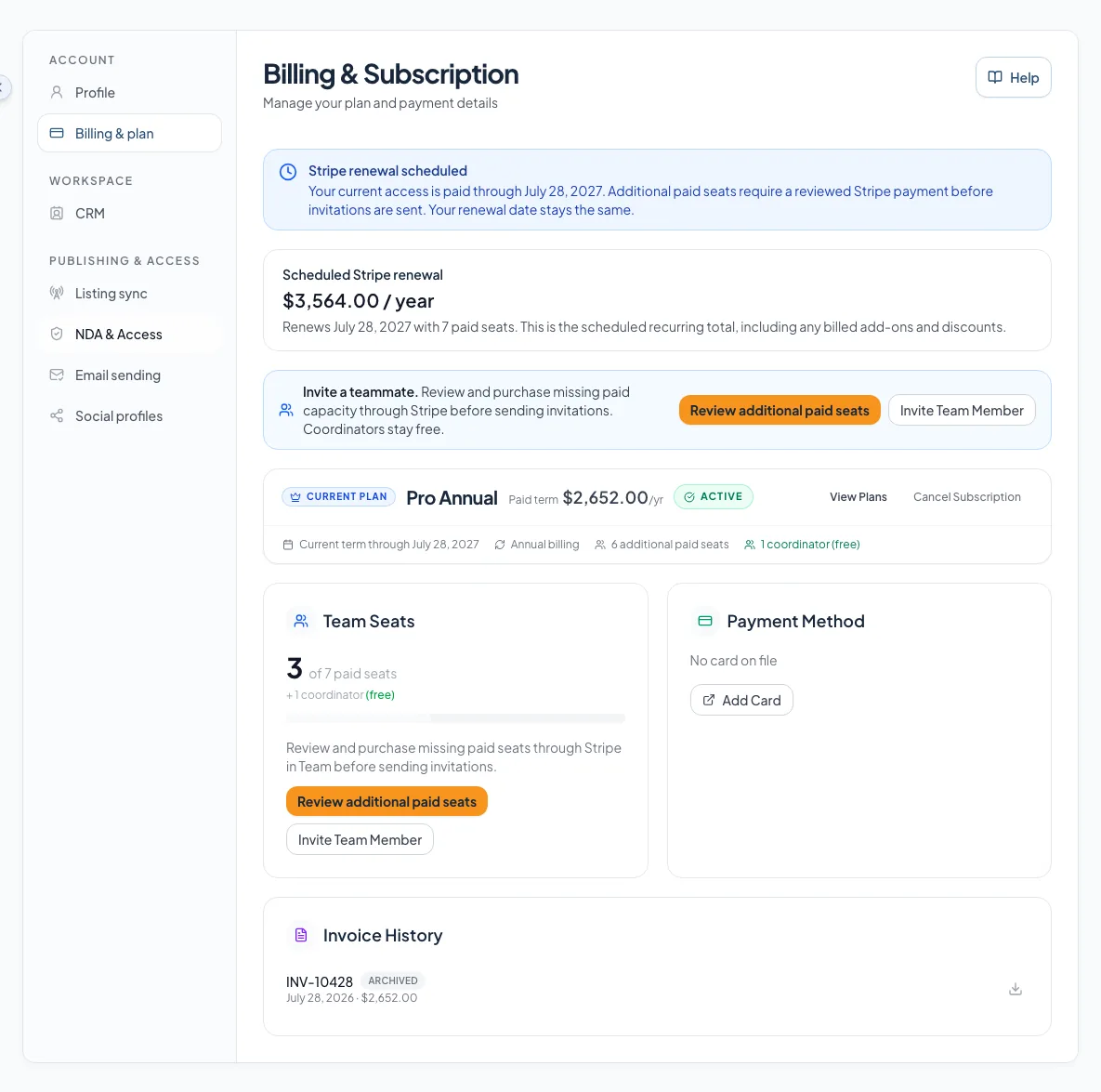
Compare the original paid-term amount with the future renewal amount and seats. - 9
Review additional seats during a prepaid term
Team > Additional paid seats
Read the remaining-term payment and renewal total in Team > Additional paid seats.
Expected result: Your renewal date stays the same. Whole calendar days in Eastern Time set the charge, and seats unlock once payment is confirmed.
If this step does not work
Return to the same pending purchase after an interruption. Contact Support if the control is unavailable.
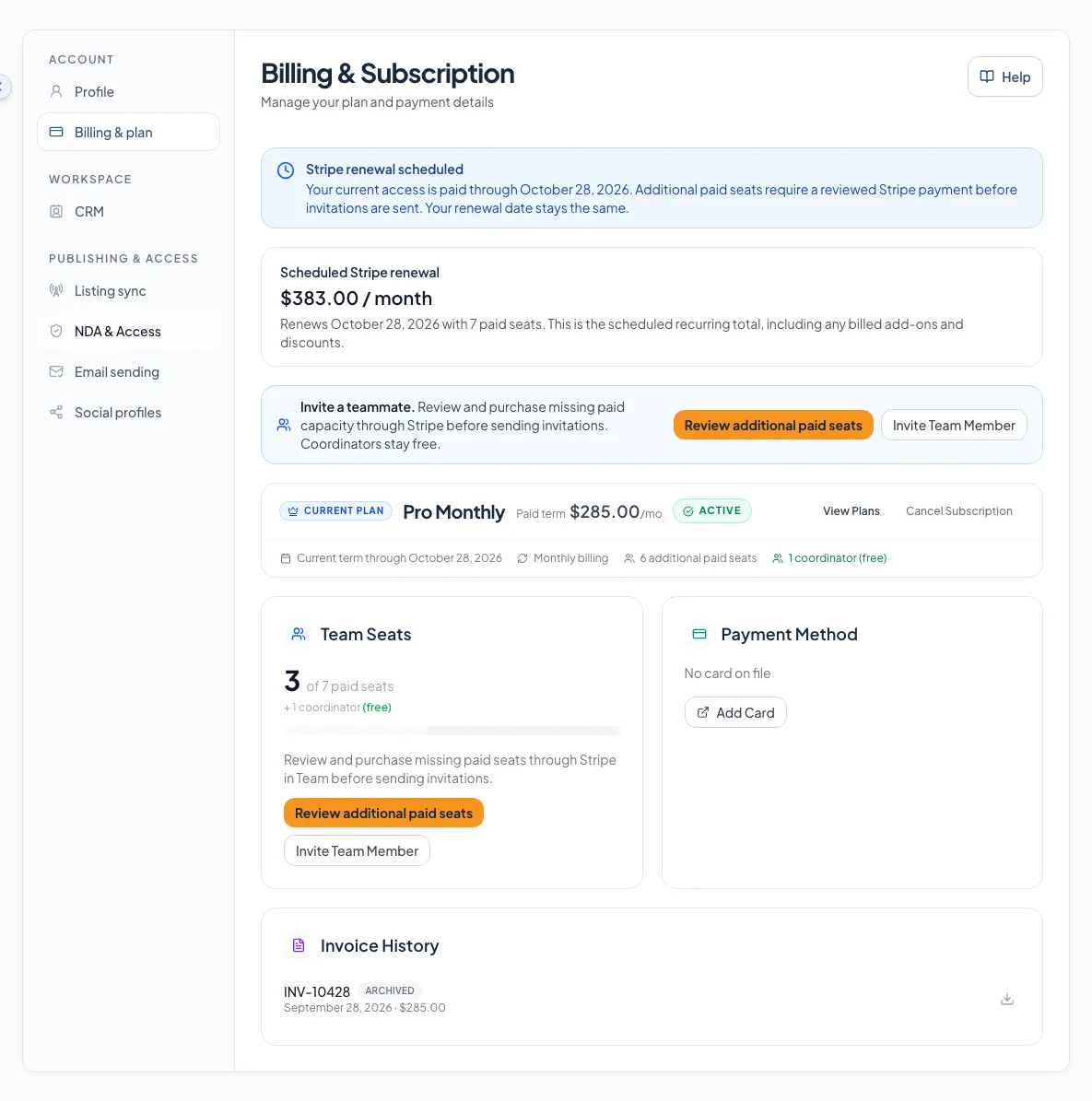
Review current monthly billing and the future recurring total before adding seats. - 10
Open one invoice
Invoice History > invoice row
Select Download PDF, or Open invoice in Stripe portal for a Stripe seat payment.
Expected result: The PDF downloads, or the secure billing portal opens with your invoices and any refunds.
If this step does not work
Select Retry invoices if the portal is temporarily unavailable, and contact Support if it continues.
- 11
Open the available plan action
Billing & Subscription > plan card
Select the upgrade, switch, cancel, or reactivate action you need.
Expected result: CREBuilder shows the checkout or confirmation details.
If this step does not work
Stop if the terms differ from what you expected.
- 12
Review the final terms
Checkout or confirmation
Read the amount, frequency, seat count, and effective date.
Expected result: You know the full impact before you submit.
If this step does not work
Go back without submitting if anything is unexpected.
- 13
Confirm the billing action
Checkout or confirmation
Submit the change.
Expected result: A success, scheduled-change, cancellation, or reactivation confirmation appears.
If this step does not work
Wait for the request to finish before trying again.
- 14
Verify the resulting state
Billing & Subscription
Reload the page after confirmation.
Expected result: Plan, status, effective date, seats, and invoices reflect the change. After cancellation, keep the on-screen confirmation and the paid access end date shown in Billing & plan.
If this step does not work
If you receive a cancellation confirmation email, check that its paid access end date matches Billing & plan. Contact support@crebuilder.com if the billing state or date looks wrong.
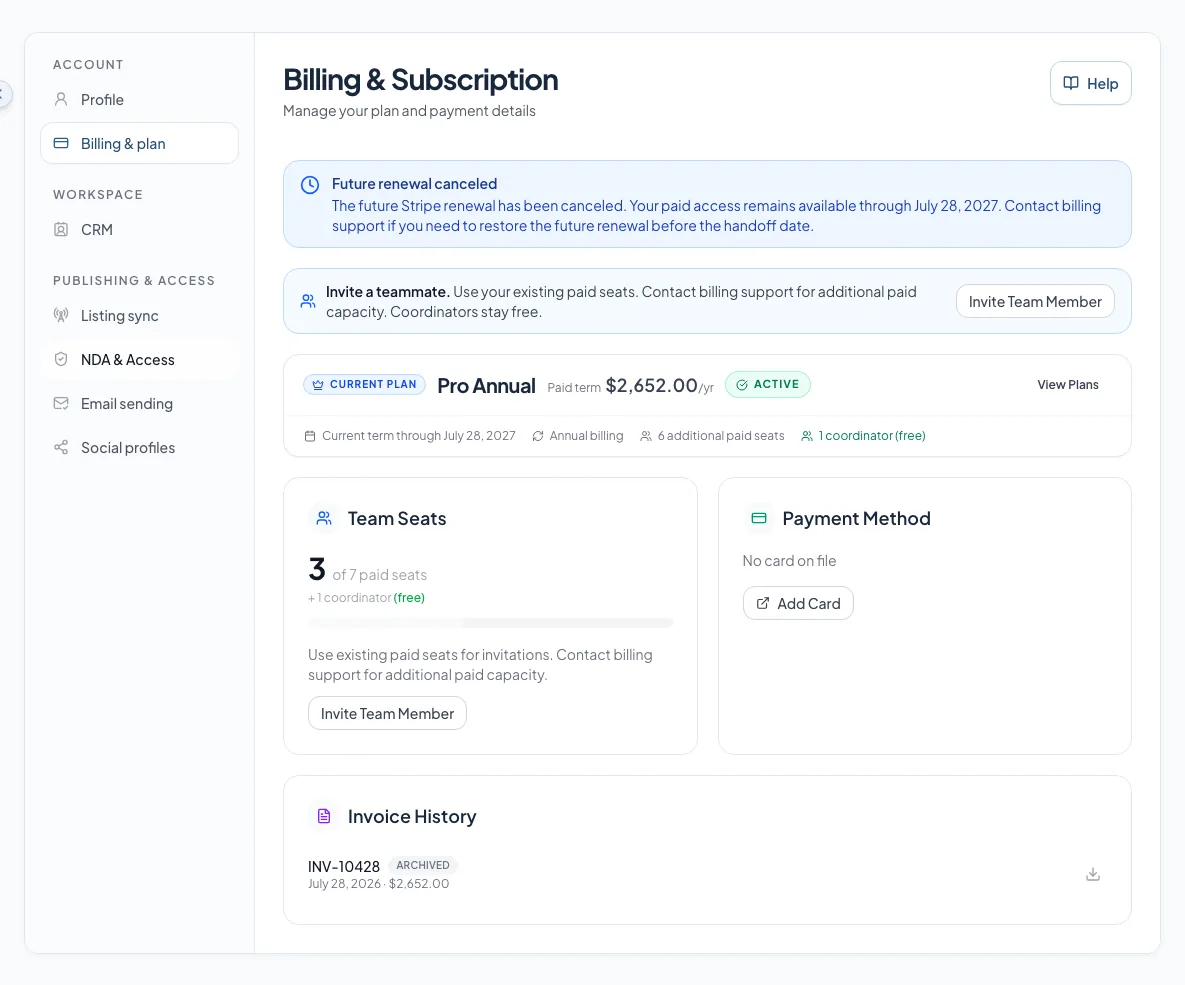
Check the canceled future renewal and the remaining prepaid access.
Subscription-state reference
Active or Trial
- What it means
- You have access under the plan shown
- What to check next
- Renewal date, card, and seat use
Stripe renewal scheduled
- What it means
- The current term is paid and the next renewal is confirmed
- What to check next
- Compare the paid-term amount with the renewal total, date, and seats
Prepaid access remains active
- What it means
- Paid access runs to the date shown, with no confirmed renewal yet
- What to check next
- Use your open seats and contact billing support to arrange renewal or more seats
Future renewal canceled
- What it means
- The next renewal is off while current prepaid access continues
- What to check next
- Note the end date and contact billing support before adding seats or restoring renewal
Cancelling
- What it means
- Renewal is off; access continues to the end date
- What to check next
- End date and Reactivate
Cancelled or Expired
- What it means
- Paid access has ended; your documents and contacts stay in your account
- What to check next
- Reactivate or checkout
Past due or Unpaid
- What it means
- A payment needs attention
- What to check next
- Card and the recovery action shown
Free
- What it means
- No paid subscription is active
- What to check next
- Available plans and checkout terms
Maintenance notice
- What it means
- Billing changes are briefly paused
- What to check next
- Try again when the notice clears; your work stays available
Removing seats
Removing a paid teammate, moving them to Coordinator, or cancelling a paid invitation lowers your seat count immediately, with no refund or credit for unused time.
Email sending plans are managed separately
A paid email sending plan is its own Stripe subscription. Billing & plan links to it with Manage your email sending plan, and the plan itself is chosen, changed or cancelled under Settings > Email & sending > Sending plan. Cancelling Pro does not by itself change that sending subscription; the billing manager can still manage payment or cancel it there after Pro ends, while buying or changing a sending plan again needs active Pro.
Your page shows your exact terms
Prices, discounts, taxes, and proration on your Billing & Subscription page and at checkout are the terms for your account. If you leave an unpaid checkout and change your plan, seats, or promotion code, select "Continue to secure payment" with your current selection. CREBuilder closes the old unpaid order before opening the new secure payment page. If a payment is already being confirmed, return to Billing to check its status before paying again. Contact support@crebuilder.com if checkout asks for billing support review.
Troubleshooting and next steps
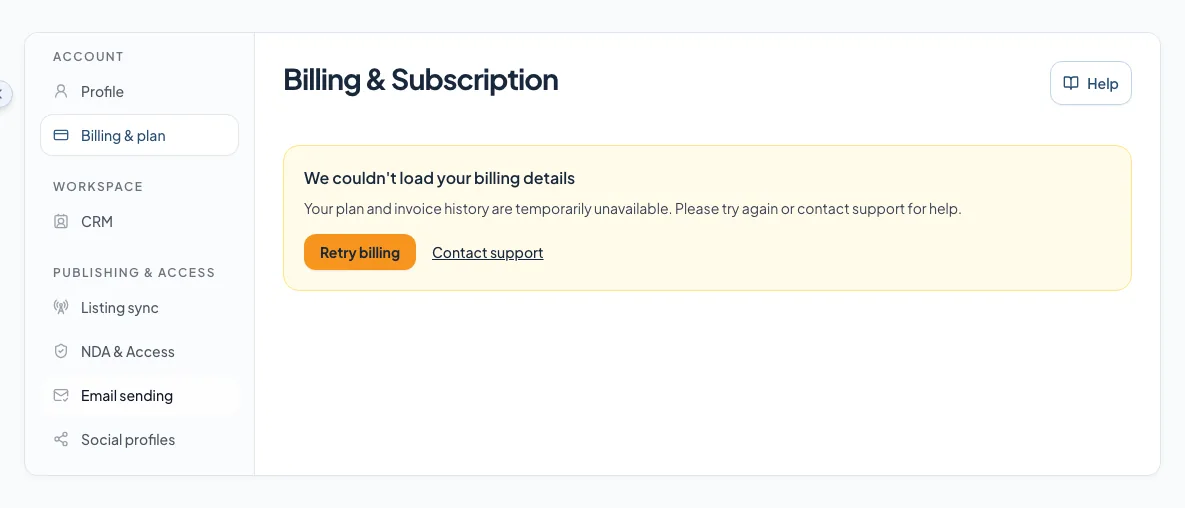
Billing controls are read-only.
Likely cause: Your role does not manage billing.
- Read the notice on the page.
- Ask your account owner or Admin to make the change.
A billing action is unavailable.
Likely cause: Billing maintenance, the account’s current state, or plan rules may pause that change.
- Read the notice on the Billing page.
- Try again when maintenance ends, or contact billing support when directed.
The new state is not visible after checkout.
Likely cause: The page may still be refreshing, or checkout did not finish.
- Return through the checkout success page.
- Reload Billing once.
- Contact billing support with your confirmation if it still looks wrong.
Final verification
- You know the final status
- You noted the effective date
- Paid seats match your team
- If a payment is due, the card is ready
- If an invoice was issued, you saved it
- If you made a change, you submitted it once and confirmed the result before any retry
- No blocking warning, failed status, or unresolved validation message remains in the completed workflow.
Related tasks
Your next OM, done this afternoon
Turn your property facts, photos and financials into a polished, branded offering memorandum. Most brokers finish in 30 to 90 minutes.
No credit card required.