Outcome
Settings shows the sending plan your company is paying for, its billing state, and the actual daily and monthly allowance it provides.
Navigation path
Settings > Email & sending > Sending plan
Access
Anyone on a paid plan can read the Sending plan section and refresh its status. Buying or changing a sending plan requires active Pro, company sending that is ready with the current sending agreement, and the billing manager role. Managing payment or cancelling an existing plan only requires the billing manager role and the existing subscription, even when Pro has lapsed, sending is paused, or new plans are not on sale.
On this page
Before you start
Data, sources, and access to prepare
- A Pro company workspace to buy or change a plan
- Company sending ready with the current sending agreement accepted, to buy or change
- The billing manager role to buy, change, manage payment or cancel
- A payment card for Stripe when buying
Understand included and paid capacity
Every Pro company starts with an included allowance that counts recipient sends per calendar month. A paid sending plan replaces that allowance with a larger amount that counts per billing period, and it works the same on the shared sender and on a verified domain. One email to 500 recipients counts as 500 recipient sends. Usage shown in Settings includes sends reserved by campaigns that are still sending.
Included, shared sender
- Monthly fee
- No extra charge
- Recipient sends
- 100
- Daily ceiling
- 25
- Imported-list share
- 50 per month, half of each day
- Counting period
- Calendar month
Included, verified domain
- Monthly fee
- No extra charge
- Recipient sends
- 5,000
- Daily ceiling
- 500
- Imported-list share
- 2,500 per month, half of each day
- Counting period
- Calendar month
10,000 emails
- Monthly fee
- $19 per month
- Recipient sends
- 10,000
- Daily ceiling
- 500
- Imported-list share
- 5,000 per period, half of each day
- Counting period
- Billing period
25,000 emails
- Monthly fee
- $39 per month
- Recipient sends
- 25,000
- Daily ceiling
- 1,250
- Imported-list share
- 12,500 per period, half of each day
- Counting period
- Billing period
50,000 emails
- Monthly fee
- $69 per month
- Recipient sends
- 50,000
- Daily ceiling
- 2,500
- Imported-list share
- 25,000 per period, half of each day
- Counting period
- Billing period
Per-campaign limit and imported lists
Every CREBuilder Mail campaign sends to up to 500 unique recipients, on the included allowance and on every paid plan. Use distinct, relevant campaigns within your allowance. For a single broadcast to more than 500 recipients, download the HTML and use your own email platform; do not split a broadcast to bypass this limit. Imported or unconfirmed lists can use up to half of the monthly total and half of the actual daily allowance. Both limits apply before you pay, so check them against your audiences first.
The daily ceiling ramps
The daily ceiling is the most a plan can allow in one day. Your actual daily allowance starts lower and grows with clean sending history. The Current plan card and the sending status card always show the actual numbers, so plan campaigns from those values rather than from the ceiling.
Who can buy, and who can manage
Anyone on a paid plan can read the Sending plan section and select Refresh status. Buying or changing a plan needs a Single Agent, Brokerage Admin, or Admin who manages billing, an active Pro subscription, and company sending that reads Ready to send with the current agreement accepted. Managing payment or cancelling an existing plan needs only the billing manager and the existing subscription; those actions stay available when Pro has lapsed, sending is paused, or new plans are not on sale. Other roles see a message naming the billing manager to ask.
Buy or change a plan
- 1
Open the Sending plan section
Main navigation > Settings > Email & sending > Sending plan
Select Sending plan.
Expected result: The section shows the Current plan card, the actual allowance, and the Included with Pro, 10,000 emails, 25,000 emails and 50,000 emails cards.
If this step does not work
If it reads Sending plan status unavailable, select Try again; your current allowance still applies. The sending status card on Email Blasts and CRM settings also offers Add sending capacity, which opens the same section.
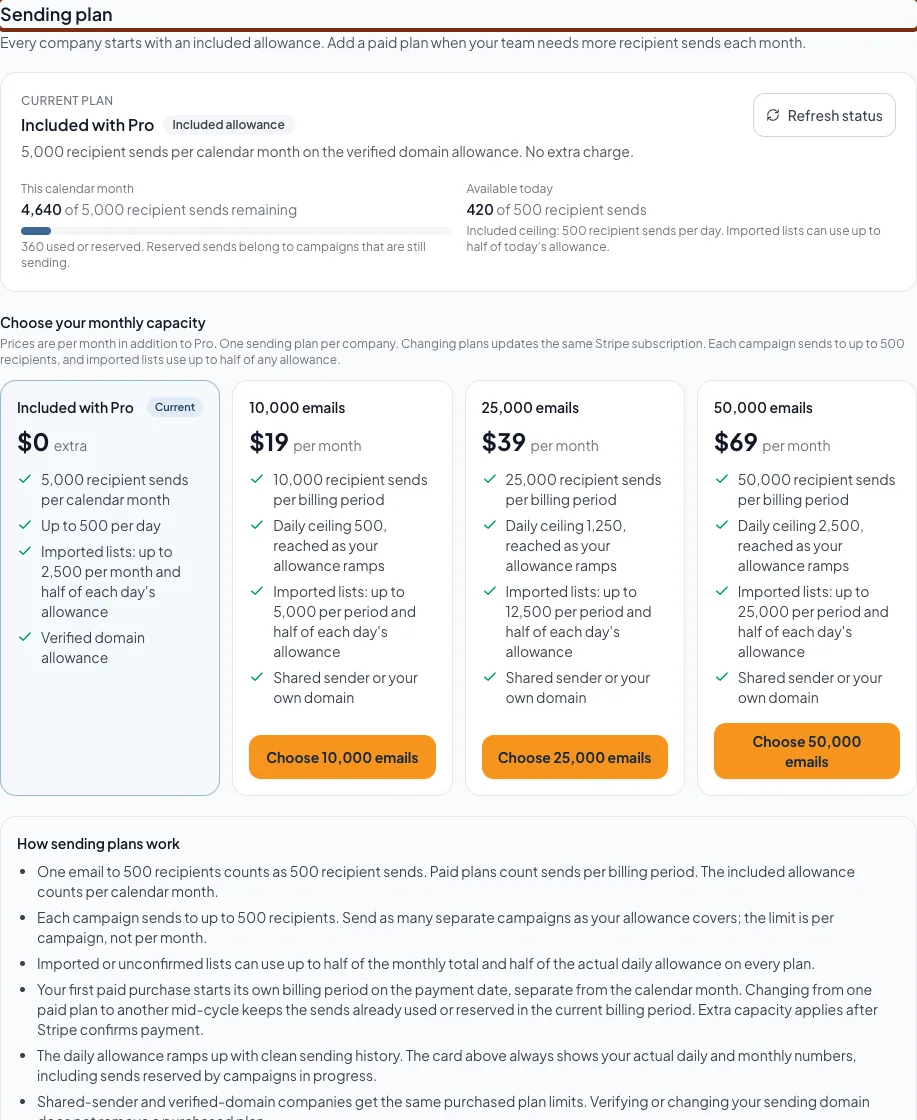
Read the current plan, billing state and remaining recipient sends, then compare the paid plan cards before choosing one through Stripe. - 2
Read the current plan and allowance
Sending plan > Current plan
Read the plan name, the billing state badge, and the recipient sends remaining this period and today.
Expected result: You know whether a paid plan is already active and how much capacity remains. The used figure includes sends reserved by campaigns still in progress.
If this step does not work
If the badge reads Payment pending, do not start a different plan. Use Resume checkout, Refresh status or Finish payment in Stripe as offered.
- 3
Compare the plan cards
Sending plan > Choose your monthly capacity
Compare the monthly fee, recipient sends per billing period, daily ceiling and imported-list share on each card.
Expected result: The card that covers your monthly volume, including any imported lists at half share and campaigns of up to 500 recipients, is identified.
If this step does not work
If the paid cards show Not available, read the message above them. It names the missing requirement, such as Pro, Mail setup, paused sending or full capacity, and no payment action exists until it is resolved.
- 4
Choose a plan
Plan card > Choose 10,000 emails, Choose 25,000 emails or Choose 50,000 emails
Select Choose on the plan you want.
Expected result: Stripe Checkout opens with the monthly price for that plan. Pro is billed separately and is not charged again. Your first paid purchase starts its own billing period on the payment date.
If this step does not work
If the card reads Ask your billing manager to choose this plan, your role cannot buy. If the button reads Upgrade to or Switch to, the company already has a sending subscription and the Stripe Portal opens instead so a second subscription is never created.
- 5
Complete payment in Stripe
Stripe Checkout
Complete the purchase in Stripe with your payment details.
Expected result: Stripe returns you to Email & sending. The Sending plan section reads Confirming your payment with Stripe, then Payment confirmed with the plan name.
If this step does not work
If you leave Stripe without paying, the included allowance continues and the Current plan card offers Resume checkout for about an hour; a new plan can be chosen after that checkout expires. If the section reads Stripe has not confirmed the payment yet, select Refresh status after a moment. Do not start another checkout.
- 6
Resume an unfinished checkout
Sending plan > Current plan > Resume checkout
Select Resume checkout.
Expected result: Stripe Checkout reopens for the same plan and the same purchase; the retained plan is also marked on its card.
If this step does not work
If Resume checkout is not offered, select Refresh status to learn whether the checkout finished or expired. An expired checkout lets you choose any plan again.
- 7
Confirm the new capacity
Sending plan > Current plan
Read the Current plan card after confirmation.
Expected result: The card shows the plan name with Active, the renewal date, and the recipient sends remaining this billing period. The larger capacity applies from the confirmed payment.
If this step does not work
If the allowance did not change after Payment confirmed, select Refresh status once, then contact Support with the confirmation if it still looks wrong.
- 8
Change to another plan
Plan card > Upgrade to or Switch to
Select Upgrade to or Switch to on the plan you want.
Expected result: The Stripe Portal opens on your existing sending subscription for that price change, where you confirm the change and any proration Stripe shows. Sends already used or reserved in the current billing period are kept, and the current plan capacity stays in place until Stripe confirms the new payment.
If this step does not work
Plan changes need the same Pro, Mail readiness and billing manager requirements as a first purchase. Read the amount and effective date in Stripe before confirming. Return to Settings and select Refresh status to see the updated plan.
Read billing states and manage the subscription
Included allowance
- What it means
- No paid plan applies. The company uses the shared or verified included allowance. An expired checkout also returns here.
- User action
- Choose a plan when you need more capacity.
Active
- What it means
- The named plan is paid and its capacity applies.
- User action
- Use Manage or cancel in Stripe for the card, invoices or cancellation.
Payment pending
- What it means
- A first checkout is still open, or an upgrade on the existing subscription is not paid yet. Any current paid capacity stays in place.
- User action
- Select Resume checkout for an open first checkout, or Finish payment in Stripe for an unpaid upgrade. Use Refresh status after paying. No other plan can be chosen until the checkout finishes or expires.
Payment under review
- What it means
- A refunded, disputed or unverified payment has put paid capacity on hold.
- User action
- Contact support. No new plan or upgrade can be started. Manage or cancel in Stripe stays available; updating the card or buying again does not clear the review.
Ends at period end
- What it means
- The plan was cancelled and keeps working until the date shown. The included allowance applies after that.
- User action
- Select Keep this plan on its card, or Manage or resume in Stripe, to reverse the cancellation.
Payment past due
- What it means
- Stripe could not collect the renewal.
- User action
- Select Update payment in Stripe. The plan does not continue until payment succeeds.
- 1
Open the Stripe Portal
Sending plan > Current plan > Manage or cancel in Stripe
Select Manage or cancel in Stripe.
Expected result: The management Portal opens on the sending subscription with the payment card, invoices and cancellation controls. Plan prices are not changed here; use Upgrade to or Switch to on a plan card for that.
If this step does not work
Only the billing manager sees this control, and it stays available when Pro has lapsed, sending is paused, or new plans are not on sale. Pro invoices and seat payments stay under Settings > Billing & plan.
- 2
Cancel the plan
Stripe Portal > Cancel subscription
Confirm the cancellation in Stripe.
Expected result: Back in Settings, the badge reads Ends at period end with the final date. Capacity stays at the plan level until that date, then the included allowance applies.
If this step does not work
If you cancelled by mistake, select Keep this plan on the current plan card before the end date.
- 3
Refresh the plan status
Sending plan > Current plan > Refresh status
Select Refresh status.
Expected result: Settings asks the billing provider for the current state and updates the badge, dates and allowance. Any teammate can refresh; only the billing manager can pay.
If this step does not work
If the refresh fails, the previous state stays displayed. Try again in a moment; a refresh never starts a payment.
Domain changes keep your plan
Verifying a custom domain, changing it, or returning to the shared sender never removes a purchased sending plan. The plan limits are the same for both setups. Only the included allowance differs between shared and verified sending.
Verify and recover safely
Plan verification check
- The Current plan card names the plan you expected with an Active badge, or Included allowance when no plan was bought.
- The renewal or end date is the one Stripe showed.
- Recipient sends remaining this billing period reflect the plan capacity, after sends used or reserved.
- The daily allowance is understood as ramping toward the plan ceiling.
- No Payment pending, Payment under review or Payment past due badge remains.
- Only one sending subscription exists for the company.
- Planned campaigns stay within 500 recipients each, and imported lists stay within half of the allowance.
- Company sending still reads Ready to send on the sending status card.
The plan buttons read Not available or are missing
Likely cause: Paid plans are not on sale for the company yet, Pro is not active, company sending is not ready, sending is paused, sales capacity is full, or your role cannot manage billing.
- Read the message above the plan cards; it names the reason.
- Finish Sender & setup and have a company manager accept the agreement.
- Ask the named billing manager to choose the plan.
- Manage or cancel in Stripe still works for an existing plan while buying is unavailable.
Billing could not be opened
Likely cause: The hand-off to Stripe failed, or an earlier checkout had already completed.
- Select Refresh status before trying again.
- If the Current plan card now shows the plan as Active or Payment pending, use the actions it offers instead of choosing again.
- Contact Support if it keeps failing.
Payment pending does not clear
Likely cause: Stripe has not reported the payment, the payment needs authentication, or the first checkout was abandoned.
- Select Resume checkout for an open first checkout, or Finish payment in Stripe for an unpaid upgrade, and complete any authentication step.
- Return to Settings and select Refresh status.
- Wait for an abandoned checkout to expire; the Included allowance badge returns and any plan can be chosen.
- Contact Support with the Stripe receipt if it stays pending. Do not start a second checkout.
Payment under review
Likely cause: A payment was refunded, disputed or could not be verified, so paid capacity is on hold.
- Contact Support to resolve the review.
- Do not try another purchase or assume a new card will clear it.
- Use Manage or cancel in Stripe only if you want to end the plan.
Capacity did not increase after payment
Likely cause: The confirmation has not been reconciled yet, or the company still has a sending block such as a pause or review hold.
- Select Refresh status.
- Check the sending status card for a pause or setup state.
- Contact Support if the Current plan card shows Active but the allowance is unchanged.
A campaign is refused above 500 recipients on a paid plan
Likely cause: The per-campaign limit of 500 unique recipients applies on every plan; the plan raises the monthly and daily allowance, not the campaign size.
- Narrow the audience to the contacts this specific message is for. Do not divide one broadcast into repeated campaigns to bypass the limit.
- Use Download HTML for a larger single send through your own platform.
A second subscription was almost created
Likely cause: A plan was chosen while a sending subscription already existed.
- Use the Upgrade to, Switch to or Manage plan actions, which open the Stripe Portal on the existing subscription.
- Check Stripe Portal for one sending subscription before paying again.
Need more than the largest plan
Likely cause: The 50,000 emails plan is the largest standard plan.
- Select Request a custom plan under the plan cards.
- Describe the monthly volume, largest campaign and audience source.
Your next OM, done this afternoon
Turn your property facts, photos and financials into a polished, branded offering memorandum. Most brokers finish in 30 to 90 minutes.
No credit card required.