Outcome
Your sending status reads Ready to send, your saved signature is set, and you understand which social connections are available.
Navigation path
Settings > Email & sending > Social profiles
Access
Email sending and social publishing require an active subscription. Activating company sending requires Single Agent, Brokerage Admin, or Admin access. Buying or changing a sending plan also requires the billing manager role. Instagram is marked Coming soon, and LinkedIn connection is currently unavailable.
On this page
Before you start
Data, sources, and access to prepare
- A CREBuilder account
- An active subscription
- Access to your account email inbox for the verification code
- Access to your saved signature details
Prepare these details
- Confirm the sender identity for your campaigns
- Have the company business mailing address ready
- Decide whether you want your own sending domain
- Write a short signature
- Check current social availability before planning a connected post
Complete the task
- 1
Open Email sending
Settings > Workspace > Email & sending
Select Email & sending.
Expected result: The sending status card appears above the Sender & setup, Sending plan, Signature, and Sending domain sections.
If this step does not work
If sending controls are locked, an active subscription is needed.
- 2
Read the sending status
Email & sending > sending status card
Review the CREBuilder Mail status card.
Expected result: The card shows the company sending state. Approved accounts also show From, Replies to, available recipient sends, and an Add sending capacity link; the setup sections explain unfinished actions.
If this step does not work
Follow the message on the card. If it reads Sending status unavailable, select Check again.
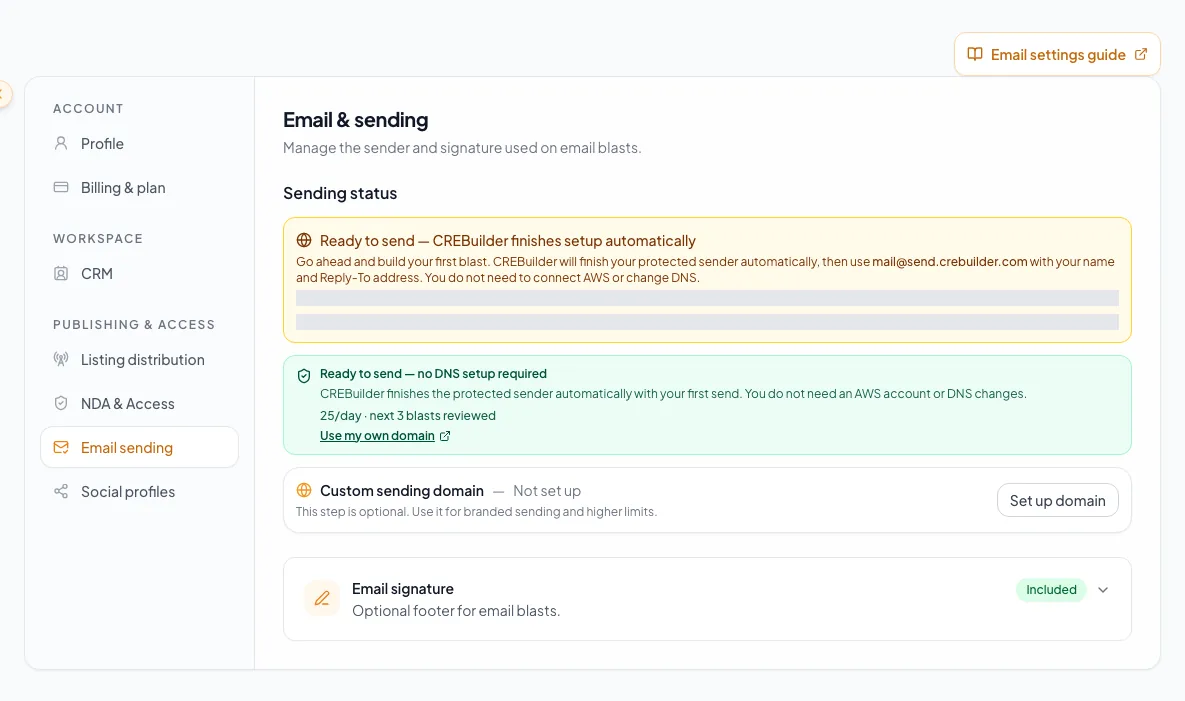
Configure company sending, review the sending plan, save the signature and optional domain, then verify readiness before using those details in outreach. - 3
Verify your account email
Email & sending > Sender & setup > Verify your email
Enter the six-digit code that Email me a verification code sends you.
Expected result: The section reads Email verified.
If this step does not work
Wait one minute before Send another code. Check spam if nothing arrives.
- 4
Confirm the business mailing address
Sender & setup > Business mailing address
Confirm the complete street, city, state, and ZIP or postal code.
Expected result: The address shown is complete and appears in the footer of every hosted email.
If this step does not work
Edit a field and select Save mailing address to correct it; the same address is saved to Settings > Company profile. Read-only fields mean a company manager owns the address.
- 5
Choose the audience source
Sender & setup > Where did your audience come from?
Choose where your recipients came from.
Expected result: The audience source is recorded with the activation or request.
If this step does not work
Do not choose a source you cannot support.
- 6
Accept the sending agreement
Sender & setup > Sending agreement
Check the authorization statement as a company manager.
Expected result: The agreement checkbox records acceptance for the displayed version. Activation still requires verified sender details and a complete saved mailing address.
If this step does not work
If you are not a company manager, the section names who can finish activation.
- 7
Activate company sending
Sender & setup > Activate sending or Submit setup request
Select the one control shown, which is Activate sending or Submit setup request.
Expected result: A submitted request shows Sending access is under review. After activation, Ready to send appears only once the sender, agreement, address, and provisioning checks are complete.
If this step does not work
See the CREBuilder Mail setup guide for every state.
- 8
Review the sending plan
Email & sending > Sending plan
Select Sending plan.
Expected result: The Current plan card shows Included with Pro or the paid plan name, its billing state, and the actual recipient sends used or reserved and remaining this period and today, above the 10,000, 25,000 and 50,000 emails cards with their monthly prices, daily ceilings and imported-list share.
If this step does not work
Only a billing manager sees Choose, Upgrade to, Manage or cancel buttons; others see who to ask and can still select Refresh status. Buying needs active Pro and ready sending; managing or cancelling an existing plan does not. See the sending plan guide for Stripe steps.
- 9
Open domain setup
Email & sending > Sending domain
Select Sending domain.
Expected result: Use your own domain shows the domain instructions and verification state.
If this step does not work
The domain is optional and raises the included allowance. A purchased sending plan is kept through domain changes. See the custom sending domain guide for the DNS records.
- 10
Review earlier connections
Email & sending > Earlier email connections
Expand Earlier email connections if it appears.
Expected result: Older provider records show for reference only.
If this step does not work
Contact Support with questions about an earlier connection.
- 11
Edit the email signature
Email & sending > Signature
Enter your contact details.
Expected result: The editor shows your changes. The saved preview updates after Save signature.
If this step does not work
Remove heavy formatting if the preview looks off.
- 12
Choose whether to include the signature
Signature > Include my signature on hosted email
Set Include my signature on hosted email to your preference.
Expected result: The inclusion preference is ready to save with your contact details.
If this step does not work
Leave it off if the signature is not ready for outgoing email.
- 13
Save the email signature
Signature > Save signature
Select Save signature.
Expected result: CREBuilder confirms the signature is saved and updates the preview with the saved version.
If this step does not work
Wait for the save to finish before trying again.
- 14
Open Social accounts
Settings
Select Social profiles.
Expected result: Social accounts opens with the current provider cards.
If this step does not work
LinkedIn connection is currently unavailable, so no LinkedIn card appears.
- 15
Inspect the provider state
Social accounts > provider card
Read the Instagram Coming soon label and any retained connection details.
Expected result: You know the current connection availability.
If this step does not work
Coming soon does not offer a new connection; an older Connected record does not change that availability.
- 16
Disconnect an obsolete saved connection
Social accounts > existing connection
If an old connection is shown, select Disconnect only when you want to remove it.
Expected result: The saved connection is removed. Coming soon still prevents creating a new connection.
If this step does not work
Keep a connection you still need; do not disconnect it as a test.
- 17
Verify in the destination workflow
Email Blasts
Open a preview without sending to recipients, or use Send preview to me in the composer.
Expected result: Your saved signature appears in the email when enabled.
If this step does not work
Return to Settings before sending if anything is wrong.
Availability reference
Sending status card
- What it controls
- Whether you are ready to send, your From and Reply-To, and the available allowance
- Good to know
- Follow the status card; it is shared with CRM and the Email Blasts hub
Sender & setup
- What it controls
- Email verification, business address, audience source, agreement, and activation
- Good to know
- Activation needs a company manager role
Sending plan
- What it controls
- The included allowance, the three paid monthly plans, the current billing state, and the actual daily and monthly allowance
- Good to know
- Buying, changing or cancelling goes through Stripe and needs the billing manager role
Sending domain
- What it controls
- Optional sending from your own domain with a higher included allowance
- Good to know
- DNS verification can take time and needs DNS access; a paid plan is kept through domain changes
Signature
- What it controls
- The signature on your hosted email
- Good to know
- Check it with Send preview to me
Earlier email connections
- What it controls
- Records of providers you used before
- Good to know
- Shown for reference only
- What it controls
- No current connection control in Settings
- Good to know
- Currently unavailable
- What it controls
- Listing carousels and Stories
- Good to know
- Coming soon
Connections are personal
Social connections apply only to your own user account. Check the account name before you approve.
Troubleshooting and next steps
Email sending is still unavailable.
Likely cause: The subscription, email verification, business address, agreement, activation, or an optional domain step is not finished.
- Read the status card and the Set up sending section.
- Complete the next listed step, or ask the named company manager.
- See the CREBuilder Mail setup guide for the full sender workflow.
The allowance is too small for the planned campaigns.
Likely cause: The company is on the included allowance, or the paid plan is still ramping up its daily allowance.
- Open Sending plan and read the actual remaining numbers.
- Verify a custom domain to raise the included allowance, or have the billing manager choose a paid plan.
- See the sending plan guide for prices, billing states and Stripe steps.
An earlier provider appears under Earlier email connections.
Likely cause: CREBuilder keeps a record of providers you used before.
- Send through CREBuilder Mail.
- Contact Support if the record looks wrong.
LinkedIn is not visible.
Likely cause: LinkedIn connection is currently unavailable for all accounts.
- Check back later.
- Contact Support if you expected to see it.
Instagram cannot be connected.
Likely cause: Instagram is marked Coming soon.
- Check back when the card offers Connect Instagram.
Final verification
- You read your sending status
- Unfinished setup items have an owner
- You know whether the company is on the included allowance or a paid sending plan
- Your signature looks right in a preview
- You checked current social availability before planning a connected post
- No blocking warning, failed status, or unresolved validation message remains in the completed workflow.
Your next OM, done this afternoon
Turn your property facts, photos and financials into a polished, branded offering memorandum. Most brokers finish in 30 to 90 minutes.
No credit card required.