Outcome
You will find your exact agreement, submit content for review, read attributable results and keep payout details current.
Navigation path
Creator partnership > Content > Earnings
Access
A verified ordinary CREBuilder account with a creator enrollment. Creator access is scoped to your own partnership.
On this page
Your partnership in one place
Creator partnership opens your own enrollment, accepted agreement, content and earnings. New offers do not replace an agreement you already accepted. The displayed rate and earning period govern your commissions. Lifetime terms have no first-year cutoff; a finite agreement uses the recorded service period.
From introduction to a confirmed reward
A new billing account follows one acquisition path. Collected cash creates a reward under its accepted agreement. Review and final fulfillment are separate stages.
Referral link or accepted code
New billing account
Collected Pro payment
Agreement and review hold
Confirmed credit or payout
- Referral link or accepted codeNew billing account
- New billing accountCollected Pro payment
- Collected Pro paymentAgreement and review hold
- Agreement and review holdConfirmed credit or payout
Before you start
Data, sources, and access to prepare
- A verified account with a creator enrollment
- The exact agreement offered to your account
- An HTTPS link to your draft creative when submitting content
- Your PayPal account email for payout onboarding
Start with your agreement
- 1
Open your creator workspace
Main navigation
Select Creator partnership.
Expected result: Your enrollment status and partnership sections appear.
If this step does not work
If the item is absent, your account has not been granted an available creator enrollment.
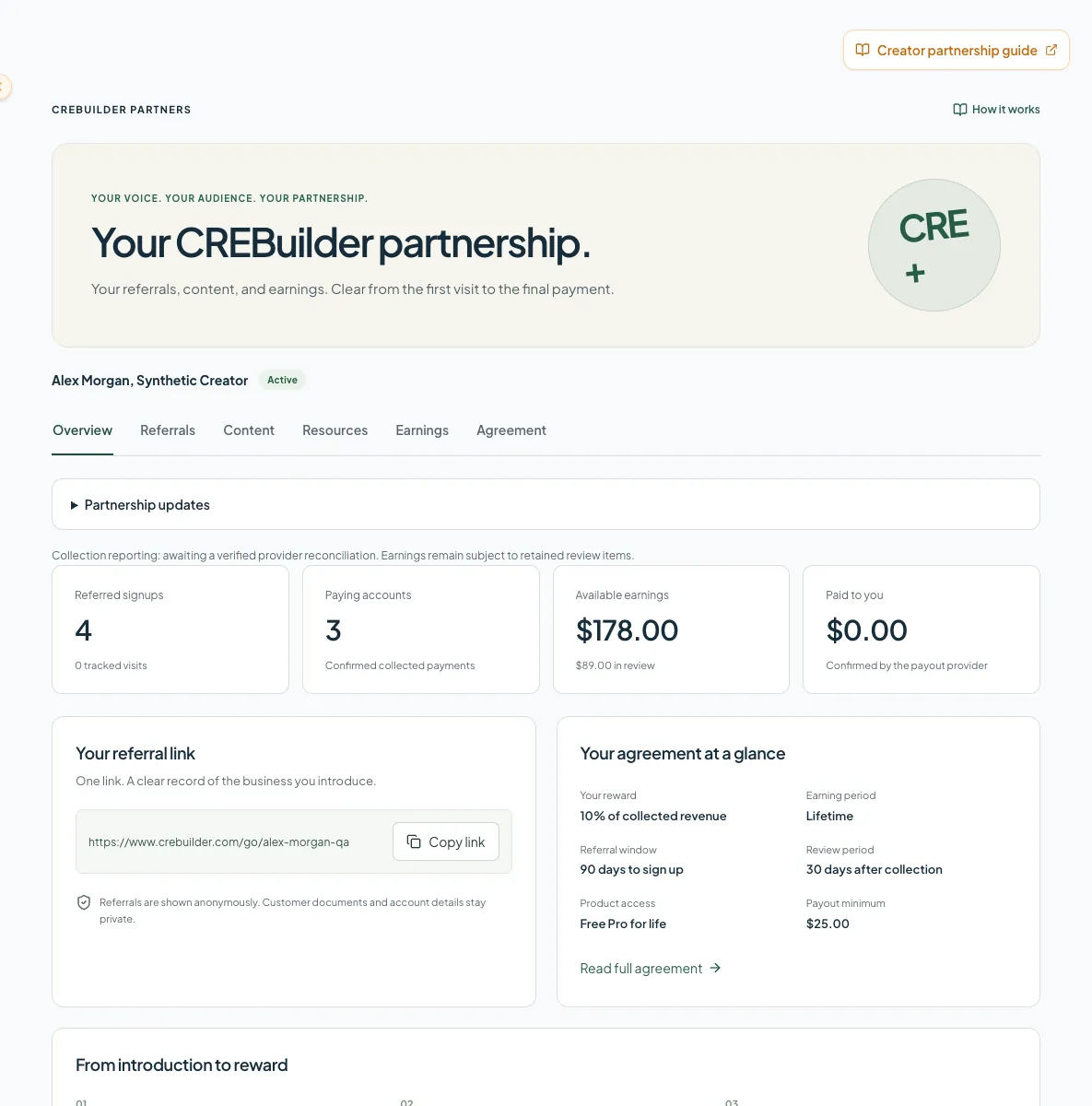
Start from the creator’s exact accepted agreement and follow collected revenue through review and provider-confirmed payment. - 2
Read your agreement
Creator partnership
Select Agreement.
Expected result: Your rate, duration, product-access commitment, review hold and full agreement are visible.
If this step does not work
Ask CREBuilder to resolve unclear terms before acceptance.
- 3
Confirm your decision
Agreement
Select the acceptance checkbox when you agree to the displayed version.
Expected result: Accept agreement becomes available for the current enrollment.
If this step does not work
Paused or rejected enrollments require owner review.
- 4
Accept the displayed version
Agreement
Select Accept agreement.
Expected result: Your acceptance date is recorded for that version.
If this step does not work
If the version could not be confirmed, reload it before deciding again.
- 5
Copy your general referral link
Overview > Your referral link
Select Copy link.
Expected result: Your active tracking URL is ready to use.
If this step does not work
Approval and tracking must both be active before visits can be attributed.
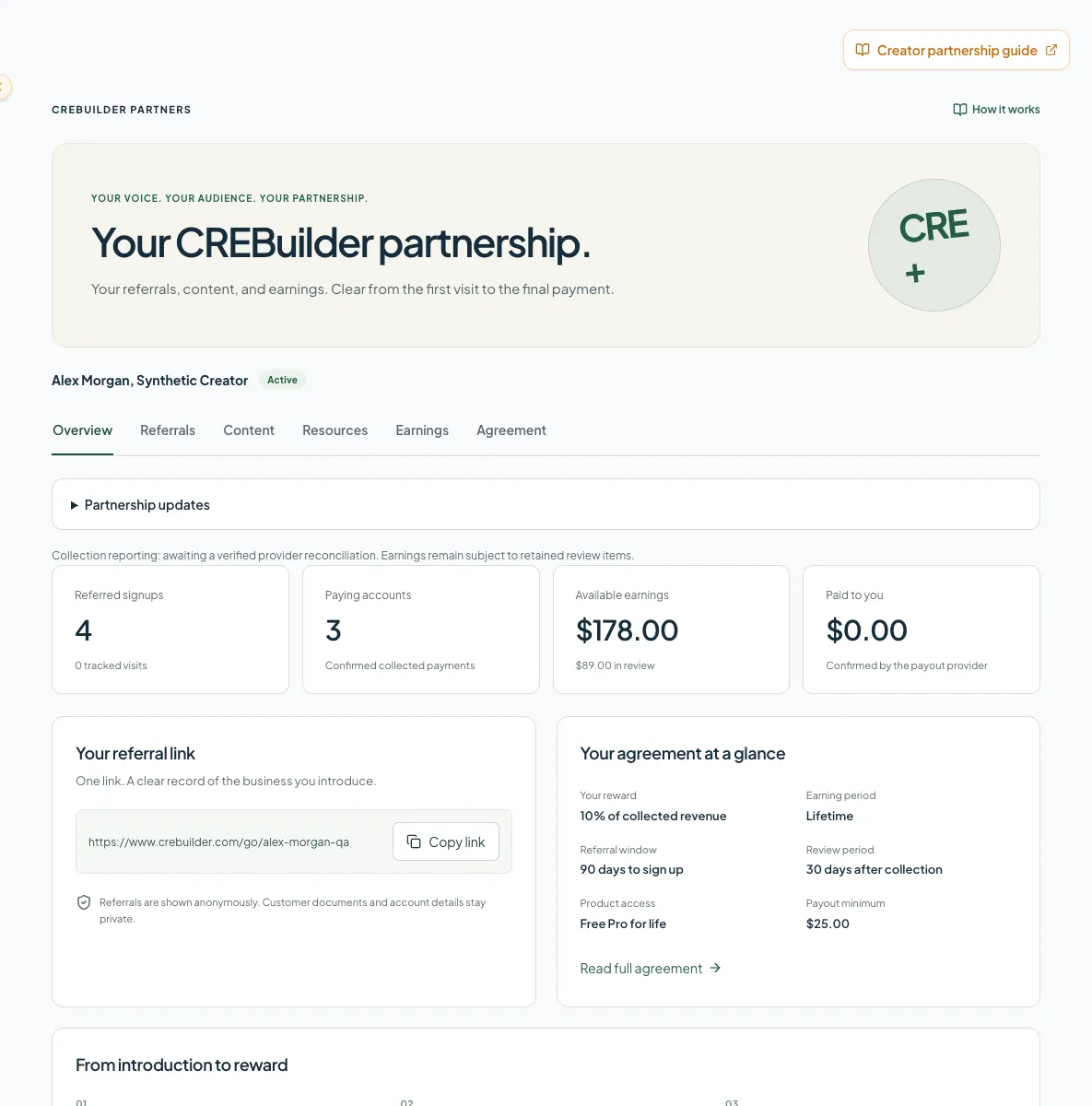
Move a content item through review
Each content item has a permanent tracking name and its own link. CREBuilder records the brief, usage rights, disclosure instructions, deadline and separate content fee. A recorded fee is an agreement amount, not proof of payment. Approved resource kits appear in Resources with their reviewed version.
- 1
Open your content studio
Creator partnership
Select Content.
Expected result: Your briefs, draft links and review feedback appear.
If this step does not work
Use New content for a separate idea with its own tracking link.
- 2
Open the assigned brief
Content studio
Select Open details on the intended item.
Expected result: The current draft fields and workflow stage appear.
If this step does not work
Read the usage rights and disclosure instructions on the content card before preparing creative.
- 3
Attach your draft
Content details
Enter the HTTPS Draft or asset link.
Expected result: The original creative is linked to this content version.
If this step does not work
Use a link reviewers can access; passwords and access tokens do not belong in the field.
- 4
Request review
Content details
Choose submitted in Workflow stage.
Expected result: The item is prepared for owner review.
If this step does not work
Use draft when the asset is not ready for review.
- 5
Save the submission
Content details
Select Save.
Expected result: The saved item shows its submitted stage.
If this step does not work
A version conflict requires refreshing before another edit.
- 6
Inspect approved resources
Creator partnership
Select Resources.
Expected result: Approved kits show their instructions and reviewed version.
If this step does not work
An empty state means kits are still being prepared for your partnership.
After approval, record the published post URL and choose published before saving. Changing approved creative requires another review. Saving a content item does not publish to any social network or CREBuilder channel.
Read attribution and earnings accurately
- 1
Open your results
Creator partnership
Select Referrals.
Expected result: The report shows the signup cohort, first tracked visits, later assists, activation and paying accounts.
If this step does not work
Use a wider date range if the signup occurred before the selected period.
- 2
Select a channel
Referral results
Choose a Channel filter.
Expected result: The report is limited to links associated with content in that channel.
If this step does not work
Direct general links have no content channel and appear under All channels.
- 3
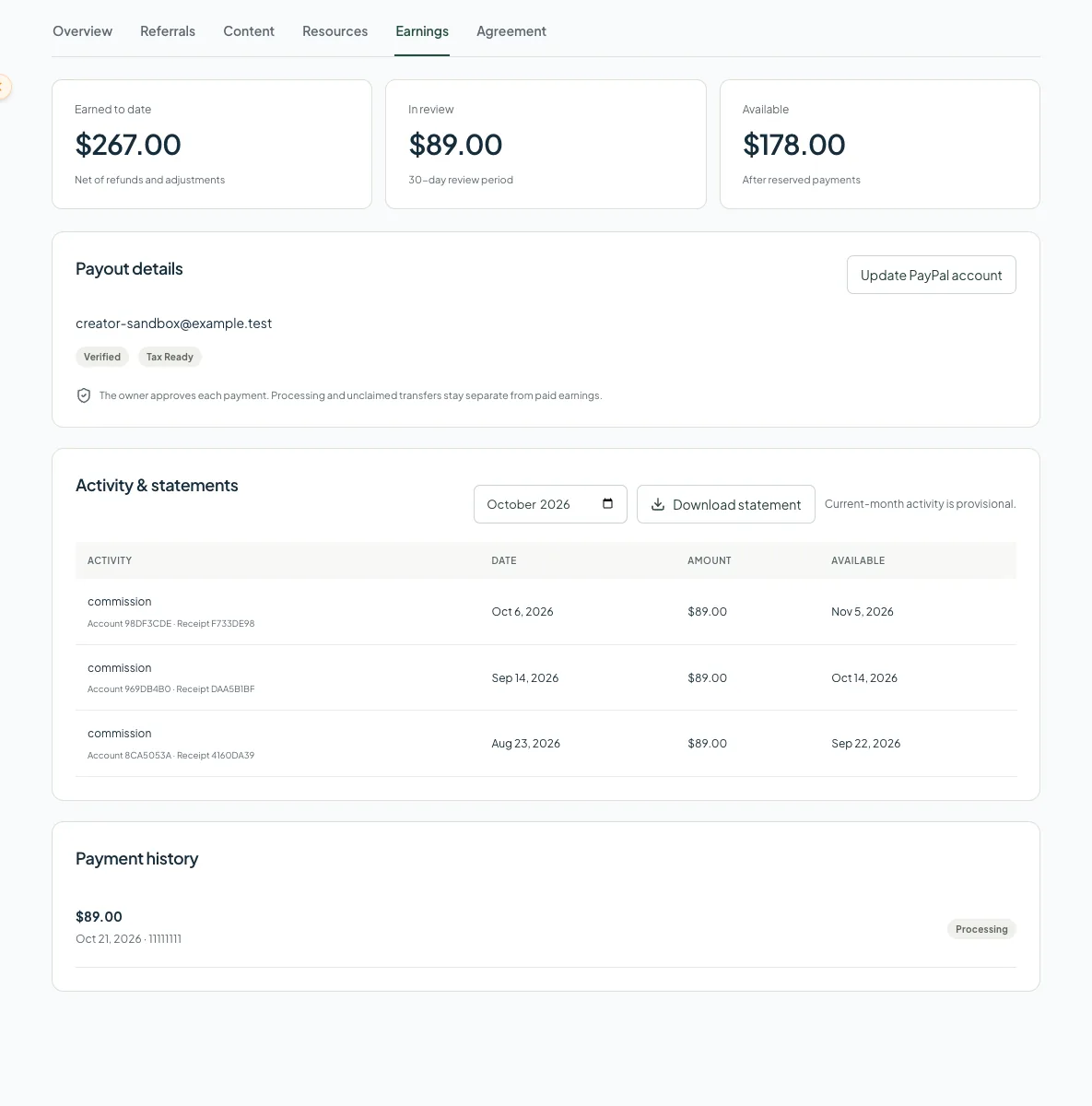
Read your earnings
Creator partnership
Select Earnings.
Expected result: Collected-payment rewards, adjustments, review holds and payout states are separate.
If this step does not work
Processing, held, uncertain and unclaimed payments are not confirmed paid funds.
The 90-day funded-service measure appears only for mature cohorts with current collection reconciliation. It measures cash-funded Pro service covering day 90, not total business revenue or a guarantee of future subscription retention. Missing tracking or stale reconciliation is not the same as zero performance.
Maintain payout details and statements
- 1
Open payout details
Earnings > Payout details
Select Update PayPal account.
Expected result: Your current payout email appears for editing.
If this step does not work
Use the email associated with the intended PayPal recipient.
- 2
Enter the recipient email
Your PayPal account
Enter your PayPal email.
Expected result: The form contains the intended payout destination.
If this step does not work
A changed recipient requires fresh verification and owner approval for unsent payouts.
- 3
Save for verification
Your PayPal account
Select Save for verification.
Expected result: Your account returns to verification-required status until reviewed.
If this step does not work
Do not enter tax IDs or banking documents into content or profile notes.
- 4
Choose a statement month
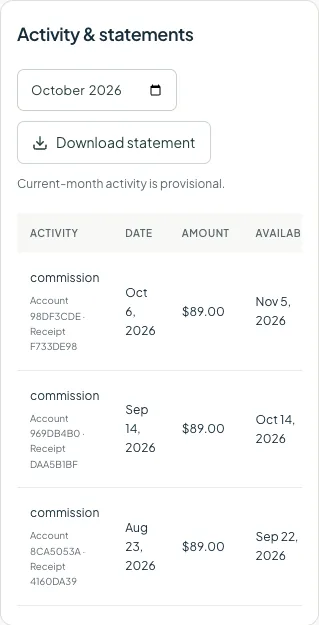
Earnings > Activity & statements
Choose the Statement month.
Expected result: The month selects the UTC reporting period.
If this step does not work
The current month is provisional; closed months retain an immutable statement.
- 5
Download the monthly record
Earnings > Activity & statements
Select Download statement.
Expected result: A CSV contains rewards and balance movements, including reserved or released payouts.
If this step does not work
Contact CREBuilder if a provider confirmation and your statement disagree.
My payment is processing or uncertain
Likely cause: Transfer initiation has not produced a confirmed payment result.
- Keep the original payment reference.
- Check Payment history for its current status.
- Ask CREBuilder to reconcile that transfer before arranging a replacement.
My approved creative needs another review
Likely cause: Changing its title, channel or asset changes the content that was approved.
- Save the revised creative as a draft or submission.
- Wait for owner approval of the revised version.
- Record the published URL only after that review.
My payee is no longer verified
Likely cause: Updating the PayPal email invalidates previous recipient verification.
- Check the intended recipient email in Payout details.
- Contact CREBuilder to complete the new verification.
- Allow the owner to cancel and prepare any unsent payment for the new recipient.
Final verification
- Your accepted agreement shows the correct rate, duration and product access.
- Your content item retains its tracking link and reviewed creative.
- Published content has a post URL and the required disclosure.
- The payout email matches your intended recipient.
- Only provider-confirmed payments appear as paid.
- The statement month and recorded adjustments match the period you are reviewing.
Related guides
Refer a broker and track account credits
Find your referral link, follow anonymous referral progress, and use confirmed account credits on a supported Pro renewal invoice.
Open guideManage billing and subscription access
See your plan, renewal date, seats, card, and invoices in one place, and make plan changes with the exact terms in front of you.
Open guideYour next OM, done this afternoon
Turn your property facts, photos and financials into a polished, branded offering memorandum. Most brokers finish in 30 to 90 minutes.
No credit card required.