Outcome
You will create a coherent gallery page and add a property-video link that opens correctly for the intended audience.
Navigation path
Document Wizard > Images & Media
Access
Gallery and video options appear only for supported packages and templates.
On this page
Before you start
Data, sources, and access to prepare
- Approved gallery images
- A published or otherwise shareable video URL
- A supported package or template
Prepare these details
- Choose only images that belong together
- Choose a short gallery title
- Confirm that the video owner permits sharing
- Open the video link in a signed-out browser before adding it
Complete the task
- 1
Open the gallery creator
Images & Media > Multi-Image Page
Select Multi-Image Page.
Expected result: The gallery configuration opens.
If this step does not work
Upload gallery images first if the creator cannot complete without them.
- 2
Enter the gallery title
Create Multi-Image Page
Enter an optional descriptive title.
Expected result: The page preview identifies the gallery.
If this step does not work
Use the relevant building name for a property-specific portfolio gallery.
- 3
Select the gallery layout
Create Multi-Image Page
Choose Grid or Masonry.
Expected result: The selected layout displays in the configuration.
If this step does not work
You can switch the saved gallery layout later without replacing images.
- 4
Select gallery photos
Create Multi-Image Page > Upload Images
Choose two to eight approved image files.
Expected result: The selected images appear in the dialog.
If this step does not work
Add a second photo if Create Page is unavailable.
- 5
Save the gallery
Create Multi-Image Page
Select Create Page.
Expected result: A new gallery section appears in Images & Media.
If this step does not work
Wait for uploads and gallery saving to complete before retrying.
- 6
Arrange the saved gallery
Images & Media > gallery
Drag a dotted handle to the intended photo position.
Expected result: The numbered order updates in either Grid or Masonry.
If this step does not work
Use the arrows below a photo if dragging is difficult.
- 7
Wait for gallery saving
Gallery > save status
Wait for Saving gallery changes... to finish.
Expected result: No save error remains before you leave the page.
If this step does not work
Keep the page open and select Retry save if saving fails.
- 8
Open Property Video
Images & Media > Property Video
Select the Property Video card.
Expected result: The video-link dialog opens.
If this step does not work
Confirm the current package supports video if the card is absent.
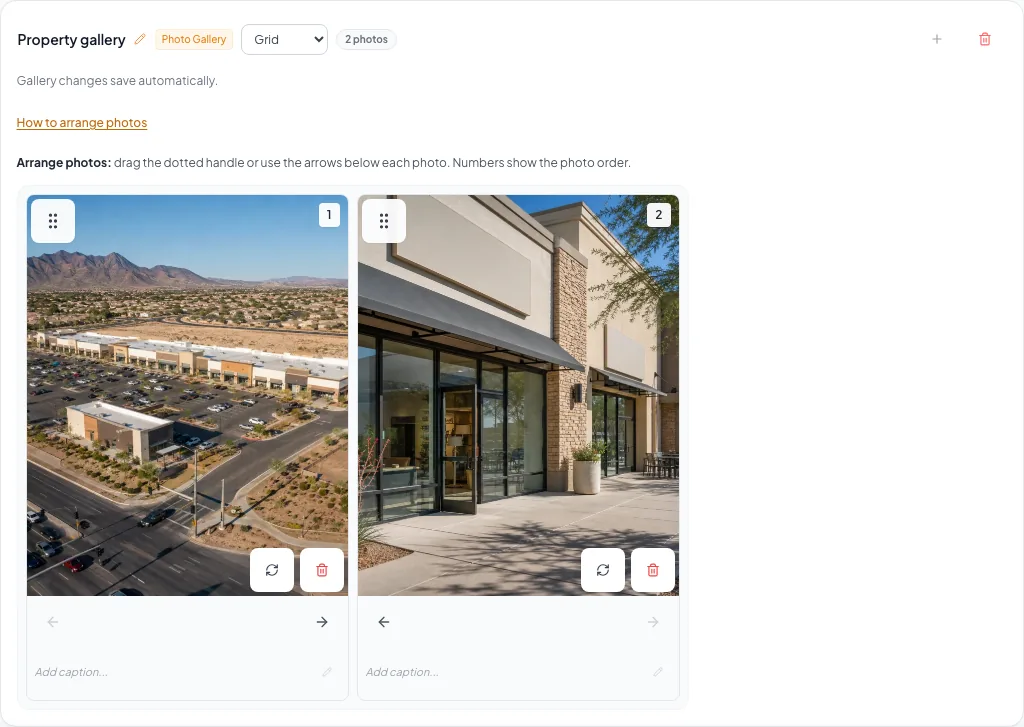
Create the gallery before arranging its photos. Use Gallery layout to switch between Grid and Masonry while keeping the photos and their order. - 9
Enter the video URL
Property Video dialog
Paste one supported public or shareable video URL.
Expected result: The dialog recognizes and stores the link.
If this step does not work
Use the canonical video page URL instead of an editor or private-management URL.
- 10
Preview the saved gallery
Review & Customize
Open the saved gallery as a viewer.
Expected result: Every gallery image renders in the selected layout.
If this step does not work
Return to Images & Media when an image or layout is wrong.
- 11
Test the property video
Public property preview
Open the saved video link as a viewer.
Expected result: The video opens without requesting owner credentials.
If this step does not work
Correct the source permission or URL when playback is blocked.
Gallery and video reference
Reorder photos after creating the gallery. Use the visible dotted handles, earlier/later arrows, or keyboard controls in either layout. Masonry fills down each column, then across. Use Gallery layout on the existing page to switch layouts without recreating the gallery.
Related tasks
Gallery title Optional
The label that explains the image set
- Format
- Plain text
- Units
- Not applicable
- Save behavior
- Stored when Create Page succeeds; changes on the existing gallery save automatically.
- Downstream effect
- Appears as a page heading where the selected template supports gallery pages.
Gallery layout Required
The Grid or Masonry arrangement of the selected photos
- Format
- Grid or Masonry
- Units
- Not applicable
- Save behavior
- Stored when Create Page succeeds; changes on the existing gallery save automatically.
- Downstream effect
- Changes the gallery arrangement while preserving the photos, captions, and saved order.
Building Optional
The property associated with a portfolio gallery
- Format
- Selected portfolio property
- Units
- Not applicable
- Save behavior
- Stored with the gallery when its create or save action succeeds.
- Downstream effect
- Associates the gallery with the intended property-level portfolio page.
Video URL Required
The external page used for property-video playback
- Format
- Supported public or shareable URL
- Units
- Not applicable
- Save behavior
- Stored when the Property Video dialog save action succeeds.
- Downstream effect
- Supplies the external destination opened by the supported property-video link.
Gallery title
- Requirement
- Optional
- What it means
- The label that explains the image set
- Format
- Plain text
- Units
- Not applicable
- Save behavior
- Stored when Create Page succeeds; changes on the existing gallery save automatically.
- Downstream effect
- Appears as a page heading where the selected template supports gallery pages.
Gallery layout
- Requirement
- Required
- What it means
- The Grid or Masonry arrangement of the selected photos
- Format
- Grid or Masonry
- Units
- Not applicable
- Save behavior
- Stored when Create Page succeeds; changes on the existing gallery save automatically.
- Downstream effect
- Changes the gallery arrangement while preserving the photos, captions, and saved order.
Building
- Requirement
- Optional
- What it means
- The property associated with a portfolio gallery
- Format
- Selected portfolio property
- Units
- Not applicable
- Save behavior
- Stored with the gallery when its create or save action succeeds.
- Downstream effect
- Associates the gallery with the intended property-level portfolio page.
Video URL
- Requirement
- Required
- What it means
- The external page used for property-video playback
- Format
- Supported public or shareable URL
- Units
- Not applicable
- Save behavior
- Stored when the Property Video dialog save action succeeds.
- Downstream effect
- Supplies the external destination opened by the supported property-video link.
Required means the field is needed to complete or support this workflow. Some screens allow a draft to save before every required item is complete. The steps and troubleshooting call out controls the product actively blocks.
Troubleshooting and next steps
The video link saves but viewers cannot play it.
Likely cause: The source video may be private, removed, region-limited, or an unsupported URL form.
- Test the link while signed out.
- Update the source permission or use the canonical share URL.
Could not load your saved photo layout appears.
Likely cause: CREBuilder could not read the saved photo arrangement. Editing stays paused so the existing layout is preserved.
- Select Retry photo layout.
- Wait for your saved arrangement to load before changing photos or galleries.
A gallery page is blank.
Likely cause: Its referenced images may have been removed or failed to upload.
- Open the gallery configuration.
- Add valid images or delete the empty gallery page.
Final verification
- The gallery title is meaningful
- Every gallery image belongs to the same visual story
- The selected layout keeps important details visible
- Gallery saving has finished without an error
- The numbered photo order matches Review & Customize
- If you added a property video, it opens while signed out.
- No confidential media is exposed publicly
- No blocking warning, failed status, or unresolved validation message remains in the completed workflow.
Your next OM, done this afternoon
Turn your property facts, photos and financials into a polished, branded offering memorandum. Most brokers finish in 30 to 90 minutes.
No credit card required.