Outcome
Your saved design, portfolio defaults and visible facts appear consistently on the hosted hub, property pages and website embeds.
Navigation path
Listing Hub > Design & display
Access
Design & display is available to company Admins and solo account owners. Account-specific themes remain limited to their assigned accounts.
On this page
What you will accomplish
Explore in a local draft. Opening groups, browsing themes and changing the preview does not update the live site. Apply changes saves the complete presentation together; listing visibility, availability, access and Sync remain separate actions.
Before you start
Data, sources, and access to prepare
- At least one listed property for the Your listings preview
- Your brand colors
- Company administrator access
Prepare these details
- Choose a sale and lease listing to inspect
- Note your brand colors
- Decide whether visitors should begin with available listings or all published properties
- Choose the most useful facts for each transaction type
Complete the task
- 1
Open Design & display
Listing Hub
Select Design & display.
Expected result: The grouped settings and real website preview appear.
If this step does not work
On a phone, use the labeled Listing Hub section selector.
- 2
Browse themes
Theme & brand
Select Browse themes.
Expected result: The gallery shows actual layout captures, theme names and visible Preview buttons.
If this step does not work
Use the current preview if an image is still loading.
- 3
Choose the hub theme
Choose a Listing Hub theme
Select Preview beside a theme.
Expected result: The gallery closes and the workspace previews that theme as an unapplied draft.
If this step does not work
Your live design is unchanged until Apply changes succeeds.
- 4
Choose the color system
Theme & brand > Brand colors
Select a brand color or palette.
Expected result: The draft preview changes and the action bar reports Unsaved changes.
If this step does not work
Use theme colors restores the selected theme defaults in your draft.
- 5
Set the portfolio default
Portfolio & layout > Show
Select Available listings or All published properties.
Expected result: The preview uses that initial inventory filter.
If this step does not work
All published properties includes only properties already marked Listed, never drafts or unlisted packages.
- 6
Choose the combined-directory preset
Portfolio & layout
Select Full portfolio, available first.
Expected result: Show becomes All published properties and Available first is checked.
If this step does not work
This opt-in preset keeps active, under-contract and unavailable properties in one directory. It does not merge packages at the same address.
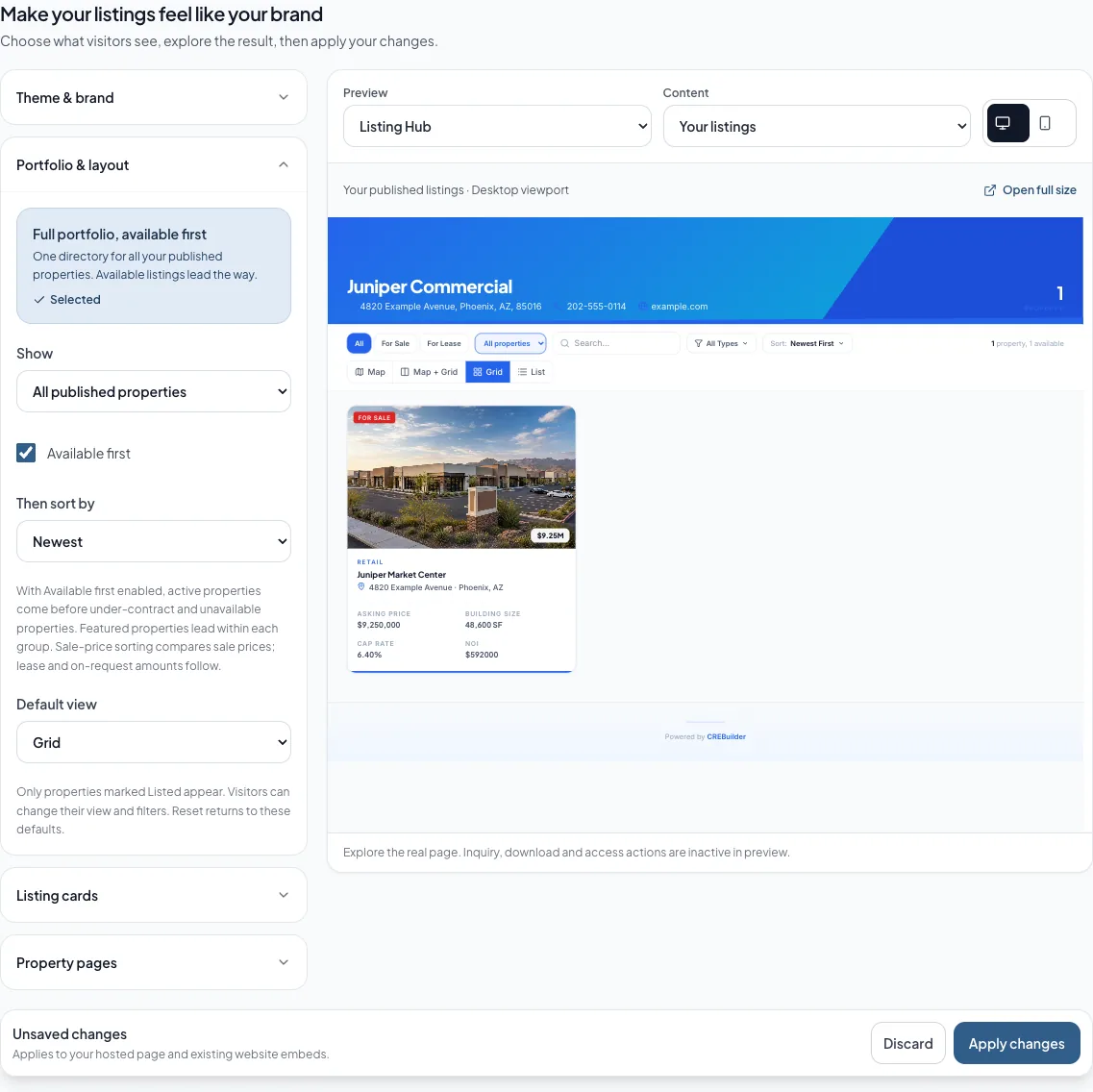
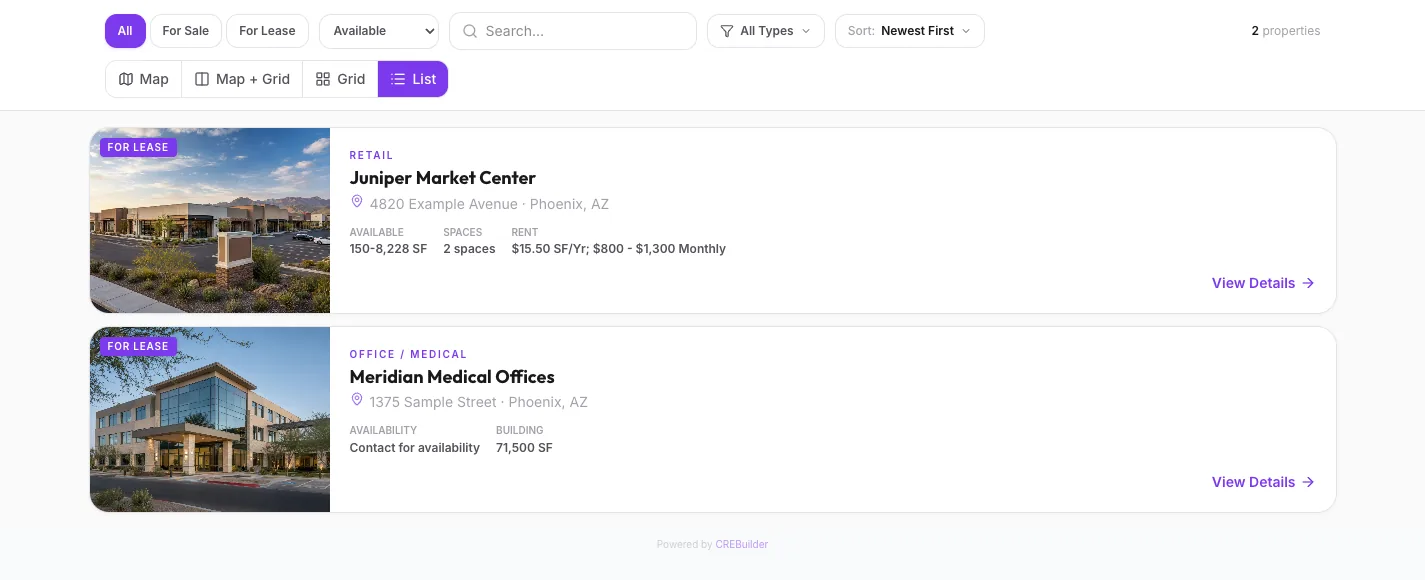
Choose Full portfolio, available first to keep published buildings together, then apply the draft when the order looks right. - 7
Choose the secondary order
Portfolio & layout > Then sort by
Select Newest, Name or a Sale price order.
Expected result: The preview uses that order within the availability and featured groups.
If this step does not work
Sale-price ordering compares numeric sale amounts. Lease, missing and on-request amounts follow comparable sale prices.
- 8
Set the default view
Portfolio & layout > Default view
Select Grid, List, Map or Map + Grid.
Expected result: The preview opens that layout.
If this step does not work
Visitors can change their own view. Reset filters returns to your saved inventory defaults.
- 9
Choose card facts
Listing cards > For lease or For sale
Select the facts to show.
Expected result: Each card uses up to four selected facts with explicit units.
If this step does not work
Remove one selected fact before adding another when four are already selected.
- 10
Reorder card facts
Listing cards > selected facts
Use Move up or Move down beside a fact.
Expected result: The chosen order appears in the draft preview.
If this step does not work
Drag handles offer the same ordering on a pointer device. Reset recommended facts restores both card presets.
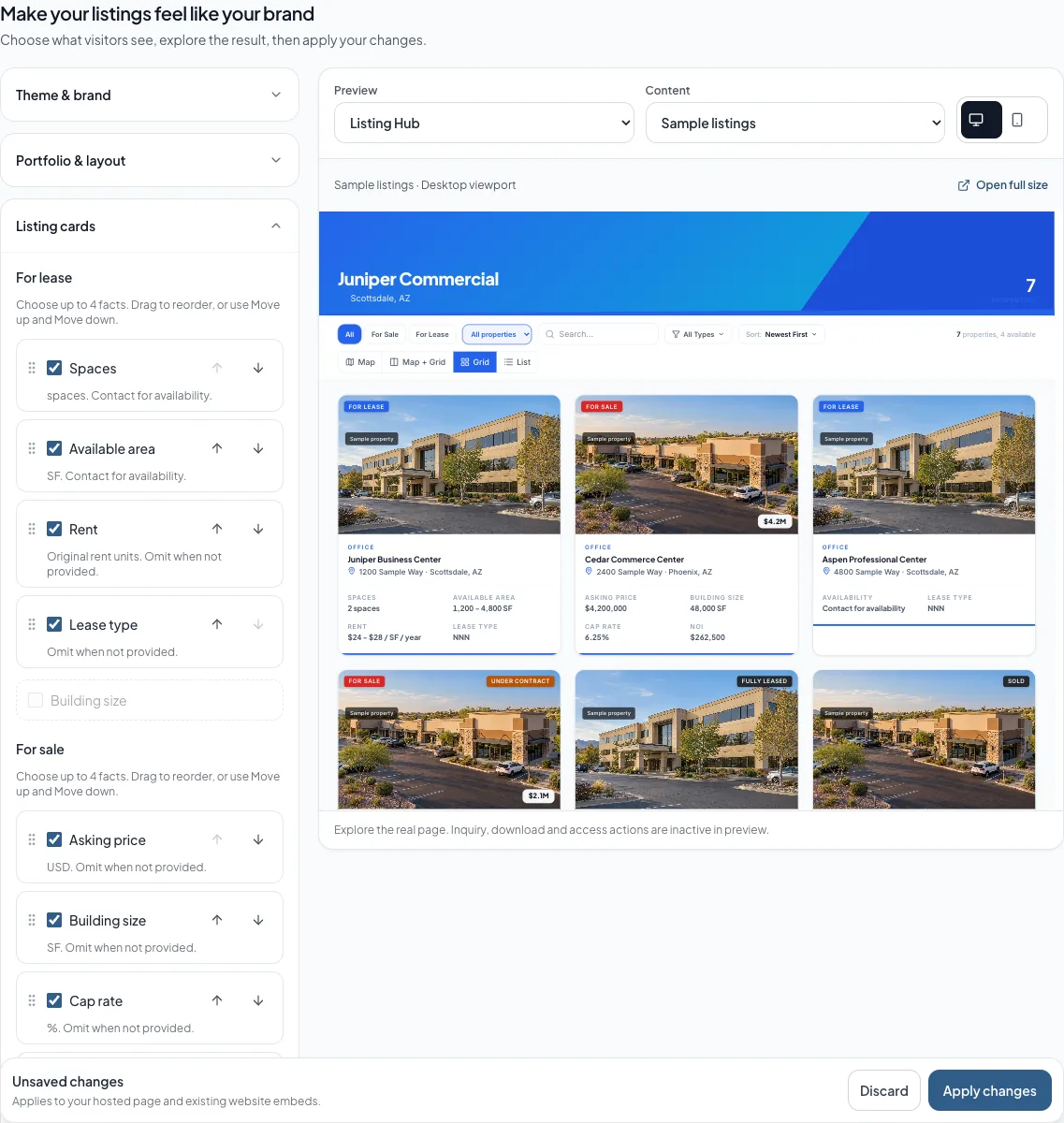
Use Move up and Move down to set the lease facts in the order visitors will read them. - 11
Choose the detail behavior
Property pages
Keep Match Listing Hub selected to follow the directory theme, or clear it for a separate property theme.
Expected result: The separate theme control is available when Match Listing Hub is cleared.
If this step does not work
An existing property-specific fact override continues to win over the company default.
- 12
Browse separate property themes
Property pages > Browse property themes
Select Browse property themes.
Expected result: The property-theme gallery opens.
If this step does not work
Keep Match Listing Hub selected when property pages should follow the directory theme.
- 13
Choose a separate property theme
Choose a property page theme
Select the Preview button for the theme you want.
Expected result: Property-page previews use that draft theme.
If this step does not work
The public property pages change only after Apply changes succeeds.
- 14
Choose property facts
Property pages > Sale property facts or Lease property facts
Clear Keep existing property facts to select a company fact order.
Expected result: The company preset is editable for that transaction type.
If this step does not work
Leave Keep existing property facts selected to retain the existing fact presentation. Edit descriptions, photos and spaces in the source package.
- 15
Preview the public hub
Design preview > Preview surface
Select Listing Hub.
Expected result: The actual directory renderer displays the current draft.
If this step does not work
Switch Preview content between Sample listings and Your listings to compare representative and published inventory.
- 16
Preview one property page
Design preview > Preview surface
Select Property page.
Expected result: The real property renderer and property selector appear.
If this step does not work
Choose the property to inspect. Preview mode does not submit inquiries, execute NDAs or grant private access.
- 17
Check the phone view
Design preview
Select Phone preview.
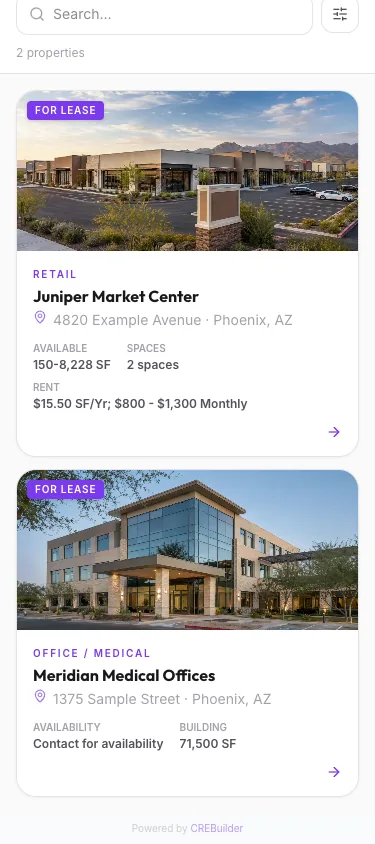
Expected result: The preview uses a real narrow viewport with readable controls.
If this step does not work
On a phone, switch from Settings to Preview. Open full size is available when more room is useful.
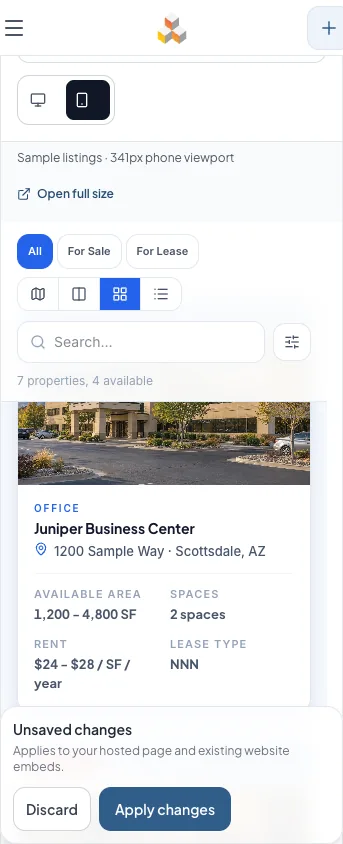
Switch to Preview on your phone and inspect the narrow layout before applying the design. - 18
Apply changes
Design actions
Select Apply changes.
Expected result: Applying changes becomes Applied after the complete draft is saved.
If this step does not work
A failure preserves the draft. A concurrent edit requires Reload saved design before you edit and apply again.
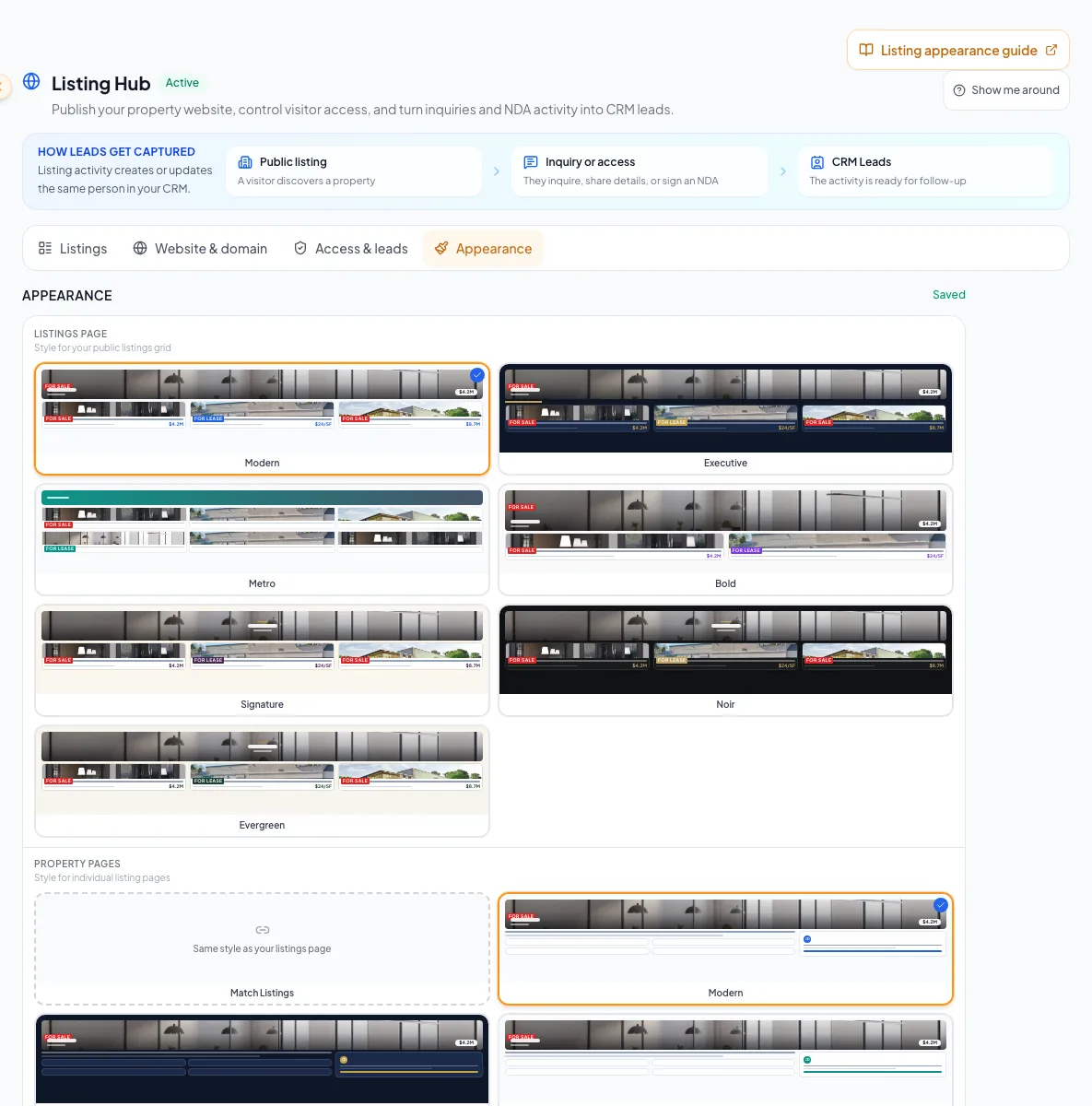
Explore a theme in your draft, then use Apply changes to save the presentation for the hosted hub and existing embeds. - 19
Verify the saved design
Listing Hub > View live site
Open the public site after applying.
Expected result: The saved design and portfolio defaults appear on the hosted hub and existing embeds.
If this step does not work
Reload Design & display to confirm persistence. Discard removes unapplied edits and restores the last saved design.
Portfolio rules and accurate property facts
To edit descriptions, photos or spaces, choose the Source property in Property pages, then select Edit property content. This opens that source package. These content edits are separate from the presentation draft.
Available first places active properties before under-contract properties, then fully leased, sold and closed properties. Featured properties lead within each group, followed by the chosen secondary order. A featured fully leased property cannot jump above active inventory. Under-contract listings remain part of the Available filter.
All published properties is one continuous directory, including unavailable buildings with truthful Fully leased, Sold or Closed labels. Missing suite data on an active lease listing means Contact for availability. It does not mean zero space or fully leased. Terminal listings omit stale available-space summaries and keep genuine building details.
The available-area range spans the smallest saved suite size through the largest enabled upper limit. It is not a sum of suites or the building size. Monthly and annual per-square-foot rent stay separate. Edit the underlying suite numbers, sizes, rent and terms in the source package Spaces Available step.
Theme & brand
- What it changes
- Hub theme, colors and palettes
- When it saves
- Apply changes
Portfolio & layout
- What it changes
- Initial inventory filter, available-first order, secondary sort and default view
- When it saves
- Apply changes
Listing cards
- What it changes
- Sale and lease facts, at most four per card
- When it saves
- Apply changes
Property pages
- What it changes
- Matched or separate theme and company fact presets; explicit property overrides take priority
- When it saves
- Apply changes
Listings, Leads & access, Listing sync and Website & embed
- What it changes
- Publication, availability, access, distribution and installation
- When it saves
- Each control keeps its separate immediate action or confirmation
Existing embeds follow your saved display choices
The full Listing Hub embed inherits the saved portfolio and fact settings. The featured embed remains a separate spotlight for available featured properties, with a recent-available fallback. Changing an embed type, header offset or branding choice still requires replacing its snippet.
Troubleshooting and next steps
The design does not change on the live website.
Likely cause: The preview may contain unapplied edits or the Apply request may have failed.
- Read the action bar.
- Select Apply changes when the draft is ready.
- Keep the draft open and retry after a save failure.
Another team member changed the saved design.
Likely cause: The presentation revision changed after your draft began.
- Review the conflict message.
- Use Reload saved design and confirm replacement of the draft.
- Reapply your intended edits to the latest design.
The preview is unavailable.
Likely cause: The preview could not finish loading, or there are no published properties for Your listings.
- Choose Sample listings to explore the layout.
- Use the retry control.
- Open the preview full size if it needs more room.
A fully leased building is missing from the initial directory.
Likely cause: Show may still be set to Available listings, or the property is not Listed.
- Check Listed in the property row.
- Choose All published properties or the Full portfolio, available first preset.
- Apply the draft before refreshing the public site.
Final verification
- The action bar reports Applied
- A reload keeps the saved theme and portfolio settings
- The combined-directory preset shows unavailable published properties after available inventory
- A featured terminal property stays below active inventory
- Sale and lease cards show the selected facts and explicit units
- Lease summaries match saved suite ranges and keep different rent units separate
- The hosted page and an installed embed show the same saved design
- Property-specific fact overrides and private access remain intact
- No blocking warning, failed status, or unresolved validation message remains in the completed workflow.
Your next OM, done this afternoon
Turn your property facts, photos and financials into a polished, branded offering memorandum. Most brokers finish in 30 to 90 minutes.
No credit card required.