Outcome
You will assign a clear visual role to every image and create an order that supports the property story.
Navigation path
Document Wizard > Images & Media
Access
Available media zones and reordering controls depend on package and template.
On this page
Before you start
Data, sources, and access to prepare
- Uploaded approved images
- A clear intended page role for each file
Prepare these details
- Identify one strongest horizontal property image
- Group aerials, plans, exteriors, interiors, amenities, and tenant imagery
- Remove near-duplicate frames
Complete the task
- 1
Choose the cover source
Images & Media > Cover Image
Select the Cover Image upload card for the approved property hero.
Expected result: The file picker opens for the single cover slot.
If this step does not work
Use Replace on the existing image card when correcting its source; a new cover-zone upload replaces the current cover.
- 2
Assign a full-page image
Images & Media > Single-Page Images
Select Single-Page Images for an aerial, plan, or feature image that needs its own page.
Expected result: The file picker opens for the full-page image zone.
If this step does not work
Use an approved readable source rather than enlarging a small screenshot.
- 3
Open the gallery creator
Images & Media > Multi-Image Page
Select Multi-Image Page.
Expected result: The Create Multi-Image Page dialog opens.
If this step does not work
Confirm that the current package supports galleries if the card is absent.
- 4
Name the gallery
Create Multi-Image Page > Page Title
Enter an optional descriptive page title.
Expected result: The title identifies this gallery after creation.
If this step does not work
Use the building name for a property-specific portfolio gallery.
- 5
Choose the gallery layout
Create Multi-Image Page > Layout Style
Select Grid or Masonry.
Expected result: The chosen layout is highlighted.
If this step does not work
You can change the layout on the saved gallery later.
- 6
Select the gallery images
Create Multi-Image Page > Upload Images
Choose two to eight approved image files.
Expected result: The selected files appear in the dialog.
If this step does not work
Add a second image if Create Page is unavailable.
- 7
Create the gallery
Create Multi-Image Page
Select Create Page.
Expected result: The gallery appears in Images & Media with numbered photos.
If this step does not work
Wait for the upload to finish before trying again.
Rearrange photos on a multi-image page
Open Images & Media and find the gallery you want to arrange. Both Grid and Masonry galleries support reordering after the page is created. The dotted handles stay visible in the upper-left corner of each photo.
- 1
Move a photo
Gallery > dotted handle
Drag the dotted handle to the photo position you want.
Expected result: The destination is outlined while dragging and the numbered order updates when you release.
If this step does not work
Use the arrows below the photo if dragging is difficult.
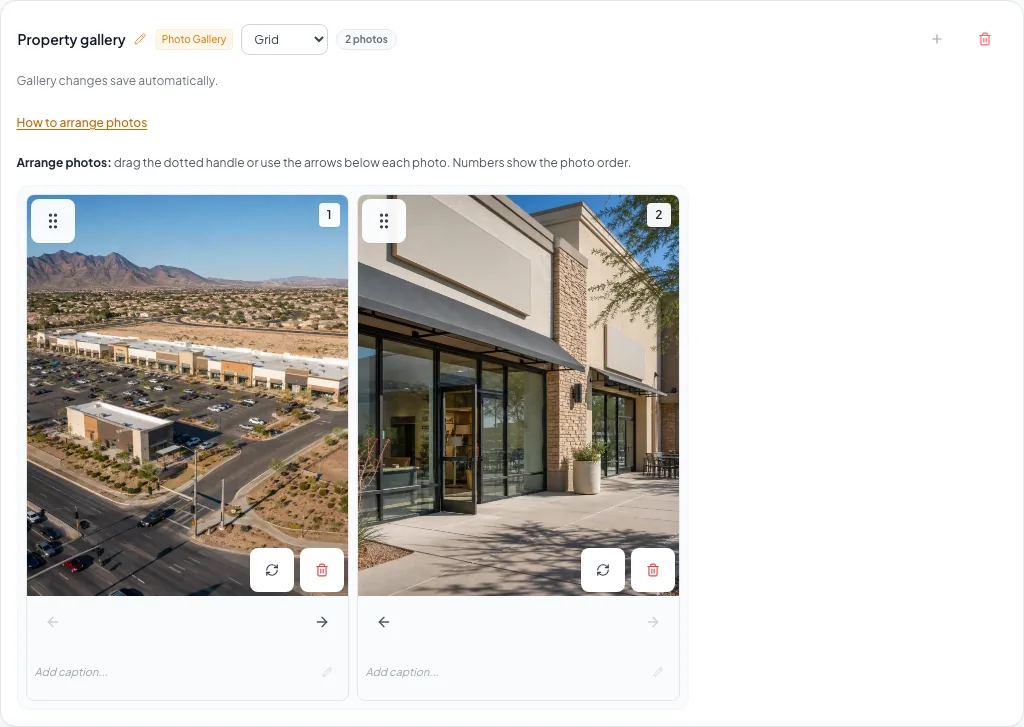
Use a drag handle in Grid or an arrow in Masonry to change photo order. - 2
Check the saved order
Gallery > save status
Wait for Saving gallery changes... to finish.
Expected result: The saving message clears and no save error is shown.
If this step does not work
Keep the page open and select Retry save if Gallery changes could not be saved appears.
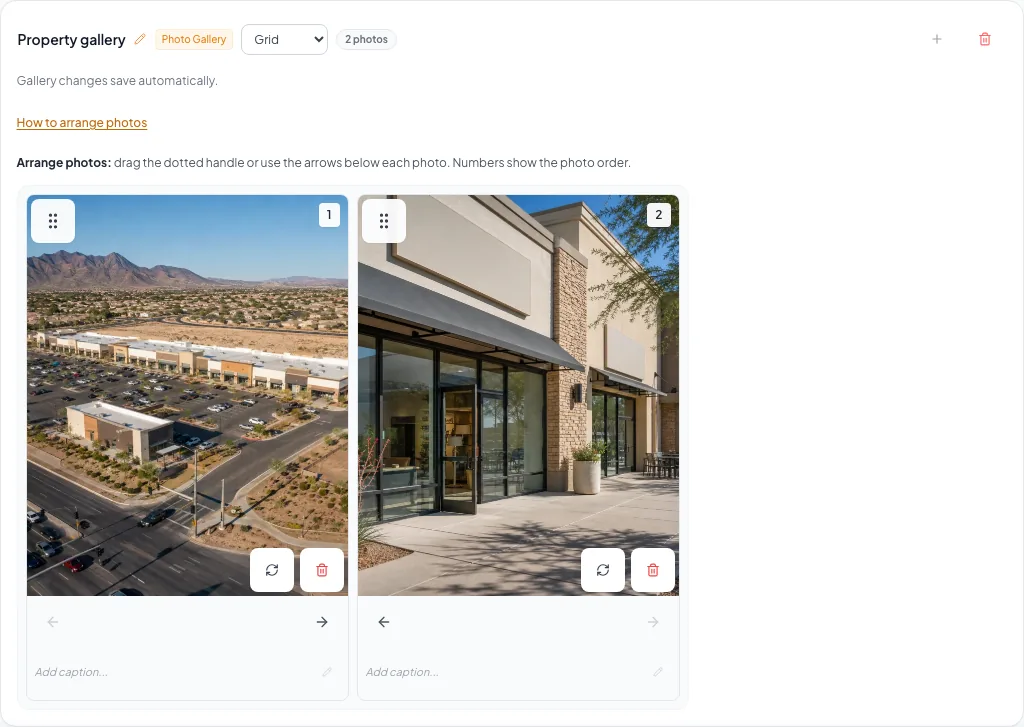
Arrange photos within a gallery using the visible handle or arrows. Numbered positions show the order; wait for saving to finish before leaving. - 3
Check the document page
Review & Customize > gallery page
Open the gallery page.
Expected result: The photos appear in the saved order using the document template layout.
If this step does not work
Return to Images & Media to adjust an image position.
Dotted handle
- How to use it
- Drag the visible handle with a mouse or touch.
- Result
- Moves a photo to the destination position.
Earlier and later arrows
- How to use it
- Select an arrow below the photo.
- Result
- Moves the photo one position; the first and last boundaries are disabled.
Keyboard
- How to use it
- Focus the handle, press Space, use arrow keys, then press Space to drop. Press Escape to cancel.
- Result
- Reorders without a mouse or leaves the order unchanged when cancelled.
Numbered positions
- How to use it
- Follow the number on each photo.
- Result
- Shows the order within this gallery page.
Gallery layout
- How to use it
- Choose Grid or Masonry on the existing gallery.
- Result
- Changes the arrangement while retaining the photos, captions, and order.
Retry save
- How to use it
- Keep the page open and select Retry save after a save error.
- Result
- Saves the latest arrangement again without re-uploading photos.
Masonry order runs down each column, then across. Smaller screens may show fewer editing columns; check Review & Customize for the final template layout. These controls move photos within one gallery. Use the page thumbnails in Review & Customize to rearrange whole document pages.
Cover and sequence decisions
Cover
- Prefer
- Clear property identity and useful negative space
- Avoid
- Tiny subject, watermarks, or unreadable signs
Gallery order
- Prefer
- Broad context followed by details
- Avoid
- Random chronology or duplicate angles
Full page
- Prefer
- Plans and images that reward larger display
- Avoid
- Small screenshots enlarged beyond their source quality
Troubleshooting and next steps
The cover is cropped poorly.
Likely cause: The source composition does not fit the template cover ratio.
- Try the available cover-position or crop control.
- Choose a wider source with more space around the subject.
Gallery changes could not be saved.
Likely cause: The save request did not complete successfully.
- Keep the page open so the pending arrangement remains available.
- Select Retry save.
- Wait for saving to finish without an error before leaving or reloading.
Dragging is difficult or the photo does not move.
Likely cause: The image itself is not the drag control, or another input method is easier on your device.
- Drag the dotted handle in the upper-left corner.
- Use the earlier or later arrow below the photo, or use Space and arrow keys on the focused handle.
Masonry positions look different from Grid.
Likely cause: Masonry fills each column before moving across, and narrow screens may show fewer editing columns.
- Follow the numbered positions.
- Check the final gallery in Review & Customize.
Final verification
- The cover identifies the property immediately
- Every image has one clear role
- The numbered gallery order matches the intended sequence
- Gallery saving has finished with no error
- Review & Customize shows the intended photo order
- Portfolio galleries identify the correct building
- No page repeats an image without purpose
- No blocking warning, failed status, or unresolved validation message remains in the completed workflow.
Your next OM, done this afternoon
Turn your property facts, photos and financials into a polished, branded offering memorandum. Most brokers finish in 30 to 90 minutes.
No credit card required.