Outcome
Find any document fast, copy or convert it without touching the original, and restore anything moved to Trash in the last 30 days.
Navigation path
Documents
Access
Document actions depend on ownership, collaboration, team role, and current plan.
On this page
What you will accomplish
Documents keeps search, scope, sorting, selection, and bulk actions together. On mobile, document cards keep the essential actions visible and place additional information in Details. Request a custom template opens the separate Custom Templates workspace.
Dashboard cards keep Edit, PDF, Property Hub, Email, and Social visible. The gear labeled More opens the remaining actions. Complete or Draft describes the marketing package. Use the separate Listed and Sync switches to manage publishing directly on the card. Inventory describes the transaction state, and Publishing details opens the listing and network overview.
Before you start
Data, sources, and access to prepare
- A saved CREBuilder document
- Permission for the intended document action
Prepare these details
- Confirm the document name, property address, creator, and modified date
- Know whether content, ownership, or package type must change
- Ask the owner before transferring or permanently deleting shared work
Complete the task
- 1
Locate the document
Documents
Use one filter or search term to find the intended row.
Expected result: The matching document remains visible.
If this step does not work
Clear filters and search by a distinctive part of the address if no result appears.
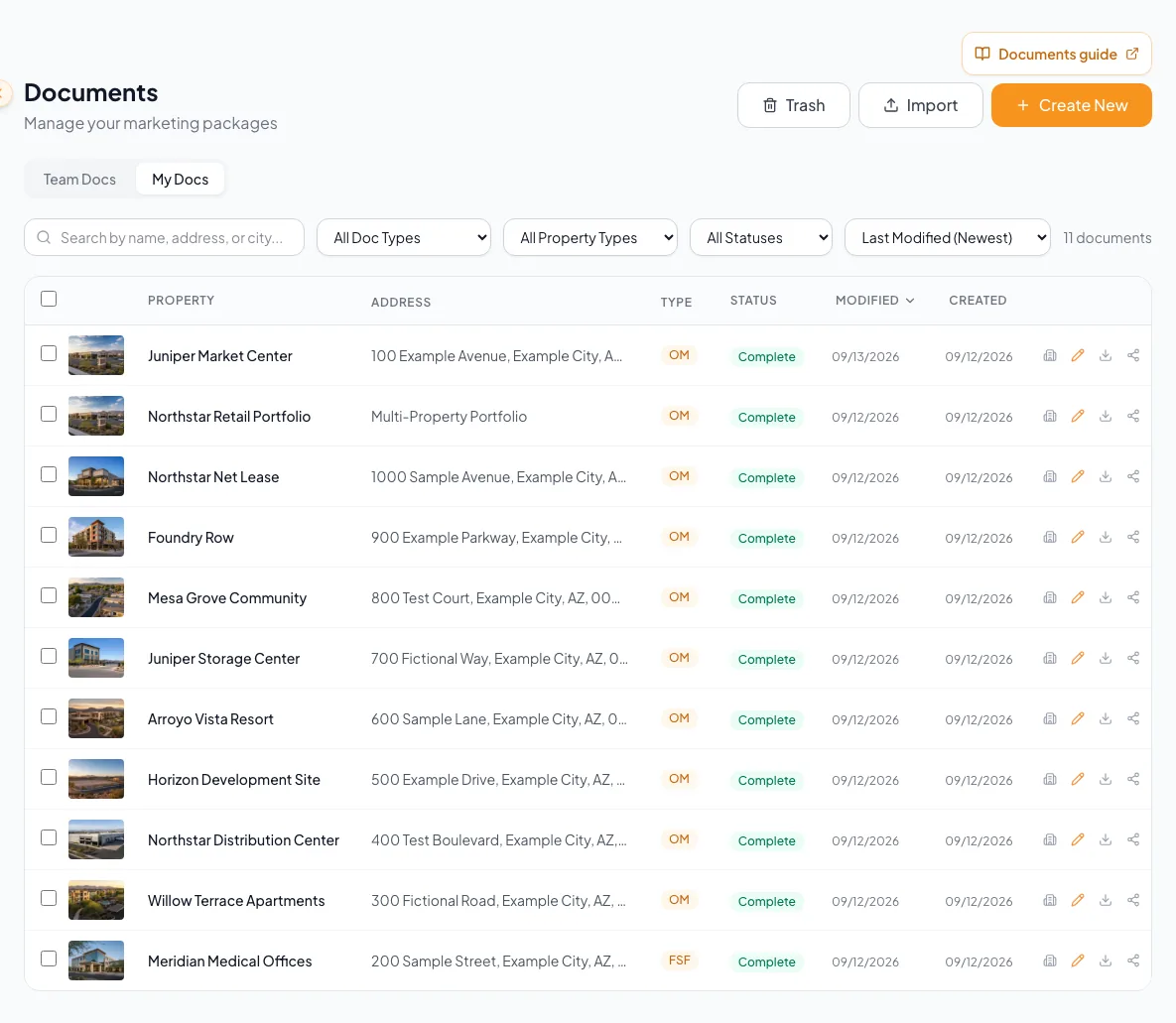
Find the created document in Documents and open it to continue editing. - 2
Open the action menu
Documents > document row
Use Edit, PDF, or Property Hub directly, or open More actions for sharing, duplication, transfer, and deletion.
Expected result: Only actions currently available to your role and document state are displayed.
If this step does not work
If an expected action is absent, verify ownership or ask a team administrator.
- 3
Choose the document action
Document action menu
Select one action that matches the intended result.
Expected result: A confirmation or configuration dialog opens.
If this step does not work
Cancel the dialog and use the action-reference table if the result description is not what you intend.
- 4
Confirm the target
Action dialog
Select the target package or teammate when the action requires one.
Expected result: The dialog names the exact destination.
If this step does not work
Return to the list and verify the correct document if the target information is unexpected.
- 5
Confirm the action
Action dialog
Select the final confirmation once.
Expected result: CREBuilder reports completion and refreshes the document list.
If this step does not work
Do not repeat the action while it is processing; refresh the list before retrying.
Document action reference
Publish from the dashboard
Each dashboard property card has separate Listed and Sync switches. Listed controls your public CREBuilder page; Sync asks for consent to distribute the listed property to eligible sites. Inventory is shown separately. Property Hub has the same controls. Read the disabled reason for incomplete packages, view-only access or plan requirements, and use Retry publishing status when status is unavailable.
Duplicate
- Result
- Creates an independent copy
- Original
- Remains unchanged
Convert
- Result
- Creates a new supported package from saved property data
- Original
- Remains unchanged
Share
- Result
- Adds permitted collaboration
- Original
- Keeps its owner
Transfer or Reassign
- Result
- Changes responsibility or ownership
- Original
- May leave the prior owner with different access
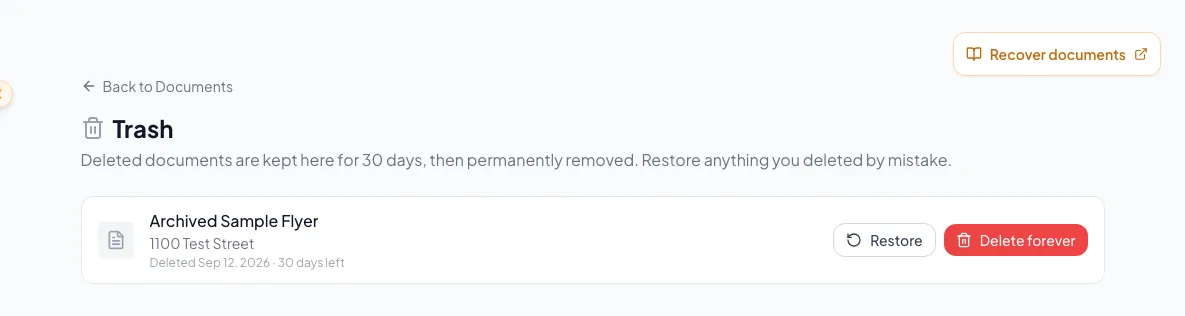
Move to Trash
- Result
- Removes the item from active lists
- Original
- Recoverable for 30 days
Troubleshooting and next steps
An action is unavailable.
Likely cause: The document, role, package, or plan does not permit it.
- Confirm who owns the document.
- Ask an Admin to perform or authorize the action.
A document was moved to Trash by mistake.
Likely cause: The delete confirmation was accepted.
- Open Documents > Trash within 30 days.
- Select Restore for the correct item.
Final verification
- The intended document changed
- Any new copy has a distinct identity
- Ownership and collaborators are correct
- If you intentionally moved a document to Trash, that document appears in Trash; documents you still need remain active.
- No blocking warning, failed status, or unresolved validation message remains in the completed workflow.
Related tasks
Your next OM, done this afternoon
Turn your property facts, photos and financials into a polished, branded offering memorandum. Most brokers finish in 30 to 90 minutes.
No credit card required.