Outcome
You will select a package and property structure that match the transaction, audience, and amount of detail available.
Navigation path
Dashboard > Create New > Package
Access
Package and structure options are shown in the standard creation flow. Some templates and outputs follow plan availability.
On this page
Before you start
Data, sources, and access to prepare
- The intended audience
- The transaction goal
- The number and location of included properties
Prepare these details
- Decide whether the output is for investment sale, leasing, a quick flyer, or valuation
- List every address that must appear
- Decide whether the properties operate as one site or as separate investments
Complete the task
- 1
Identify the audience
Assignment brief
Choose the single primary recipient group for the document.
Expected result: The intended reader is clear enough to compare package purposes.
If this step does not work
If there are competing audiences, create separate deliverables rather than forcing every purpose into one document.
- 2
Select the package purpose
Get Started > Package
Select the package whose description matches the primary audience.
Expected result: The chosen package appears selected.
If this step does not work
Open the package comparison in this article if the distinction remains unclear.
- 3
Select single or multiple properties
Get Started > Property structure
Select the option that matches the number of properties.
Expected result: CREBuilder records the correct scope.
If this step does not work
If the choice is not displayed, verify that the package supports a multi-property document.
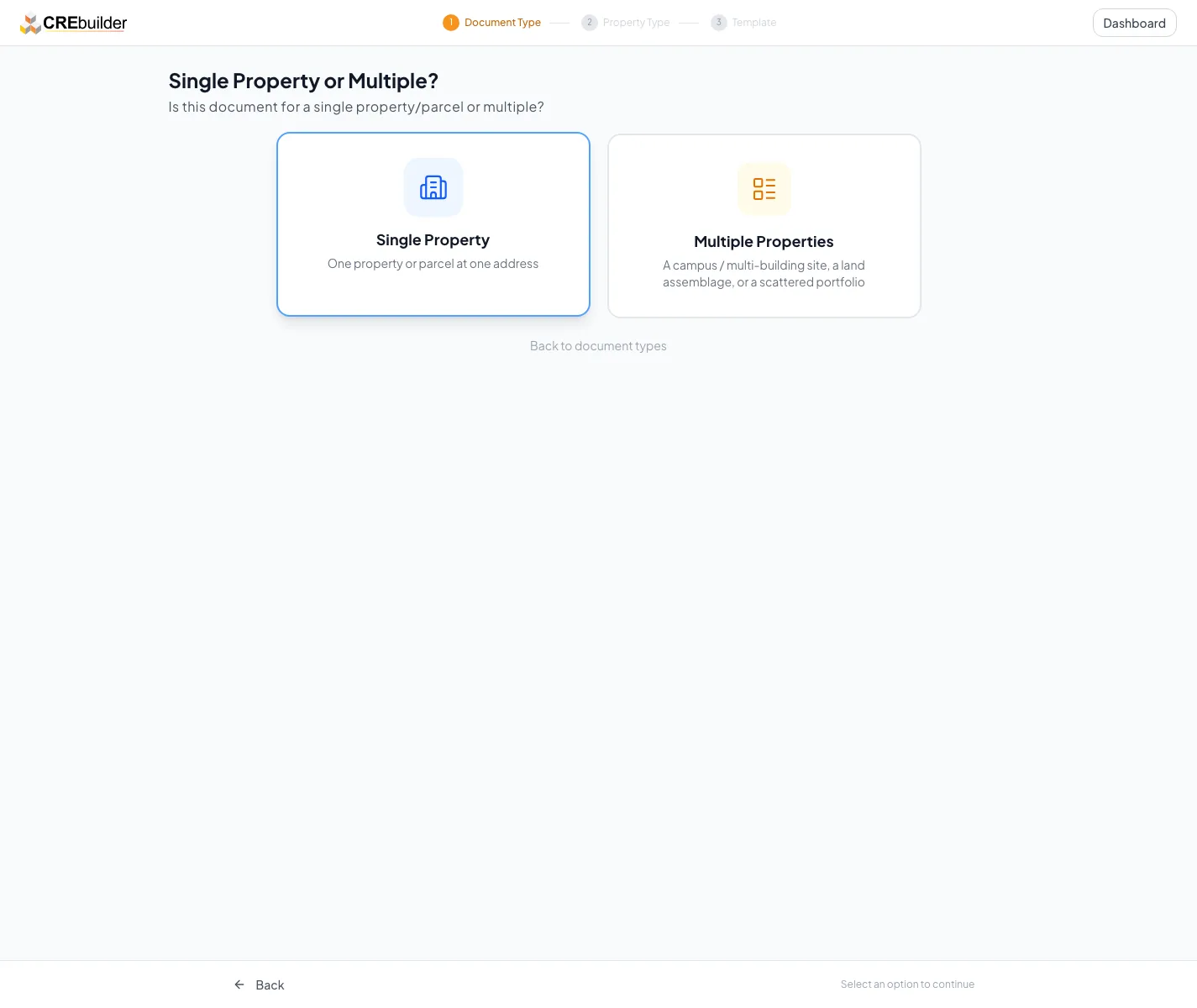
After choosing the marketing package, select Single Property or Multiple Properties for the assignment. - 4
Select the multiple-property structure
Same Site or Different Locations?
Select Multi-Building / Assemblage or Portfolio.
Expected result: The Buildings workflow uses the matching organization.
If this step does not work
Choose Multi-Building / Assemblage for one site or assemblage. Choose Portfolio for separate addresses.
Decision guide
| Your assignment | Choose |
|---|---|
| One address or parcel | Single Property |
| Several buildings or parcels on one site, campus, or assemblage | Multiple Properties > Multi-Building / Assemblage |
| Separate addresses sold or marketed together | Multiple Properties > Portfolio |
Troubleshooting and next steps
The package is too long or too short for the assignment.
Likely cause: The package purpose does not match the audience.
- Return to the creation choice before building the document.
- Use Convert later only when the current Documents action explicitly supports the target package.
Separate addresses are being treated as one building.
Likely cause: Multi-Building was selected instead of Portfolio.
- Create or convert to a Portfolio setup before entering property-level data.
- Verify each address in the Buildings step.
Final verification
- The package serves one primary audience
- Every included property fits the selected structure
- The expected Buildings step appears when Multiple Properties is selected
- No blocking warning, failed status, or unresolved validation message remains in the completed workflow.
Your next OM, done this afternoon
Turn your property facts, photos and financials into a polished, branded offering memorandum. Most brokers finish in 30 to 90 minutes.
No credit card required.