Outcome
The domain reaches Verified without disrupting website or inbound mail DNS, or the company continues safely on the shared sender while corrections propagate.
Navigation path
Settings > Email & sending > Sending domain
Access
Included with any paid CREBuilder plan. Saved drafts and send history stay listed if a subscription lapses.
On this page
Before you start
Data, sources, and access to prepare
- Company sending activated or approved
- Current sending agreement accepted
- Access to the DNS host for the exact sending domain
Choose the domain without changing inbound mail
Custom domain is optional
The Sending domain section opens with Use your own domain. You can keep sending from mail@send.crebuilder.com while DKIM is pending or being corrected, so there is no need to rush DNS changes. A verified domain raises the included allowance to 500 recipient sends per day and 5,000 per calendar month. A purchased sending plan is kept through any domain change and provides the same limits on either setup.
Sending domain Required
The part after @ in the address you want CREBuilder to sign for
- Format
- Domain such as example.com, without a user name or @
- Units
- Not applicable
- Save behavior
- Stored when the sending-domain request succeeds and the generated record set appears.
- Downstream effect
- Defines the exact domain for which CREBuilder generates DKIM signing records.
Three DKIM CNAMEs Required
Generated name/value pairs that authorize signing
- Format
- Not applicable
- Units
- Not applicable
- Save behavior
- No direct entry in CREBuilder. The three values are generated from the saved sending domain and must be copied unchanged into the DNS host.
- Downstream effect
- All three must resolve to the generated targets before the custom sending domain can verify.
Existing MX Required
Controls inbound mail delivery
- Format
- Not applicable
- Units
- Not applicable
- Save behavior
- Not edited or saved by CREBuilder; leave the existing DNS-provider record unchanged.
- Downstream effect
- Preserves the company’s existing inbound mail delivery.
Existing SPF and DMARC Required
Current mail policy records
- Format
- Not applicable
- Units
- Not applicable
- Save behavior
- Not edited or saved by CREBuilder; retain the existing DNS-provider records.
- Downstream effect
- Preserves current mail policy. This setup does not require a second SPF record.
Sending domain
- Requirement
- Required
- What it means
- The part after @ in the address you want CREBuilder to sign for
- Format
- Domain such as example.com, without a user name or @
- Units
- Not applicable
- Save behavior
- Stored when the sending-domain request succeeds and the generated record set appears.
- Downstream effect
- Defines the exact domain for which CREBuilder generates DKIM signing records.
Three DKIM CNAMEs
- Requirement
- Required
- What it means
- Generated name/value pairs that authorize signing
- Format
- Not applicable
- Units
- Not applicable
- Save behavior
- No direct entry in CREBuilder. The three values are generated from the saved sending domain and must be copied unchanged into the DNS host.
- Downstream effect
- All three must resolve to the generated targets before the custom sending domain can verify.
Existing MX
- Requirement
- Required
- What it means
- Controls inbound mail delivery
- Format
- Not applicable
- Units
- Not applicable
- Save behavior
- Not edited or saved by CREBuilder; leave the existing DNS-provider record unchanged.
- Downstream effect
- Preserves the company’s existing inbound mail delivery.
Existing SPF and DMARC
- Requirement
- Required
- What it means
- Current mail policy records
- Format
- Not applicable
- Units
- Not applicable
- Save behavior
- Not edited or saved by CREBuilder; retain the existing DNS-provider records.
- Downstream effect
- Preserves current mail policy. This setup does not require a second SPF record.
Required means the field is needed to complete or support this workflow. Some screens allow a draft to save before every required item is complete. The steps and troubleshooting call out controls the product actively blocks.
Publish exactly what CREBuilder generates
- 1
Enter the domain
Settings > Email & sending > Sending domain > Use your own domain
Enter only the domain portion after @.
Expected result: The normalized domain is ready for submission.
If this step does not work
Correct an accidental subdomain or full email address before continuing.
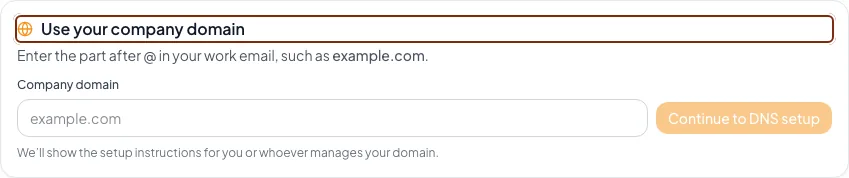
Choose the sending domain, add the exact DNS records, and confirm verification before using the domain in a campaign. - 2
Submit the domain
Sending domain > Continue to DNS setup
Select Continue to DNS setup.
Expected result: CREBuilder normalizes the domain and displays three CNAME records.
If this step does not work
If the wrong domain was entered and it is not verified, use the offered change-domain action. Do not continue with records for the wrong zone.
- 3
Open the correct DNS zone
Your DNS provider
Open DNS management for the exact displayed domain.
Expected result: You can add records for the domain without changing mail routing.
If this step does not work
If you do not control DNS, copy the complete instructions for the authorized administrator.
- 4
Add all three CNAMEs
DNS provider > Add record
Create each CNAME using the exact name and value shown by CREBuilder.
Expected result: Three records exist with no transcription changes.
If this step does not work
Cloudflare should use DNS only for DKIM records. If a provider automatically appends the domain, enter only the host prefix; Route 53 commonly accepts the full displayed value.
- 5
Preserve unrelated records
DNS record list
Confirm existing MX, SPF, DMARC, website, and verification records remain unchanged.
Expected result: Inbound mail and the website continue to use their prior routes.
If this step does not work
If a record was overwritten, restore it from the provider history or your DNS administrator before further verification.
Check setup and allow propagation
Domain verification states
CREBuilder checks public DNS for all three generated records.
3 records generated
3 CNAMEs published
Pending propagation
Failed or incomplete
Verified with DKIM
Gradual sending ramp
- 3 records generated3 CNAMEs published
- 3 CNAMEs publishedPending propagation
- Pending propagationVerified with DKIMall resolve
- Pending propagationFailed or incompletemismatch
- Failed or incomplete3 CNAMEs publishedcorrect
- Verified with DKIMGradual sending rampfirst weeks
- 1
Run Check setup
Sending domain > domain status
After publishing all records, select Check setup.
Expected result: The domain becomes verified, or a Not verified yet message appears with Waiting for DNS or Records not found. The page does not identify which CNAME failed.
If this step does not work
DNS can take up to a day. Compare every character before repeatedly checking.
- 2
Confirm verified identity
Sending domain > domain card
Verify the exact domain and the Verified with DKIM message.
Expected result: Hosted mail can use the authenticated company domain according to current sender policy.
If this step does not work
If the displayed domain is wrong after verification, contact support. The normal change action is intentionally limited before verification.
- 3
Respect the ramp
Email & sending > sending status card
Use the current daily and monthly allowance. Any warm-up restriction is already reflected in the displayed daily allowance.
Expected result: Volume grows within the domain’s clean sending history rather than jumping immediately.
If this step does not work
Do not split or repeat campaigns to evade a ramp limit.
Resolve common DNS failures
All three records look present but verification fails
Likely cause: The DNS host may have appended the domain twice, proxied the CNAME, added punctuation, or retained an old value.
- Compare the public host and target character for character.
- Use DNS only in Cloudflare.
- Remove a duplicated zone suffix.
- Allow propagation, then check again.
Inbound email stopped after setup
Likely cause: An MX or existing policy record may have been changed accidentally.
- Restore the prior MX immediately.
- Restore the original SPF/DMARC policy.
- Keep only the three new DKIM CNAMEs for CREBuilder.
- Ask the DNS or mail administrator to verify delivery.
A second SPF record was created
Likely cause: DKIM CNAME instructions were misread as an SPF requirement.
- Remove the new duplicate SPF record after confirming the original.
- Keep the three CNAMEs.
- Verify existing SPF remains syntactically valid.
The custom domain is pending but a campaign is urgent
Likely cause: DNS has not propagated or one record is incorrect.
- Use the ready shared sender if policy permits.
- Keep correcting DKIM separately.
- Do not claim the custom domain is authenticated until Verified appears.
Final verification
- DNS record list: Inbound mail and the website continue to use their prior routes.
- Sending domain > domain status: The domain becomes verified, or a Not verified yet message appears with Waiting for DNS or Records not found. The page does not identify which CNAME failed.
- Sending domain > domain card: Hosted mail can use the authenticated company domain according to current sender policy.
- Email & sending > sending status card: Volume grows within the domain’s clean sending history rather than jumping immediately.
- No blocking warning, failed status, or unresolved validation message remains in the completed workflow.
Your next OM, done this afternoon
Turn your property facts, photos and financials into a polished, branded offering memorandum. Most brokers finish in 30 to 90 minutes.
No credit card required.