Outcome
You will apply a coherent visual system and page sequence without losing required content or violating locked company-template rules.
Navigation path
Document Wizard > Review & Customize > Design
Access
Controls vary by template. Custom templates may lock colors, fonts, content, or page behavior.
On this page
Before you start
Data, sources, and access to prepare
- A completed draft
- Approved brand colors and font direction
- Knowledge of required and optional pages
Prepare these details
- Record the approved primary and secondary colors
- Confirm whether the company template locks brand settings
- List pages that must remain in the deliverable
- Save the current document before a template swap
Complete the task
- 1
Open Design controls
Review & Customize
Use the visible Design panel when there is room, or select Design settings to open its drawer.
Expected result: The controls supported by the current template appear.
If this step does not work
Close and reopen the drawer to move between controls and the page preview.
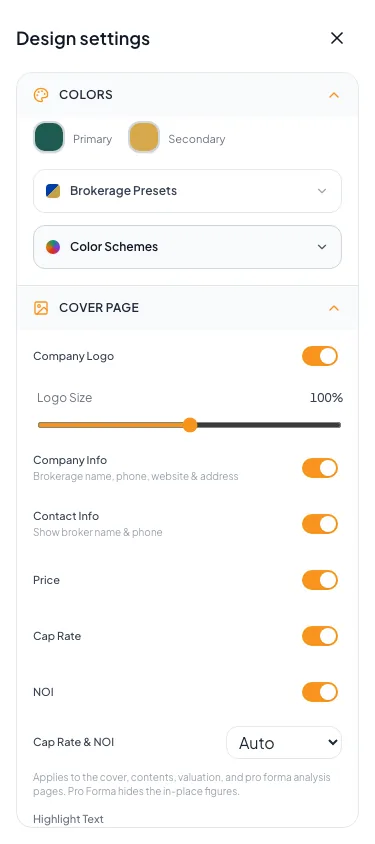
Open Design settings to adjust the document on a phone. - 2
Set one color choice
Design > Colors
Select one approved preset or color value.
Expected result: The preview updates with the selected color system.
If this step does not work
Restore the prior value if contrast becomes inadequate.
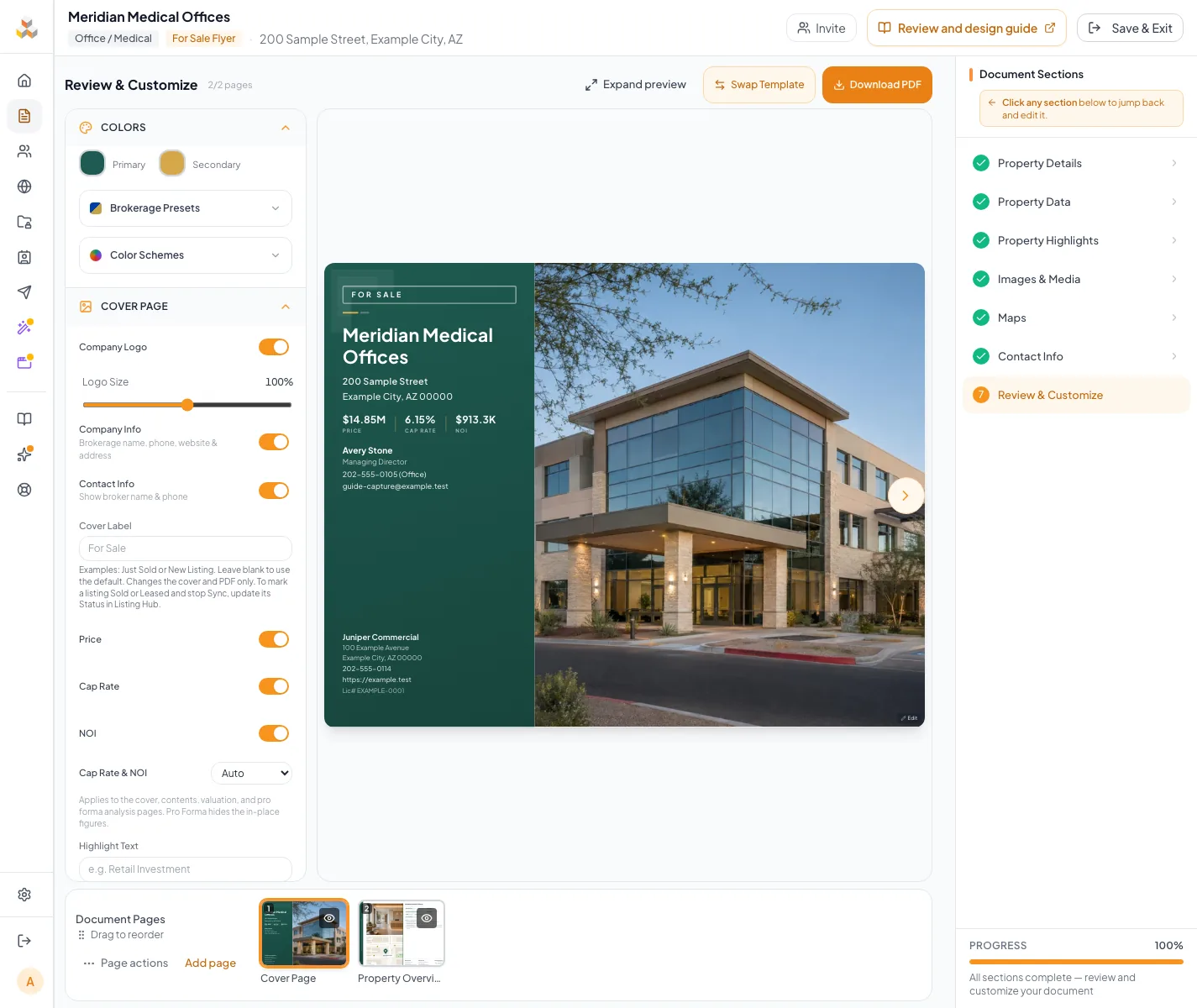
Confirm logo, colors, layout choices, and visible sections form a consistent presentation before export. - 3
Set one font package
Design > Typography
Select one available font package.
Expected result: Headings and body copy update in the preview.
If this step does not work
Choose a simpler package if dense pages become difficult to read.
- 4
Configure one cover option
Design > Cover Page
Change one supported cover display option.
Expected result: The cover preview reflects that option.
If this step does not work
Turn the option back on if removing it hides required contact or transaction information.
- 5
Move one page
Review page strip or Pages drawer
Drag the intended thumbnail into position.
Expected result: The page order updates and saves automatically.
If this step does not work
For a button alternative, select the page and open Page actions beside the preview for Move page earlier or Move page later. On small screens, reopen Pages after selection. Use Retry save if saving fails.
- 6
Change one page visibility state
Review page strip or Pages drawer
Select the eye control for the intended page.
Expected result: The page is visibly marked shown or hidden.
If this step does not work
Restore the page if removing it leaves a broken narrative or required disclosure gap.
- 7
Swap the template
Review & Customize > Swap Template
Confirm one compatible template selection when a full design change is required.
Expected result: The assembled document renders in the new template.
If this step does not work
Return to the prior template if essential content cannot be represented correctly.
- 8
Add one custom page
Review & Customize > Add page
Create one supported custom page when required.
Expected result: The custom page appears in the page strip.
If this step does not work
Select the custom page, then use Edit page or Delete page beside its preview to revise or remove it.
Relabel a flyer: Just Sold, Just Leased, New Listing, or Sublease
Reuse an existing For Sale Flyer or For Lease Flyer by changing its Cover Label. This control is available across flyer designs; Leasing Packages also support a custom cover label. It changes the wording on the cover while keeping the layout, photos, branding, and property information.
- 1
Find Cover Label
Review & Customize > Design > Cover Page
Open Cover Page in the Design panel.
Expected result: The Cover Label text field appears for sale flyers, lease flyers, and Leasing Packages.
If this step does not work
Open Design settings first when the panel is collapsed. OMs, Sales Teasers, and BOVs do not have this label control.
- 2
Enter the flyer wording
Design > Cover Page > Cover Label
Enter Just Sold, Just Leased, New Listing, For Sublease, or your own wording of up to 40 characters.
Expected result: The cover preview shows the new label.
If this step does not work
Clear the field to restore For Sale or For Lease; an existing Sublease selection restores For Sublease.
- 3
Check the cover
Review & Customize > cover preview
Inspect the label for correct wording and a readable fit.
Expected result: The label matches the intended announcement without obscuring other cover information.
If this step does not work
Use shorter wording if it wraps poorly in the selected design.
- 4
Generate a current PDF
Review & Customize > Download PDF
Select Download PDF after the design change has saved.
Expected result: A newly generated PDF includes the saved cover label.
If this step does not work
An earlier downloaded or emailed PDF keeps its old wording; generate a new file instead of reusing it.
- 5
Verify the PDF label
Downloaded PDF > cover
Inspect the cover label in the new PDF.
Expected result: The exported wording matches the reviewed preview.
If this step does not work
If it differs, confirm the saved label and export the current document again.
Flyer wording and listing status are separate controls
Cover Label updates the document. Listing Hub Status controls inventory and whether completed transactions keep syncing.
Cover Label
Just Sold or Just Leased
Cover and new PDFs
Listing status and Sync stay unchanged
Listing Hub Status
Sold or Leased
Past inventory
Listed is unchanged; Sync stops
- Cover LabelCover and new PDFs
- Listing Hub StatusPast inventory
Just Sold on a flyer does not mark a listing Sold
Changing Cover Label leaves Listed, Sync, inventory status, and the sale or lease transaction unchanged. If the property has sold or leased, separately set Status to Sold or Leased in Listing Hub. An already listed property stays on the broker site as past inventory, and Sync stops. Partner removal follows their feed processing. Returning Status to Active does not turn Sync back on automatically.
Design-control effects
Primary and secondary colors Recommended
The core palette used by the selected template
- Format
- Available preset or approved color value
- Units
- Not applicable
- Save behavior
- Use the Design color control and wait for its saved state before another change.
- Downstream effect
- Changes template accents, backgrounds, and graphic elements.
Title and body fonts Recommended
The typography package for headings and readable body copy
- Format
- Named typography package offered by the template
- Units
- Not applicable
- Save behavior
- Use the Design typography control and wait for its saved state before another change.
- Downstream effect
- Changes text density, hierarchy, and line wrapping throughout the document.
Cover options Optional
Template-specific logo, contact, label, metric, and title choices
- Format
- Template-specific selection or visibility control
- Units
- Not applicable
- Save behavior
- Change one Cover Page control and verify its saved preview state before continuing.
- Downstream effect
- Changes the information displayed on the cover.
Cover Label Optional
Custom cover wording for sale flyers, lease flyers, and Leasing Packages
- Format
- Text up to 40 characters; blank restores the default
- Units
- Characters
- Save behavior
- Saves automatically through the Design panel; verify the saved preview before exporting.
- Downstream effect
- Updates the cover and newly generated PDFs without changing Listed, Sync, inventory status, or sale/lease transaction.
Page visibility Optional
Whether an assembled page appears in the output
- Format
- Shown or hidden state
- Units
- Not applicable
- Save behavior
- Stored when the page-strip visibility control finishes processing.
- Downstream effect
- Hidden pages are omitted from the generated PDF and published document output.
Custom page Optional
An intentionally added page outside standard generated sections
- Format
- Supported custom-page configuration
- Units
- Not applicable
- Save behavior
- Stored when the Add Custom Page workflow completes successfully.
- Downstream effect
- Adds separately maintained content to the assembled document.
Primary and secondary colors
- Requirement
- Recommended
- What it means
- The core palette used by the selected template
- Format
- Available preset or approved color value
- Units
- Not applicable
- Save behavior
- Use the Design color control and wait for its saved state before another change.
- Downstream effect
- Changes template accents, backgrounds, and graphic elements.
Title and body fonts
- Requirement
- Recommended
- What it means
- The typography package for headings and readable body copy
- Format
- Named typography package offered by the template
- Units
- Not applicable
- Save behavior
- Use the Design typography control and wait for its saved state before another change.
- Downstream effect
- Changes text density, hierarchy, and line wrapping throughout the document.
Cover options
- Requirement
- Optional
- What it means
- Template-specific logo, contact, label, metric, and title choices
- Format
- Template-specific selection or visibility control
- Units
- Not applicable
- Save behavior
- Change one Cover Page control and verify its saved preview state before continuing.
- Downstream effect
- Changes the information displayed on the cover.
Cover Label
- Requirement
- Optional
- What it means
- Custom cover wording for sale flyers, lease flyers, and Leasing Packages
- Format
- Text up to 40 characters; blank restores the default
- Units
- Characters
- Save behavior
- Saves automatically through the Design panel; verify the saved preview before exporting.
- Downstream effect
- Updates the cover and newly generated PDFs without changing Listed, Sync, inventory status, or sale/lease transaction.
Page visibility
- Requirement
- Optional
- What it means
- Whether an assembled page appears in the output
- Format
- Shown or hidden state
- Units
- Not applicable
- Save behavior
- Stored when the page-strip visibility control finishes processing.
- Downstream effect
- Hidden pages are omitted from the generated PDF and published document output.
Custom page
- Requirement
- Optional
- What it means
- An intentionally added page outside standard generated sections
- Format
- Supported custom-page configuration
- Units
- Not applicable
- Save behavior
- Stored when the Add Custom Page workflow completes successfully.
- Downstream effect
- Adds separately maintained content to the assembled document.
Required means the field is needed to complete or support this workflow. Some screens allow a draft to save before every required item is complete. The steps and troubleshooting call out controls the product actively blocks.
Troubleshooting and next steps
The flyer says Just Sold but the listing still appears active.
Likely cause: Cover Label is display wording and does not update inventory status.
- Open the correct listing in Listing Hub.
- Set Status to Sold or Leased when the transaction is complete.
- Allow partner feed processing before expecting external removal.
Colors or fonts cannot be changed.
Likely cause: The current custom template may lock brand settings.
- Use the values supplied by the template.
- Ask the workspace administrator about an approved template change.
A page change did not persist.
Likely cause: A reorder or visibility save may still be pending.
- Wait for the save state.
- Reload and repeat one change after confirming the current state.
Final verification
- Brand choices meet contrast and company standards
- Cover information is complete
- Page order tells a coherent story
- Hidden pages are intentionally omitted
- Custom pages do not duplicate generated content
- If you changed the template, every page was rechecked afterward.
- No blocking warning, failed status, or unresolved validation message remains in the completed workflow.
Your next OM, done this afternoon
Turn your property facts, photos and financials into a polished, branded offering memorandum. Most brokers finish in 30 to 90 minutes.
No credit card required.