Outcome
The single-property campaign has an accurate subject, hierarchy, property facts, four-or-fewer ordered images, and responsive preview.
Navigation path
Email Blasts > New email blast > Individual property > Composer
Access
Included with any paid CREBuilder plan. Saved drafts and send history stay listed if a subscription lapses.
On this page
Before you start
Data, sources, and access to prepare
- One completed document
- Reviewed property overview, highlights, images, metrics, contact identity, and publication state
Choose the content hierarchy
| Control | Choices or behavior |
|---|---|
| Template | Modern uses an inset photograph and soft data panels; Bold uses a full-width photograph and strong color; Editorial uses a centered headline and fine rules; Minimal uses quiet typography and open spacing. |
| Brand styling | Primary and accent colors plus title and body fonts |
| Subject | Required for hosted send and limited to 300 characters |
| Message | Introductory campaign copy separate from the property overview |
| Property-specific hero | Sale, Lease, or BOV presentation chosen from source document context |
Control the sections and property facts
Metrics are not campaign analytics
Price, cap rate, NOI, square feet, rent, and similar values describe the property. CREBuilder does not currently expose open or click analytics for Email Blasts.
Available content areas
Cover and message Recommended
Campaign opening and sender’s contextual introduction
- Format
- Template cover plus plain-text subject and message
- Units
- Not applicable
- Save behavior
- Composer changes autosave to the campaign draft; sending flushes any pending draft save before submission.
- Downstream effect
- Sets the campaign’s opening context and primary property presentation.
Summary and highlights Recommended
Property overview and key selling points, editable inline where offered
- Format
- Plain text in supported inline editors
- Units
- Characters
- Save behavior
- Committed inline edits autosave to the campaign draft; source-only facts must be corrected in the property document.
- Downstream effect
- Controls the property narrative rendered in the campaign body.
Metrics Optional
Sale, lease, or BOV facts available from the selected source property
- Format
- Selected source-property metrics
- Units
- Use the unit displayed by each source metric
- Save behavior
- Metric selections autosave to the draft; metric values have no direct entry and refresh from the selected completed document.
- Downstream effect
- Displays property facts in the campaign. These values are not delivery analytics.
Gallery Optional
Automatic first four images or a manual ordered selection of up to four
- Format
- Automatic or ordered manual image selection
- Units
- Up to four images
- Save behavior
- Gallery mode and manual selections autosave to the campaign draft.
- Downstream effect
- Controls which property images and order render in the campaign gallery.
Area demographics Optional
Population, households, median household income, and average household income within the selected radius
- Format
- Show demographics in this email switch and Demographic radius menu in the main Content panel
- Units
- Miles for US data; kilometers for Canadian data. The chosen radius is labeled in the email.
- Save behavior
- Visibility and radius autosave to the campaign draft. Switching off keeps the radius choice; the source property is unchanged.
- Downstream effect
- Preview, HTML export, and sending use the same selected radius and figures. A missing saved radius is omitted until you choose an available radius.
Website CTA Optional
Public listing link when Listing Hub is enabled and the property is published
- Format
- Enabled or disabled call-to-action
- Units
- Not applicable
- Save behavior
- The CTA selection autosaves to the draft after the composer confirms listing eligibility.
- Downstream effect
- Adds a link to the verified active public property page when eligible.
Broker card and company footer Recommended
Sender identity and company context
- Format
- Not applicable
- Units
- Not applicable
- Save behavior
- No direct entry in the composer. The display is assembled from the saved sender and company profile context.
- Downstream effect
- Identifies the sender and company in the rendered campaign footer.
Cover and message
- Requirement
- Recommended
- What it means
- Campaign opening and sender’s contextual introduction
- Format
- Template cover plus plain-text subject and message
- Units
- Not applicable
- Save behavior
- Composer changes autosave to the campaign draft; sending flushes any pending draft save before submission.
- Downstream effect
- Sets the campaign’s opening context and primary property presentation.
Summary and highlights
- Requirement
- Recommended
- What it means
- Property overview and key selling points, editable inline where offered
- Format
- Plain text in supported inline editors
- Units
- Characters
- Save behavior
- Committed inline edits autosave to the campaign draft; source-only facts must be corrected in the property document.
- Downstream effect
- Controls the property narrative rendered in the campaign body.
Metrics
- Requirement
- Optional
- What it means
- Sale, lease, or BOV facts available from the selected source property
- Format
- Selected source-property metrics
- Units
- Use the unit displayed by each source metric
- Save behavior
- Metric selections autosave to the draft; metric values have no direct entry and refresh from the selected completed document.
- Downstream effect
- Displays property facts in the campaign. These values are not delivery analytics.
Gallery
- Requirement
- Optional
- What it means
- Automatic first four images or a manual ordered selection of up to four
- Format
- Automatic or ordered manual image selection
- Units
- Up to four images
- Save behavior
- Gallery mode and manual selections autosave to the campaign draft.
- Downstream effect
- Controls which property images and order render in the campaign gallery.
Area demographics
- Requirement
- Optional
- What it means
- Population, households, median household income, and average household income within the selected radius
- Format
- Show demographics in this email switch and Demographic radius menu in the main Content panel
- Units
- Miles for US data; kilometers for Canadian data. The chosen radius is labeled in the email.
- Save behavior
- Visibility and radius autosave to the campaign draft. Switching off keeps the radius choice; the source property is unchanged.
- Downstream effect
- Preview, HTML export, and sending use the same selected radius and figures. A missing saved radius is omitted until you choose an available radius.
Website CTA
- Requirement
- Optional
- What it means
- Public listing link when Listing Hub is enabled and the property is published
- Format
- Enabled or disabled call-to-action
- Units
- Not applicable
- Save behavior
- The CTA selection autosaves to the draft after the composer confirms listing eligibility.
- Downstream effect
- Adds a link to the verified active public property page when eligible.
Broker card and company footer
- Requirement
- Recommended
- What it means
- Sender identity and company context
- Format
- Not applicable
- Units
- Not applicable
- Save behavior
- No direct entry in the composer. The display is assembled from the saved sender and company profile context.
- Downstream effect
- Identifies the sender and company in the rendered campaign footer.
Required means the field is needed to complete or support this workflow. Some screens allow a draft to save before every required item is complete. The steps and troubleshooting call out controls the product actively blocks.
Choose demographics and the radius
In the main Content panel, open Area demographics below Template. Turn Show demographics in this email on or off. When it is on, choose a Demographic radius from the property data available in the menu, such as 1-mile radius, 3-mile radius, or 5-mile radius. Canadian property data uses kilometers. All four figures and the radius label update together in the preview.
Turning demographics off removes the whole section from the email and keeps your selected radius for later. The setting is saved with this campaign, so it does not change the property document. Older drafts use their first available radius. If a saved radius is no longer available, select a current radius before including the section again. If no radius data is available, use Open property details to confirm the property location.
Build the single-property design
- 1
Choose the template
Single-property composer > Template
Preview Modern, Bold, Editorial, and Minimal with the actual property.
Expected result: The selected template renders the intended information hierarchy.
If this step does not work
If controls are missing, confirm this is an Individual property campaign rather than Multiple properties.
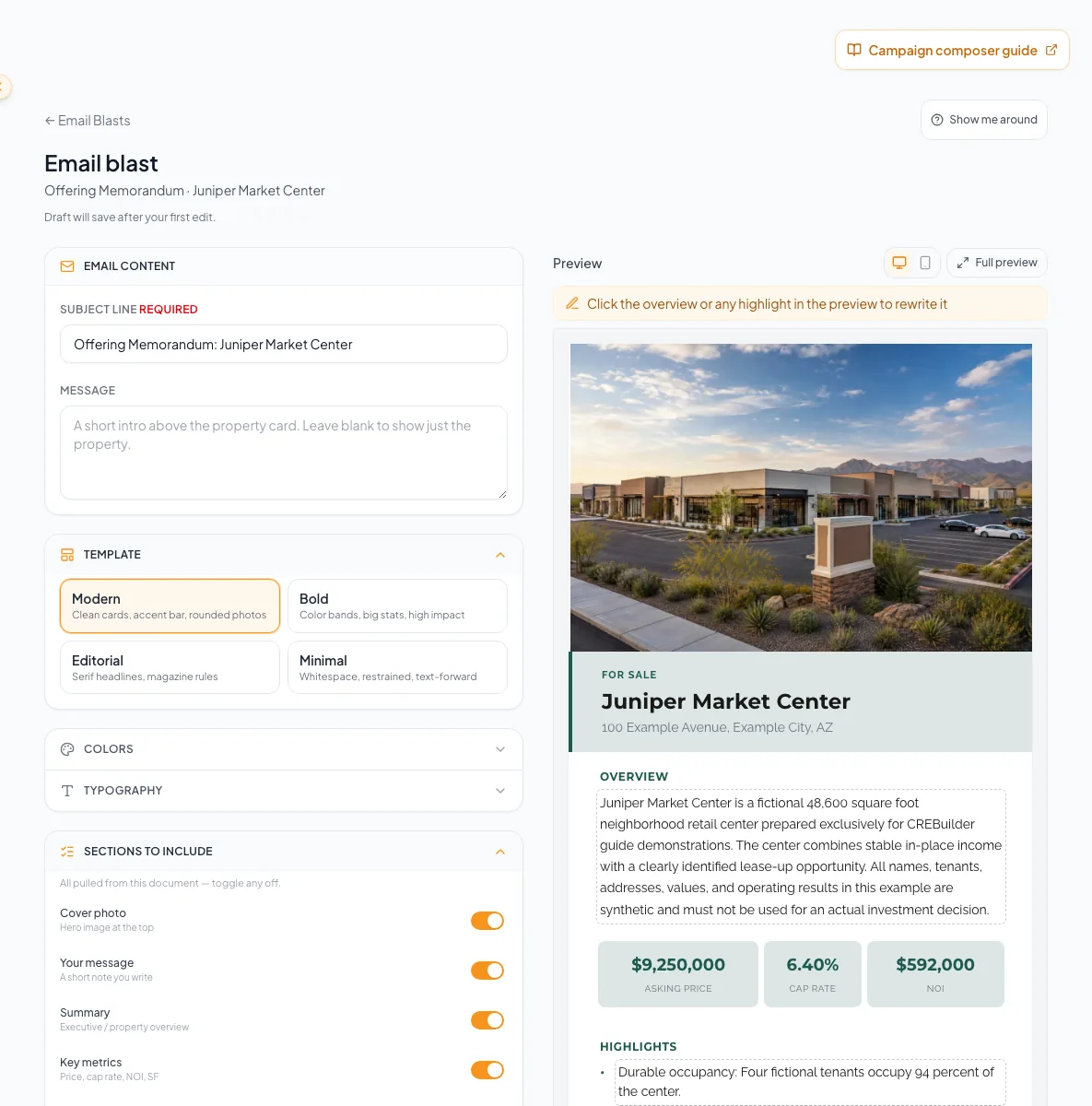
Build the campaign around one property, verify the template hierarchy, and preview all property and broker content. - 2
Choose the campaign colors
Single-property composer > Colors
Choose readable brand colors.
Expected result: Desktop and mobile preview show the selected color palette with clear contrast.
If this step does not work
If text becomes hard to read over imagery or backgrounds, increase contrast or choose a simpler template.
- 3
Choose the title font
Single-property composer > Typography > Title font
Choose the font for campaign headings.
Expected result: The preview applies the selected font to the title hierarchy.
If this step does not work
If headings become hard to scan, choose a simpler title font.
- 4
Choose the body font
Single-property composer > Typography > Body font
Choose the font for paragraphs and supporting copy.
Expected result: The preview applies the selected font to body content.
If this step does not work
If paragraphs become hard to read, choose a simpler body font.
- 5
Open editable property content
Live preview > editable overview or highlights
Select the editable overview or highlight.
Expected result: The inline editor opens for the selected content.
If this step does not work
If the content is not editable, correct the source property document instead.
- 6
Correct the property wording
Live preview > inline editor
Enter the source-verified wording.
Expected result: The inline editor shows the revised property narrative.
If this step does not work
Do not change a factual value without checking its source.
- 7
Commit the property wording
Live preview > inline editor > commit control
Commit the inline change.
Expected result: The preview and autosaved draft show the revised property narrative.
If this step does not work
If a source fact is wrong outside the editable area, correct the property document and reopen or refresh the campaign.
- 8
Choose campaign sections
Composer > Sections
Enable only useful available sections.
Expected result: The preview contains no empty, repetitive, or irrelevant sections.
If this step does not work
If an expected section is absent, confirm this is an Individual property campaign.
- 9
Choose property metrics
Composer > property metrics
Select the facts that support the message.
Expected result: The preview shows only relevant property facts.
If this step does not work
If an expected metric is absent, verify the source document type and property data. Do not type a substitute into an unrelated field.
- 10
Order the gallery
Composer > Gallery
Keep Automatic for the first four images, or select photos in the exact desired order up to the four-photo cap.
Expected result: The gallery label shows the selected count and preview follows that order.
If this step does not work
At the cap, remove one image before choosing another. Reorder by clearing and selecting in the desired sequence if no drag control is offered.
- 11
Review website-link eligibility
Composer > Website link
Read the complete availability state.
Expected result: The composer identifies whether Listing Hub and the selected property support the CTA.
If this step does not work
If the state is unavailable or unknown, verify the listing before changing the control.
- 12
Enable the eligible website link
Composer > Website link
Enable the CTA only when the selected property is published in an active Listing Hub.
Expected result: Preview shows a valid public property link.
If this step does not work
If ineligible, publish and verify the listing first or omit the CTA. Do not paste an unverified route.
Verify the final design and recover source issues
Single-property design check
- Subject is specific and no more than 300 characters.
- Template, colors, and fonts remain readable.
- Overview and highlights match the current source.
- Only useful sections are enabled.
- Demographics are hidden or display the intended radius with the matching figures.
- Gallery has no more than four images and the order is intentional.
- Property metrics use correct units and transaction context.
- Website CTA resolves publicly when enabled.
- Desktop, Mobile, and full preview were checked.
The gallery ignores another click
Likely cause: A manual gallery already contains four images.
- Check the selected-count label.
- Remove an unwanted image.
- Select the replacement in the intended final order.
An image or property fact is wrong
Likely cause: The composer is drawing from the completed source document.
- Save the draft.
- Correct the source document or image order.
- Return and verify refreshed campaign content before sending.
The website link is unavailable
Likely cause: Listing Hub is disabled, the property is not published, or status could not be confirmed.
- Open the property publication controls.
- Publish only if intended.
- Retry availability.
- Leave the CTA off until a public check succeeds.
The saved demographic radius is unavailable
Likely cause: The property no longer returns that radius with usable figures.
- Open Area demographics in Content.
- Select one of the available radii, or turn the section off.
- Check the radius label and figures in the preview.
Mobile preview is crowded
Likely cause: Copy, sections, or image choices create an overly long or dense message.
- Shorten the introduction.
- Remove lower-priority sections.
- Use fewer stronger images.
- Check all links again in Mobile preview.
Your next OM, done this afternoon
Turn your property facts, photos and financials into a polished, branded offering memorandum. Most brokers finish in 30 to 90 minutes.
No credit card required.