Outcome
The portfolio email presents every selected property consistently, with correct cards, shared branding, and only verified public links.
Navigation path
Email Blasts > New email blast > Multi-property > Composer
Access
Included with any paid CREBuilder plan. Saved drafts and send history stay listed if a subscription lapses.
On this page
Before you start
Data, sources, and access to prepare
- At least two completed documents
- Current images and public publication status for every included property
Understand the fixed portfolio model
| Available in portfolio mode | Not available in portfolio mode |
|---|---|
| Subject and portfolio message | Modern, Bold, Editorial, and Minimal template switcher |
| Fixed portfolio hero and property cards | Single-property section selection |
| Property chips and shared colors/fonts | Single-property manual gallery and four-photo control |
| Eligible website links for property cards | Single-property metric selector and inline overview/highlights editor |
| Desktop, Mobile, and full preview | Sale, Lease, or BOV single-property hero controls |
The missing controls are intentional
Multiple-property campaigns use a fixed portfolio layout so every listing remains consistent. Build a separate single-property campaign when one listing needs richer narrative or gallery treatment.
Choose the portfolio source set
- 1
Start Multi-property
Email Blasts > New email blast
Choose Multi-property.
Expected result: The chooser permits a set rather than a single selection.
If this step does not work
If Individual property was chosen, go back before composing.
- 2
Select the intended set
Completed-document chooser
Select at least two completed documents.
Expected result: The selected set is ready for identity review.
If this step does not work
Refine search if the intended document is outside the first displayed results.
- 3
Verify the selected properties
Completed-document chooser > selected set
Compare each property identity with the intended source list.
Expected result: The selected set is ready to open as one portfolio campaign.
If this step does not work
Remove a similarly named or unintended property before continuing.
- 4
Open the composer and review chips
Portfolio composer > property chips
Compare every chip and property card with the intended source list.
Expected result: Every selected property appears once and no unintended property remains.
If this step does not work
If the set is wrong, return to the chooser or start a corrected draft before audience work.
One campaign, several source documents
Each completed source contributes a property card under one shared campaign design.
2 or more completed documents
Portfolio hero and message
One card per property
Shared colors and fonts
- 2 or more completed documentsPortfolio hero and message
- 2 or more completed documentsOne card per property
- Shared colors and fontsPortfolio hero and message
- Shared colors and fontsOne card per property
Design the shared message and verify every card
- 1
Write the portfolio subject
Portfolio composer > Subject
Enter a concise subject that states the common theme without implying every property has identical terms.
Expected result: The Subject input states why this property set matters to the audience.
If this step does not work
If the set has no clear shared purpose, split it into smaller campaigns.
- 2
Write the portfolio message
Portfolio composer > Message
Enter the audience context and expected next action.
Expected result: The opening message explains why these properties belong together.
If this step does not work
If the requested action differs by property, make that distinction explicit.
- 3
Choose the shared colors
Portfolio composer > Colors
Choose colors that remain legible across all card imagery.
Expected result: The hero and every property card use a consistent color palette.
If this step does not work
If one image makes text unreadable, correct the source image or choose stronger shared contrast.
- 4
Choose the portfolio title font
Portfolio composer > Typography > Title font
Choose the font for the hero and card headings.
Expected result: The preview applies one consistent font to the title hierarchy.
If this step does not work
If headings become difficult to scan, choose a simpler title font.
- 5
Choose the portfolio body font
Portfolio composer > Typography > Body font
Choose the font for the message and card copy.
Expected result: The preview applies one readable font to supporting content.
If this step does not work
If paragraphs become difficult to read, choose a simpler body font.
- 6
Review every property card
Portfolio live preview
Check property name, image, location, transaction context, key facts, and chip navigation for each source.
Expected result: Every card identifies the correct property without stale or conflicting facts.
If this step does not work
Save the draft, correct source data, and recheck before sending if any card is wrong.
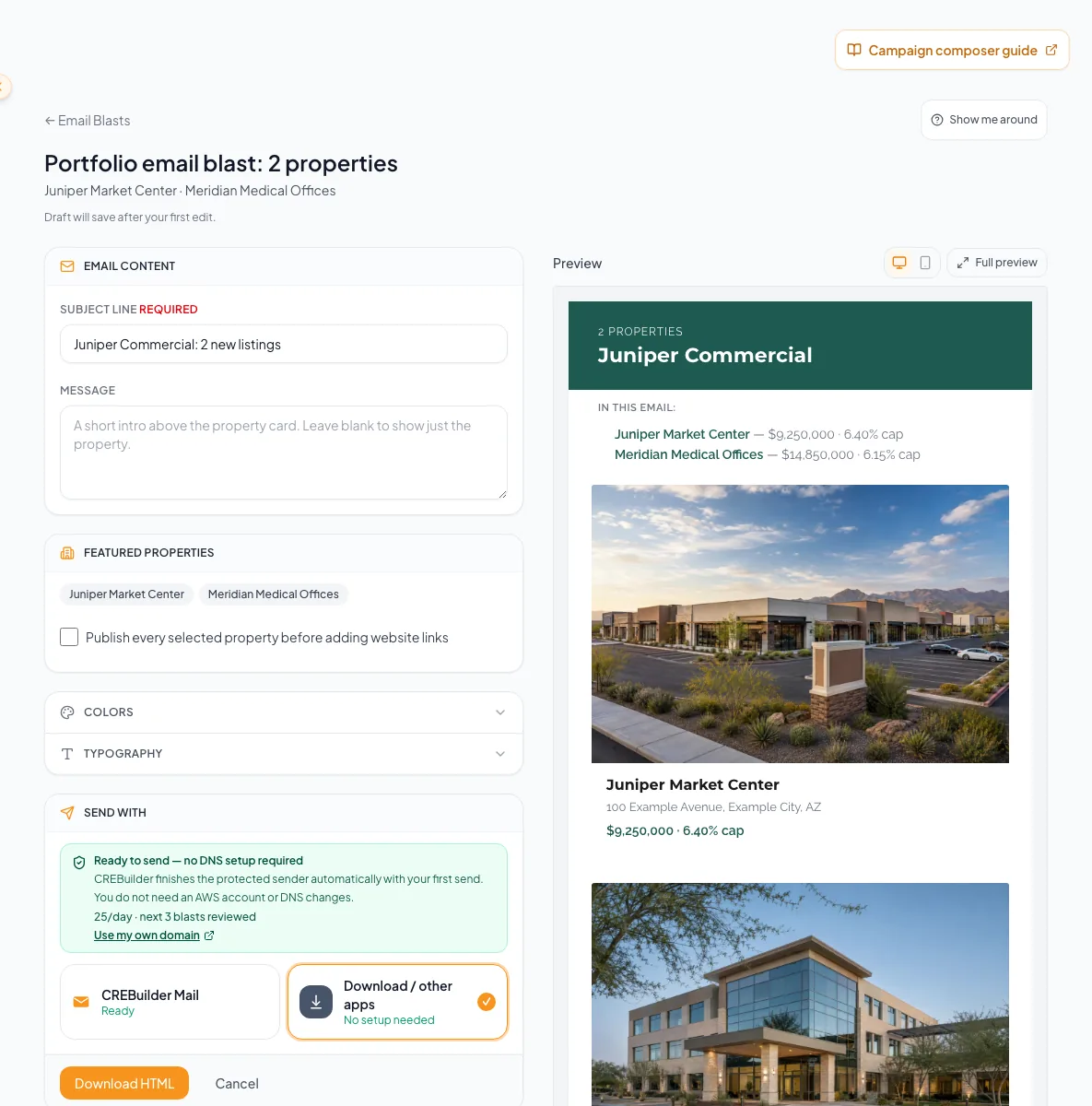
Choose and order multiple properties, understand the different controls, and verify each listing in the final preview. - 7
Verify website-link eligibility
Portfolio composer > Website links
Enable links only when Listing Hub is enabled and every included property is published.
Expected result: Every enabled card link resolves to a public property page.
If this step does not work
If even one property is unpublished or status is unknown, follow the displayed unavailable state. Publish and verify all, or keep links off.
- 8
Review responsive output
Portfolio composer > Desktop, Mobile, and full preview
Read from the hero through the final card at both widths.
Expected result: No card is clipped, skipped, duplicated, or illegible.
If this step does not work
Reduce copy or adjust shared styling when mobile scanning becomes difficult.
Resolve portfolio-specific problems
Portfolio design check
- At least two intended properties are included.
- Every property appears once.
- Portfolio message explains the shared reason for the set.
- Shared colors and fonts work across all images.
- Each card uses current source facts.
- All website links are either verified or intentionally off.
- Desktop and Mobile previews include the complete set.
Template or gallery controls are missing
Likely cause: Those controls exist only for single-property campaigns.
- Use the portfolio layout as designed.
- Adjust shared colors, fonts, and message.
- Create a separate single-property campaign for detailed treatment.
One card has stale content
Likely cause: That completed source document contains stale property data or imagery.
- Save the campaign draft.
- Correct the source document.
- Return and verify every card after the refresh.
Website links are unavailable for the set
Likely cause: Link eligibility requires Listing Hub plus publication for every included property.
- Check each property publication state.
- Publish only the intended public listings.
- Retry availability.
- Leave links off if the whole set cannot be verified.
Your next OM, done this afternoon
Turn your property facts, photos and financials into a polished, branded offering memorandum. Most brokers finish in 30 to 90 minutes.
No credit card required.