Outcome
Publish your property on your CREBuilder Listing Hub, choose whether Sync distributes it to eligible partner networks, and keep its inventory status current.
Navigation path
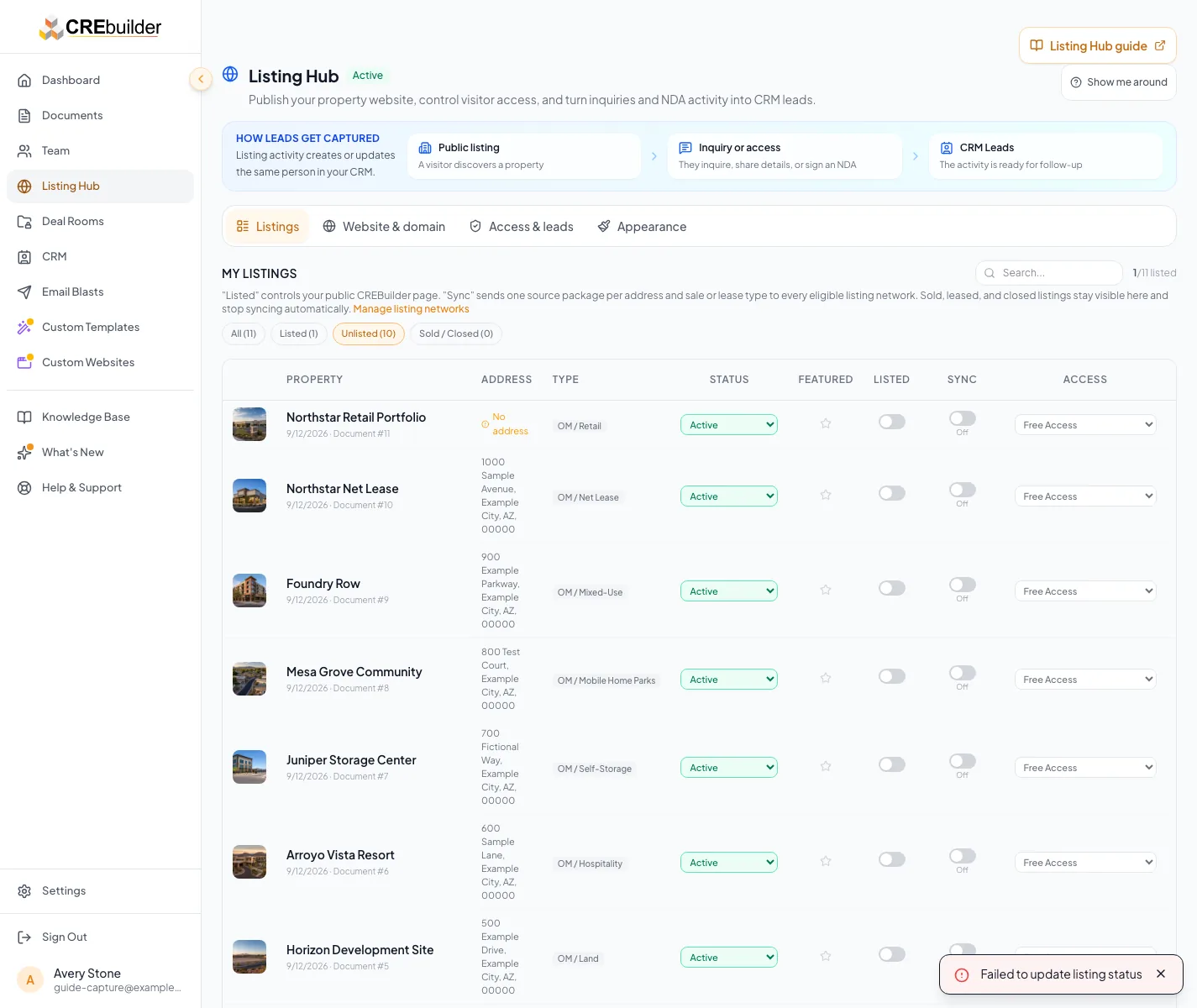
Listing Hub > Listings
Access
Listing Hub publishing and Sync require an active subscription. You can manage any listing you can edit.
On this page
What you will accomplish
Listing control relationship
Sync builds on Listed, while Availability describes the inventory on its own.
Completed document
Listed on CREBuilder
Sync to partner networks
Public inventory Availability
- Completed documentListed on CREBuilder
- Listed on CREBuilderSync to partner networksRequired first
- Listed on CREBuilderPublic inventory Availability
Before you start
Data, sources, and access to prepare
- A completed property document
- Edit access to the listing
- A verified address and sale or lease transaction type
Prepare these details
- Complete the property document and address
- Confirm the sale or lease transaction type
- Choose the public Availability
- Decide whether the seller has approved syndication
Complete the task
- 1
Use property controls
Dashboard property card or Property Hub header
Locate the publishing controls for the property.
Expected result: Both surfaces show the same saved state as Listing Hub, plus a separate Inventory label.
If this step does not work
Read the visible disabled reason for plan access, view-only documents, unfinished packages, or unavailable status.
- 2
Open Listings
Listing Hub
Select Listings.
Expected result: Your listable documents appear.
If this step does not work
Confirm you are signed in to the right workspace if the property is missing.
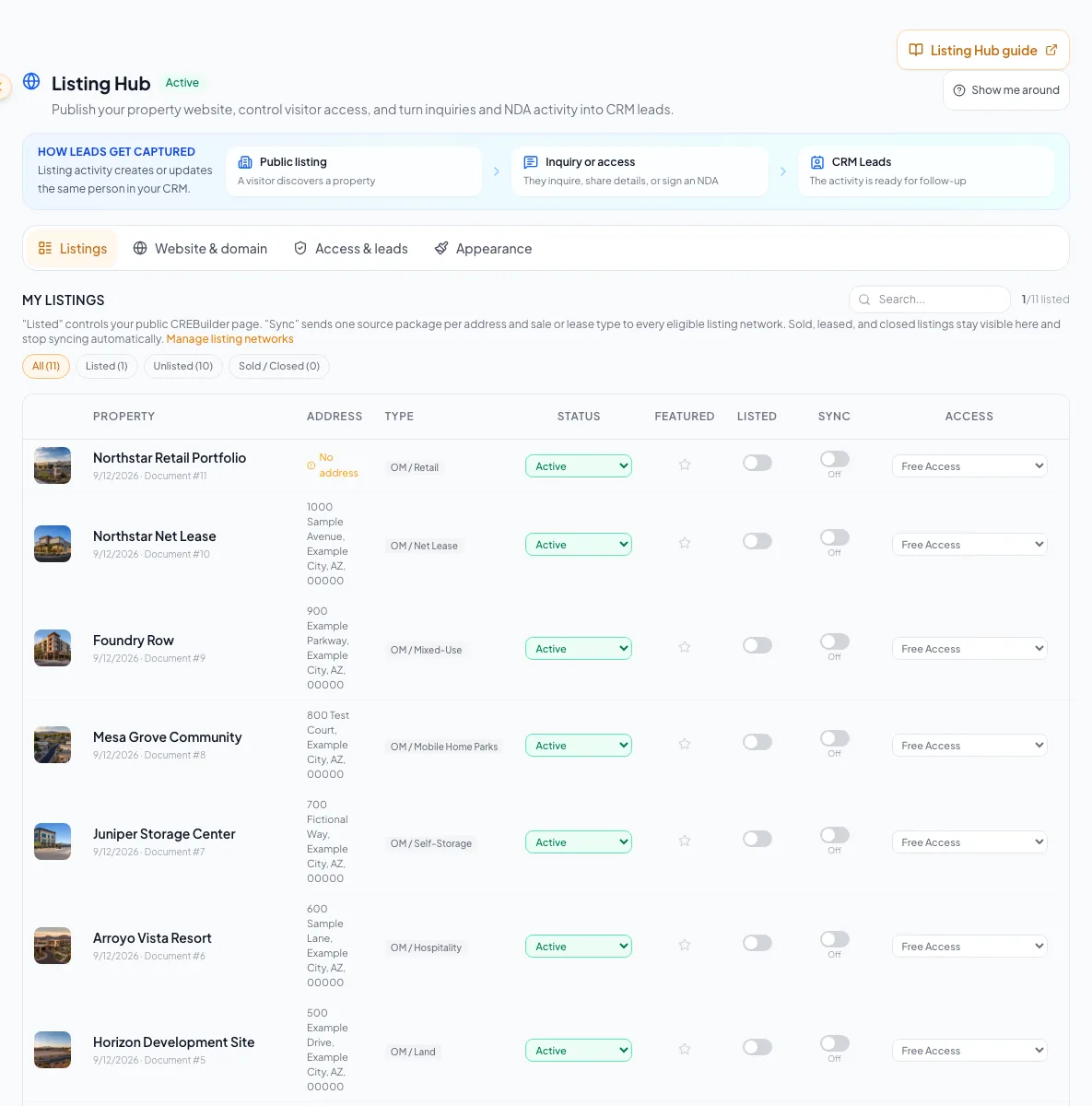
Use Listings, Design & display, Website & embed, Leads & access and Listing sync to manage your public properties. - 3
Find the source document
Listing Hub > Listings
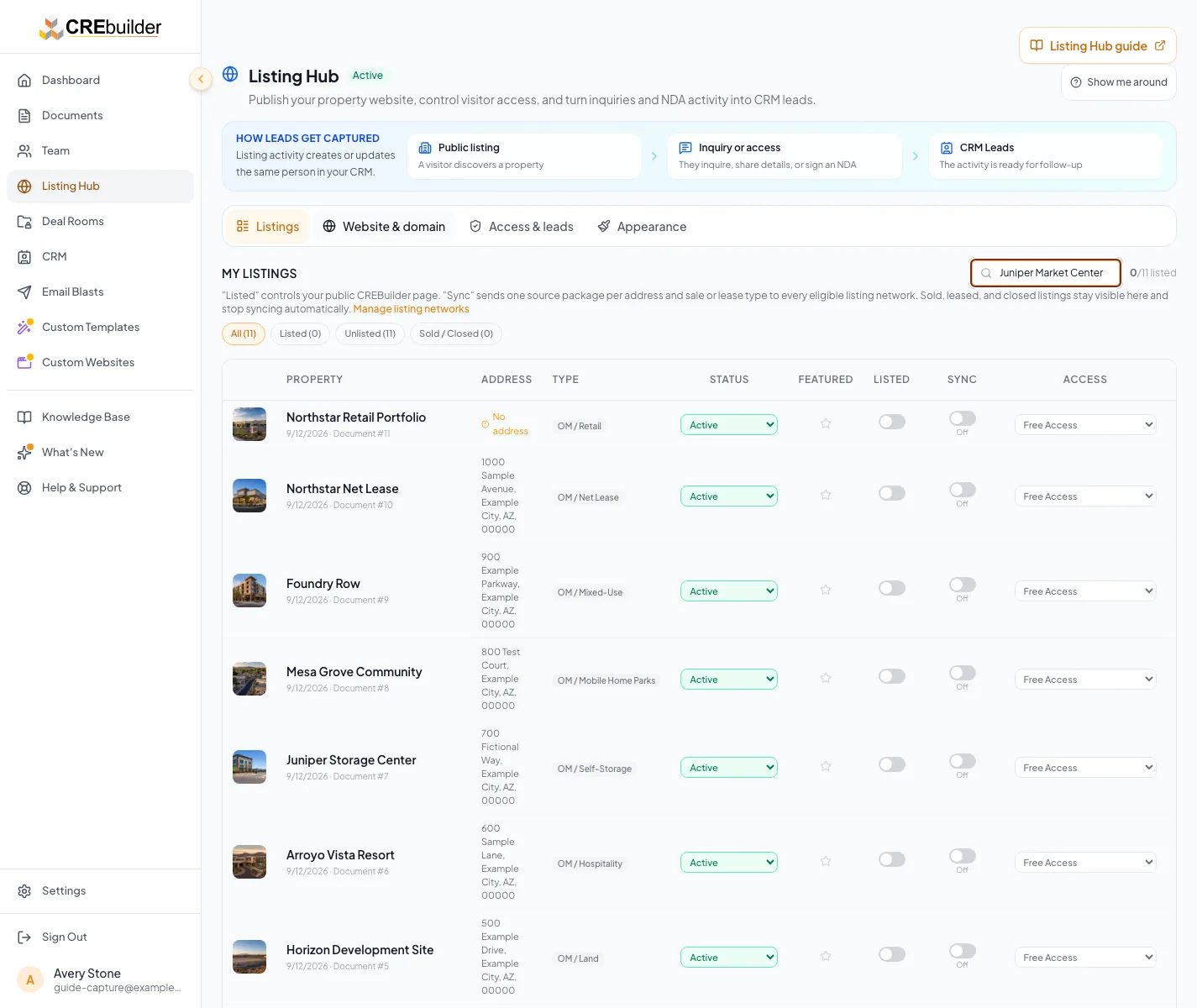
Search for the property row or mobile property card.
Expected result: The matching property and transaction type display.
If this step does not work
Compare the address, package, and document number when similar documents exist.
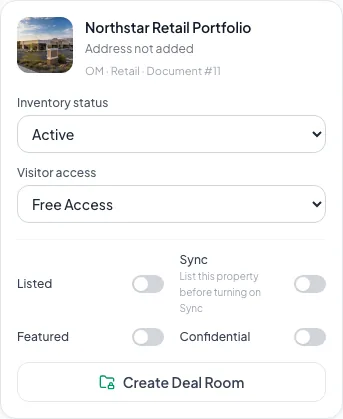
Use the property card controls to manage listings on a phone. - 4
Publish on CREBuilder
Listing row > Website visibility
Turn on Listed.
Expected result: The property is published and follows the saved inventory filter on your Listing Hub.
If this step does not work
Read the disabled reason if publishing is unavailable. Add a cover photo and Add available spaces are optional editor shortcuts, not publishing requirements. The spaces prompt appears only for an editable active or under-contract lease listing with no public displayable spaces.
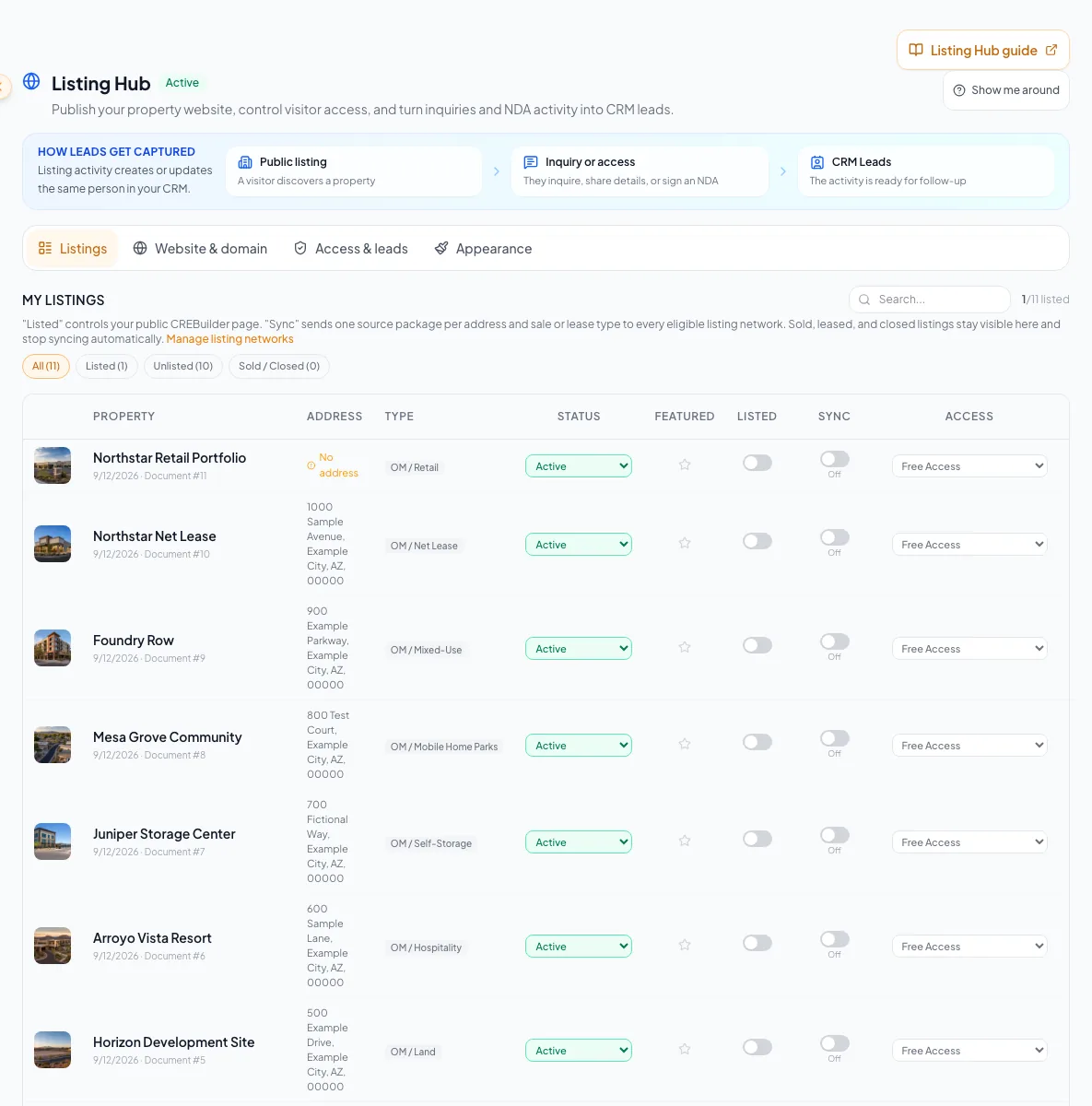
Check the listing publication status after updating it. - 5
Inspect the public page
Listing Hub > View live site
Open the property from your public directory.
Expected result: The property page loads as visitors see it.
If this step does not work
Return to the source document to correct content before syndicating.
After you list the property, open its public page and confirm the photos, price and property facts buyers will see. - 6
Request external distribution
Listing Hub > Listing sync > property
Turn on Sync.
Expected result: A confirmation or eligibility message appears.
If this step does not work
Read any same-address replacement warning before confirming.
- 7
Set inventory status
Listing row > Availability
Select the current inventory status.
Expected result: The row and public page show the selected status.
If this step does not work
Confirm the real-world transaction state before choosing Sold, Fully leased, or Closed.
- 8
Review processing state
Listing Hub > Listing sync
Open Listing sync.
Expected result: Each property shows its sync state and any blocking reason. Admins also see every network’s status and live listing count.
If this step does not work
Turn on Listed before Sync. Allow the network’s normal processing time before treating a pending result as failed.
Publication-control reference
Listed
- What it does
- Shows the property on your CREBuilder Listing Hub. Turning it off also stops Sync.
- What it leaves alone
- Turning it on does not enable Sync
Sync
- What it does
- Sends the listing to every partner network that accepts its transaction type
- What it leaves alone
- Listed (turn that on first)
Availability
- What it does
- Labels the listing Active, Under Contract, Sold, Fully leased, or Closed
- What it leaves alone
- Whether an unlisted property is public
Feature
- What it does
- Places the property first within its availability group when Available first is enabled
- What it leaves alone
- Availability, Listed and the secondary order within the featured group
LandSearch
- Listings it receives
- Sale listings, plus lease listings for land
- Current status
- Live
FindSpaceNow
- Listings it receives
- Lease listings
- Current status
- Live
CRE Traded
- Listings it receives
- Sale listings
- Current status
- Live
CREBrokerList
- Listings it receives
- Sale and lease listings
- Current status
- Coming soon
Saved Sync choice and delivery status
A checked Sync switch records your consent. Sync paused or Needs attention means that choice is still on, but delivery is blocked. You can turn it off while paused. Sync queued is not confirmation that a partner listing is already public. Use Publishing details for the issue and network overview. If status is Unavailable, retry before changing it; a failed request does not mean the property is unlisted or Sync is off.
There is nothing to set up on the networks. CREBuilder manages the partner accounts and creates or updates your broker and company profiles from the listing contacts. Listing Hub > Listing sync shows each network’s current status; Settings > Listing sync shows the same overview.
Flyer labels do not change listing status
Cover Label in Review > Design > Cover Page changes only the flyer cover and newly generated PDFs. Typing Just Sold or Just Leased does not change Listed, Sync, Availability, or public badges. To retire active inventory, set Availability to Sold or Fully leased: the property remains Listed, appears when all properties are shown, and Sync stops, so partner networks remove it after their next feed update. Returning to Active does not turn Sync back on automatically.
Featured and sorting
Feature a property from its row. With Available first enabled, active inventory comes before under-contract and unavailable inventory, and featured properties lead only within each availability group. A featured fully leased property does not move above active properties. The separate featured embed uses available properties and falls back to recent available listings.
Mobile controls are grouped by task
Use the labeled section selector on phones. Availability and Website visibility stay on the property row. Actions > Access & property settings opens visitor access, confidentiality and Deal Room setup. View sync details opens the separate Listing sync section. Desktop users can choose Compact table.
Troubleshooting and next steps
Sync cannot be enabled.
Likely cause: The property may be unlisted, incomplete, duplicated by address and transaction, or a type no live network accepts.
- Turn on Listed first.
- Read the message on the row.
- Correct the source document or resolve the replacement choice.
The property is on your hub but not on a partner network.
Likely cause: Listed and Sync are separate, and networks process feeds on their own schedule.
- Confirm Sync is on.
- Check that the network accepts that transaction type.
- Review Listing sync again after the processing period.
Final verification
- The address and transaction match the intended property
- Listed is on
- Sync matches the seller’s syndication decision
- Availability matches the current inventory state
- The public page looks right in a signed-out window
- No blocking warning, failed status, or unresolved validation message remains in the completed workflow.
Related tasks
Your next OM, done this afternoon
Turn your property facts, photos and financials into a polished, branded offering memorandum. Most brokers finish in 30 to 90 minutes.
No credit card required.