Outcome
Every hosted email you send ends with your signature, exactly as the saved preview shows.
Navigation path
Settings > Email sending > Email signature
Access
Included with any paid CREBuilder plan. Saved drafts and send history stay listed if a subscription lapses.
On this page
Before you start
Data, sources, and access to prepare
- Your final contact details
- A public http(s) logo URL if using a logo
Understand user scope and supported delivery
| Property | Behavior |
|---|---|
| Owner | The signature belongs to the signed-in user, not the entire company. |
| Enabled state | A saved signature is appended only when Include signature is enabled. |
| Sanitization | The server removes unsafe HTML and rejects unsafe logo URLs. |
| Preview source | The preview renders the server’s saved copy, not unsaved text. |
| Hosted message scope | CREBuilder appends the enabled signature to supported hosted blasts, automation emails, and NDA invitation messages. |
Verify each sender separately
One teammate’s signature does not configure another teammate. Each sender should save and inspect their own preview.
Prepare compatible content
Signature HTML Recommended
Concise contact and company block using basic HTML
- Format
- Basic HTML only
- Units
- Characters
- Save behavior
- Stored for the signed-in user when Save signature succeeds.
- Downstream effect
- Supplies the sanitized signature block appended to eligible Email Blasts when enabled.
Logo URL Optional
Optional publicly reachable logo image
- Format
- Public http:// or https:// URL
- Units
- Not applicable
- Save behavior
- Stored with the signed-in user’s signature when Save signature succeeds.
- Downstream effect
- Lets supported email clients request the public logo when the signature renders.
Include signature Required
Controls whether the saved signature is appended
- Format
- On or off toggle
- Units
- Not applicable
- Save behavior
- Stored with the signed-in user’s signature when Save signature succeeds.
- Downstream effect
- Determines whether the saved signature is appended to eligible Email Blasts.
Signature HTML
- Requirement
- Recommended
- What it means
- Concise contact and company block using basic HTML
- Format
- Basic HTML only
- Units
- Characters
- Save behavior
- Stored for the signed-in user when Save signature succeeds.
- Downstream effect
- Supplies the sanitized signature block appended to eligible Email Blasts when enabled.
Logo URL
- Requirement
- Optional
- What it means
- Optional publicly reachable logo image
- Format
- Public http:// or https:// URL
- Units
- Not applicable
- Save behavior
- Stored with the signed-in user’s signature when Save signature succeeds.
- Downstream effect
- Lets supported email clients request the public logo when the signature renders.
Include signature
- Requirement
- Required
- What it means
- Controls whether the saved signature is appended
- Format
- On or off toggle
- Units
- Not applicable
- Save behavior
- Stored with the signed-in user’s signature when Save signature succeeds.
- Downstream effect
- Determines whether the saved signature is appended to eligible Email Blasts.
Required means the field is needed to complete or support this workflow. Some screens allow a draft to save before every required item is complete. The steps and troubleshooting call out controls the product actively blocks.
Save and inspect the server copy
- 1
Open the editor
Settings > Email sending > Email signature
Review the current enabled state, HTML, logo URL, and saved preview.
Expected result: You know what is currently stored for your user.
If this step does not work
If loading fails, retry settings before replacing content.
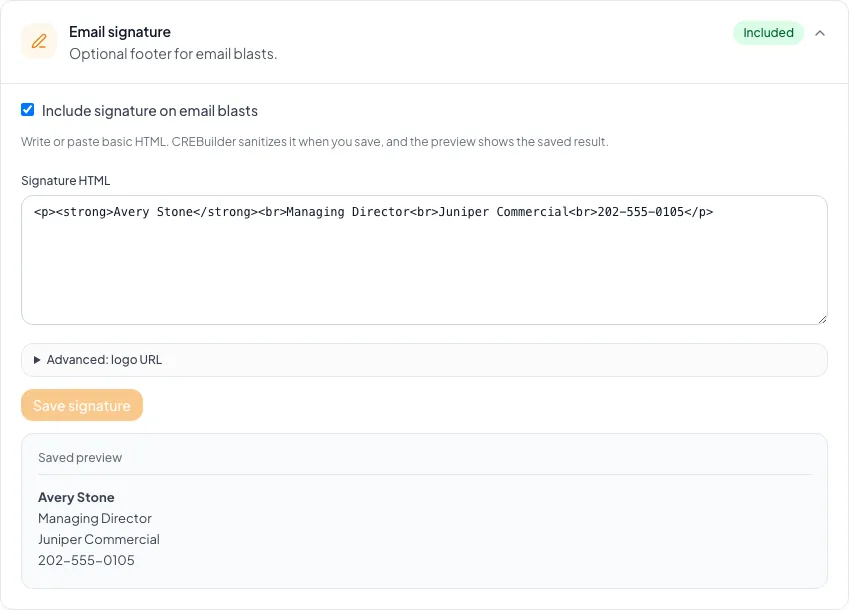
Configure the campaign signature, preview its boundaries, and verify identity and compliance details before sending. - 2
Enter signature content
Email signature editor
Add concise basic HTML and an optional public http(s) logo URL.
Expected result: The draft contains only intended business identity and safe public resources.
If this step does not work
If a logo exists only on a local computer or private drive, publish it to an approved public HTTPS location first.
- 3
Choose the enabled state
Email signature editor > Include signature
Set Include signature to the intended state.
Expected result: The draft reflects whether the signature will be included.
If this step does not work
Leave the signature disabled when the saved content should not be used.
- 4
Save the signature
Email signature editor > Save signature
Select Save signature once.
Expected result: A success or sanitization warning appears and the server copy refreshes.
If this step does not work
If everything was removed or the logo dropped, simplify unsafe HTML or correct the URL before saving again.
- 5
Inspect Saved preview
Email signature > Saved preview
Compare the rendered server copy with the intended signature.
Expected result: The preview shows exactly the sanitized content available to hosted composition.
If this step does not work
Do not rely on the unsaved text area. Correct and save until the preview is accurate.
Resolve stripped or stale signatures
Everything in the signature was removed
Likely cause: The submitted HTML contained only unsafe or unsupported markup.
- Replace it with basic text, links, line breaks, and simple supported formatting.
- Save again.
- Verify Saved preview.
The logo URL was dropped
Likely cause: The value is not a valid http(s) URL.
- Use a complete public HTTPS URL.
- Confirm it loads without authentication.
- Save and verify the preview image.
A previous signature appeared in a held-send recovery
Likely cause: A held campaign keeps the content it was submitted with, so a changed signature is never swapped in silently.
- Read the returned recovery message.
- Do not force-resend the old operation.
- Create a new reviewed send only when the application clearly tells you the prior operation is terminal and safe.
A teammate still has the wrong signature
Likely cause: Signatures are per user.
- Have that teammate open their own Email sending settings.
- Save and verify their server preview.
- Do not share login credentials to configure it.
Final verification
- Email signature editor: The draft contains only intended business identity and safe public resources.
- Email signature editor > Include signature: The draft reflects whether the signature will be included.
- Email signature editor > Save signature: A success or sanitization warning appears and the server copy refreshes.
- Email signature > Saved preview: The preview shows exactly the sanitized content available to hosted composition.
- No blocking warning, failed status, or unresolved validation message remains in the completed workflow.
Your next OM, done this afternoon
Turn your property facts, photos and financials into a polished, branded offering memorandum. Most brokers finish in 30 to 90 minutes.
No credit card required.