Outcome
You have a polished, mobile-ready property email, for one listing or a whole portfolio, saved and ready to send.
Navigation path
Email Blasts > New email blast or Draft > Composer
Access
Included with any paid CREBuilder plan. Saved drafts and send history stay listed if a subscription lapses.
On this page
Before you start
Data, sources, and access to prepare
- One completed document for single-property mode or at least two for multiple-property mode
- Current property images, metrics, broker profile, and listing links
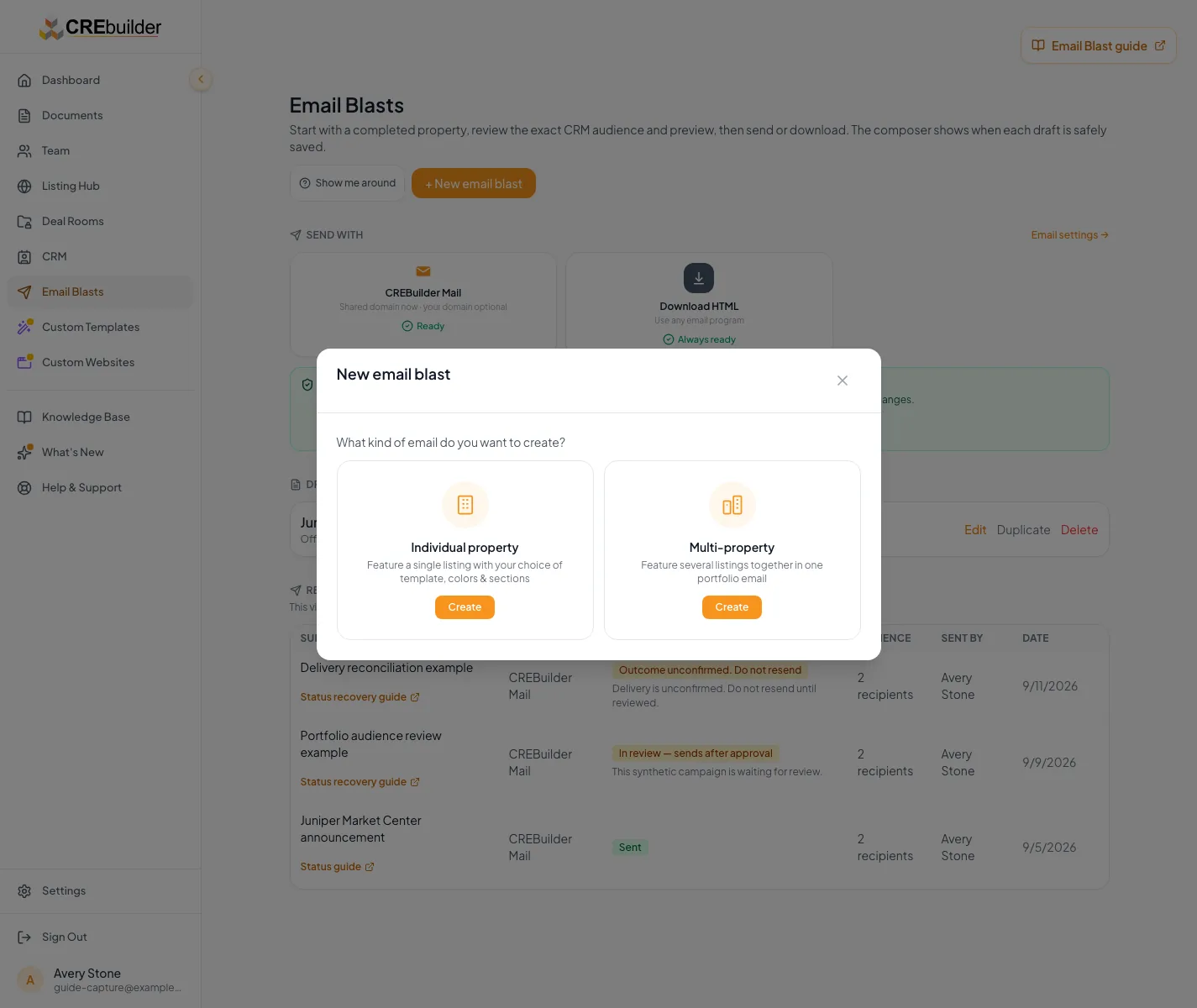
Choose the composer mode before designing
Single property
- Best for
- One sale, lease, or BOV listing
- Design behavior
- Four templates, section controls, gallery selection, property metrics, inline content, and optional website CTA
Multiple properties
- Best for
- A portfolio or selection of at least two listings
- Design behavior
- Fixed portfolio hero and property cards, with shared colors, fonts, and eligible property website links
Hidden controls are intentional
Portfolio mode does not expose the single-property template, section, gallery, or metrics controls. Use the mode that matches the actual message rather than looking for hidden settings.
Build and preview the campaign
- 1
Confirm source properties and method
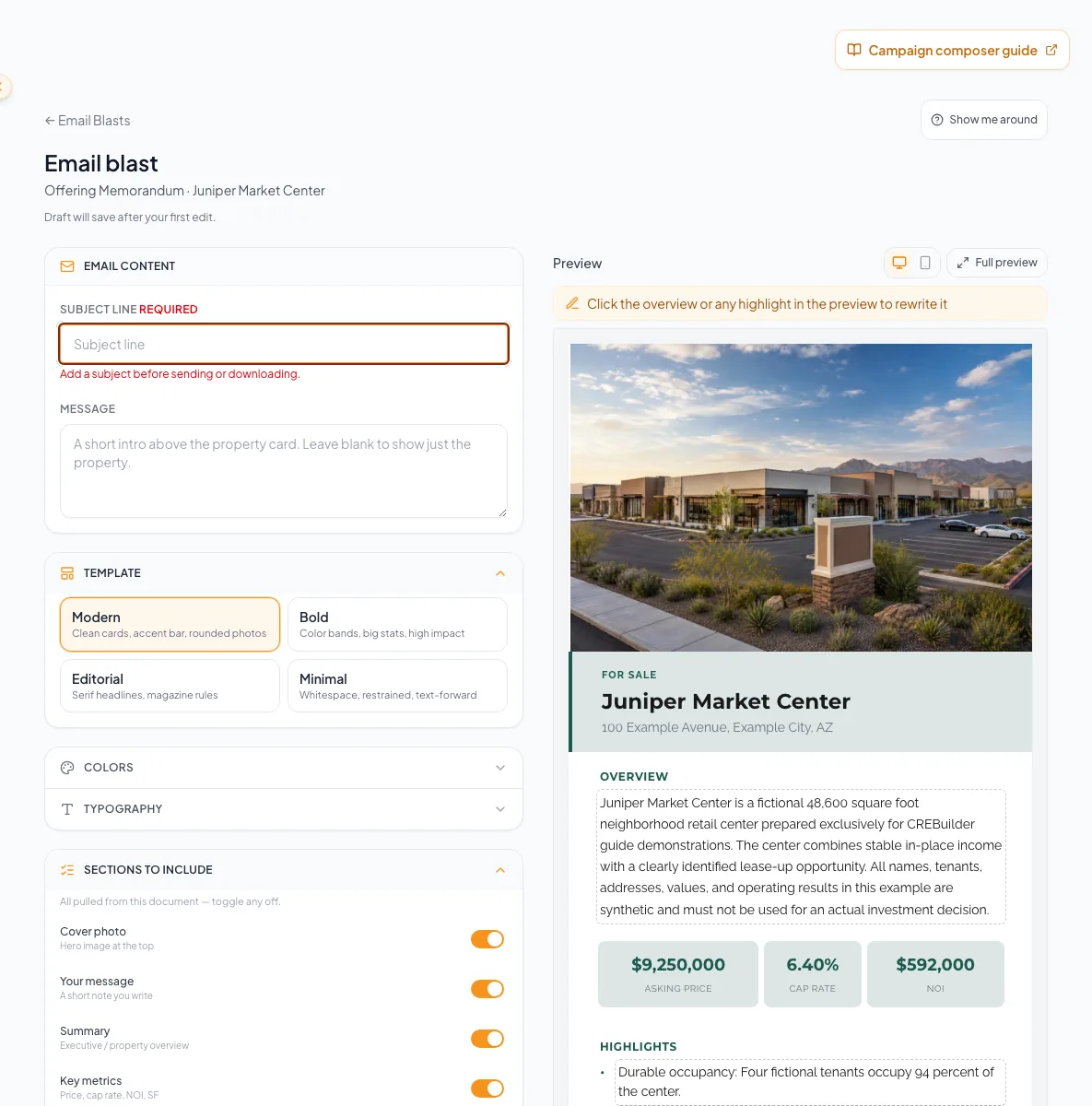
Email Blast composer header and Send with area
Verify the selected document or documents and whether Send with is CREBuilder Mail or Download / other apps.
Expected result: The campaign structure and delivery boundary are correct before content work.
If this step does not work
If the wrong source was selected, return to the hub and start the correct draft. Do not disguise it by editing only the title.
- 2
Write the subject
Composer > Subject line
Enter a specific subject of no more than 300 characters.
Expected result: Preview shows a clear, audience-appropriate subject.
If this step does not work
If the subject exceeds the limit or lacks context, shorten it before audience work.
Create a campaign and choose Single-property or Multi-property before editing content and building the audience. - 3
Write the message
Composer > message controls
Enter the intended introduction or portfolio message.
Expected result: Preview updates with the campaign message.
If this step does not work
Remove unsupported or ambiguous claims before audience work.
- 4
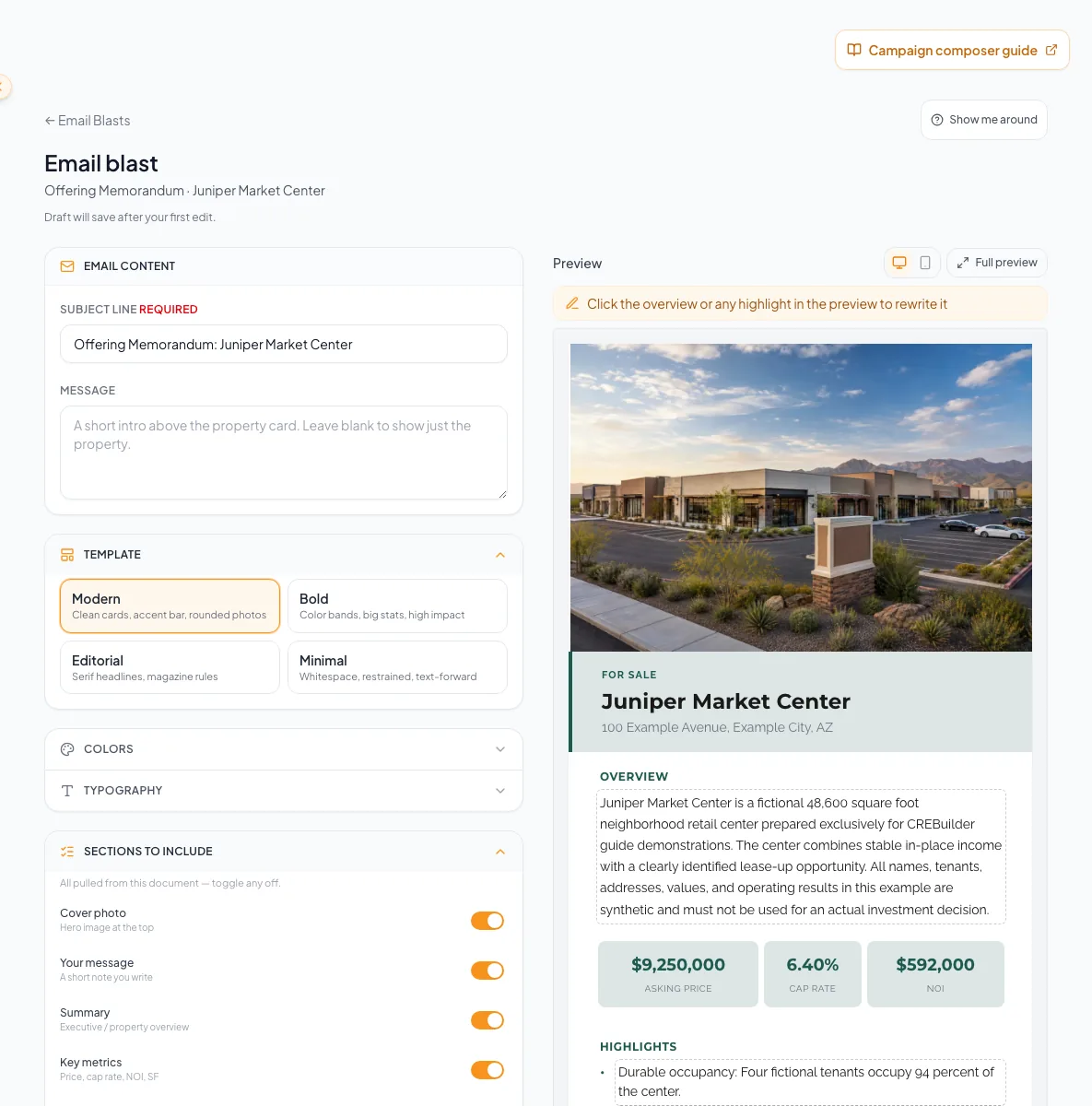
Apply available design controls
Composer > Design
Configure only the controls offered for the current mode.
Expected result: The visual hierarchy supports the message without hiding required facts.
If this step does not work
If a control is absent, check whether the campaign is in portfolio mode.
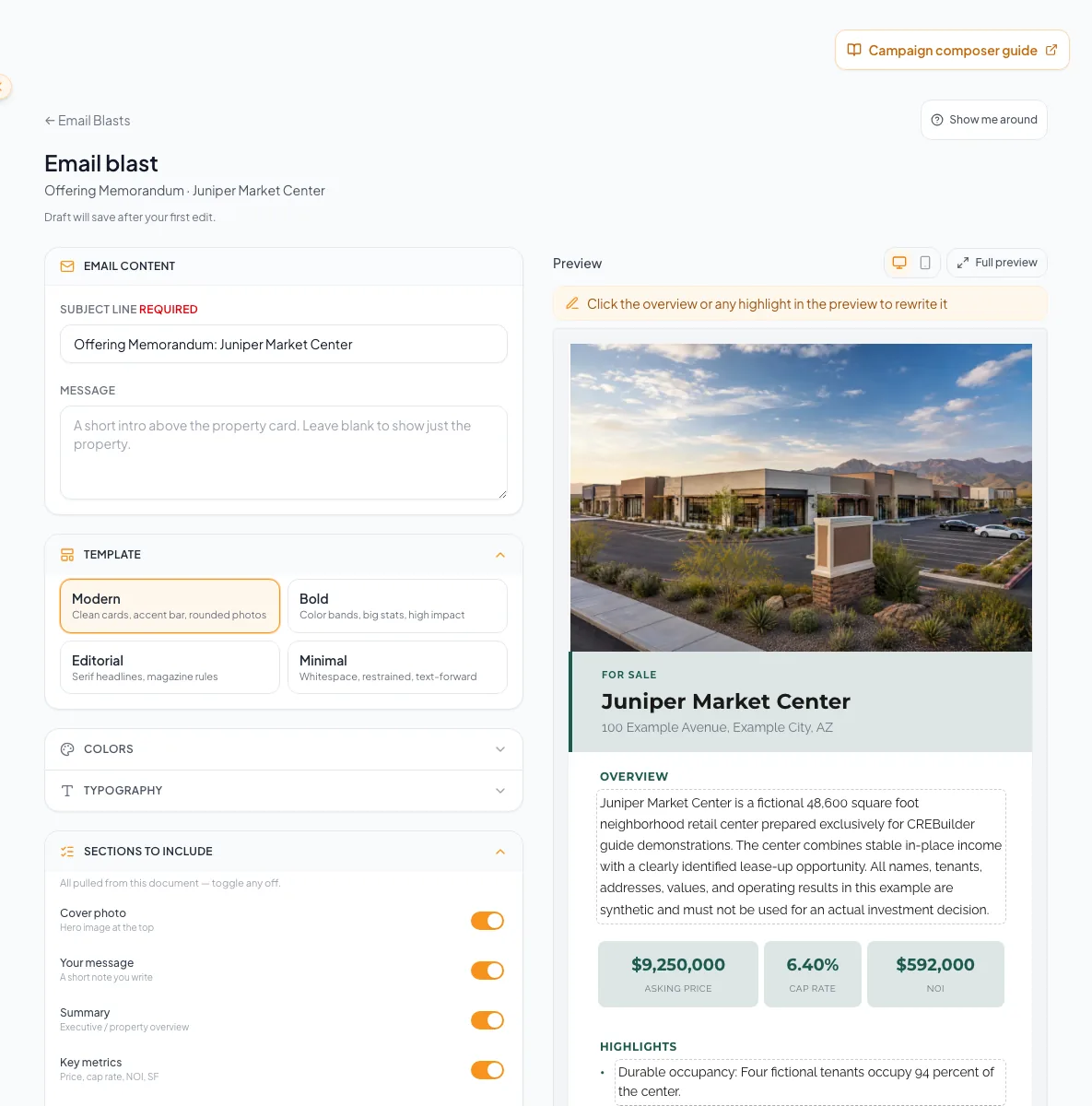
Edit the campaign content and apply the change. - 5
Review campaign content
Composer > Preview
Inspect images, metrics, links, broker identity, and footer context.
Expected result: Every visible campaign element is current and relevant.
If this step does not work
Correct the source property or campaign control for the first mismatch.
- 6
Open each responsive preview
Composer > Preview width selector
Switch between Desktop and Mobile.
Expected result: The preview renders at each supported width.
If this step does not work
Reload the composer if a preview mode does not render.
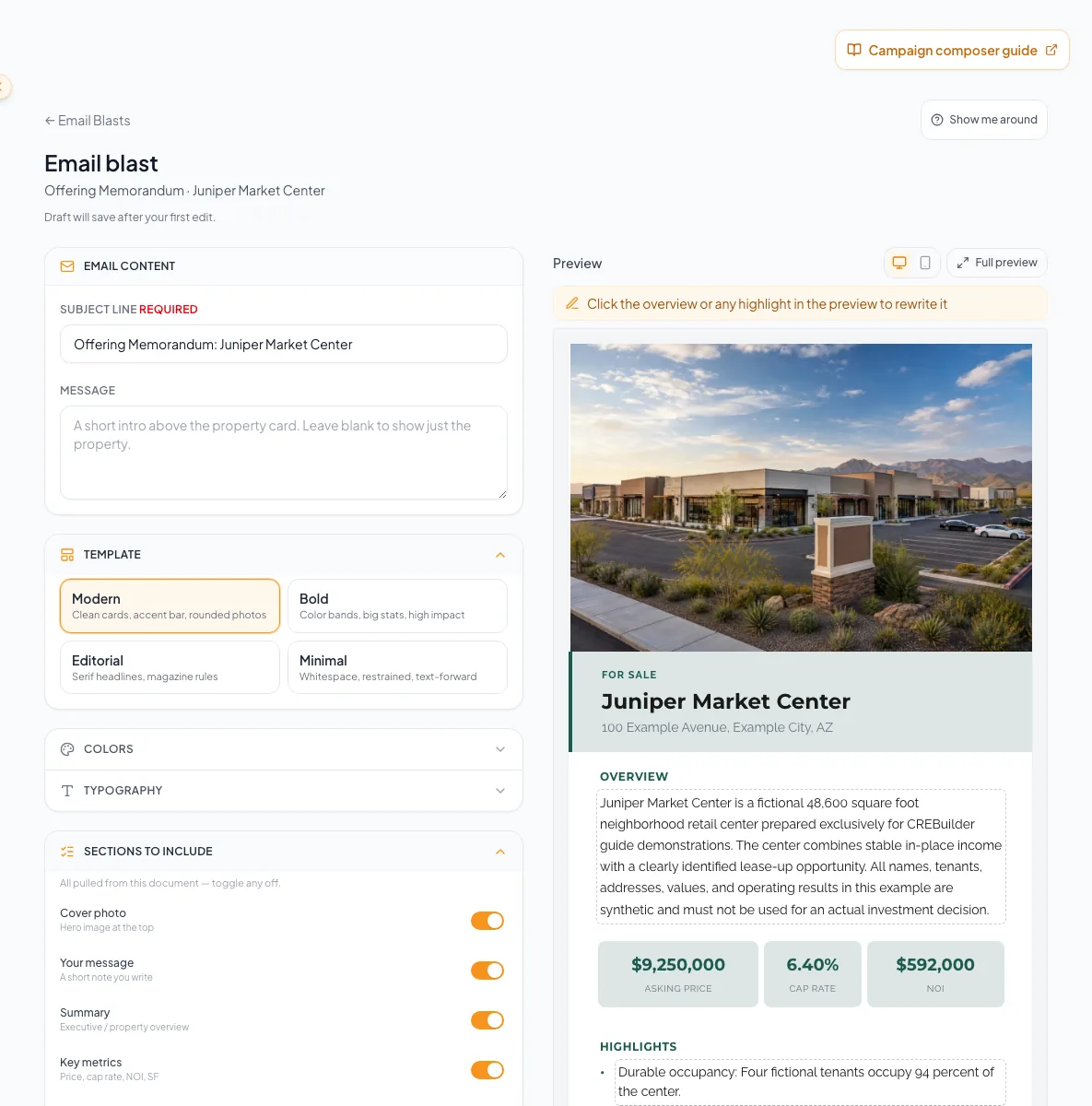
Switch to the mobile preview to check how the campaign reads on a phone. - 7
Read the full preview
Composer > Full preview
Open the full preview.
Expected result: Content, cropping, links, spacing, and footer remain readable at both widths.
If this step does not work
If content is clipped or a link is unavailable, correct the source property or design before proceeding.
Understand autosave, recipients, and delivery
Draft to outcome
Design is autosaved, but recipient files and delivery require separate explicit actions.
Edit campaign
Draft autosaves after about 1.2 seconds
Build and review audience
Hosted preflight and send
Download HTML
No recipients
- Edit campaignDraft autosaves after about 1.2 seconds
- Draft autosaves after about 1.2 secondsBuild and review audience
- Build and review audienceHosted preflight and send
- Draft autosaves after about 1.2 secondsDownload HTML
Important draft boundaries
- A current-property workflow can resume its draft.
- An imported recipient file is never stored with the draft and must be re-imported after reload or later return.
- A matched audience handoff opens context but does not insert or send until the user explicitly reviews and inserts it.
- Download HTML contains design, not a recipient list or a delivery event.
- There is no in-app campaign scheduling control. Send now through hosted Mail or schedule in an external platform after downloading HTML.
Download HTML for an external email platform
Already using another email platform? Download your finished design and send it from there. This is also the way to reach a list larger than the 500-recipient CREBuilder Mail limit, or to schedule a send for later. Finish the same property and design review before you download.
- 1
Select the HTML method
Composer > Send with > Download / other apps
Select Download / other apps.
Expected result: The card shows No setup needed and the main button changes to Download HTML.
If this step does not work
If the main button still reads Send, select Download / other apps again.
- 2
Inspect the desktop preview
Composer > Preview > Desktop preview
Select Desktop preview.
Expected result: The campaign appears at desktop width for review.
If this step does not work
Correct the source property or campaign design when the desktop layout is wrong.
- 3
Inspect the mobile preview
Composer > Preview > Mobile preview
Select Mobile preview.
Expected result: The campaign appears at mobile width for review.
If this step does not work
Shorten or adjust the campaign content when the mobile layout is difficult to read.
- 4
Open the full preview
Composer > Preview > Full preview
Open Full preview.
Expected result: The complete campaign is available from its introduction through the footer.
If this step does not work
If the preview does not render, close it and retry before downloading.
- 5
Read the complete campaign
Composer > Full preview
Inspect the complete message, image crops, property links, broker information, and footer.
Expected result: Every visible campaign element is accurate and readable at the selected width.
If this step does not work
Close the preview, correct the first mismatch, and inspect the result again.
- 6
Download the HTML file
Composer > Download HTML
Select Download HTML once.
Expected result: The browser downloads a file ending in -email.html and CREBuilder reports Email HTML downloaded.
If this step does not work
If CREBuilder asks for a subject, complete the Subject line. If an error appears or the file is absent, read the error and check browser download permissions before retrying.
- 7
Open the downloaded file
Browser downloads > saved -email.html file
Open the saved -email.html file.
Expected result: The browser displays the exported campaign design.
If this step does not work
If the file is absent, check the browser download result before requesting a replacement.
- 8
Compare the saved design
Browser > opened -email.html file
Compare the downloaded campaign with the reviewed composer.
Expected result: Images, wording, links, broker details, and footer match the intended announcement.
If this step does not work
Return to the composer to correct a mismatch, then download and inspect the replacement file.
- 9
Import the design into your email platform
Your approved external email platform
Import the checked HTML file into your external email platform.
Expected result: The imported design is ready for that platform's own preview and delivery review.
If this step does not work
Use the external platform's test-email tools to check rendering again.
- 10
Complete the external sending checks
Your approved external email platform
Complete your external platform's sending checklist before sending or scheduling.
Expected result: The audience, consent, unsubscribe, sender identity, test email, and delivery method have been reviewed in the system that owns the actual send.
If this step does not work
A CREBuilder download is not evidence that any recipient received an email. Follow the external platform's controls for scheduling and delivery results.
Your platform sends it
The download is the finished design. Your external platform supplies the recipient list, handles scheduling and sending, and reports its own delivery results.
Recover design and mode problems
A control described for single property is missing
Likely cause: The campaign is in multiple-property mode, where the portfolio layout is fixed.
- Confirm the selected property count.
- Use portfolio colors, fonts, message, and property cards.
- Start a separate single-property campaign when detailed sections are required.
Recipient file disappeared after returning
Likely cause: Imported files are intentionally not stored with drafts.
- Re-import the original file.
- Review its count and provenance again.
- Do not assume the old audience is still attached.
The requested property website link is unavailable
Likely cause: Listing Hub is disabled, a source property is unpublished, or link status could not be confirmed.
- Read the composer availability label.
- Publish every included property when appropriate.
- Retry status before enabling the CTA.
- Do not paste an unverified public link into campaign content.
You need a scheduled send
Likely cause: CREBuilder Mail does not currently expose campaign scheduling; it sends when you select Send.
- Send when the campaign is ready.
- Or choose Download / other apps and set the send time in your email platform.
Final verification
- The selected property or properties, subject, message, images, metrics, broker details, and links match the intended campaign.
- Desktop, Mobile, and Full preview show the complete campaign with readable content and the intended image crops.
- The draft has finished autosaving before you leave the composer.
- For CREBuilder Mail: continue to the audience and preflight guides. Designing or saving the draft does not send it.
- For Download HTML: inspect the saved -email.html file against the preview, then complete the sending checks in your external email platform.
Related tasks
Your next OM, done this afternoon
Turn your property facts, photos and financials into a polished, branded offering memorandum. Most brokers finish in 30 to 90 minutes.
No credit card required.