Outcome
You will save a complete map card, confirm its page title and rendered document output, and recover safely from common save problems.
Navigation path
Document Wizard > Maps > Map Builder > Save Map
Access
Available for documents with a Maps section and edit permission.
On this page
Before you start
Data, sources, and access to prepare
- A complete map with a verified subject location
- No unresolved or off-canvas overlays
Prepare these details
- Center the intended geographic area
- Inspect all overlays and leader lines
- Decide the document-page title
- Allow the base map and logos to finish loading
Complete the task
- 1
Run the editor check
Map Builder canvas
Inspect the full map at the intended extent.
Expected result: No overlay is selected, clipped, duplicated, or misleading.
If this step does not work
Correct the visible issue before saving.
- 2
Save the map
Map Builder
Select Save Map once.
Expected result: CREBuilder begins capturing the map.
If this step does not work
Keep the editor open while Capturing map is visible.
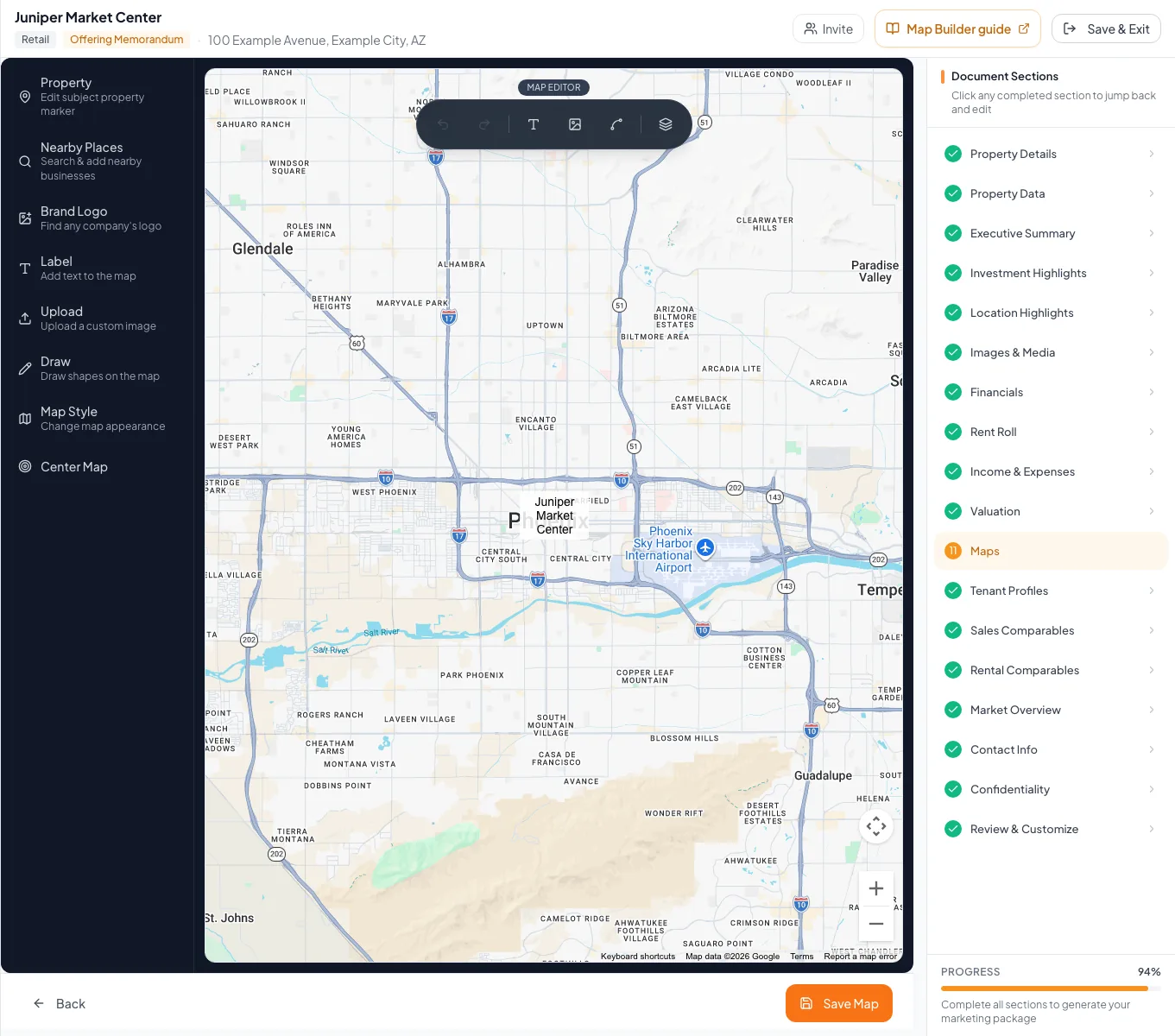
Save the completed map, confirm it appears in the document, and recover when a map or marker does not persist. - 3
Wait for completion
Map Builder
Wait until the editor closes or reports completion.
Expected result: The Maps section displays a saved map card.
If this step does not work
Retry once only after a clear failure message; do not create duplicate captures.
- 4
Set the page title
Maps > saved map card
Edit the title shown below the map thumbnail.
Expected result: The card shows the intended document-page heading.
If this step does not work
Use a short title such as Location Map or Nearby Amenities if the heading wraps awkwardly.
- 5
Open the map page
Review & Customize
Select the generated map page.
Expected result: The page shows the saved map and title.
If this step does not work
Return to the map card edit control if the capture is stale or incomplete.
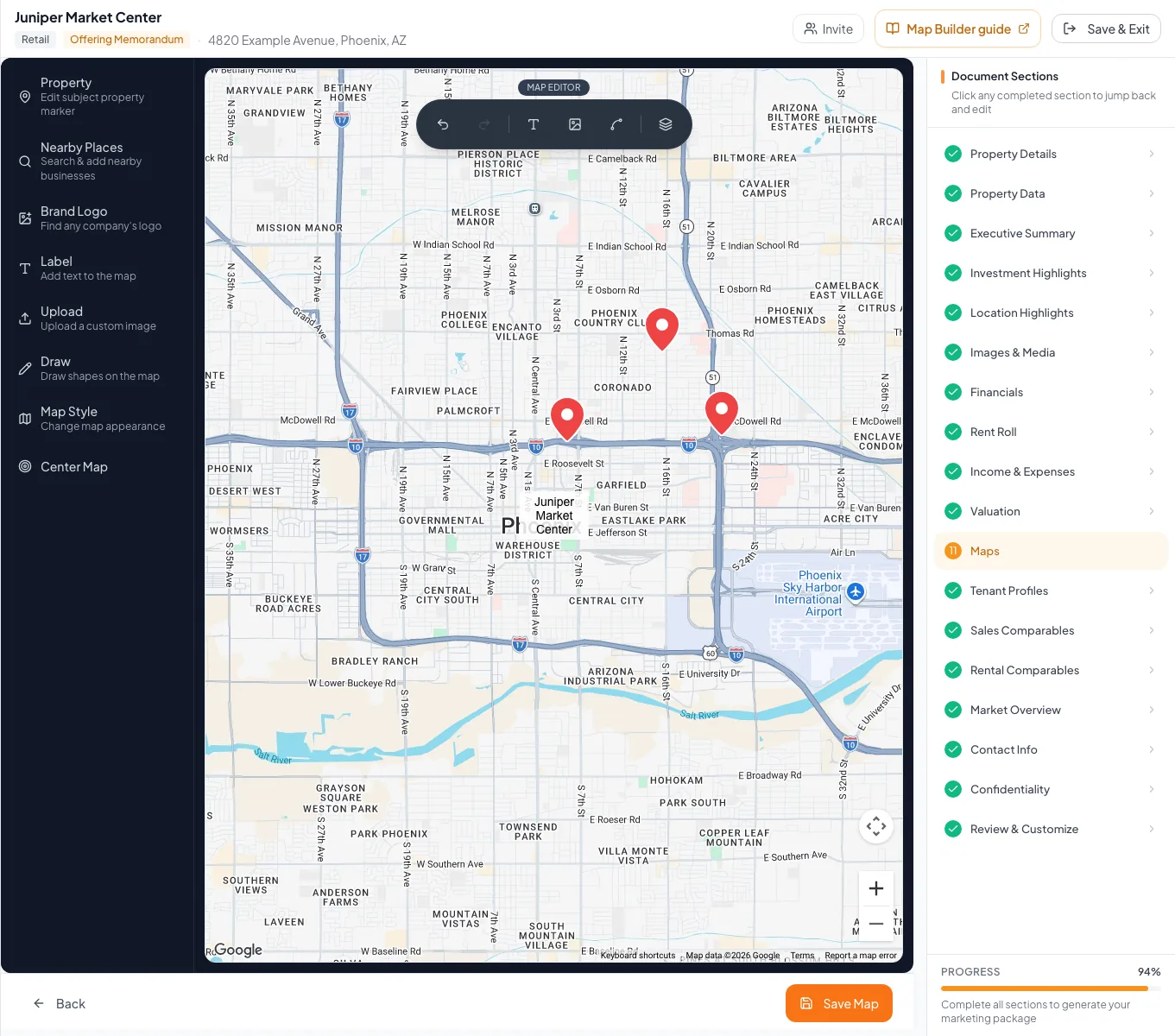
A finished retail map shows nearby brand logos around the subject property. - 6
Generate a fresh PDF
Review & Customize
Select Download PDF after the corrected map is saved.
Expected result: The new PDF contains the verified map page.
If this step does not work
Confirm the latest save completed before retrying PDF generation.
Saved-map checks
| Symptom | Check first |
|---|---|
| Blank or partial capture | Base tiles and logos finished loading before Save Map |
| Old map in PDF | Correct map card saved before the PDF was regenerated |
| Wrong page heading | Title below the saved map card |
| Wrong center | Property address or portfolio building coordinates |
Troubleshooting and next steps
The map capture is blank or incomplete.
Likely cause: Map tiles, logos, or fonts may not have finished loading before capture.
- Reopen the map card.
- Wait for all visible resources to load.
- Save the map again.
Leaving the editor triggers an unsaved-changes warning.
Likely cause: The current editor state differs from the last saved capture.
- Cancel navigation.
- Select Save Map and wait for completion before leaving.
Final verification
- A saved map card is visible
- The card title is correct
- The Review page matches the editor composition
- The new PDF uses the latest map
- No third-party editor chrome appears in the output
- No blocking warning, failed status, or unresolved validation message remains in the completed workflow.
Your next OM, done this afternoon
Turn your property facts, photos and financials into a polished, branded offering memorandum. Most brokers finish in 30 to 90 minutes.
No credit card required.