Outcome
You will create a focused nearby-place layer whose locations and brand identities have been individually verified.
Navigation path
Document Wizard > Maps > Map Builder > Nearby Places
Access
Available inside the embedded Map Builder when Maps is part of the document.
On this page
Before you start
Data, sources, and access to prepare
- An open map centered on the verified subject property
- A defined audience and map purpose
Prepare these details
- Write the one conclusion the map should communicate
- Choose relevant categories such as grocery, retail, restaurants, schools, banks, medical, hotels, or employers
- Set a practical geographic extent before searching
Complete the task
- 1
Open Nearby Places
Map Builder > Map tools or visible controls
Select Nearby Places.
Expected result: The nearby-place search panel opens.
If this step does not work
Center the map before searching if the intended area is not visible.
- 2
Choose a quick category
Nearby Places
Select one category that supports the map purpose.
Expected result: Search results appear for the visible area.
If this step does not work
Use a specific manual query if the category is too broad.
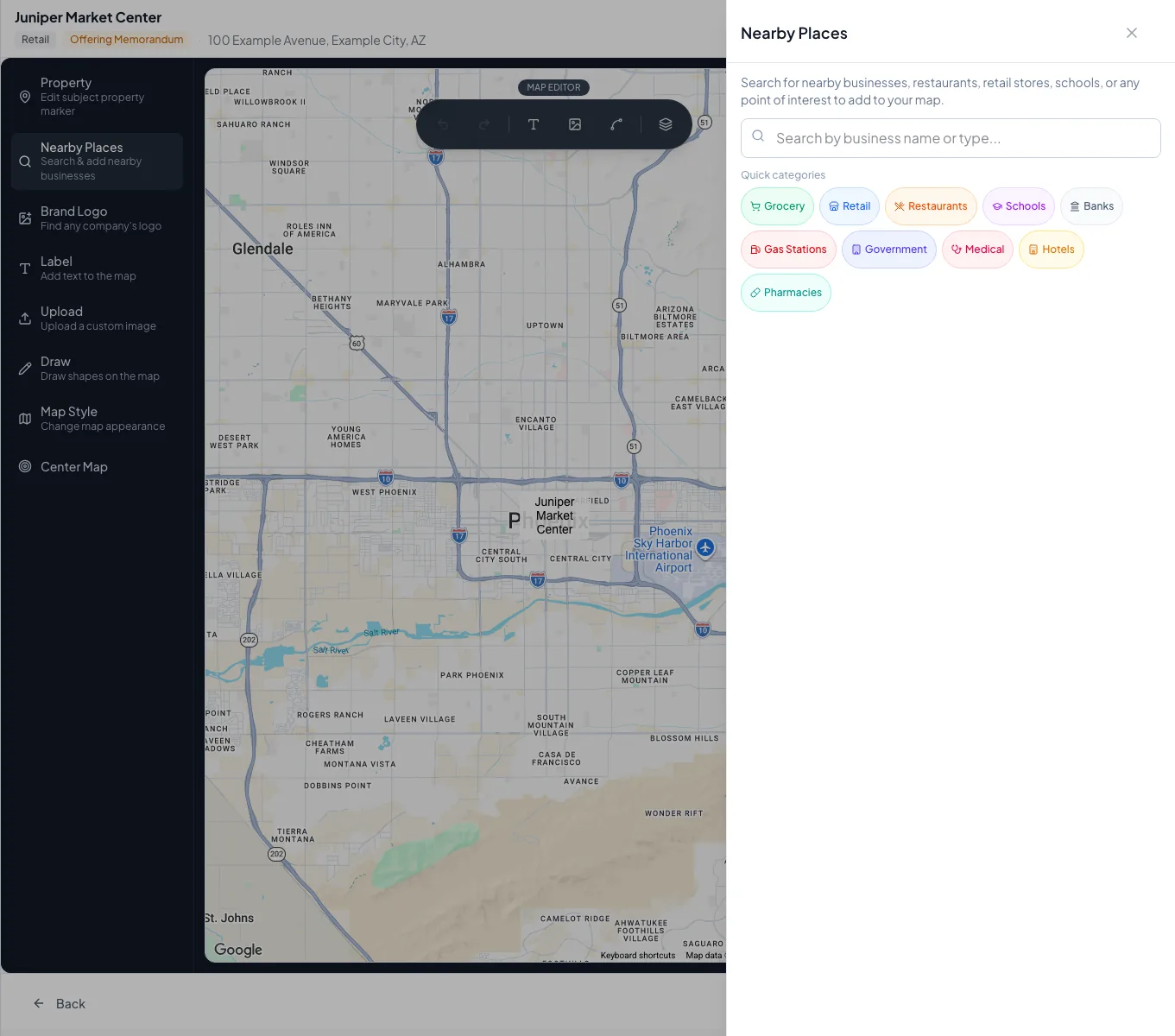
Add only relevant nearby places, verify their map positions, and keep the map focused on the investment story. - 3
Review one result
Nearby Places results
Select one candidate result for inspection.
Expected result: Its identity and location can be compared with the map.
If this step does not work
Skip any result whose branch, address, or status cannot be verified.
- 4
Place the result
Nearby Places result
Select the action that adds the verified place.
Expected result: A business logo or place marker appears at its mapped location.
If this step does not work
Remove the overlay if the logo or location is misleading.
- 5
Repeat the focused search
Nearby Places
Run one additional specific category or business search.
Expected result: The result set addresses another necessary part of the map story.
If this step does not work
Stop adding results when the canvas becomes difficult to scan.
- 6
Inspect the full map
Map canvas
Close the search panel to review the composition.
Expected result: The subject and important nearby places remain visually distinct.
If this step does not work
Remove low-value places before rearranging the remaining overlays.
Map-purpose examples
Retail trade area
- Useful place types
- Major retailers, grocery, restaurants, access points
- Avoid
- Every small business in view
Office or medical context
- Useful place types
- Employment centers, hospitals, transit, amenities
- Avoid
- Unverified proposed facilities
Hospitality demand
- Useful place types
- Airports, venues, employers, hospitals, attractions
- Avoid
- Places unrelated to room demand
Regional orientation
- Useful place types
- Highways, cities, airports, major anchors
- Avoid
- Dense neighborhood-level labels
Troubleshooting and next steps
Search returns the wrong branch.
Likely cause: A broad business name can match several locations.
- Compare the mapped position with the verified address.
- Use a more specific query or skip the result.
The map is cluttered.
Likely cause: Too many results or categories were added.
- Remove overlays that do not change the reader’s conclusion.
- Keep only the strongest verified demand generators.
Final verification
- Every placed result is the correct branch or location
- The selection supports one stated map purpose
- The subject marker remains dominant
- No logo implies a tenant or relationship that does not exist
- No blocking warning, failed status, or unresolved validation message remains in the completed workflow.
Your next OM, done this afternoon
Turn your property facts, photos and financials into a polished, branded offering memorandum. Most brokers finish in 30 to 90 minutes.
No credit card required.