Outcome
Every building or parcel has its own complete facts, and nothing shows up under the wrong property.
Navigation path
Document wizard > Buildings & Properties > Property Details > Property Data
Access
A multi-property document
On this page
Before you start
Data, sources, and access to prepare
- A saved list of building or parcel records
- Verified facts for each record
Keep ownership explicit
Building data ownership
The document contains records, and each record owns its own physical and financial details.
Document
Shared portfolio or campus context
Building Record
Name, type, address, coordinates
Property Data
Flexible label and value rows
Linked Financial Rows
Tenants, vacancies, income, expenses
Building Sections
Correct facts under the correct name
- DocumentBuilding Record
- Building RecordProperty Data
- Building RecordLinked Financial Rows
- Property DataBuilding Sections
- Linked Financial RowsBuilding Sections
Name, type, address
- Location
- Buildings & Properties card
- Scope
- One building or parcel
Flexible facts
- Location
- Property Data building accordion
- Scope
- One building or parcel
Shared document narrative
- Location
- Other wizard narrative steps
- Scope
- Whole document unless the page offers building sections
Tenant and vacancy rows
- Location
- Multi-property Rent Roll accordion
- Scope
- Selected building
Income and expense rows
- Location
- Multi-property Income & Expenses accordion
- Scope
- Selected building or legacy portfolio-wide pool
Complete each property record
Deletion cascades
Deleting a building permanently deletes its linked tenants, vacancies, expense items, and additional-income items. The confirmation lists counts. This action cannot be undone.
Name Required
Building Name for most records or Parcel Name for a Land record.
- Format
- Plain text
- Units
- Not applicable
- Save behavior
- Typing triggers a per-building 400 ms debounced save; verify the collapsed card retains the value.
- Downstream effect
- Names the record in card headers, per-building data areas, financial accordions, and final sections.
Property Type Recommended
Individual asset type for the record.
- Format
- Select one supported property type
- Units
- Not applicable
- Save behavior
- The building update saves after the selection change through the per-field 400 ms debounce.
- Downstream effect
- Controls labels, suggested facts, and financial editor behavior for that building without changing other records.
Address Recommended
Search-selected location.
- Format
- Select a verified address or parcel-search result
- Units
- Postal address
- Save behavior
- Selecting a result saves its address components and any successful geocode together for the selected record.
- Downstream effect
- Populates the record location and coordinates used by maps and demographics.
Property Data Rows Recommended
Editable label and value pairs such as Building SF, units, acreage, year built, or zoning.
- Format
- Plain-text label with a source-formatted value
- Units
- Use the unit named by each row label
- Save behavior
- Each add, edit, delete, or reorder starts a save for that building Property Data collection.
- Downstream effect
- Displays facts under the selected building section and keeps them separate from sibling-building data.
Sequence Recommended
Order of cards and final building sections.
- Format
- Drag or keyboard-defined list position
- Units
- Ordinal position
- Save behavior
- A reorder action saves the full ordered building-ID list; a failed request rolls the visible order back.
- Downstream effect
- Controls card order and the sequence of generated building or parcel sections.
Name
- Requirement
- Required
- What it means
- Building Name for most records or Parcel Name for a Land record.
- Format
- Plain text
- Units
- Not applicable
- Save behavior
- Typing triggers a per-building 400 ms debounced save; verify the collapsed card retains the value.
- Downstream effect
- Names the record in card headers, per-building data areas, financial accordions, and final sections.
Property Type
- Requirement
- Recommended
- What it means
- Individual asset type for the record.
- Format
- Select one supported property type
- Units
- Not applicable
- Save behavior
- The building update saves after the selection change through the per-field 400 ms debounce.
- Downstream effect
- Controls labels, suggested facts, and financial editor behavior for that building without changing other records.
Address
- Requirement
- Recommended
- What it means
- Search-selected location.
- Format
- Select a verified address or parcel-search result
- Units
- Postal address
- Save behavior
- Selecting a result saves its address components and any successful geocode together for the selected record.
- Downstream effect
- Populates the record location and coordinates used by maps and demographics.
Property Data Rows
- Requirement
- Recommended
- What it means
- Editable label and value pairs such as Building SF, units, acreage, year built, or zoning.
- Format
- Plain-text label with a source-formatted value
- Units
- Use the unit named by each row label
- Save behavior
- Each add, edit, delete, or reorder starts a save for that building Property Data collection.
- Downstream effect
- Displays facts under the selected building section and keeps them separate from sibling-building data.
Sequence
- Requirement
- Recommended
- What it means
- Order of cards and final building sections.
- Format
- Drag or keyboard-defined list position
- Units
- Ordinal position
- Save behavior
- A reorder action saves the full ordered building-ID list; a failed request rolls the visible order back.
- Downstream effect
- Controls card order and the sequence of generated building or parcel sections.
Required means the field is needed to complete or support this workflow. Some screens allow a draft to save before every required item is complete. The steps and troubleshooting call out controls the product actively blocks.
Enter and verify per-building data
Building-data steps
- 1
Open the building card
Buildings & Properties
Expand the intended record.
Expected result: The record fields are visible for review.
If this step does not work
Compare the card header with your source if the wrong record opens.
- 2
Verify the building identity
Expanded building card
Compare the name, type, and address with your source.
Expected result: The correct identity appears in the card header.
If this step does not work
Correct the record before adding downstream data if any field is wrong.
- 3
Search for the address
Expanded card, Address
Enter the exact address or parcel search terms.
Expected result: Matching address or parcel results appear.
If this step does not work
Use Search by Parcel when address search cannot identify Land.
- 4
Select the valid address
Expanded card, Address results
Select the exact address or parcel result.
Expected result: Street, city, state, ZIP, latitude, and longitude are saved.
If this step does not work
Clear the selection and search again if the coordinates or address are wrong.
- 5
Open the building data accordion
Property Data
Expand the building or parcel whose facts you are entering.
Expected result: Its current data rows and available fields appear.
If this step does not work
Compare the accordion name with your source before editing.
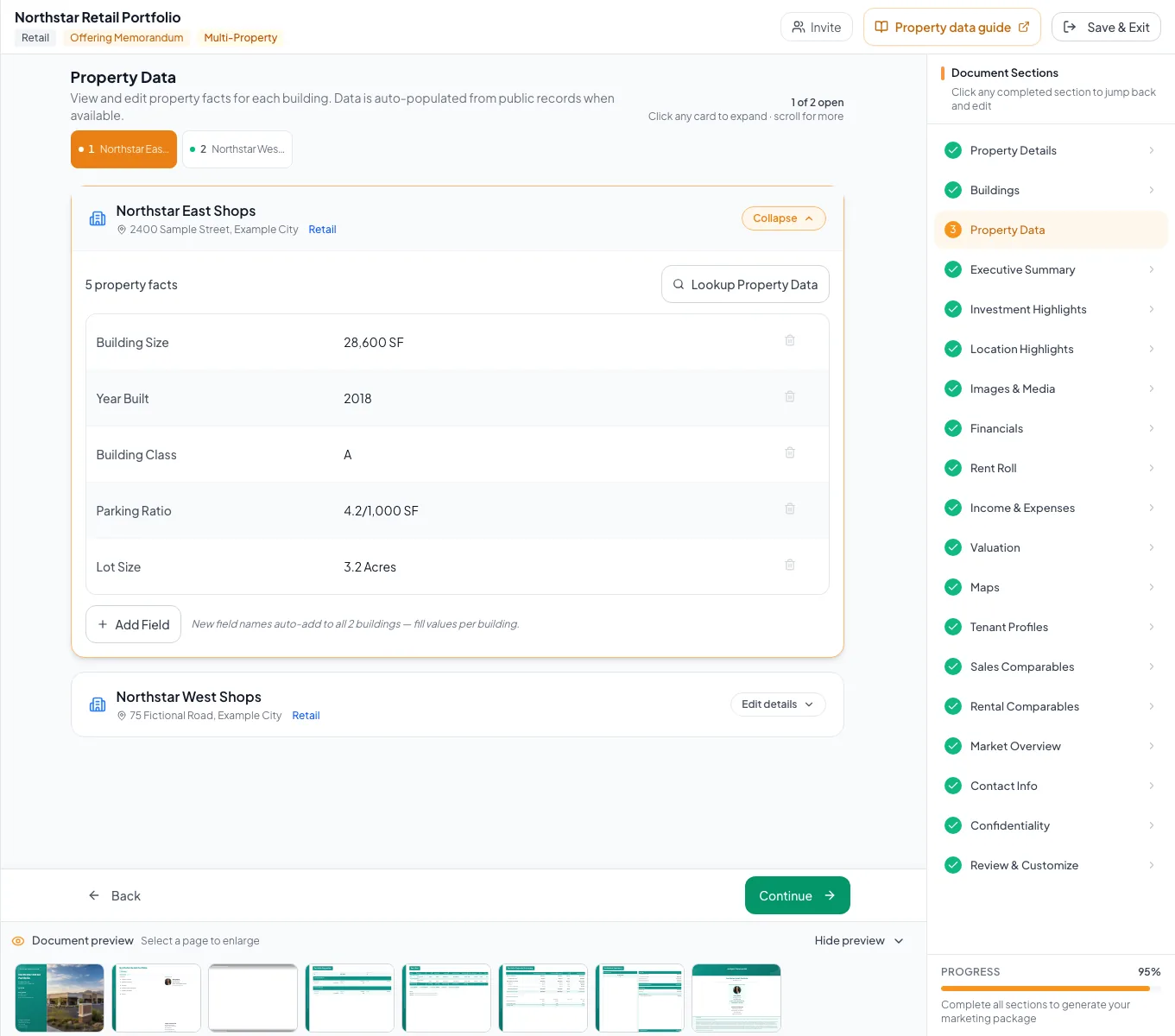
Enter each building's source data in its proper record and reconcile per-building facts with portfolio totals. - 6
Add a fact field
Building Property Data table > Add field
Add one suggested or custom field needed by the source.
Expected result: A labeled row appears in the intended building table.
If this step does not work
Delete an accidental empty row before adding a replacement.
- 7
Enter the fact value
Building Property Data table > value
Enter the value from your source in the new row.
Expected result: The property table contains the known fact.
If this step does not work
Confirm the unit and building before entering the value.
- 8
Order the fact rows
Building Property Data table > reorder controls
Move one row to its intended reader-priority position.
Expected result: The fact table follows the planned reading order.
If this step does not work
Correct accidental duplicate labels before reordering.
- 9
Complete the remaining records
Property Data building list
Enter the available source facts for each remaining record.
Expected result: Every record has comparable source coverage.
If this step does not work
Do not copy a value across buildings unless the source confirms it applies to each.
- 10
Cross-check shared fields
Property Data building list
Compare shared fields such as SF, units, year, or acreage across the completed records.
Expected result: Unexpected differences are identified for source review.
If this step does not work
Resolve a discrepancy against the source instead of forcing values to match.
- 11
Review generated sections
Review & Customize
Compare each building or property section with its source record.
Expected result: No building displays another building’s facts.
If this step does not work
Return to the matching accordion for corrections.
Protect building-level data
A building is missing from maps or demographics
Likely cause: Coordinates are blank even if text address exists.
- Search and select the address again.
- Use parcel search for Land.
- Confirm the page warning clears.
A row appears under the wrong building
Likely cause: The wrong accordion or building selector was active during entry.
- Record the correct source value.
- Edit the correct building record.
- Remove or correct the misplaced row intentionally.
Removing a building will delete linked records
Likely cause: Building deletion is a permanent cascade.
- Read the confirmation counts.
- Cancel and preserve or relocate source data first.
- Delete only when the entire record and its linked data should be removed.
Building data complete
- Names unique and reader-friendly
- Types accurate
- Addresses geocoded
- Physical facts sourced
- No empty or duplicate rows
- No data under the wrong record
Related guides
Build a multi-building or portfolio document
Package several buildings, parcels, or locations into one OM or teaser, with each property on the map and in the order buyers should see them.
Open guideBuild multi-property rent rolls and financials
Enter rent rolls and operating statements building by building, and CREBuilder rolls them up into a Portfolio Financial Summary with building and portfolio NOI.
Open guideReview multi-property document output
Do a final pass on your portfolio or campus document: labels, combined rent roll, financial summary, maps, and page breaks.
Open guideYour next OM, done this afternoon
Turn your property facts, photos and financials into a polished, branded offering memorandum. Most brokers finish in 30 to 90 minutes.
No credit card required.