Outcome
Your document uses the right structure, with one record per unit, building or parcel in the intended order.
Navigation path
Create New > Offering Memorandum or Sales Teaser > Multiple Properties > Buildings & Properties
Access
Offering Memorandum or Sales Teaser creation access
On this page
Before you start
Data, sources, and access to prepare
- An Offering Memorandum or Sales Teaser
- A list of all buildings, parcels, or separate locations
- Address and primary use for each record
Choose the structure by geography
Multiple-property structure
The relationship among the assets determines campus versus portfolio behavior and wording.
Multiple Properties
More than one building, parcel, or address
Multi-Building / Assemblage
Same site or contiguous parcels
Portfolio
Separate locations or scattered holdings
Building Records
One record per building, parcel, or property
Combined Document
Structure-aware labels and pages
- Multiple PropertiesMulti-Building / AssemblageSame site
- Multiple PropertiesPortfolioSeparate sites
- Multi-Building / AssemblageBuilding Records
- PortfolioBuilding Records
- Building RecordsCombined Document
One Building / Multiple Units
- Use when
- Several condos, bays or suites share a site
- Typical examples
- Industrial condos, small-bay flex, individual office suites
- Output framing
- Unit Details with separate unit terms
Multi-Building / Assemblage
- Use when
- The records form one site or one combined asset
- Typical examples
- Office park, apartment complex, mixed-use development, contiguous land parcels
- Output framing
- Building, Parcel, or Property summary with Total
Portfolio
- Use when
- The assets are separate holdings or locations
- Typical examples
- Shopping centers across a metro, scattered land, multi-state portfolio
- Output framing
- Portfolio summary with Portfolio Total
Market several units within one building
Choose One Building / Multiple Units for independently offered condos, bays or suites at one site. This uses the existing OM or Sales Teaser flow. Existing documents retain their current structure until an editor explicitly changes Document structure in the Buildings step and confirms.
Set up unit cards
- 1
Create the first unit
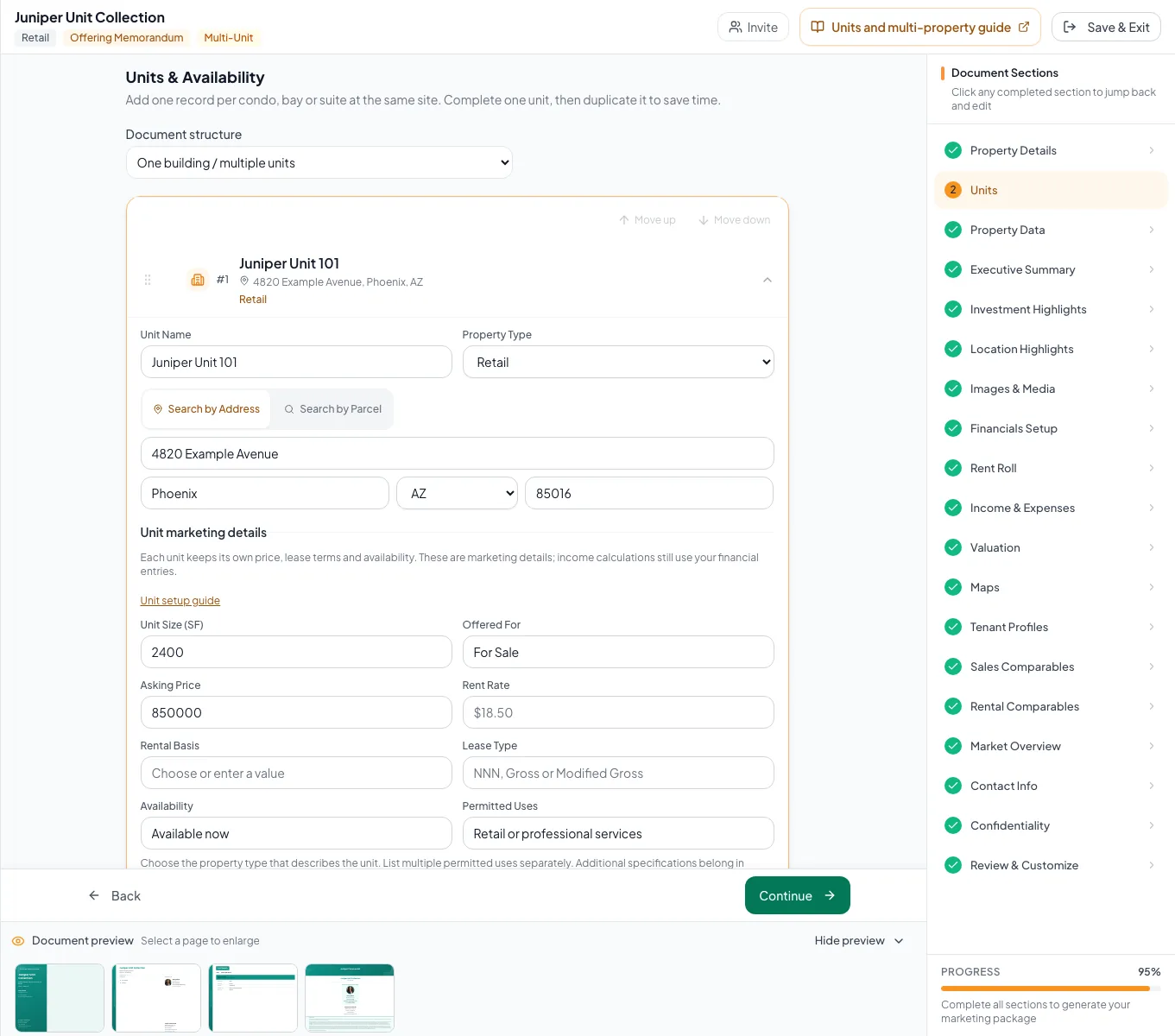
Units & Availability
Select Add Unit.
Expected result: An expanded unit card appears.
If this step does not work
If you see Add Building instead, set Document structure to One building / multiple units and confirm Change structure.
- 2
Name and locate the unit
Expanded unit card
Complete the name, property type and shared address fields.
Expected result: The unit has a reader-facing identity and geocoded site.
If this step does not work
Use Industrial for industrial condos and list permitted uses separately.
- 3
Return to the property section
Sections navigation
Select Property Details.
Expected result: The Portfolio Details heading and shared location section appear.
If this step does not work
Back also returns from Units to Property Details. Add the first unit before changing the shared location.
- 4
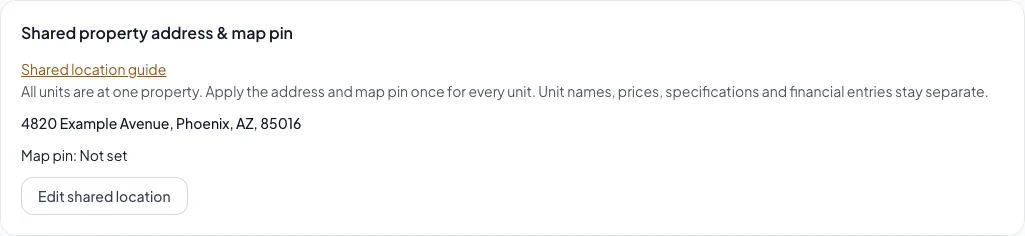
Open the shared location editor
Property Details section, Shared property address & map pin
Select Edit shared location.
Expected result: The latest saved address and map pin open for review.
If this step does not work
Add the first unit before setting a shared location. If units currently have different locations, applying this change moves every unit to one site.
- 5
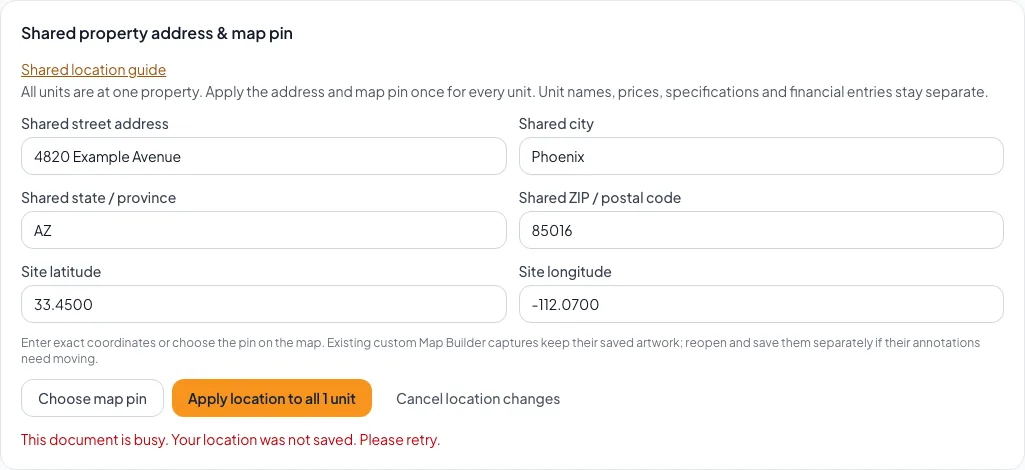
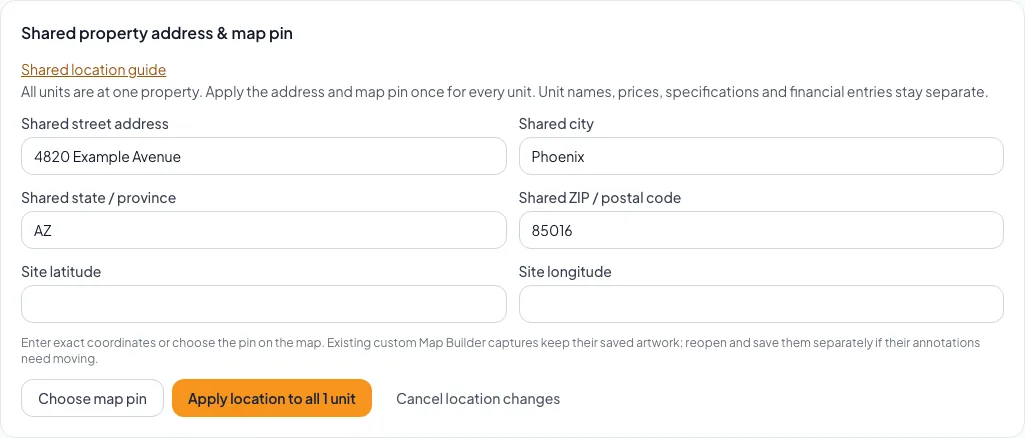
Enter the shared property address
Shared property address & map pin
Enter the shared street address, city, state or province and ZIP or postal code.
Expected result: The proposed address remains visible for review.
If this step does not work
These fields identify the property but do not automatically move its map pin.
- 6
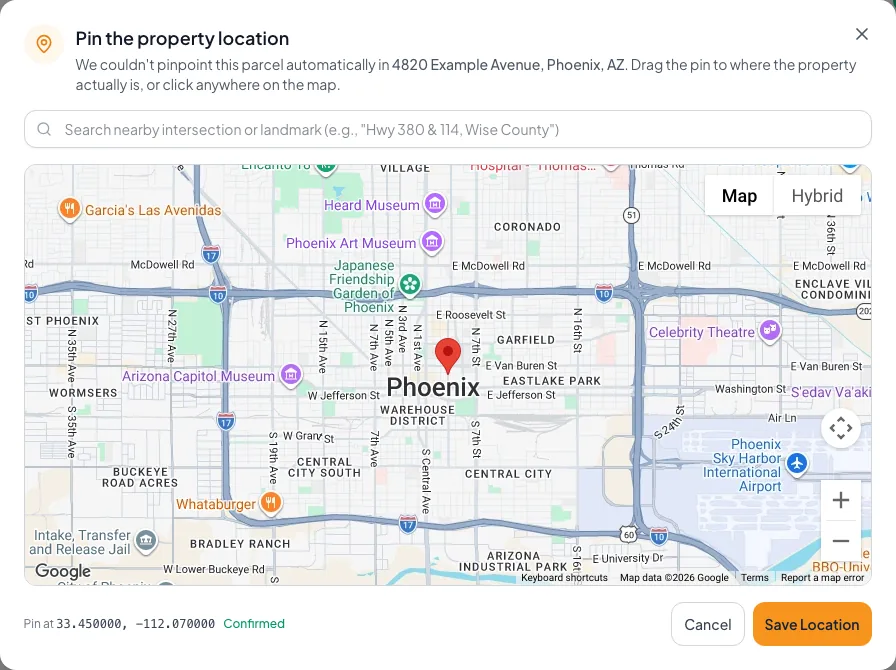
Set the exact map pin
Site latitude and Site longitude
Enter the property latitude and longitude in decimal degrees.
Expected result: The proposed coordinates remain visible for review.
If this step does not work
Alternatively, Choose map pin opens the map for placing the property pin. Latitude must be between -90 and 90 and longitude between -180 and 180, with both nonzero.
- 7
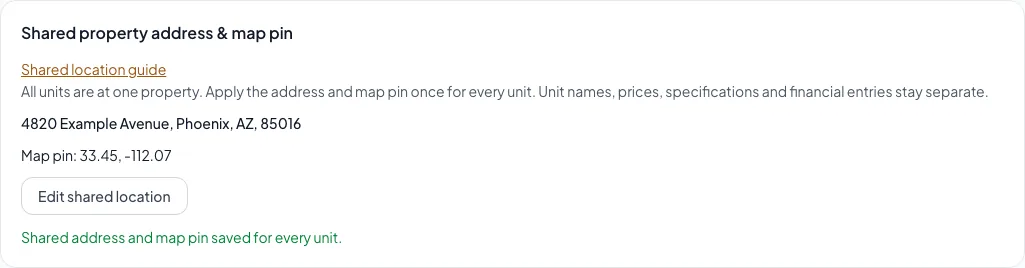
Apply the shared site location
Shared property address & map pin
Select Apply location to all followed by the displayed unit count.
Expected result: The shared address and pin save together for every unit without replacing unit names, prices, specifications or financial entries.
If this step does not work
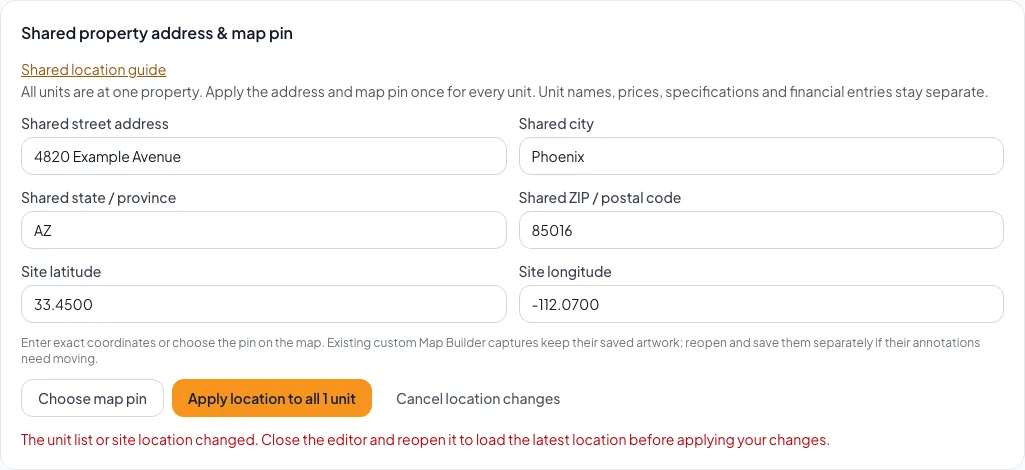
Keep failed entries open and retry. If another session changed the unit list or location, cancel and reopen Edit shared location to load current values. Apply or cancel before leaving the section. Existing custom Map Builder captures keep their artwork; reopen and save those maps separately when annotations need moving.
- 8
Return to the unit list
Sections navigation
Select Units.
Expected result: Units & Availability opens with your saved units.
If this step does not work
Apply or cancel the shared location before navigating.
- 9
Open the unit card
Units & Availability
Select the unit name.
Expected result: The unit card expands with its marketing fields.
If this step does not work
An already expanded card is ready for editing.
- 10
Complete the unit details
Expanded unit card
Enter Unit Size (SF), Offered For, Asking Price, Rent Rate, Rental Basis, Lease Type, Availability and Permitted Uses as applicable.
Expected result: Details save automatically and appear on Unit Details pages.
If this step does not work
Keep the card open and use Retry save if a save fails. Hidden Property Data fields remain hidden.
- 11
Duplicate a similar unit
Expanded unit card, Duplicate Unit
Select Duplicate Unit once. Pending edits finish before the copy is created.
Expected result: A new unit with a copy suffix opens with the address, specifications and marketing facts retained.
If this step does not work
A copy whose result is uncertain must be checked in the refreshed list before retrying.
- 12
Identify and adjust the copy
New unit card
Change the unit name, size, price, terms and availability for the actual offering.
Expected result: The source unit stays unchanged.
If this step does not work
Tenants, vacancies, income and expenses are not copied. Enter linked financial rows separately when needed.
- 13
Check the document
Review & Customize, Unit Details
Review every named unit, all continuation pages, the shared address and the unit count.
Expected result: Long unit facts continue without dropping their text.
If this step does not work
Unit marketing prices do not change the document asking price or calculate rent/NOI. Review those existing financial controls separately.
In Property Data, switching units or collapsing a card waits for pending saves. If a save fails, your entries stay open for Retry save. After a conflict, Load latest saved values asks before replacing unsaved entries with current saved facts. Lookup results that arrive after your facts change are skipped. If a field name cannot be copied to the other units, use Retry field sync.
No automatic conversion
Changing structure retains existing record IDs, custom data and linked financial entries. Switching back restores the prior structure labels without deleting unit details. Units and campus use same-site maps and consolidated financial summaries; portfolio is for separate locations. Review those presentation differences before sharing.
Plan one record per data owner
A record owns linked data
Tenant, vacancy, expense, income, and property-data records can belong to a specific building. Create the building list before entering those downstream records.
Building or Parcel Name Required
Reader-facing label for the record.
- Format
- Plain text
- Units
- Not applicable
- Save behavior
- Typing triggers a per-building 400 ms debounced save; verify the collapsed card retains the name.
- Downstream effect
- Labels the record in building lists, accordions, and generated building or parcel sections.
Property Type Recommended
Controls the record-specific data and financial terminology.
- Format
- Select one supported property type
- Units
- Not applicable
- Save behavior
- The building update saves after the selection change through the per-field 400 ms debounce.
- Downstream effect
- Controls property-specific labels, available Property Data suggestions, and the record financial editor behavior.
Address Recommended
Street, city, state, and ZIP for the record.
- Format
- In a record card, select an address or parcel-search result. For unit documents, the shared location editor also accepts typed street, city, state or province, and ZIP or postal code.
- Units
- Postal address
- Save behavior
- Selecting a search result saves parsed address fields and geocoded values for that record. Typed shared-location fields save for all units only with Apply location; typing an address does not move the map pin.
- Downstream effect
- Identifies the record location and supplies the source used to place it on portfolio maps and demographics.
Latitude and Longitude Recommended
Coordinates identifying the record location or shared unit site.
- Format
- Record cards display search-generated coordinates. For unit documents, Site latitude and Site longitude in the shared location editor accept decimal degrees, or Choose map pin sets them.
- Units
- Decimal degrees
- Save behavior
- A successful selected search result saves coordinates for that record. Shared unit coordinates save for all units only with Apply location; latitude must be from -90 to 90 and longitude from -180 to 180, both nonzero.
- Downstream effect
- Places the record on Portfolio Map and contributes to the multi-property demographics centroid.
Order Recommended
Sequence used by building lists and generated sections.
- Format
- Drag or keyboard-defined list position
- Units
- Ordinal position
- Save behavior
- A reorder action saves the full ordered building-ID list; a failed request rolls the visible order back.
- Downstream effect
- Controls building-list order and the sequence of generated building or parcel sections.
Building or Parcel Name
- Requirement
- Required
- What it means
- Reader-facing label for the record.
- Format
- Plain text
- Units
- Not applicable
- Save behavior
- Typing triggers a per-building 400 ms debounced save; verify the collapsed card retains the name.
- Downstream effect
- Labels the record in building lists, accordions, and generated building or parcel sections.
Property Type
- Requirement
- Recommended
- What it means
- Controls the record-specific data and financial terminology.
- Format
- Select one supported property type
- Units
- Not applicable
- Save behavior
- The building update saves after the selection change through the per-field 400 ms debounce.
- Downstream effect
- Controls property-specific labels, available Property Data suggestions, and the record financial editor behavior.
Address
- Requirement
- Recommended
- What it means
- Street, city, state, and ZIP for the record.
- Format
- In a record card, select an address or parcel-search result. For unit documents, the shared location editor also accepts typed street, city, state or province, and ZIP or postal code.
- Units
- Postal address
- Save behavior
- Selecting a search result saves parsed address fields and geocoded values for that record. Typed shared-location fields save for all units only with Apply location; typing an address does not move the map pin.
- Downstream effect
- Identifies the record location and supplies the source used to place it on portfolio maps and demographics.
Latitude and Longitude
- Requirement
- Recommended
- What it means
- Coordinates identifying the record location or shared unit site.
- Format
- Record cards display search-generated coordinates. For unit documents, Site latitude and Site longitude in the shared location editor accept decimal degrees, or Choose map pin sets them.
- Units
- Decimal degrees
- Save behavior
- A successful selected search result saves coordinates for that record. Shared unit coordinates save for all units only with Apply location; latitude must be from -90 to 90 and longitude from -180 to 180, both nonzero.
- Downstream effect
- Places the record on Portfolio Map and contributes to the multi-property demographics centroid.
Order
- Requirement
- Recommended
- What it means
- Sequence used by building lists and generated sections.
- Format
- Drag or keyboard-defined list position
- Units
- Ordinal position
- Save behavior
- A reorder action saves the full ordered building-ID list; a failed request rolls the visible order back.
- Downstream effect
- Controls building-list order and the sequence of generated building or parcel sections.
Required means the field is needed to complete or support this workflow. Some screens allow a draft to save before every required item is complete. The steps and troubleshooting call out controls the product actively blocks.
Create and order the structure
Multi-property creation steps
- 1
Choose a supported package
Create New, Marketing Package
Select Offering Memorandum or Sales Teaser.
Expected result: The Single Property or Multiple choice appears.
If this step does not work
If the choice does not appear, confirm the selected package supports multiple properties.
- 2
Choose Multiple Properties
Single Property or Multiple
Select Multiple Properties.
Expected result: The structure choice opens.
If this step does not work
Choose Single Property only when one subject record is sufficient.
- 3
Choose units, campus or portfolio
One Building / Multiple Units, Multi-Building / Assemblage or Portfolio
Select the option that matches the geography and buyer framing.
Expected result: The choice is stored for page labels and presentation behavior.
If this step does not work
Return before document creation if the records are actually separate locations versus one site.
- 4
Add every record
Buildings & Properties (Units & Availability for units, Parcels & Properties for land)
Select Add Building, Add Parcel or Add Unit for each record. The button matches your document structure.
Expected result: A new expanded card appears with a default name.
If this step does not work
Avoid repeated clicks while creation is pending. The page guards against rapid duplicates.
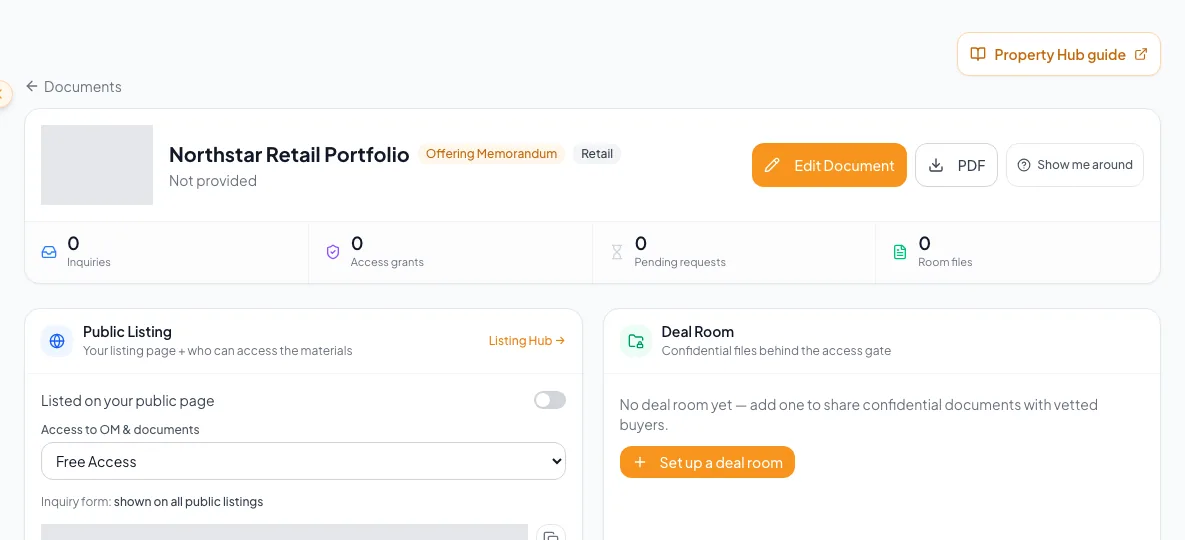
Add each property as its own building record and verify the names before entering property data. - 5
Complete identity and location
Expanded building card
Enter the reader-facing name, property type, and searchable address or parcel location.
Expected result: The collapsed card shows name, location, and type.
If this step does not work
If coordinates remain missing, reopen the card and search the address or use parcel search.
- 6
Set presentation order
Buildings & Properties card list
Drag cards or use keyboard sorting to arrange the final sequence.
Expected result: Cards remain in the intended order after save.
If this step does not work
If a failed save rolls the order back, follow the error toast and retry.
Resolve structural mistakes early
Multiple Properties is unavailable
Likely cause: Only Offering Memorandum and Sales Teaser currently appear in the multi-property package list.
- Choose a supported package.
- Create separate documents when the required package does not support this flow.
A property is absent from the portfolio map
Likely cause: Its address did not produce latitude and longitude.
- Expand its card.
- Search and select the exact address or parcel.
- Confirm the missing-coordinate warning clears.
The document says Portfolio but the site is one campus
Likely cause: The wrong structure was selected during creation.
- Review the intended buyer framing.
- Correct the saved portfolio mode through supported controls or rebuild before entering extensive content.
- Verify summary labels.
Structure ready
- Supported package selected
- Units, campus or portfolio chosen correctly
- One card per data owner
- Every card named and typed
- Addresses geocoded
- Display order set
Related guides
Manage building and parcel data
Give each building or parcel its own facts, so every property section in your document shows the right size, units, and details.
Open guideBuild multi-property rent rolls and financials
Enter rent rolls and operating statements building by building, and CREBuilder rolls them up into a Portfolio Financial Summary with building and portfolio NOI.
Open guideBuild a Land document
Market a site with acreage, zoning, entitlements, utilities, access, and Price/Acre, without rent-roll pages getting in the way.
Open guideYour next OM, done this afternoon
Turn your property facts, photos and financials into a polished, branded offering memorandum. Most brokers finish in 30 to 90 minutes.
No credit card required.