Outcome
You will update a live room safely and close it when diligence ends, with every prospect and download still on record.
Navigation path
Deal Rooms > Open room > Room settings
Access
Requires edit access to the room.
On this page
Before you start
Data, sources, and access to prepare
- An existing room
- Edit access to the room
Prepare these details
- Note the current Access gate, NDA, status, watermark, and notification settings
- Identify buyers who currently have access
- Decide whether the room stays active or should be archived
Complete the task
- 1
Open room settings
Deal Rooms > room
Select Settings & sharing.
Expected result: Access gate, Room settings, NDA document, and Share appear.
If this step does not work
Ask the room owner for edit access if the controls are disabled.
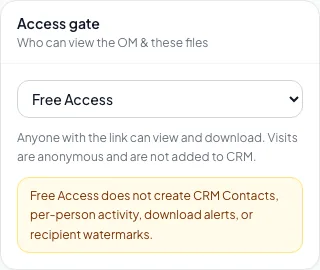
Change files or access safely, close the room when appropriate, and verify that prospects see the intended state. - 2
Change one setting
Room > Access gate or Room settings
Change the setting you need.
Expected result: A confirmation such as Access gate updated appears.
If this step does not work
Restore the earlier value if the save reports an error.
- 3
Review affected prospects
Room > Prospects
Review current access statuses after an access change.
Expected result: You know who keeps, loses, or needs new access.
If this step does not work
Revoke a specific person when your policy requires it.
- 4
Test the visitor path
Public Deal Room
Open the room in a private window.
Expected result: The gate and files match your saved settings.
If this step does not work
Use a new test email address when an earlier visit skips the gate.
- 5
Set the room status
Room > Room settings > Status
Select Active or Archived (visitors blocked).
Expected result: The room shows the selected status.
If this step does not work
Keep Active while buyers still need access.
- 6
Verify the owner archive
Deal Rooms
Open the archived room.
Expected result: Its prospects, activity, and files are still available to you.
If this step does not work
Refresh after saving before concluding the archive failed.
- 7
Verify the visitor archive
Public Deal Room URL
Open the archived room in a signed-out browser.
Expected result: Visitors are blocked from the room.
If this step does not work
Check the saved Status if the room still opens.
Change-impact reference
| Change | Retest |
|---|---|
| Access gate | The full visitor gate, CRM identity, approvals, and watermark eligibility |
| NDA document | Agreement display, signature, and executed copy |
| Watermark downloads | One identified PDF download |
| Files | The visitor file list and one download |
| Status to Archived | Owner history and visitor blocking |
Archiving is how you close a room. The Access gate is shared with the property’s listing, so changing it in the room also changes the public property page.
Troubleshooting and next steps
A changed setting appears to revert.
Likely cause: The save failed or the page is stale.
- Read the confirmation message.
- Reload the room before repeating the change.
An archived room still appears in Deal Rooms.
Likely cause: Archiving blocks visitors but keeps the room and its history for you.
- Confirm the status reads Archived.
- Test the visitor link in a signed-out window.
Final verification
- Only the intended setting changed
- Affected prospects were reviewed
- The visitor path was retested
- If you archived a room, its history is still available to you
- No confidential file is reachable outside your policy
- No blocking warning, failed status, or unresolved validation message remains in the completed workflow.
Your next OM, done this afternoon
Turn your property facts, photos and financials into a polished, branded offering memorandum. Most brokers finish in 30 to 90 minutes.
No credit card required.